Introduction
Thank you for choosing the YINDIAO K68 60% Wireless Mechanical Gaming Keyboard. This compact and versatile keyboard offers dual-mode connectivity (Bluetooth 5.0 and 2.4 GHz wireless) and features hot-swappable mechanical switches for a customizable typing and gaming experience. This manual provides detailed instructions on setting up, operating, maintaining, and troubleshooting your keyboard to ensure optimal performance.

The YINDIAO K68 keyboard, showcasing its compact 60% layout and the included USB-C 2-in-1 receiver.
Product Features
- Dual-Mode Connectivity: Supports Bluetooth 5.0 and 2.4 GHz wireless connections with a 2-in-1 USB-C receiver, allowing connection to PC, laptop, iPad, mobile phone, and PS4.
- Multi-Device Support: Connects up to 3 devices simultaneously (1 via 2.4 GHz, 2 via Bluetooth) with easy switching.
- 60% Compact Layout: 68-key layout with separate arrow keys, optimizing desktop space while retaining essential functions.
- Hot-Swappable Switches: Features a hot-swappable PCB compatible with 3-pin switches, allowing for easy customization and replacement without soldering.
- Blue Clicky Switches: Equipped with blue switches providing a clear "click" sound and tactile feedback, ideal for gaming and typing.
- Smart Power Saving: Automatic sleep mode after 30 seconds of inactivity to conserve battery life.
- Durable Keycaps: Mixed-color ABS keycaps made with Doubleshot Injection Moulding for enhanced durability.
- Wide Compatibility: Compatible with Windows 7/8/10/11/2000/XP, Vista, Mac OS, and Android systems.

An overview of the YINDIAO K68's main features, including its compact layout, wireless capabilities, and hot-swappable design.
Setup Guide
1. Unboxing
Carefully remove the keyboard and its accessories from the packaging. The package typically includes the YINDIAO K68 keyboard, a 2-in-1 USB-C receiver, and tools for keycap and switch removal.
2. Battery Installation
The YINDIAO K68 keyboard requires two (2) AAA batteries (not included). Locate the battery compartment on the underside of the keyboard. Open the compartment cover, insert the batteries according to the polarity indicators (+/-), and close the cover securely.

The underside of the keyboard, highlighting the battery compartment for two AAA batteries and the power switch.
3. Power On/Off
After installing the batteries, locate the power switch on the underside of the keyboard, near the battery compartment. Slide the switch to the 'ON' position to power on the keyboard.
Operating Modes & Connection
The YINDIAO K68 supports two wireless connection modes: 2.4 GHz and Bluetooth 5.0. It can connect to up to three devices simultaneously.
1. 2.4 GHz Wireless Connection
- Ensure the keyboard is powered on.
- Locate the 2-in-1 USB-C receiver. This receiver can be used in both USB-A and USB-C ports.
- Plug the receiver into an available USB-A or USB-C port on your computer or device.
- On the keyboard, press FN + Q to switch to 2.4 GHz mode. The keyboard should automatically connect to the receiver.

The versatile 2-in-1 USB-C receiver, compatible with both USB-A and USB-C ports for wireless connectivity.
2. Bluetooth 5.0 Connection
The keyboard supports two Bluetooth channels (BT1 and BT2).
- Ensure the keyboard is powered on.
- Press FN + W to select Bluetooth channel 1 (BT1) or FN + E to select Bluetooth channel 2 (BT2). The corresponding indicator light on the keyboard will flash, indicating it's in pairing mode.
- On your device (PC, laptop, tablet, smartphone), enable Bluetooth and search for new devices.
- Select "K68TB5.0" or "K68TB3.0" (depending on the Bluetooth version) from the list of available devices to pair.
- Once paired, the indicator light on the keyboard will stop flashing and remain solid.

The keyboard's ability to connect to three devices simultaneously, illustrating both 2.4 GHz and Bluetooth connections.
3. Switching Between Connected Devices
To switch between your connected devices, simply press FN + Q for the 2.4 GHz connection, FN + W for Bluetooth channel 1, or FN + E for Bluetooth channel 2.
Key Functions and Layout
The YINDIAO K68 features a compact 68-key US layout, providing essential keys while saving space. It includes dedicated arrow keys and supports 19-key anti-ghosting for accurate input during fast typing or gaming.
Hot-Swappable Switches
The keyboard's PCB supports 3-pin hot-swappable switches, allowing you to easily change switches without soldering. This enables customization of your typing feel or replacement of faulty switches.
- Use the included keycap puller to gently remove the desired keycap.
- Use the included switch puller to carefully grip and pull out the switch from its socket.
- Align the pins of the new 3-pin switch with the holes on the PCB and gently press it into place until it clicks. Ensure the pins are straight to avoid bending.
- Replace the keycap.

A close-up view demonstrating the hot-swappable socket, allowing for easy removal and replacement of 3-pin switches.
Keycaps
The keyboard features mixed-color ABS keycaps manufactured using Doubleshot Injection Moulding. This process ensures the legends are durable and will not fade over time.
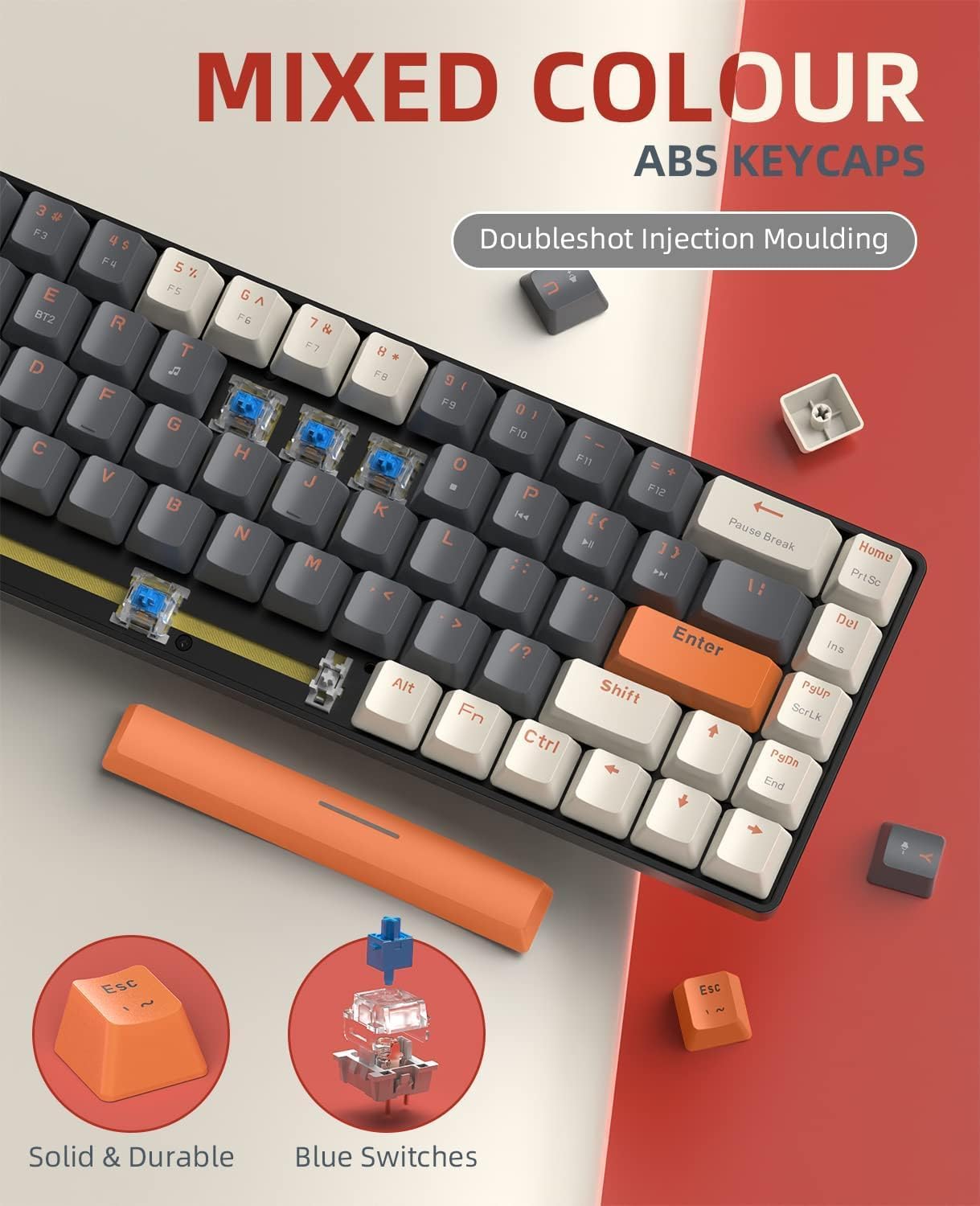
Detail of the mixed-color ABS keycaps, highlighting their Doubleshot Injection Moulding process and the blue mechanical switches.
Power Management
The YINDIAO K68 keyboard is designed with smart power-saving features to maximize battery life.
- Automatic Sleep Mode: If the keyboard is idle for 30 seconds, it will automatically enter sleep mode to conserve power.
- Waking Up: To wake the keyboard from sleep mode, simply press any key.
- Battery Life: Under normal usage, the keyboard can operate for approximately 3 to 6 months on a single set of AAA batteries.
- Low Battery Indication: If keys stop functioning correctly or connection becomes unstable, it may indicate low battery. Replace the AAA batteries as needed.

Visual representation of the keyboard's battery power and smart power-saving capabilities, including its automatic sleep mode.
Maintenance
Proper maintenance will extend the life and performance of your YINDIAO K68 keyboard.
- Cleaning: Regularly clean the keyboard with a soft, dry cloth. For deeper cleaning, remove keycaps using the provided puller and use compressed air to clear debris from between the switches.
- Keycap and Switch Replacement: Refer to the "Key Functions and Layout" section for instructions on how to safely remove and replace keycaps and switches.
- Storage: When not in use for extended periods, turn off the keyboard using the power switch and store it in a dry, dust-free environment.
Troubleshooting
| Problem | Possible Cause | Solution |
|---|---|---|
| Keyboard not connecting/responding. | Low batteries, keyboard off, incorrect mode, pairing issue, receiver not plugged in. | Replace batteries, turn on keyboard, switch to correct mode (2.4G/BT1/BT2), re-pair Bluetooth, ensure receiver is fully inserted. |
| Keys not registering input. | Low batteries, faulty switch, debris under keycap. | Replace batteries, try swapping the switch with a known good one, clean under the keycap. |
| Bluetooth connection unstable/laggy. | Interference, distance from device, low battery. | Move closer to device, reduce interference from other wireless devices, replace batteries. |
| 2.4 GHz connection unstable. | Interference, distance from receiver, receiver not properly inserted. | Move closer to receiver, ensure receiver is fully inserted, try a different USB port. |
Specifications
| Feature | Detail |
|---|---|
| Brand | YINDIAO |
| Model | K68 |
| Connectivity Technology | Bluetooth 5.0 / 2.4 GHz Wireless |
| Number of Keys | 68 |
| Keyboard Description | Mechanical |
| Switch Type | Blue Clicky Switch (Hot-swappable 3-pin) |
| Keycap Material | ABS (Doubleshot Injection Moulding) |
| Power Source | 2 x AAA Batteries (not included) |
| Compatible Devices | PC, Laptop, Smartphone, Tablet, Gaming Console |
| Operating System | Windows 7/8/10/11/2000/XP, Vista, Mac OS, Android |
| Product Weight | 670 g |
| Product Dimensions | 33 x 10.8 x 5.7 cm |
Warranty and Support
For warranty information and technical support, please refer to the product packaging or contact your retailer. Keep your purchase receipt as proof of purchase for any warranty claims.
For common issues, please refer to the Troubleshooting section of this manual. If you require further assistance, please reach out to the customer support provided by your point of purchase.


