
1. Introduction
Thank you for purchasing the PrimeCables AlienPro StagePro G300 Bluetooth Soundbar with Subwoofer. This manual provides essential information for the safe and efficient operation of your new audio system. Please read this manual thoroughly before use and retain it for future reference.
2. Safety Information
- Power Source: Ensure the power supply voltage matches the requirements specified on the device.
- Ventilation: Do not block any ventilation openings. Install in accordance with the manufacturer's instructions.
- Water and Moisture: Do not expose this appliance to rain or moisture. Do not place objects filled with liquids, such as vases, on the apparatus.
- Heat: Do not install near any heat sources such as radiators, heat registers, stoves, or other apparatus (including amplifiers) that produce heat.
- Cleaning: Clean only with a dry cloth.
- Servicing: Refer all servicing to qualified service personnel. Servicing is required when the apparatus has been damaged in any way.
3. Package Contents
Verify that all items listed below are included in your package:
- Soundbar
- Subwoofer
- Power Cable
- Remote Control
- User Manual (this document)
4. Product Overview
Familiarize yourself with the components of your sound system.

Figure 4.1: Front view of the soundbar, showcasing its sleek black design and speaker grille.

Figure 4.2: Rear view of the soundbar, showing the recessed panel containing various input ports.

Figure 4.3: The included subwoofer, a black cube-shaped unit with a front-facing port for enhanced bass.
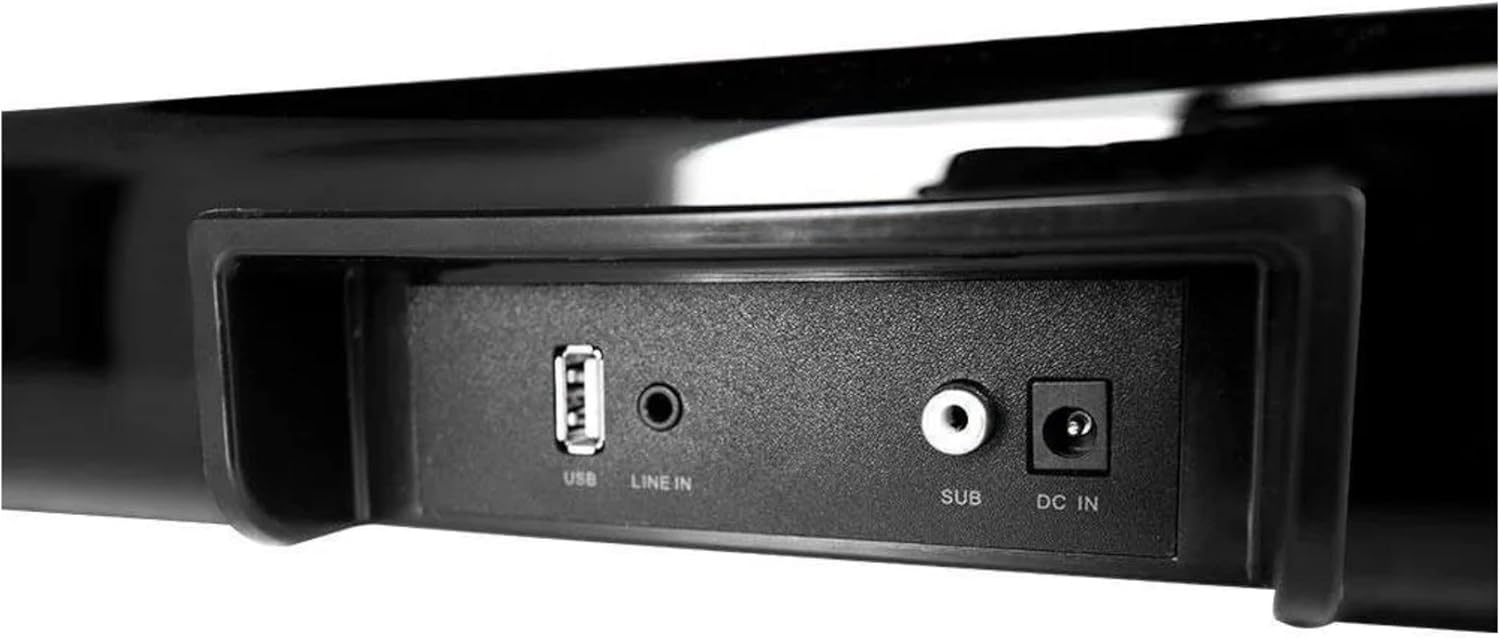
Figure 4.4: Detailed view of the soundbar's input panel, featuring USB, Line In, Subwoofer Out, and DC In ports.

Figure 4.5: Side panel controls on the soundbar, including Power/Mode, Play/Mute, Volume Up/Next, and Volume Down/Previous buttons.

Figure 4.6: The included remote control, featuring buttons for power, mute, EQ, volume, playback, and mode selection.
5. Setup
5.1 Placement
- Place the soundbar on a stable, flat surface directly in front of your television or monitor.
- Position the subwoofer on the floor, ideally near the soundbar, to optimize bass response. Ensure it has adequate ventilation.
5.2 Connections
- Connect the subwoofer to the soundbar using the dedicated 'SUB' output port on the soundbar and the corresponding input on the subwoofer.
- Connect the power cable to the 'DC IN' port on the soundbar and then plug it into a wall outlet.
- Connect your audio source (TV, smartphone, etc.) to the soundbar using one of the available input methods (Bluetooth, Line In, USB). Refer to Section 7 for detailed connection instructions.
6. Operating Instructions
6.1 Power On/Off
- Press the Power/Mode button on the soundbar (Figure 4.5) or the Power button on the remote control (Figure 4.6) to turn the unit on or off.
6.2 Mode Selection
- Press the Mode button on the soundbar or remote control repeatedly to cycle through available input modes: Bluetooth, Line In, USB.
6.3 Volume Control
- Use the VOL+ and VOL- buttons on the soundbar or remote control to adjust the volume.
6.4 Mute Function
- Press the Mute button on the remote control to temporarily silence the audio. Press it again to restore sound.
6.5 Playback Controls (Bluetooth/USB Mode)
- Play/Pause: Press the Play/Mute button on the soundbar or the Play/Pause button on the remote.
- Next Track: Press the VOL+/Next button on the soundbar or the Next Track button on the remote.
- Previous Track: Press the VOL-/Previous button on the soundbar or the Previous Track button on the remote.
7. Connections
7.1 Bluetooth Pairing
- Power on the soundbar.
- Press the Mode button until 'BT' or 'Bluetooth' is indicated (if applicable, via LED or display). The soundbar will enter pairing mode.
- On your Bluetooth-enabled device (e.g., smartphone, tablet), search for available Bluetooth devices.
- Select 'AlienPro G300' (or similar name) from the list.
- Once paired, the soundbar will confirm the connection, and you can now play audio wirelessly.
7.2 Line In (AUX) Connection
- Connect one end of a 3.5mm audio cable (not included) to the 'LINE IN' port on the soundbar (Figure 4.4).
- Connect the other end of the 3.5mm audio cable to the headphone jack or audio output port of your external device.
- Press the Mode button on the soundbar or remote until 'LINE IN' or 'AUX' mode is selected.
7.3 USB Connection
- Insert a USB flash drive containing audio files into the 'USB' port on the soundbar (Figure 4.4).
- Press the Mode button on the soundbar or remote until 'USB' mode is selected.
- The soundbar will automatically begin playing audio files from the USB drive. Use the playback controls to navigate.
8. Maintenance
8.1 Cleaning
- Always unplug the soundbar and subwoofer from the power outlet before cleaning.
- Use a soft, dry cloth to wipe the surfaces of the soundbar and subwoofer.
- Do not use liquid cleaners, aerosol sprays, or solvents, as these may damage the finish or internal components.
8.2 Storage
- If storing the unit for an extended period, unplug it from the power source and store it in a cool, dry place away from direct sunlight and extreme temperatures.
9. Troubleshooting
If you encounter issues with your soundbar, refer to the following common problems and solutions:
| Problem | Possible Cause | Solution |
|---|---|---|
| No power | Power cable not connected; Power outlet not active | Ensure power cable is securely connected to the soundbar and a working power outlet. |
| No sound | Volume too low; Incorrect input mode; Audio cable not connected; Device not paired (Bluetooth) | Increase volume. Select correct input mode. Check audio cable connections. Re-pair Bluetooth device. |
| Bluetooth pairing fails | Soundbar not in pairing mode; Device too far; Interference | Ensure soundbar is in Bluetooth pairing mode. Move device closer to soundbar. Avoid strong interference sources. |
| Remote control not working | Batteries depleted; Obstruction between remote and soundbar | Replace remote control batteries. Ensure clear line of sight to the soundbar's IR receiver. |
10. Specifications
| Feature | Specification |
|---|---|
| Model Number | G300 |
| Brand | PrimeCables (AlienPro) |
| Connectivity Technology | Bluetooth |
| Audio Output Mode | Surround |
| Speaker Type | Soundbar |
| Special Feature | Bluetooth |
| Recommended Use | For surround sound systems |
| Surround Sound Channel Configuration | 2.0 |
| Color | Black |
| Product Dimensions | 30 x 24 x 65 cm; 3.3 kg |
| Speaker Size | 5 Inches (Subwoofer) |
| Power Source | Corded Electric |
| Control Method | Remote |
11. Warranty and Support
This product comes with a standard manufacturer's warranty. For specific warranty terms and conditions, please refer to the documentation provided at the time of purchase or contact PrimeCables customer support.
For technical assistance, troubleshooting not covered in this manual, or service inquiries, please contact PrimeCables customer support through their official website or contact channels.