1. Introduction
This manual provides essential instructions for the installation, operation, and maintenance of your MSI GeForce RTX 4080 16GB Ventus 3X OC Gaming Graphics Card. Please read this manual thoroughly before installation to ensure proper setup and optimal performance. Retain this manual for future reference.
2. Product Overview
The MSI GeForce RTX 4080 16GB Ventus 3X OC is a high-performance graphics card designed for gaming and creative applications. It features the NVIDIA Ada Lovelace architecture, 16GB of GDDR6X memory, and advanced cooling solutions to maintain stable operation under demanding workloads.
Key features include:
- NVIDIA Ada Lovelace Architecture: Delivers enhanced performance and power efficiency.
- Ray Tracing: Provides realistic lighting, shadows, and reflections for immersive visual experiences.
- DLSS (Deep Learning Super Sampling): AI-powered rendering technology that boosts frame rates while maintaining image quality.
- 16GB GDDR6X Memory: High-speed memory for demanding games and applications.
- Triple Fan Cooling System: Designed for efficient heat dissipation and quiet operation.

Image: The MSI GeForce RTX 4080 16GB Ventus 3X OC graphics card shown with its retail packaging.
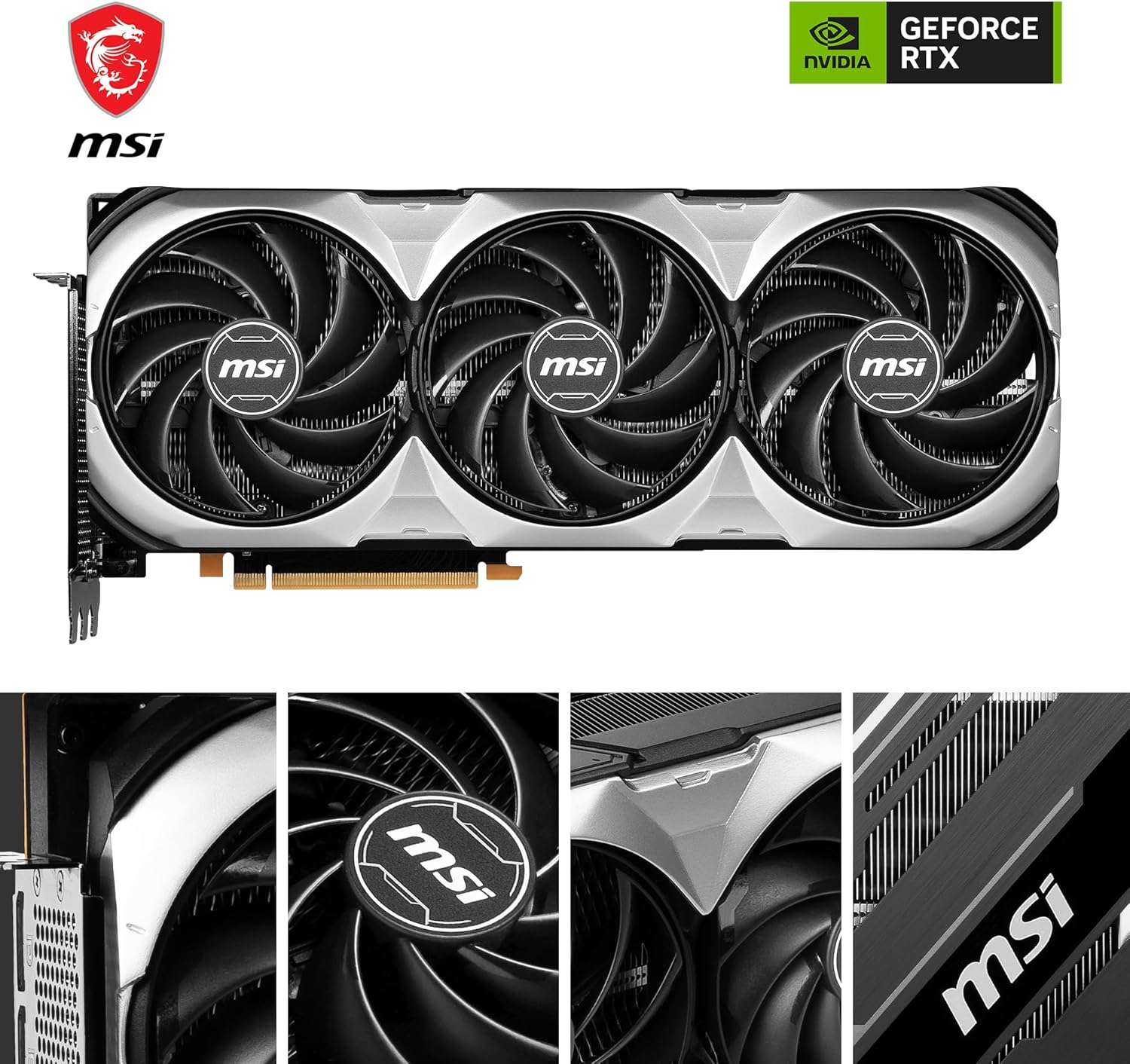
Image: A detailed view of the three cooling fans on the graphics card, highlighting their design.
3. Setup and Installation
3.1 Pre-installation Checklist
- Compatible Motherboard: Ensure your motherboard has an available PCI Express Gen 4 x16 slot.
- Power Supply Unit (PSU): A minimum 750W PSU is recommended. Verify your PSU has the necessary 12VHPWR connector or sufficient 8-pin PCIe power connectors with an adapter.
- Case Clearance: The card dimensions are approximately 12.68 x 5.35 x 2.48 inches (32.2 x 13.6 x 6.3 cm). Ensure your PC case has adequate space.
- Tools: Phillips head screwdriver.
- Safety: Always disconnect power from your PC before handling internal components. Use anti-static precautions.
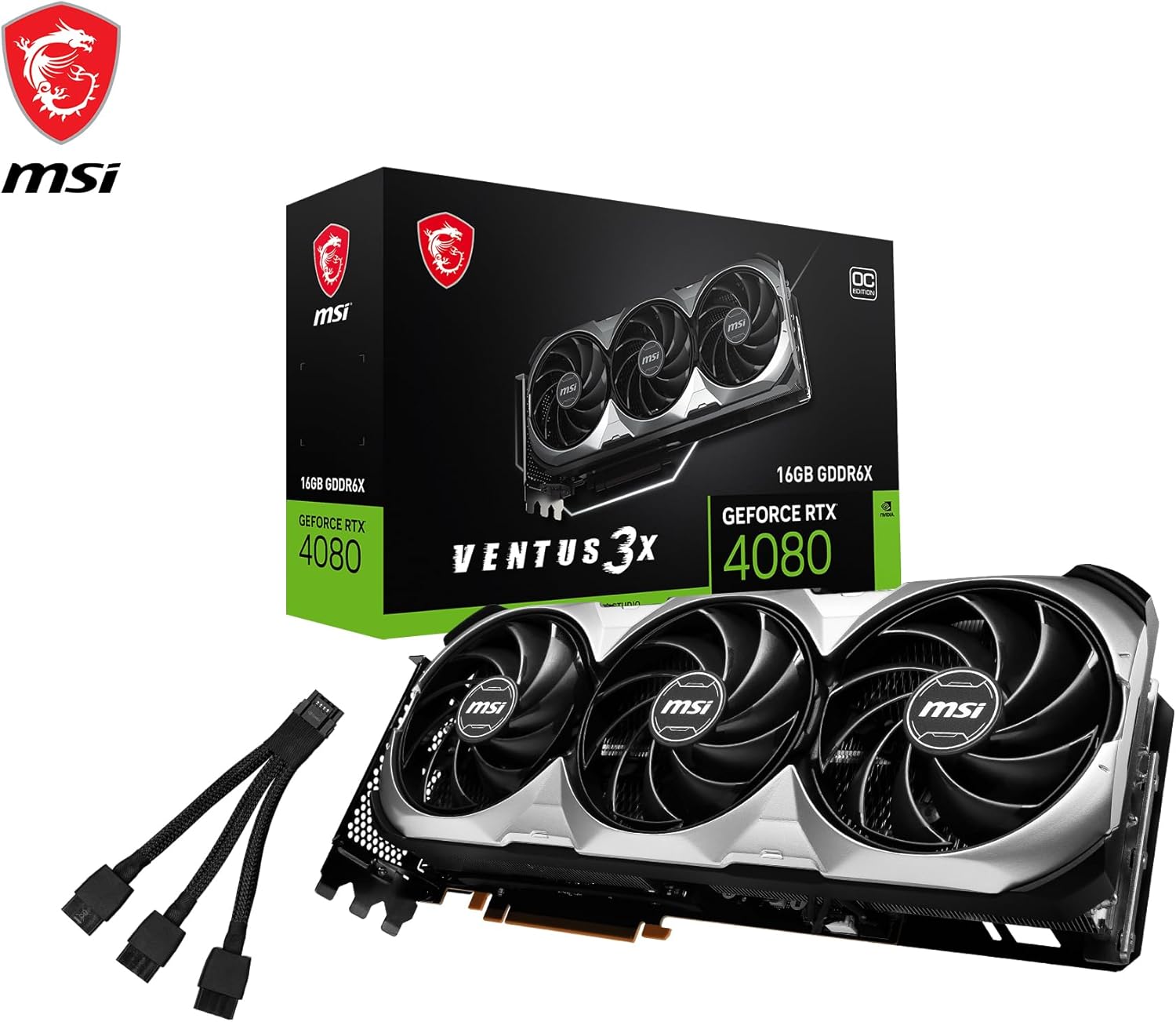
Image: Diagram showing the physical dimensions of the graphics card and its display output ports (DisplayPort 1.4a and HDMI 2.1a).
3.2 Physical Installation
- Prepare Your PC: Power off your computer and unplug all cables. Open the side panel of your PC case.
- Locate PCIe Slot: Identify an available PCI Express x16 slot on your motherboard. Remove any expansion slot covers that obstruct the installation.
- Insert Graphics Card: Carefully align the graphics card with the PCIe slot and press down firmly until it is securely seated. Ensure the retention clip on the motherboard clicks into place.
- Secure the Card: Use screws to fasten the graphics card to the PC case's expansion slot bracket.
- Connect Power: Connect the required power cables from your PSU to the graphics card. The RTX 4080 typically uses a 12VHPWR connector or multiple 8-pin PCIe connectors via an adapter. Ensure all connections are firm.
- Connect Display Cables: Connect your monitor(s) to the graphics card's DisplayPort 1.4a or HDMI 2.1a ports.
- Close Case: Replace the PC case side panel and reconnect all external cables.
3.3 Driver Installation
After physical installation, power on your PC. Windows should detect new hardware. To ensure optimal performance and access to all features, install the latest NVIDIA drivers:
- Download Drivers: Visit the official NVIDIA website (www.nvidia.com/drivers) and download the latest drivers for the GeForce RTX 4080.
- Install Drivers: Run the downloaded installer and follow the on-screen instructions. A clean installation is often recommended.
- Restart PC: Restart your computer after the driver installation is complete.
Consider installing MSI utility software like MSI Center or MSI Afterburner for monitoring, customization, and overclocking capabilities.
4. Operating the Graphics Card
Once installed and drivers are updated, your graphics card is ready for use. It will automatically handle graphics processing for your operating system and applications.
4.1 NVIDIA Control Panel
The NVIDIA Control Panel, installed with the drivers, allows you to customize various display and 3D settings. Access it by right-clicking on your desktop and selecting "NVIDIA Control Panel."
- Display Settings: Adjust resolution, refresh rate, and multiple monitor configurations.
- 3D Settings: Optimize performance or quality for specific games and applications.
4.2 Gaming and Applications
The RTX 4080 excels in demanding games and creative tasks. Ensure that games and applications are configured to utilize the dedicated graphics card and enable features like Ray Tracing and DLSS for enhanced visuals and performance where supported.

Image: Visual representation of the thermal design, illustrating cooler and warmer zones on the graphics card.
5. Maintenance
Regular maintenance helps prolong the lifespan and maintain the performance of your graphics card.
- Dust Removal: Periodically clean dust from the fans and heatsink using compressed air. Ensure the PC is powered off and unplugged before cleaning.
- Driver Updates: Keep your graphics drivers updated to the latest version from the NVIDIA website. These updates often include performance improvements and bug fixes.
- Monitor Temperatures: Use software like MSI Afterburner to monitor GPU temperatures during heavy loads. Ensure temperatures remain within safe operating limits.
- System Airflow: Ensure your PC case has good airflow to prevent heat buildup, which can affect graphics card performance and longevity.
6. Troubleshooting
If you encounter issues with your graphics card, refer to the following common troubleshooting steps:
- No Display Output:
- Ensure display cables are securely connected to both the graphics card and the monitor.
- Verify the monitor input source is correctly selected.
- Check that the graphics card is fully seated in the PCIe slot and power cables are connected.
- Performance Issues (Low FPS, Stuttering):
- Update to the latest graphics drivers.
- Check GPU temperatures to ensure it's not overheating.
- Verify your system meets the recommended specifications for the game/application.
- Ensure your power supply is sufficient and stable.
- System Crashes or Freezes:
- Perform a clean installation of graphics drivers.
- Check for system stability with other components.
- Monitor GPU temperatures.
- Fan Noise:
- Ensure fans are free of dust and obstructions.
- Adjust fan curves using MSI Afterburner if desired, but ensure adequate cooling is maintained.
If problems persist, consult the MSI support website or contact their customer service for further assistance.
7. Specifications
| Feature | Specification |
|---|---|
| Brand | MSI |
| Series | GeForce RTX 4080 16GB VENTUS 3X OC |
| Model Number | V511-009R |
| Graphics Coprocessor | NVIDIA GeForce RTX 4080 |
| Chipset Brand | NVIDIA |
| Graphics Card RAM Size | 16 GB GDDR6X |
| Card Description | Dedicated |
| Max Screen Resolution | 7680x4320 |
| Video Output Interface | 3x DisplayPort 1.4a, 1x HDMI 2.1a |
| Item Weight | 3.52 pounds (1.6 kg) |
| Product Dimensions (LxWxH) | 12.68 x 5.35 x 2.48 inches (32.2 x 13.6 x 6.3 cm) |
| Voltage | 1 Volts |
8. Warranty and Support
MSI products are covered by a limited warranty. For detailed warranty information, including terms, conditions, and registration, please refer to the warranty card included with your product or visit the official MSI website.
For technical support, driver downloads, and frequently asked questions, please visit the MSI support page:


