Introduction
Thank you for choosing the EMPIRE GAMING Crystal ARGB PC Case. This manual provides essential information for the proper installation, operation, and maintenance of your new PC case. Please read these instructions carefully before beginning the assembly process to ensure optimal performance and longevity of your components.
Safety Information
- Always disconnect the power supply from the wall outlet before installing or removing any components.
- Handle all components with care to prevent damage from electrostatic discharge. Consider using an anti-static wrist strap.
- Keep small parts and packaging materials away from children.
- Ensure proper ventilation around the PC case to prevent overheating.
- Do not attempt to modify the case or its components, as this may void your warranty and pose a safety risk.
Package Contents
Verify that all the following items are included in your package:
- EMPIRE GAMING Crystal ARGB Mid-Tower PC Case
- 1 x 120mm ARGB Front Fan (pre-installed)
- 1 x 120mm Standard Rear Fan (pre-installed)
- Accessory kit (screws, cable ties, etc.)
- User Manual (this document)
Setup and Installation Guide
1. Motherboard and Component Compatibility
The EMPIRE GAMING Crystal ARGB case supports ATX, Micro-ATX, and ITX motherboards. Ensure your components fit within the specified dimensions:
- CPU Cooler Height: Up to 160 mm maximum
- Graphics Card (GPU) Length: Up to 345 mm maximum
- Storage: 4 x HDD/SSD slots (2 x 3.5" HDD or 2.5" SSD, 2 x 2.5" SSD)

Image: Internal view illustrating component clearance for CPU cooler, GPU, and supported motherboard sizes (ITX, mATX, ATX).
2. Airflow and Fan Installation
The case is designed for efficient cooling. It includes one 120mm ARGB fan at the front and one 120mm standard fan at the rear. Additional fan and water cooling options are available:
- Front Fan: 1 x 200mm (not included) or water cooling 120/240/360 mm
- Rear Fan: 1 x 120mm (included) or water cooling 120 mm
- Upper Fans: 2 x 120mm (not included) or water cooling 120/240 mm
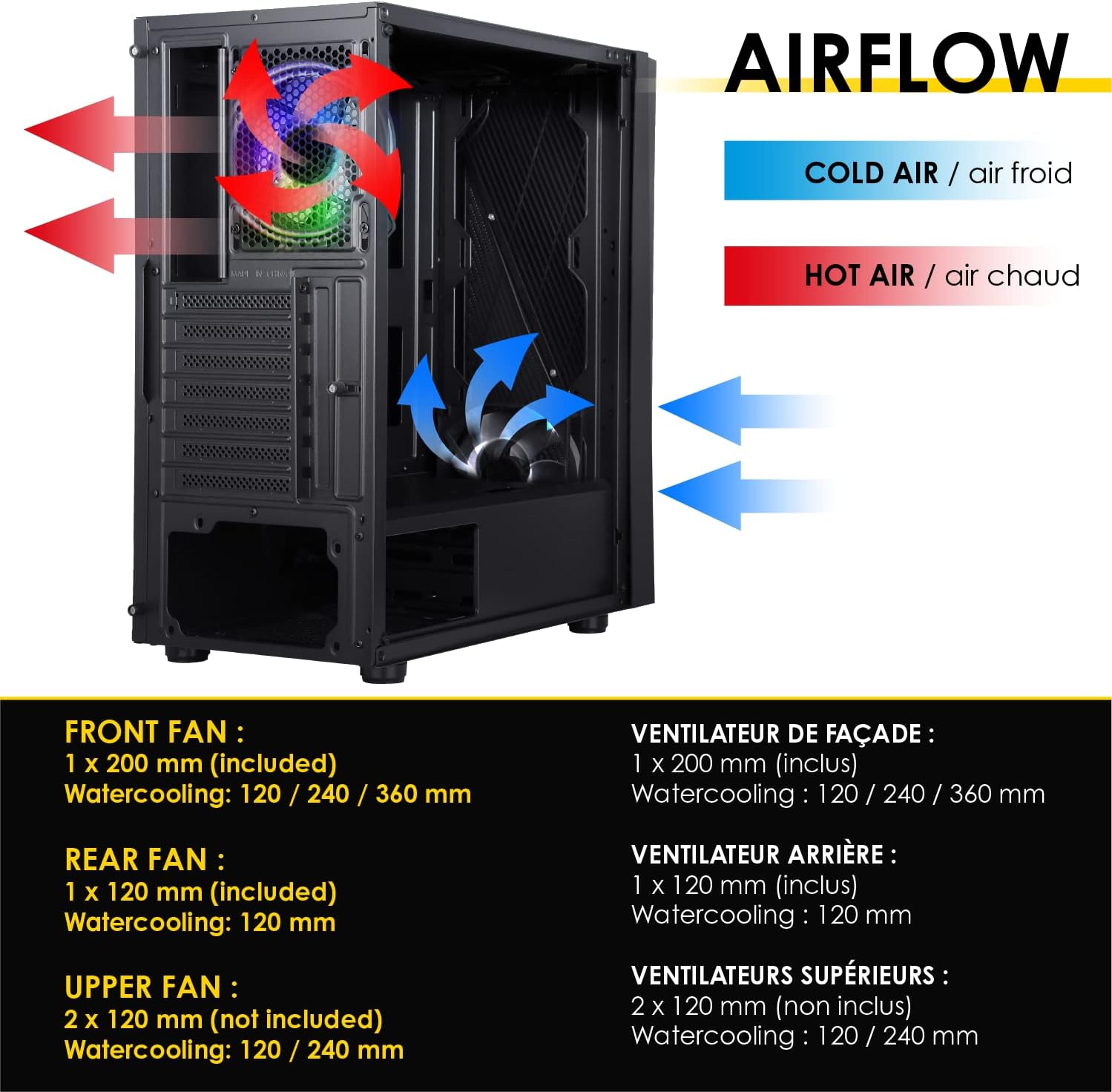
Image: Airflow diagram showing cold air intake and hot air exhaust paths within the case.
3. Front Panel Connectivity
The top panel provides convenient access to essential ports:
- 2 x USB 2.0 ports
- 1 x USB 3.0 port
- 1 x HD Audio jack
- 1 x LED control button
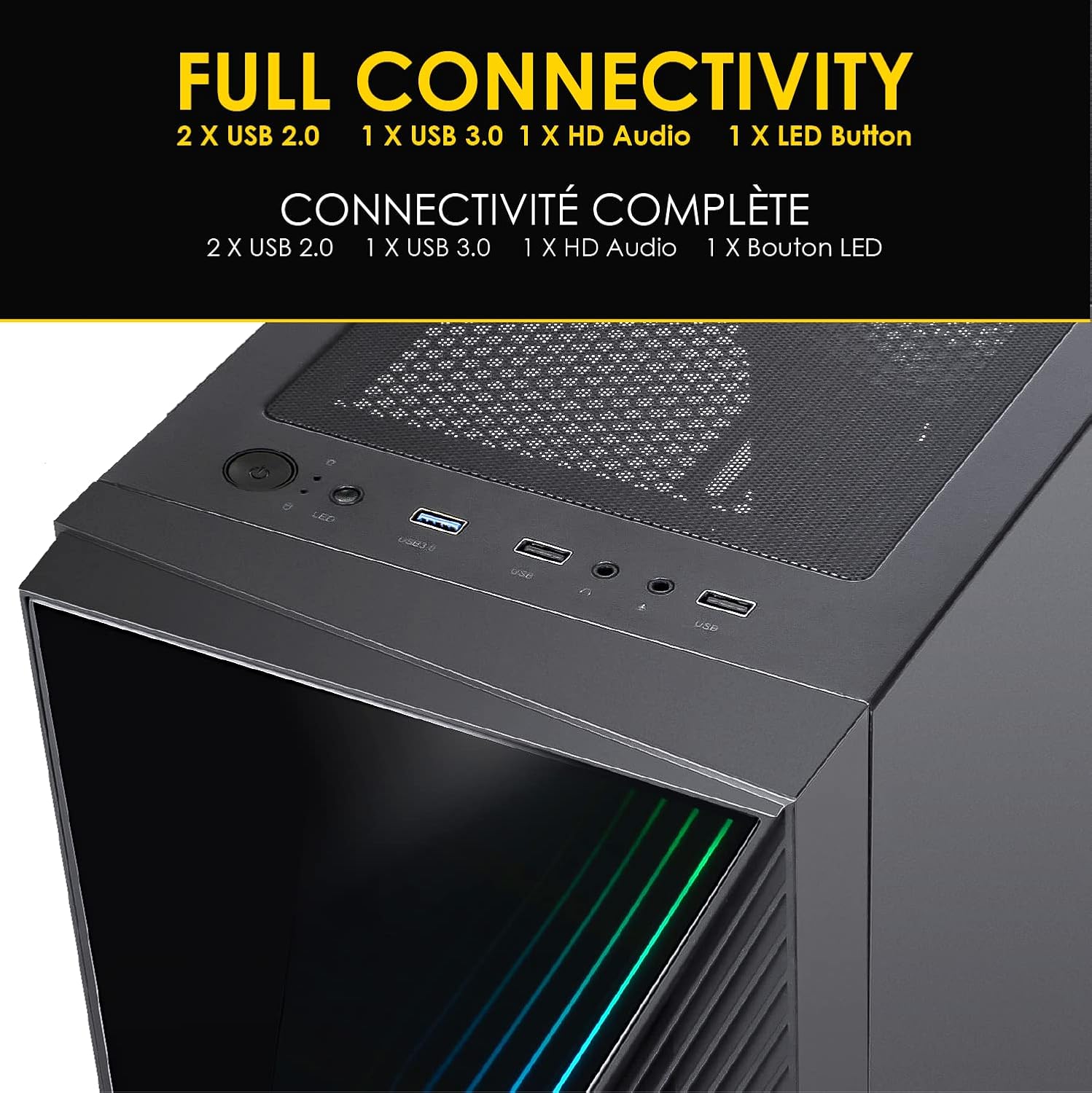
Image: Front panel connectivity ports including USB 2.0, USB 3.0, HD Audio, and LED control button.
4. Dust Filter Installation and Maintenance
The case includes a removable dust filter on the top panel to help prevent dust accumulation inside your system. Ensure it is properly seated to maintain optimal dust protection.
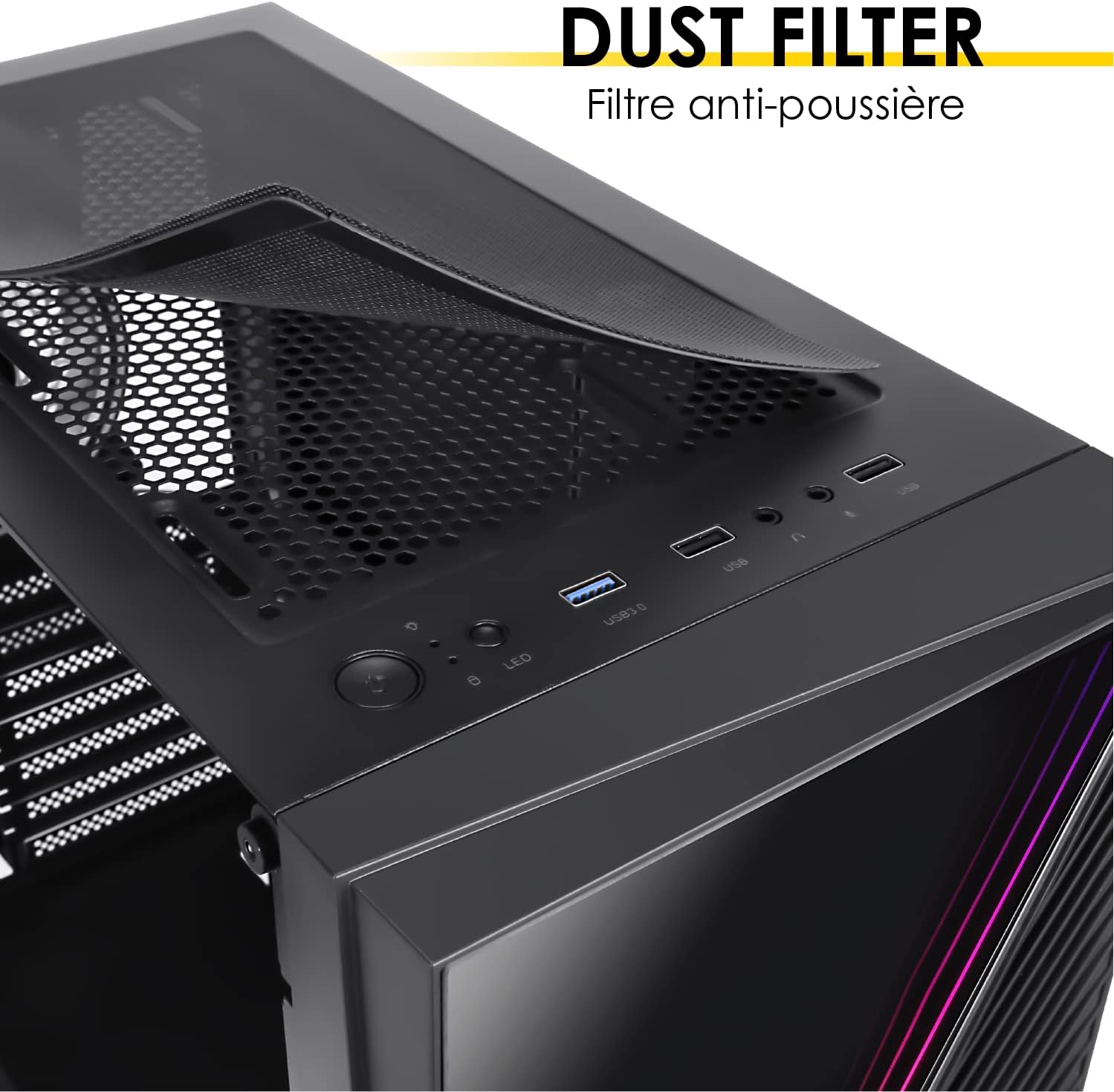
Image: Top-mounted magnetic dust filter for easy removal and cleaning.
Operation
RGB Lighting Control
The included ARGB fan and front panel feature customizable RGB lighting. You have two methods to control the lighting effects:
- LED Button: Use the dedicated LED button on the front panel to cycle through over 10 different lighting effects and colors.
- Motherboard Synchronization: Connect the ARGB fan to a compatible 3-pin 5-volt ARGB header on your motherboard. The lighting can then be controlled via motherboard software such as ASUS Aura Sync, GIGABYTE RGB Fusion, or MSI Mystic Light Sync.

Image: ARGB fan with connection cables and logos of compatible motherboard RGB synchronization software.
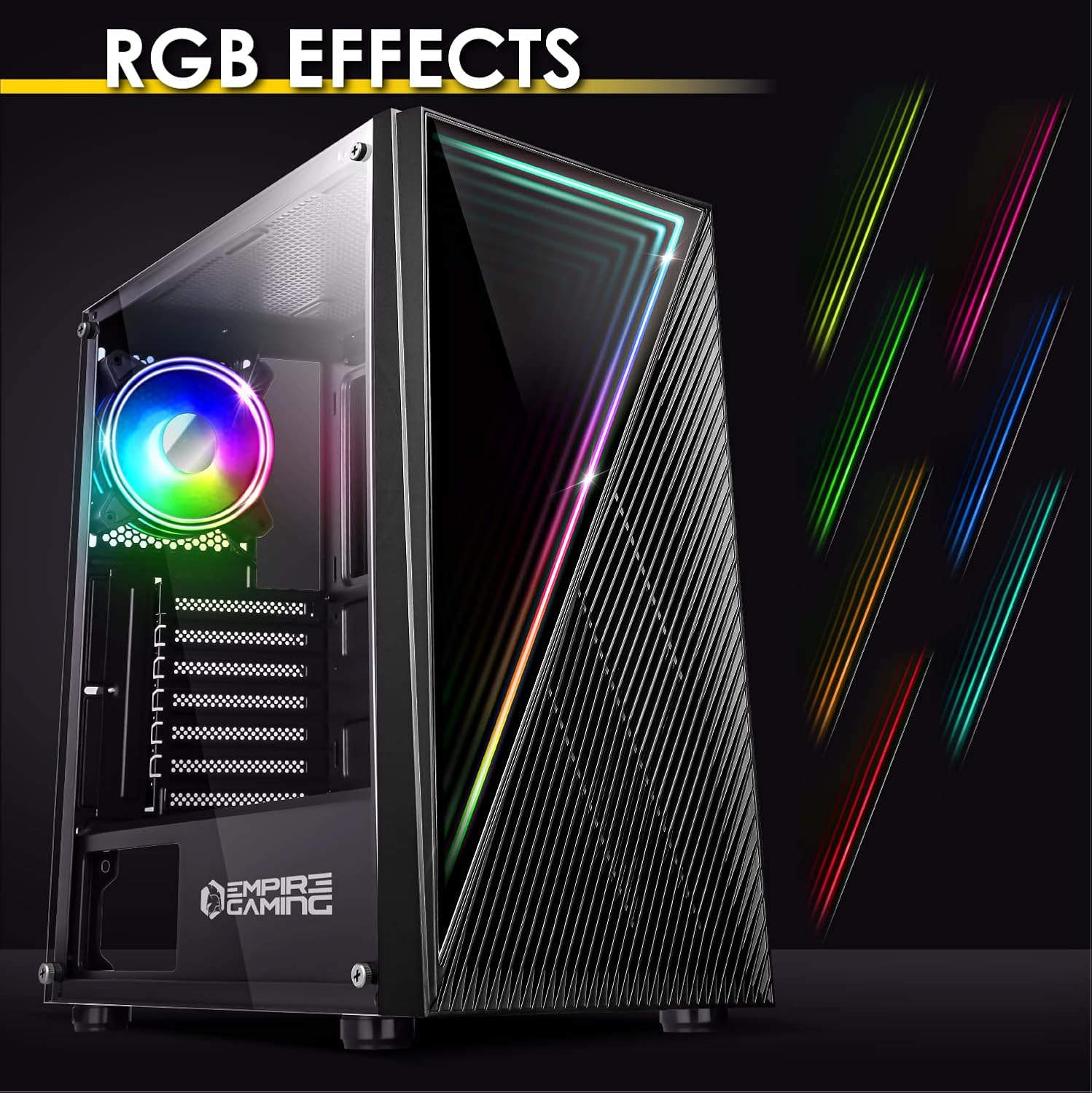
Image: The PC case showcasing different RGB lighting effects.
Maintenance
1. Cleaning the Dust Filter
Regularly clean the top dust filter to maintain optimal airflow and prevent dust buildup inside your PC. Simply lift the magnetic filter, rinse it with water, allow it to dry completely, and then reattach it.
2. General Cleaning
Use a soft, dry cloth to wipe down the exterior of the case. For stubborn smudges, a slightly damp cloth can be used, followed by a dry cloth. Avoid using harsh chemicals or abrasive materials, as these can damage the finish.
Troubleshooting
- No Power: Ensure all power cables are securely connected to the power supply, motherboard, and wall outlet. Check the power switch on the power supply.
- Fans Not Spinning: Verify that fan cables are correctly connected to the motherboard or fan controller. Check BIOS settings for fan speed control.
- RGB Lights Not Working: Confirm ARGB cables are properly connected to the motherboard or the case's integrated controller. If using motherboard sync, ensure the software is installed and configured correctly. Try using the case's LED button to test the lights independently.
- Overheating: Ensure all fans are functioning correctly and installed in the proper orientation for optimal airflow. Check for dust buildup on filters and components.
Specifications
| Feature | Detail |
|---|---|
| Model Number | OE-CA-21BK |
| Case Type | Mid-Tower |
| Motherboard Compatibility | ATX, Micro-ATX, ITX |
| Dimensions (L x W x H) | 405 x 210 x 445 mm (15.9 x 8.2 x 17.5 inches) |
| Weight | 5.2 kg |
| Material | Metal, Plastic, Tempered Glass |
| Included Fans | 1 x 120mm ARGB (Front), 1 x 120mm Standard (Rear) |
| Max CPU Cooler Height | 160 mm |
| Max GPU Length | 345 mm |
| Drive Bays | 4 (HDD/SSD) |
| Front I/O Ports | 2 x USB 2.0, 1 x USB 3.0, 1 x HD Audio, 1 x LED Control Button |
| Special Features | ARGB Lighting, Dust Filter, Tempered Glass Side Panel |

Image: Detailed dimensions of the PC case.
Warranty and Support
For warranty information and technical support, please refer to the official EMPIRE GAMING website or contact your retailer. Keep your proof of purchase for any warranty claims.


