
1. Introduction
This manual provides comprehensive instructions for the installation, operation, and maintenance of your SEMAITU Single Din Car Stereo. This unit features Apple CarPlay & Android Auto compatibility, a 7-inch motorized flip-out HD touchscreen, Bluetooth, Mirror Link, backup camera support, FM/USB/SWC/TF/AUX/Subwoofer connectivity, and more. Please read this manual thoroughly before use to ensure proper functionality and safety.
2. What's in the Box
Upon opening the package, please verify that all components listed below are present and in good condition:
- 7 Inch HD Single Din Car Stereo
- HD Rear View Camera & Brackets & Frame
- Wire Harness & Disassembly Tool
- Backup Camera Cable & Camera Power Cable
- Remote Controller
- Lavalier Microphone
- User Manual (this document)

Figure 2.1: Included Accessories and Main Unit.
3. Key Features
- Voice Assistants: Compatible with Apple CarPlay and Android Auto for voice-activated functions like navigation, calls, messages, and music. Features built-in noise-rejecting microphones.
- IPS HD Screen: 7-inch high-definition capacitive touch screen (1024x600 resolution) supporting 1920x1080P video playback. Includes 16-band EQ audio settings.
- Mirror Link & Bluetooth: Supports screen mirroring for Android & iOS devices. Built-in Bluetooth for hands-free calling and wireless audio streaming.
- AHD Rear View Camera: Equipped with an HD 170° viewing angle lens for wide rear visibility, night vision, and waterproof features. Automatically displays camera feed when reversing.
- Various Formats & AM/FM: Si 4755 Full band Radio with 18 FM and 12 AM station presets. Supports A2DP/AVCTP/AVDTP/AVRCP/HFP/SPP/ATT/GAP/GATT/RFCOMM/SDP/L2CAP formats.
- Motorized Flip-Out Screen: The 7-inch screen can adjust its angle from 60° to 100° and is auto-retractable.

Figure 3.1: Front view of the SEMAITU Single Din Car Stereo.
4. Installation Guide
Before beginning installation, ensure your vehicle's battery is disconnected to prevent electrical shorts. The unit is designed to fit most vehicles with a dashboard size of 188(W)*58(H)*154(D)mm.
4.1 Wiring Diagram
Refer to the detailed wiring diagram below for correct connections. Improper wiring can damage the unit or your vehicle's electrical system.

Figure 4.1: Wiring Method for the Car Stereo.
4.2 Physical Installation
- Remove your existing car stereo and dashboard trim.
- Connect the wire harness from the new unit to your vehicle's wiring, following the diagram in Figure 4.1.
- If installing the backup camera, route the camera cable from the rear of the vehicle to the stereo unit and connect it as per the diagram.
- Secure the car stereo unit into the dashboard opening.
- Reconnect the vehicle's battery and test the unit's functionality before reassembling the dashboard trim.
5. Operating Instructions
5.1 Apple CarPlay & Android Auto
Connect your iPhone or Android phone via USB cable to enable Apple CarPlay or Android Auto. This allows access to navigation, calls, messages, and music directly from the stereo's touchscreen or via voice commands.
Video 5.1: Demonstration of Apple CarPlay and Android Auto functionality.

Figure 5.1: Apple CarPlay and Android Auto Interface.
5.2 Mirror Link
The Mirror Link feature allows you to display your smartphone's screen content directly on the car stereo's display. Connect your phone via USB and follow the on-screen prompts to activate mirroring.

Figure 5.2: Mirror Link Functionality.
5.3 Bluetooth Connectivity
Pair your mobile phone with the car stereo via Bluetooth for hands-free calling and wireless audio streaming. Navigate to the Bluetooth settings on the stereo, enable Bluetooth on your phone, and select "CAR-BT" (or similar) from the available devices to pair.
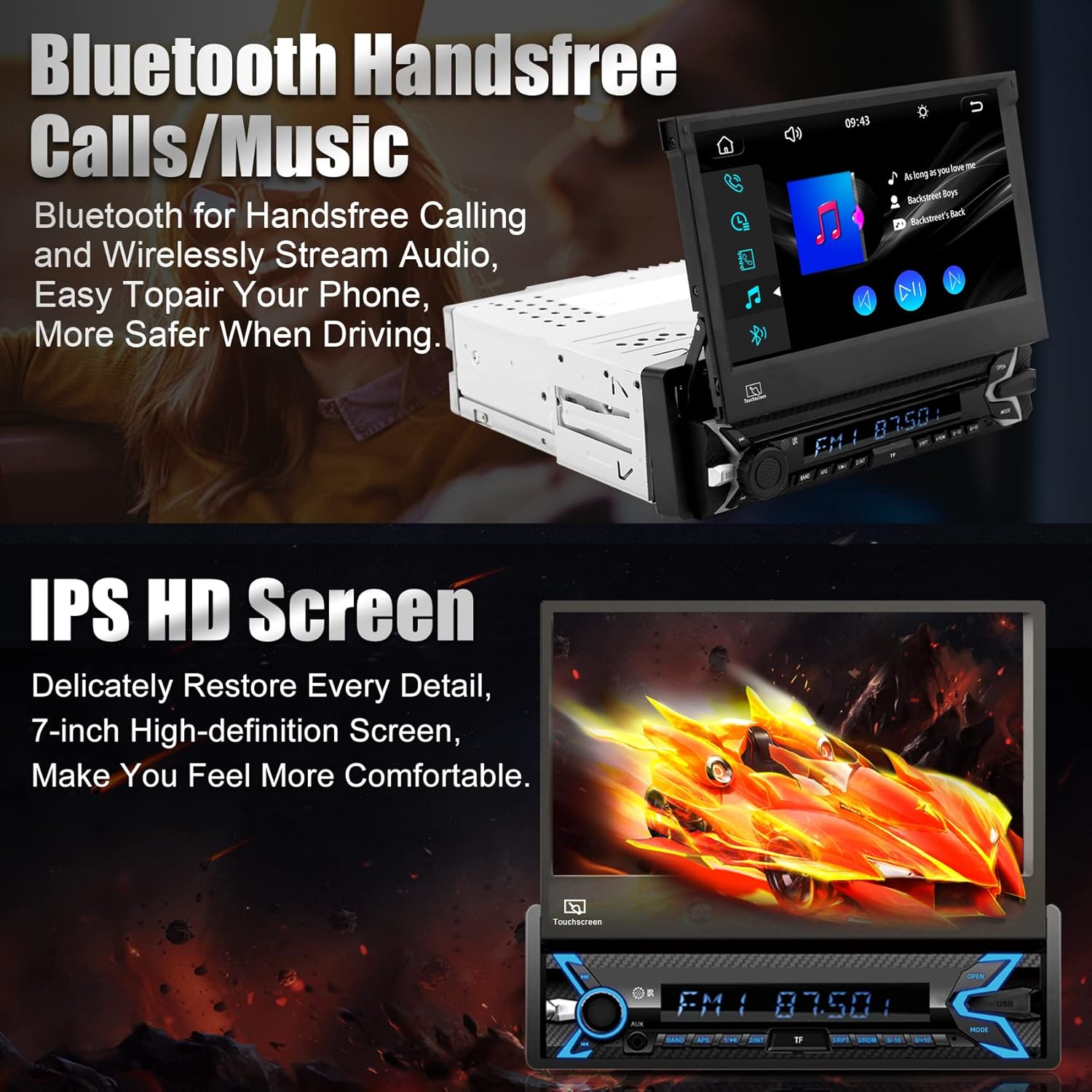
Figure 5.3: Bluetooth Hands-free Calls and Music.
5.4 Media Playback (SD/USB/AUX)
The unit supports various media inputs including TF (SD) card, USB, and AUX. Insert your media device into the corresponding port and select the input source from the main menu to play audio or video files.

Figure 5.4: Supported Media Inputs.
5.5 Radio (FM/AM)
Access the radio function to tune into FM and AM stations. The unit features a Si 4755 Full band Radio, allowing storage of up to 18 FM stations and 12 AM stations.

Figure 5.5: FM/AM Radio Interface.
5.6 Motorized Flip-Out Screen
The 7-inch screen is motorized and can be adjusted for optimal viewing angles (60° to 100°). Use the designated controls on the unit to extend, retract, or adjust the screen angle.

Figure 5.6: Motorized Flip-Out Screen Adjustment.
5.7 Rear View Camera
When properly installed, the included AHD rear view camera automatically displays a wide-angle, high-definition view on the stereo screen when the vehicle is shifted into reverse. This feature aids in safe parking and maneuvering.

Figure 5.7: Rear View Camera Display.
5.8 DSP and EQ Settings
Customize your audio experience using the Digital Sound Processor (DSP) and 16-band Equalizer (EQ) settings. Access these options through the stereo's menu to adjust sound profiles, balance, fader, and more to your preference.

Figure 5.8: DSP and EQ Settings Interface.
6. Specifications
| Feature | Detail |
|---|---|
| Product Dimensions | 188 x 58 x 154 mm (7.40 x 2.28 x 6.06 inches) |
| Item Weight | 4.05 pounds (1.84 kg) |
| Model Number | TH0030 (Single Din Car Stereo) |
| Screen Size | 7 Inch |
| Screen Resolution | 1024x600 HD |
| Video Playback | Supports 1920x1080P video |
| Connectivity Technology | Bluetooth, USB Type A, RCA |
| Special Features | Built-In Bluetooth, Touchscreen, Motorized Flip-Out Screen, Apple CarPlay, Android Auto, Mirror Link, Rear View Camera Support, SWC, TF/AUX/USB, DSP, FM/AM Radio |
| Audio Output Mode | Stereo (5.1 Surround Sound Channel Configuration) |
| Manufacturer | SEMAITU |
7. Troubleshooting
If you encounter issues with your SEMAITU car stereo, please refer to the following common troubleshooting steps:
- No Power: Check all power connections, including the main power wire (yellow), accessory wire (red), and ground wire (black). Ensure the vehicle's fuse for the stereo is not blown.
- No Sound: Verify speaker connections are secure and correctly wired. Check the volume level and ensure the mute function is not activated. Confirm the audio source is correctly selected.
- Screen Not Responding: Try restarting the unit by turning off the vehicle's ignition and turning it back on. If the issue persists, a factory reset may be necessary (refer to the setup menu).
- CarPlay/Android Auto Not Connecting: Ensure you are using a high-quality USB cable. Check your phone's settings for any prompts or permissions related to CarPlay/Android Auto. Try restarting both the phone and the stereo unit.
- Backup Camera Not Displaying: Verify the camera's power and video signal connections. Ensure the reverse trigger wire is correctly connected to the vehicle's reverse light circuit.
- Bluetooth Pairing Issues: Delete previous pairings from both the stereo and your phone. Ensure Bluetooth is enabled on both devices and that the stereo is in pairing mode.
For more detailed troubleshooting or issues not covered here, please contact SEMAITU customer support.
8. Maintenance
To ensure the longevity and optimal performance of your car stereo, follow these maintenance guidelines:
- Cleaning the Screen: Use a soft, lint-free cloth to gently wipe the touchscreen. For stubborn smudges, slightly dampen the cloth with water or a screen-safe cleaner. Avoid abrasive materials or harsh chemicals.
- General Cleaning: Keep the unit free from dust and debris. Use a soft brush or compressed air to clean around buttons and ports.
- Temperature: Avoid exposing the unit to extreme temperatures, both hot and cold, for extended periods.
- Software Updates: Periodically check the manufacturer's website for any available firmware updates to improve performance and add new features.
9. Warranty and Support
Your SEMAITU car stereo is backed by a commitment to quality. For any questions regarding installation, operation, or warranty claims, please contact SEMAITU customer support. We provide 24/7 online support to assist you.
You can also refer to the official User Guide PDF for additional information: SEMAITU User Guide (PDF)
For direct support, please visit the SEMAITU storefront on Amazon or use the "Ask a question" feature on the product page.

