Introduction
This user guide provides detailed instructions and information for the Apple iPhone 14 Pro, covering its features, operations, and troubleshooting. It is designed to help you maximize your device's capabilities and ensure a smooth user experience.
1. Initial Setup
1.1 Unboxing and First Power On
Carefully remove your iPhone 14 Pro from its packaging. Press and hold the side button until the Apple logo appears to power on the device.
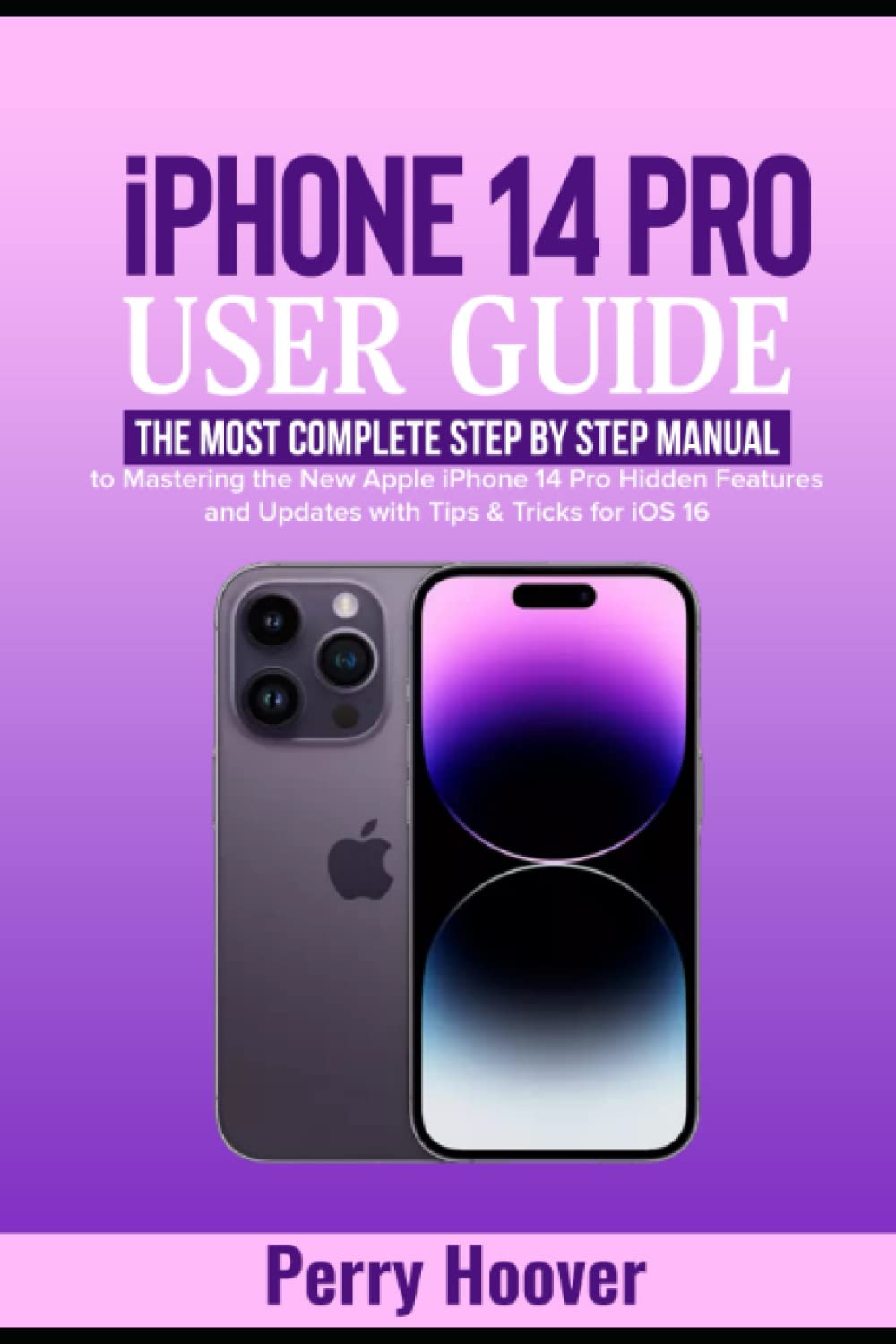
Image: Front cover of the user guide book, featuring the title "iPhone 14 Pro User Guide" and an image of the iPhone 14 Pro.
1.2 Activating and Initial Configuration
Follow the on-screen prompts to select your language, region, and connect to a Wi-Fi network. You will be guided through setting up Face ID, creating a passcode, and restoring data from a previous device or setting up as new.
- Creating an Apple ID: If you do not have an Apple ID, you will be prompted to create one. This is essential for accessing Apple services like the App Store, iCloud, and more.
- Signing into Apple ID: Enter your existing Apple ID and password to sign in.
- Changing Apple ID Email Address: Instructions for updating your Apple ID email can be found in the Settings app under your Apple ID profile.
- Setting up Face ID: Follow the on-screen instructions to register your face for secure unlocking and authentication.
- Setting a Passcode: Create a strong passcode to protect your device.
1.3 Network Settings
- Changing Network Settings: Access Wi-Fi, Cellular, and VPN settings via the Settings app.
- Enabling Wi-Fi Syncing: Configure your iPhone to sync with your computer over Wi-Fi through iTunes/Finder settings.
- eSIM Configuration: The iPhone 14 Pro utilizes eSIM technology. Follow your carrier's instructions to activate your cellular plan.
2. Operating Your iPhone 14 Pro
2.1 Key Features and iOS 16
The iPhone 14 Pro introduces several new features and enhancements with iOS 16.
- Dynamic Island: Learn how to interact with the Dynamic Island for alerts, activities, and notifications.
- Always-On Display (AOD): Understand how to use and customize the Always-On Display feature.
- Car Crash Detection: Information on how the device detects severe car crashes and automatically calls emergency services.
- Emergency SOS via Satellite: Details on using satellite connectivity for emergency messaging when outside cellular and Wi-Fi coverage.
2.2 Notifications and Alerts
- Exploring Notifications: Access and manage notifications from the Lock Screen and Notification Center.
- Using the Notification Center: Swipe down from the top-left corner to view all your notifications.
- Changing Notification Settings: Customize notification styles and alerts for individual apps in Settings > Notifications.
2.3 Camera and Photography
The iPhone 14 Pro features an advanced camera system with numerous modes and settings.
- Using the Camera App: Open the Camera app to capture photos and videos.
- Exploring Photos and Videos: View and organize your media in the Photos app.
- Live Text with Video: Extract text from video frames.
- Adjusting Capture Time: Utilize timer functions for photos.
- Night Mode Selfies: Capture clear selfies in low-light conditions.
- Apple ProRAW: Enable ProRAW for professional-grade photo editing flexibility.
- Action Mode: Use Action Mode for smooth, stabilized video recording.
- Portrait Mode: Create photos with a blurred background effect.
- Auto-Focusing Front Camera: Take sharp selfies with the improved front camera.
- Exposure Settings: Manually adjust exposure for desired brightness.
- HDR (High Dynamic Range): Enable HDR for balanced exposure in high-contrast scenes.
- Shutter Speed: Control shutter speed for motion blur or freezing action.
- ISO: Adjust ISO for light sensitivity in various conditions.
- White Balance: Set white balance to accurately represent colors.
- Cinematic Videos: Record videos with a shallow depth of field.
- QuickTake Videos: Press and hold the shutter button to record a quick video.
- Slow-motion Video: Capture dramatic slow-motion footage.
- Video Recording Settings: Customize resolution, frame rate, and other video settings.
2.4 Communication and Connectivity
- Creating Contact Information: Add and manage contacts in the Contacts app.
- Live Photo using FaceTime: Capture Live Photos during FaceTime calls.
- Web Browsing with Safari: Use Safari for internet browsing.
- Customizing Safari Settings: Personalize your Safari experience.
- Siri Shortcuts: Create custom voice commands for quick actions.
- Mail and Contacts Accounts: Set up and manage email and contact accounts.
- Synchronizing with PC: Sync your iPhone with a PC using Finder (macOS Catalina or later) or iTunes (Windows).
- Transferring Data to/from PC: Use Finder/iTunes or iCloud for data transfer.
2.5 Security and Privacy
- Exploring Security and Privacy Settings: Manage your device's security and privacy options in the Settings app.
- Setting up Passkeys: Utilize passkeys for secure, passwordless logins.
- Sharing Files with iCloud Drive: Securely store and share files using iCloud Drive.
2.6 System Settings and Utilities
- Battery Percentage: Display battery percentage while charging.
- Changing iPhone Volume: Adjust media, ringtone, and alert volumes.
- Alarms and Ringtones: Set up alarms and customize ringtones.
- Managing Ringtones: Acquire and manage ringtones.
- Call Management: Options to decline calls and send to voicemail.
- Do Not Disturb and Focus Modes: Configure Do Not Disturb and various Focus modes to manage interruptions.
2.7 App Management and Multitasking
- Discovering Apps: Explore and download apps from the App Store.
- Showing and Hiding Apps: Organize apps on the Home Screen.
- Removing Apps: Use Siri or Search to remove apps.
- Smart Suggestions: Customize app suggestions.
- Hiding Apps: Utilize App Library to hide apps from the Home Screen.
- App Switcher: Access recently used apps and switch between them.
- Dictating Text: Use voice input for text entry.
- On-Screen Keyboard: Input text using the virtual keyboard.
- Picture-In-Picture: Multitask by watching videos in a small, floating window.
3. Maintenance
To ensure the longevity and optimal performance of your iPhone 14 Pro, follow these maintenance guidelines:
- Cleaning: Use a soft, lint-free cloth to clean your iPhone. Avoid abrasive materials or harsh chemicals.
- Software Updates: Regularly check for and install iOS updates to benefit from new features, security enhancements, and bug fixes. Go to Settings > General > Software Update.
- Battery Health: Optimize battery life by managing background app refresh, location services, and display brightness.
- Storage Management: Periodically review and manage your device storage by deleting unnecessary apps, photos, and videos.
4. Troubleshooting
This section addresses common issues you might encounter with your iPhone 14 Pro.
- Device Not Responding: If your iPhone is unresponsive, perform a force restart. Press and quickly release the Volume Up button, then the Volume Down button, then press and hold the Side button until the Apple logo appears.
- App Crashes: Close and reopen the app. If the issue persists, check for app updates in the App Store or reinstall the app.
- Connectivity Issues: For Wi-Fi or cellular problems, try toggling Airplane Mode on and off, restarting your iPhone, or resetting network settings (Settings > General > Transfer or Reset iPhone > Reset > Reset Network Settings).
- Battery Drain: Review battery usage in Settings > Battery to identify apps consuming significant power. Adjust settings or restrict background activity as needed.
- Storage Full: Delete unused apps, clear browser cache, and offload large media files to iCloud or a computer.
5. Specifications
Key specifications for the iPhone 14 Pro (as detailed in the source material):
- Display: 6.1-inch or 6.7-inch Super Retina XDR display with ProMotion and Always-On capability.
- Processor: A16 Bionic chip.
- Camera System: Advanced camera system with Photonic Engine, including 48MP Main, Ultra Wide, and Telephoto lenses.
- Water Resistance: IP68 rating.
- Front Protection: Ceramic Shield.
- Cellular: eSIM only for US versions.
- Battery Life: Up to 23 hours video playback.
6. Warranty and Support
For detailed warranty information and technical support, please refer to Apple's official website or contact Apple Support directly. Your iPhone 14 Pro comes with a limited hardware warranty and complimentary technical support.
- Apple Support Website: support.apple.com
- Warranty Information: Details regarding your device's warranty coverage can be found on Apple's official product pages.