
1. Product Overview
The RisoPhy Wireless Mechanical Keyboard (Model: PC388A) is a versatile input device designed for gaming and office use, offering three distinct connection options: 2.4GHz wireless, Bluetooth 5.0, and traditional USB-C wired mode. This allows for seamless switching between multiple devices, enhancing productivity and gaming flexibility.
Equipped with linear red mechanical switches, the keyboard provides a smooth, quiet, and responsive typing experience with minimal resistance. Its compact 94-key layout includes an efficient numeric pad and offset arrow keys, optimizing desk space without sacrificing essential functionality. The keyboard features immersive RGB backlighting with 20 customizable light effects, 16.8 million colors, and adjustable brightness and speed settings. Built with a durable metal base and PBT-engineered keycaps, it ensures longevity and a comfortable ergonomic design for extended use.

Image: RisoPhy Wireless Mechanical Keyboard with its included USB receiver.
2. Package Contents
- 1 x RisoPhy Wireless Mechanical Keyboard (Model: PC388A)
- 1 x USB-C to USB-A Cable
- 1 x 2.4GHz USB Receiver (stored in the keyboard's back compartment)
- 1 x User Manual (this document)
3. Setup and Connection
Your RisoPhy keyboard offers three versatile connection modes: 2.4GHz wireless, Bluetooth, and wired USB-C. Ensure the keyboard is adequately charged before initial wireless use. Connect the provided USB-C cable to the keyboard and a power source (e.g., computer USB port, USB wall adapter) to charge.
3.1. General Setup
- Locate the power switch on the back of the keyboard.
- Select your desired connection mode using the switch: "2.4G" for wireless, "BT" for Bluetooth, or "OFF" for wired mode (when connected via USB-C cable).

Image: Rear view of the keyboard showing the mode switch and USB receiver storage.
3.2. 2.4GHz Wireless Connection
- Retrieve the 2.4GHz USB receiver from its storage slot on the back of the keyboard.
- Plug the USB receiver into an available USB-A port on your computer or compatible device.
- Set the keyboard's mode switch to "2.4G". The keyboard should automatically connect.

Image: The 2.4GHz USB receiver being used with a laptop.
3.3. Bluetooth Connection
The keyboard supports connecting to up to three Bluetooth devices simultaneously.
- Set the keyboard's mode switch to "BT".
- Press and hold Fn + 1!, Fn + 2@, or Fn + 3# for 3-5 seconds until the corresponding key (1, 2, or 3) flashes rapidly, indicating pairing mode.
- On your device (PC, Mac, iPad, etc.), enable Bluetooth and search for "RisoPhy Keyboard" or similar.
- Select the keyboard from the list to pair. The flashing light will become solid once connected.
- To switch between paired Bluetooth devices, simply press Fn + 1!, Fn + 2@, or Fn + 3# briefly.
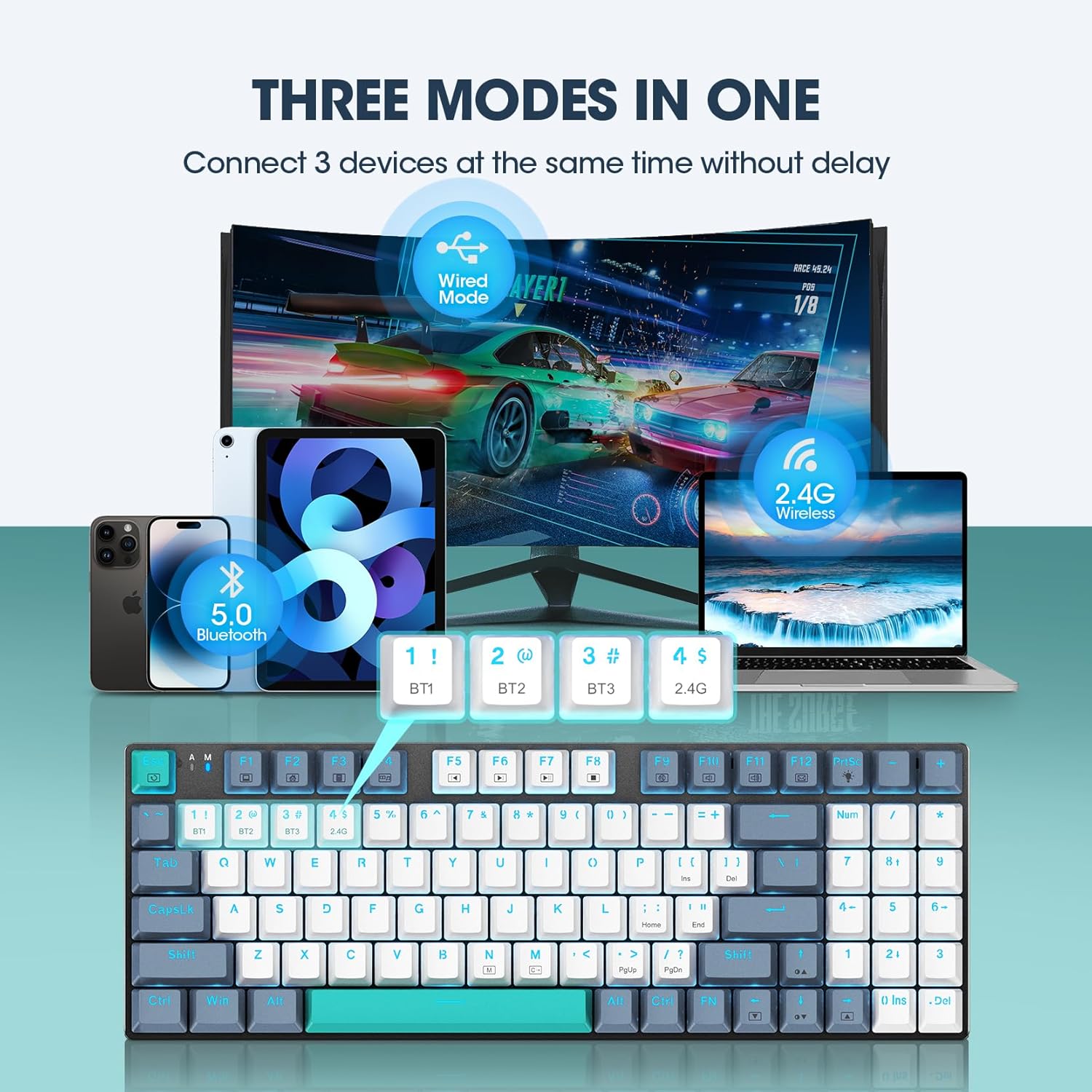
Image: Visual representation of the keyboard's triple-mode connectivity.
3.4. Wired USB-C Connection
- Connect the provided USB-C cable to the keyboard's USB-C port.
- Connect the other end of the USB-C cable (USB-A) to an available USB port on your computer.
- Ensure the keyboard's mode switch is set to "OFF" for wired operation. The keyboard will be recognized automatically.

Image: The USB-C port on the keyboard for wired connection and charging.
4. Operating Instructions
4.1. RGB Lighting Control
The RisoPhy keyboard features vibrant RGB backlighting with multiple effects. Use the following key combinations to customize your lighting:
- Fn + N: Cycle through 20 different light modes (e.g., SOLID COLOR, streamer, horse racing, neon).
- Fn + M: Change backlight color (16.8 million colors available).
- Fn + ↑ / ↓: Adjust light brightness (4 levels).
- Fn + ← / →: Adjust light speed.

Image: RGB backlight effects and control shortcuts.
Advanced lighting customization and macro programming can be done via the dedicated software. Refer to the official RisoPhy website for software download and instructions.

Image: Software interface for customizing lighting and macros.
4.2. Multimedia Shortcuts
Access common functions quickly using the Fn key in combination with the F-keys:
| Key Combination | Function |
|---|---|
| Fn + F1 | My Computer |
| Fn + F2 | Search |
| Fn + F3 | Calculator |
| Fn + F4 | Multimedia |
| Fn + F5 | Previous Track |
| Fn + F6 | Next Track |
| Fn + F7 | Play/Pause |
| Fn + F8 | Stop |
| Fn + F9 | Mute |
| Fn + F10 | Decrease Volume |
| Fn + F11 | Increase Volume |
| Fn + F12 |
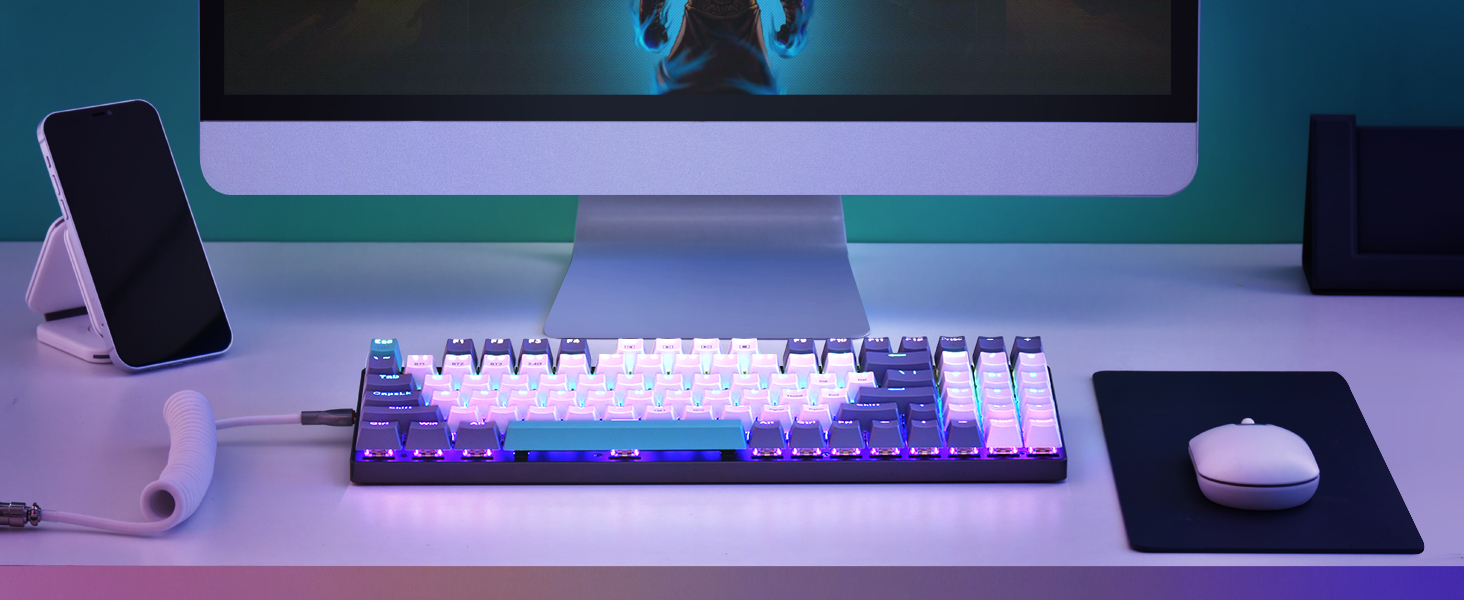
Image: Multimedia shortcuts for enhanced productivity.
4.3. Ergonomics and Design
The keyboard is designed for comfort during prolonged use:
- U-Shaped Keys: Provide a better finger touch and reduce typing fatigue.
- Foldable Kickstands: Located on the back, these allow you to adjust the keyboard's angle for a more comfortable typing position.
- PBT Keycaps: Ultra-durable and sweat-proof, designed for a longer lifespan and clear backlighting.
Image: Ergonomic features of the keyboard, including U-shaped keys and foldable stands.
5. Maintenance
To ensure the longevity and optimal performance of your RisoPhy keyboard, follow these maintenance guidelines:
- Cleaning: Use a soft, dry cloth to wipe down the keyboard surface regularly. For deeper cleaning, use compressed air to remove dust and debris from between the keycaps. Avoid using harsh chemicals or abrasive materials.
- Keycaps: The PBT keycaps are designed for durability. If necessary, they can be carefully removed for cleaning using a keycap puller (not included). Ensure proper re-installation.
- Storage: When not in use for extended periods, store the keyboard in a cool, dry place away from direct sunlight and extreme temperatures.
- Battery Care: For wireless modes, avoid completely draining the battery frequently. Charge the keyboard when the low battery indicator appears.
6. Troubleshooting
If you encounter issues with your RisoPhy keyboard, please refer to the following common solutions:
- Keyboard Not Responding (Wireless):
- Ensure the keyboard is charged.
- Verify the mode switch is set correctly (2.4G or BT).
- For 2.4G, ensure the USB receiver is securely plugged into your device. Try a different USB port.
- For Bluetooth, ensure your device's Bluetooth is enabled and the keyboard is properly paired (Fn + 1/2/3). Try re-pairing if necessary.
- Move the keyboard closer to the receiver/device to rule out interference.
- Keyboard Not Responding (Wired):
- Ensure the USB-C cable is securely connected to both the keyboard and your computer.
- Verify the mode switch is set to "OFF".
- Try a different USB port on your computer or a different USB-C cable.
- RGB Lights Not Working/Customizing:
- Ensure the keyboard is powered on.
- Check if the brightness is set too low (Fn + ↑).
- Refer to Section 4.1 for correct key combinations for lighting control.
- If using custom profiles, ensure the software is running and the profile is active.
- Keys Sticking or Not Registering:
- Clean the key affected by dust or debris (refer to Maintenance section).
- Ensure the keycap is properly seated on the switch.
If the issue persists after trying these steps, please contact RisoPhy customer support for further assistance.
7. Specifications
| Feature | Detail |
|---|---|
| Brand | RisoPhy |
| Model | PC388A |
| Connectivity Technology | Bluetooth 5.0, 2.4G Wireless, USB-C Wired |
| Keyboard Description | Gaming Mechanical Keyboard |
| Switch Type | Linear Red Mechanical Switches |
| Keycap Material | PBT |
| Number of Keys | 94 Keys |
| Backlighting | RGB (16.8 million colors, 20 effects) |
| Compatible Devices | PC, Mac, iPad, Gaming Console |
| Special Feature | Ergonomic Design, Programmable (via software) |
| Item Weight | 1.65 pounds |
| Package Dimensions | 14.41 x 5.79 x 1.77 inches |
8. Official Product Video
Video: RisoPhy 2023 Upgrade RGB Bluetooth Mechanical Keyboard. This video demonstrates the keyboard's features, including its multi-mode connectivity, RGB lighting, and ergonomic design.
9. Warranty and Support
RisoPhy is committed to providing high-quality products and customer satisfaction. While specific warranty details are not provided in this manual, please refer to your purchase documentation or the product listing for warranty information.
For any questions, technical support, or assistance with your RisoPhy Wireless Mechanical Keyboard, please contact customer service through the following methods:
- Click on the seller's name on the product page and send us messages.
- Click on the store name in your order history and click to send us messages.
We aim to provide a response to your satisfaction.


