
OBZ 1D 2D Desktop Barcode Scanner-Blue
OBZ 1D 2D Desktop Barcode Scanner User Manual
Model: 1D 2D Desktop Barcode Scanner-Blue
Introduction
This manual provides detailed instructions for the setup, operation, and maintenance of your OBZ 1D 2D Desktop Barcode Scanner. This omnidirectional, hands-free scanner is designed for efficient and accurate reading of various 1D and 2D barcodes, including QR codes, from both printed labels and digital screens. It is an ideal solution for environments such as retail stores, supermarkets, libraries, and warehouses, enhancing productivity by minimizing manual data entry.

Figure 1: Front view of the OBZ 1D 2D Desktop Barcode Scanner, showcasing its compact design and scanning window.
Setup
The OBZ Desktop Barcode Scanner is designed for plug-and-play functionality, requiring no driver or software installation.
Connecting the Scanner
- Place the scanner on a stable, flat surface near your computer or POS system.
- Locate the USB cable attached to the scanner.
- Insert the USB connector into an available USB port on your computer, laptop, PC, or POS device.
- The scanner will automatically power on and be recognized by your operating system (Windows, Mac OS, Linux, Android).
- Open any text-editing software (e.g., Word, Excel, Notepad) to test the scanner. Scan a barcode; the data should appear in the document.

Figure 2: The scanner's compatibility with various operating systems and its simple USB connection.

Figure 3: The scanner's plug-and-play setup, showing its 2.0m/6.6ft cable length.
Operation
Automatic Scanning (Infrared Auto-Sensing)
The scanner features an infrared auto-sensing trigger for intelligent barcode recognition.
- When not in use, the scanner enters a sleeping mode to conserve power.
- To activate, simply present a barcode or item near the scanning window. The scanner will automatically wake up and read the barcode.
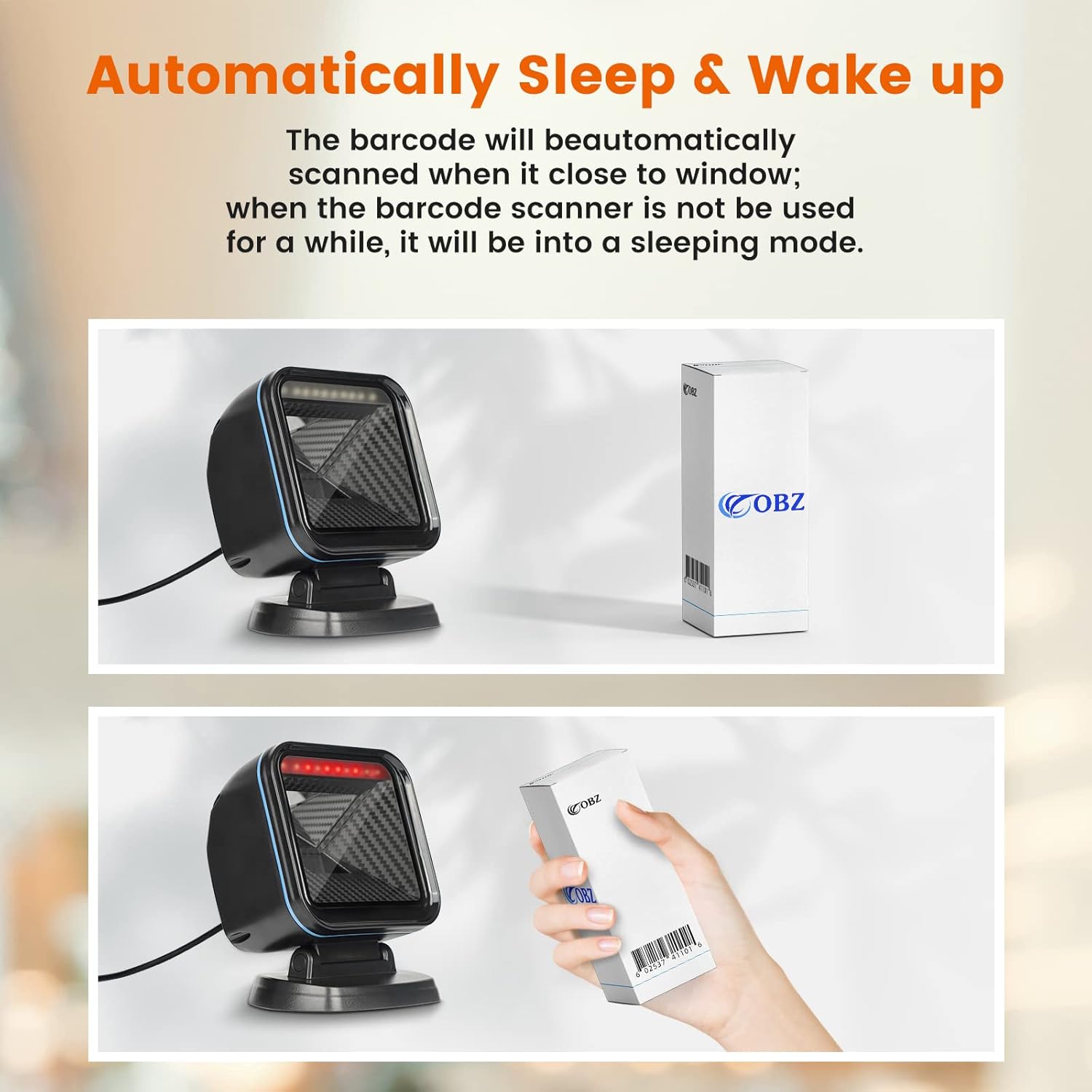
Figure 4: Illustration of the automatic sleep and wake-up function of the scanner.

Figure 5: The hands-free design of the scanner, allowing for efficient checkout processes.
Omnidirectional and Hands-Free Scanning
The scanner's design allows for versatile and efficient scanning without needing to pick up the device.
- Its ultra-wide scanning window and omnidirectional capability allow for reading barcodes from various angles, minimizing the need to orient the item precisely.
- The hands-free operation improves workflow efficiency, especially in fast-paced retail environments.
- The scan head can be adjusted by 30 degrees for optimal scanning angles.

Figure 6: User-friendly design features including adjustable scan angle and extra-large scan window.
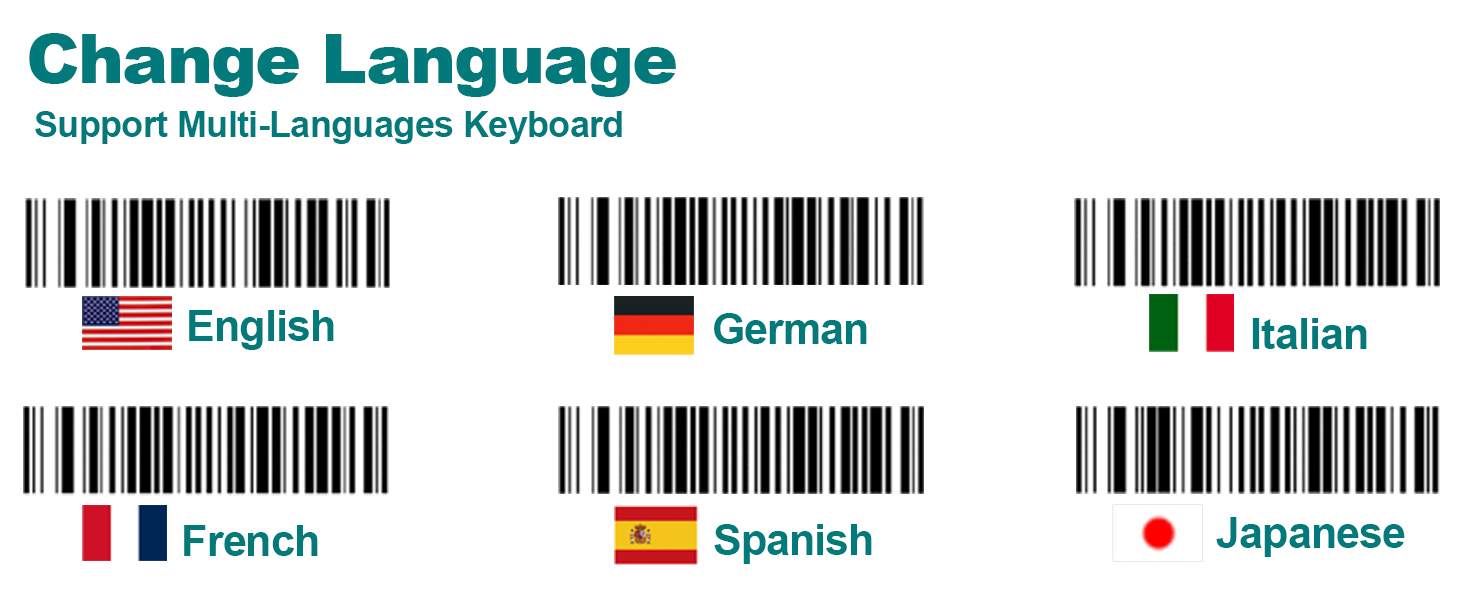
Figure 7: The scanner's 360-degree omnidirectional scanning ability.
Decoding Capabilities
The OBZ scanner boasts strong decoding capabilities, allowing it to read a wide range of barcode types, including those that are damaged or difficult to scan.
- Supports all common 1D and 2D/QR barcodes.
- Capable of scanning barcodes from various surfaces, including labels, paper, cell phone screens, and computer displays.
- Advanced image sensing technology enables scanning of:
- Damaged barcodes
- Distorted barcodes
- Colorful barcodes
- Reflective barcodes
- Reverse barcodes
- Fuzzy codes
- Dirty codes

Figure 8: The scanner's robust decoding capability for various barcode conditions.
Customization Features
The scanner offers several customization options to tailor its output to your specific needs.
- Barcode conversion
- Adding suffixes and prefixes to scanned data
- Multi-language keyboard support
- Setting terminators (e.g., CR&LF, TAB)
- Option to turn off scanning for 1D/2D codes selectively
- Adjusting scanning hibernation settings

Figure 9: Barcodes for changing the scanner's keyboard language settings.
For detailed instructions on configuring these advanced settings, please refer to the specific programming barcodes provided in the supplementary guide or contact customer support for a tutorial video.
Maintenance
To ensure optimal performance and longevity of your OBZ Barcode Scanner, follow these simple maintenance guidelines:
- Cleaning the Scan Window: Regularly wipe the scanning window with a soft, lint-free cloth. For stubborn smudges, dampen the cloth slightly with water or a mild, non-abrasive cleaner. Avoid using harsh chemicals or abrasive materials that could scratch the window.
- General Cleaning: Keep the exterior of the scanner clean by wiping it with a dry or slightly damp cloth.
- Cable Care: Avoid bending or twisting the USB cable excessively, as this can damage the internal wires.
- Storage: When not in use for extended periods, store the scanner in a clean, dry environment away from extreme temperatures and direct sunlight.
Troubleshooting
If you encounter issues with your OBZ Barcode Scanner, try the following troubleshooting steps:
| Problem | Possible Cause | Solution |
|---|---|---|
| Scanner not recognized by computer. | Loose USB connection, faulty USB port, or operating system issue. | Ensure the USB cable is securely plugged into both the scanner and the computer. Try a different USB port or a different computer to isolate the issue. Restart your computer. |
| Scanner does not read barcodes. | Dirty scan window, incorrect barcode type, or scanner in sleep mode. | Clean the scan window. Ensure the barcode type is supported (1D/2D). Present the barcode closer to the window to wake the scanner from sleep mode. Check if the barcode is damaged or poorly printed. |
| Scanned data is incorrect or incomplete. | Incorrect keyboard language setting, or specific barcode formatting. | Verify your computer's keyboard language matches the scanner's setting. Refer to the programming guide for advanced settings like prefixes/suffixes or terminators. |
| No sound (buzzer) after scanning. | Buzzer setting is off. | Consult the programming guide to enable the buzzer sound. |
If the problem persists after attempting these solutions, please contact OBZ customer support for further assistance.
Specifications
| Feature | Detail |
|---|---|
| Product Dimensions | 5.69 x 4.65 x 3.74 inches |
| Item Weight | 1.39 pounds |
| Compatible Devices | Computer, Desktop, Laptop, PC, POS |
| Power Source | USB Wired |
| Connectivity Technology | USB Cable |
| Scan Rate | 1280x800 Pixels |
| Manufacturer | GUANGZHOU XUNBAO ELECTRONICS TECHNOLOGY CO.LTD OBZ |
| Date First Available | September 20, 2022 |
Warranty and Support
For information regarding product warranty, returns, or technical support, please refer to the documentation included with your purchase or visit the official OBZ website. You may also contact the seller directly through the platform where the product was purchased.
OBZ Store: Visit the OBZ Store on Amazon
Related documents1D 2D Desktop Barcode Scanner-Blue


Ask a question about this manual
Ask about setup, troubleshooting, compatibility, parts, safety, or missing instructions. Manuals+ will review the question and use this page’s manual context to help answer it.