
1. Introduction
The BONAOK G50 PRO is a versatile Bluetooth wireless karaoke microphone designed for various audio applications, including karaoke, live streaming, speeches, and parties. It features an 8-core DSP sound chip for high-fidelity audio, intelligent noise elimination, and multiple sound effects. This manual provides detailed instructions for setup, operation, maintenance, and troubleshooting to ensure optimal performance.
2. Package Contents
Please check the box for the following items:
- BONAOK G50 PRO Karaoke Microphone
- USB-C Charging Cable
- 3.5mm Audio Cable
- Remote Control (with 2 AAA batteries)
- Carrying Case
- User Manual
3. Product Overview
Familiarize yourself with the components and controls of your BONAOK G50 PRO microphone.

Image: The BONAOK G50 PRO microphone, showcasing its design and control panel with visual representations of sound waves.
Controls and Indicators:
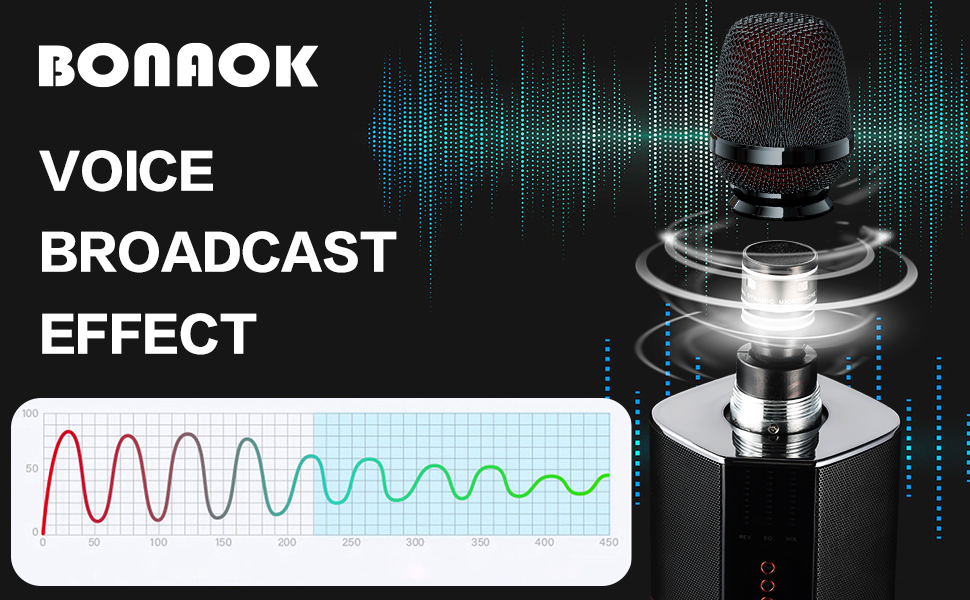
Image: A detailed diagram illustrating the various buttons and ports on the BONAOK G50 PRO microphone, with labels for each function.
- Microphone Volume Slider: Adjusts microphone input volume.
- Echo Slider: Controls the echo effect level.
- Music Volume Slider: Adjusts the volume of background music.
- EQ Slider: Adjusts equalization settings.
- Power Button: Long press to turn on/off. Short press to change sound effects.
- Mode Button (M): Cycles through sound effects (Karaoke, Master, Professional). Long press for FM mode.
- Duet Button (DUET): Initiates duet pairing mode.
- Voice Cancellation Button: Removes/restores vocals from Bluetooth music.
- Previous/Next Track Buttons: Skips tracks when connected via Bluetooth.
- Play/Pause Button: Plays or pauses music.
- RGB Lights Button: Toggles or changes RGB lighting effects.
Ports:

Image: The bottom of the microphone, displaying the USB-C charging port, 3.5mm audio input, and other connectivity options.
- USB-C Charging Port: For charging the microphone.
- 3.5mm Audio Input: For wired connection to non-Bluetooth devices.
- 3.5mm Headphone Jack: For in-ear monitoring.
4. Setup
4.1. Charging the Microphone
Before first use, fully charge the microphone. Connect the provided USB-C cable to the microphone's charging port and a compatible USB power adapter. The battery indicator lights will show the charging status. A full charge typically takes approximately 3 hours and provides 8-10 hours of playing time.
4.2. Bluetooth Pairing
- Turn on the BONAOK G50 PRO microphone by long-pressing the Power button.
- On your smartphone or other Bluetooth-enabled device, go to Bluetooth settings.
- Search for available devices and select "BONAOK G50 PRO" to pair. A voice prompt will confirm successful connection.
- Once connected, you can play music from your device through the microphone's speakers.
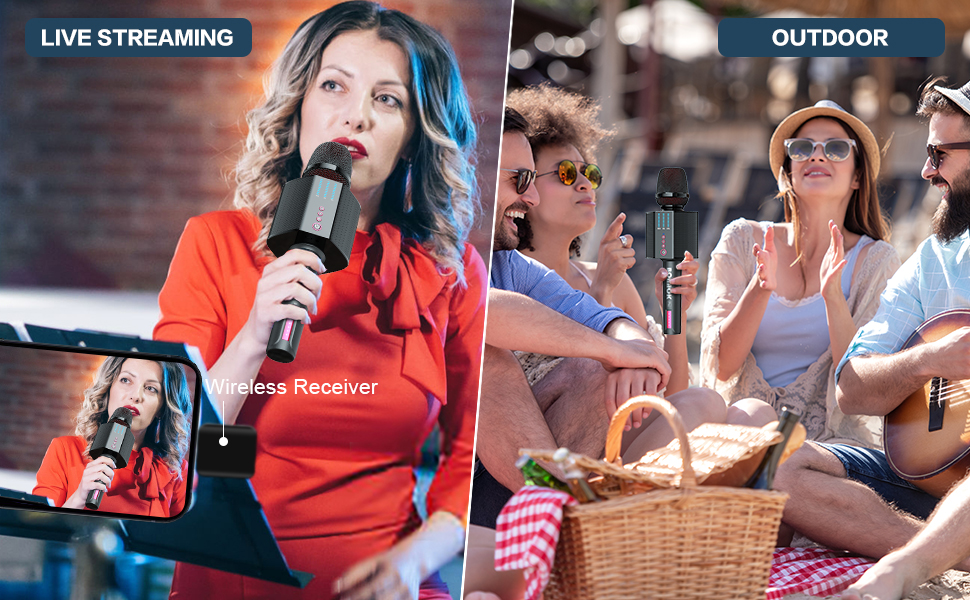
Image: The microphone highlighting its Bluetooth 5.0 technology and compatibility with popular music and social media applications on smartphones, tablets, and PCs.
4.3. Wired Connection (AUX)
For non-Bluetooth devices, use the included 3.5mm audio cable. Connect one end to your device's audio output and the other end to the microphone's 3.5mm audio input port.
4.4. FM Mode for Car Speakers
- Turn on the microphone and long-press the Mode (M) button to enter FM mode.
- Use the Previous/Next Track buttons to select an FM frequency (87.5MHz, 88.5MHz, 89.5MHz, 90.5MHz available).
- Tune your car's FM radio to match the frequency selected on the microphone.
- Pair your mobile device to the microphone via Bluetooth. Music and vocals will now play through your car's speakers.
4.5. Duet Function
To use two BONAOK G50 PRO microphones together:
- Ensure both G50 PRO microphones are powered on.
- Double-click the Power button on one microphone (this will be the main microphone). The two microphones will automatically pair.
- Pair your mobile device to the main microphone via Bluetooth. Music will play through both microphones' speakers simultaneously.
5. Operating Instructions
5.1. Adjusting Volume and Effects
- Use the dedicated sliders for Microphone Volume, Echo, Music Volume, and EQ to fine-tune your sound. Each has 10 adjustable levels.
- Short-press the Power button to cycle through sound effects: Karaoke Mode, Master Mode, and Professional Mode.
- Use the Voice Cancellation button to remove or restore vocals from Bluetooth music.
- The 3.5mm headphone jack allows for no-latency in-ear monitoring, ideal for singing practice.
5.2. Usage Scenarios
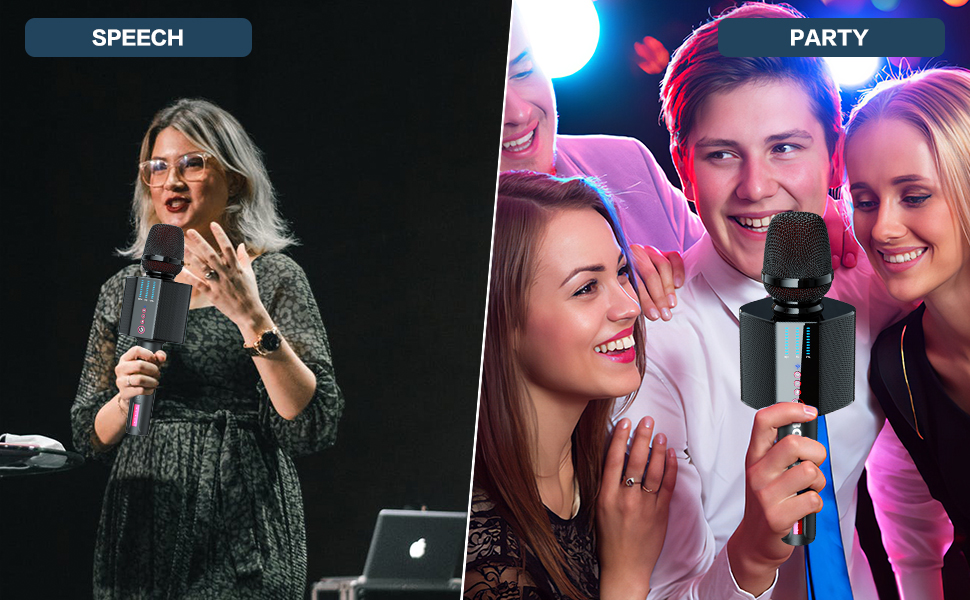
Image: The microphone in use, demonstrating its versatility for live streaming indoors and for outdoor karaoke sessions.
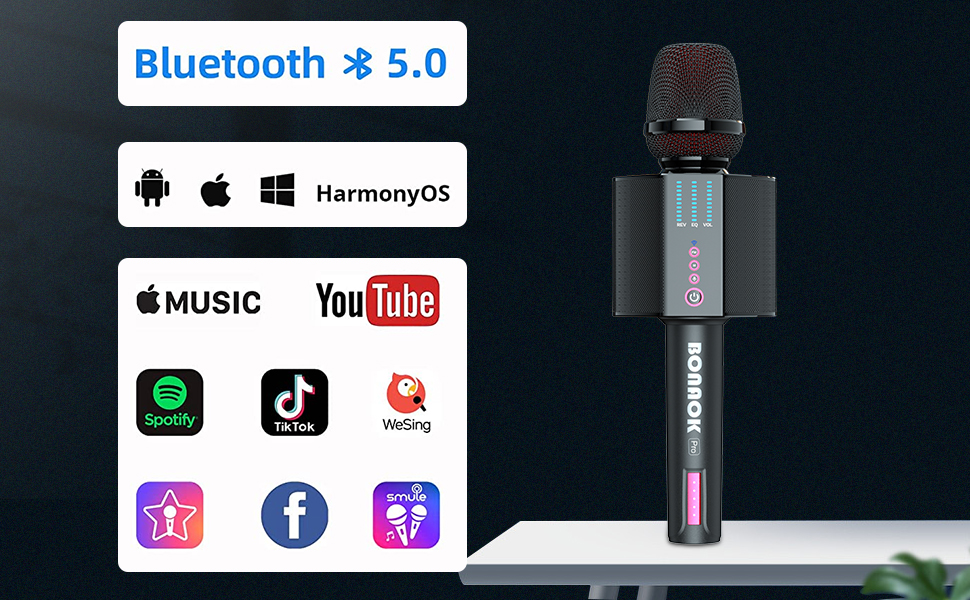
Image: The microphone being utilized for public speaking engagements and as a fun entertainment device at a party.
The G50 PRO is suitable for a wide range of activities:
- Home Karaoke: Enjoy singing with family and friends.
- Live Streaming: Enhance your voice quality for online broadcasts.
- Outdoor Parties: Its portable design and powerful sound make it ideal for outdoor gatherings.
- Speeches & Lectures: Use it as a clear and reliable public address system.
- Car Karaoke: Connect to your car's FM radio for on-the-go entertainment.
6. Media Demonstrations
6.1. Product Overview and Features
Video: A demonstration of the BONAOK Bluetooth Wireless Karaoke Microphone G50 PRO, showcasing its design, features, and ease of use.
6.2. Karaoke Microphone Functionality
Video: This video highlights the various functions and sound capabilities of the BONAOK G50 PRO Karaoke Microphone during a usage scenario.
7. Maintenance
- Keep the microphone dry and away from extreme temperatures.
- Clean the microphone with a soft, dry cloth. Do not use harsh chemicals or abrasive cleaners.
- Store the microphone in its provided carrying case when not in use to protect it from dust and damage.
8. Troubleshooting
| Problem | Possible Solution |
|---|---|
| Microphone does not turn on. | Ensure the microphone is fully charged. Long-press the Power button to turn it on. |
| Cannot connect via Bluetooth. | Make sure the microphone is in pairing mode. Check your device's Bluetooth settings and try reconnecting. Ensure no other devices are currently paired. |
| No sound from microphone/speakers. | Check all volume sliders (Mic, Music, Echo) on the microphone. Ensure your connected device's volume is up. |
| Echo/sound effects not working. | Adjust the Echo slider. Short-press the Power button to cycle through different sound effect modes. |
| FM mode not working in car. | Ensure your car's FM radio is tuned to the exact frequency displayed on the microphone. Try a different FM frequency. |
9. Specifications
- Brand: BONAOK
- Model: G50 PRO
- Item Weight: 2.72 pounds
- Package Dimensions: 12.99 x 6.34 x 4.61 inches
- Color: Black
- Power Source: Battery Powered
- Speaker Count: 1
- Compatible Devices: Smartphone, Car, Personal Computer, Tablet, Speaker, Home Theater
- Special Features: Bluetooth, Portable, Rechargeable, Wireless
- Battery Capacity: 3200mAh (8-10 hours playing time)
- Bluetooth Version: 5.0
10. Warranty and Support
The BONAOK G50 PRO comes with a 24-month warranty. For any support inquiries or assistance, please contact our customer service team:
- US Support: supportus@bonaok.com
- EU Support: supporteu@bonaok.com
