
Introduction
The AQIRYS Mira is a compact 65% mechanical keyboard designed for versatility and performance. It offers triple connectivity options: wired USB-C, 2.4GHz wireless, and Bluetooth, making it compatible with PC, Mac, mobile devices, and consoles. Featuring Outemu Red mechanical switches, N-key rollover, full anti-ghosting, and dynamic RGB backlighting, the Mira keyboard provides a responsive and customizable typing and gaming experience. Its hot-swap design allows for easy switch replacement.
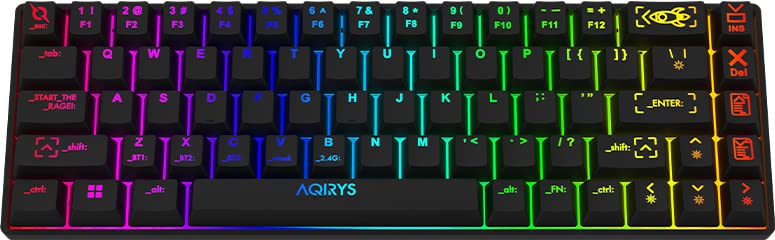
Image: The AQIRYS Mira 65% Mechanical Keyboard, showcasing its compact layout and vibrant RGB backlighting.
Setup
Package Contents
- AQIRYS Mira 65% Mechanical Keyboard
- USB-C to USB-A Cable
- 2.4GHz Wireless Dongle (typically stored in the keyboard's battery compartment or a dedicated slot)
- Keycap Puller (optional, for maintenance)
- Switch Puller (optional, for maintenance)
Charging the Keyboard
Before initial use, ensure the keyboard is fully charged. Connect the provided USB-C cable to the keyboard's USB-C port and the other end to a powered USB port on your computer or a USB wall adapter. The charging indicator will show the charging status.
Connectivity Modes
The AQIRYS Mira keyboard supports three connection modes: Wired, 2.4GHz Wireless, and Bluetooth. A switch on the keyboard (usually on the back or side) allows you to select the desired mode.
1. Wired Connection
- Set the mode switch on the keyboard to the 'Wired' or 'USB' position.
- Connect the USB-C cable to the keyboard and the USB-A end to your computer.
- The keyboard will be recognized automatically by your operating system.
2. 2.4GHz Wireless Connection
- Locate the 2.4GHz USB dongle.
- Plug the USB dongle into an available USB port on your computer or device.
- Set the mode switch on the keyboard to the '2.4G' position.
- The keyboard should connect automatically. If not, press Fn + P for 3 seconds to initiate pairing.
3. Bluetooth Connection
The keyboard can pair with up to three different Bluetooth devices.
- Set the mode switch on the keyboard to the 'BT' position.
- To enter pairing mode for a specific slot (BT1, BT2, or BT3), press and hold Fn + Q (for BT1), Fn + W (for BT2), or Fn + E (for BT3) for 3-5 seconds. The corresponding key (Q, W, or E) will flash rapidly, indicating pairing mode.
- On your device (PC, Mac, mobile), enable Bluetooth and search for new devices. Select "AQIRYS Mira" from the list.
- Once paired, the flashing light will become solid for a few seconds and then turn off.
- To switch between paired Bluetooth devices, short press Fn + Q, Fn + W, or Fn + E.

Image: Side view of the AQIRYS Mira keyboard, highlighting the USB-C port for wired connection and charging.
Operating Instructions
Key Functions and Combinations
The AQIRYS Mira keyboard features a 68-key US layout. Many functions are accessed via the Fn key in combination with other keys.
- Fn + 1/2/3: Switch between Bluetooth devices (BT1, BT2, BT3).
- Fn + P: Initiate 2.4GHz pairing (hold for 3 seconds).
- Fn + Backspace: Delete key.
- Fn + \|: Toggle backlight effects.
- Fn + [{: Decrease backlight brightness.
- Fn + ]}: Increase backlight brightness.
- Fn + ;:: Decrease backlight speed.
- Fn + '"': Increase backlight speed.
- Fn + ,<: Decrease backlight color (for static modes).
- Fn + .>: Increase backlight color (for static modes).
- Fn + Left Arrow: Previous track.
- Fn + Right Arrow: Next track.
- Fn + Up Arrow: Volume up.
- Fn + Down Arrow: Volume down.
- Fn + Enter: Play/Pause.
- Fn + Win: Lock/Unlock Windows key.
Backlight Customization
The keyboard features full RGB dynamic backlighting. Basic adjustments can be made using Fn key combinations as listed above. For in-depth customization, including per-key lighting and advanced effects, connect the keyboard in wired mode and use the dedicated AQIRYS software (available for download from the official AQIRYS website).
N-Key Rollover and Anti-Ghosting
The Mira keyboard supports N-key rollover and full anti-ghosting, ensuring that every keystroke is registered accurately, even when multiple keys are pressed simultaneously. This is particularly beneficial for fast typing and gaming.
Hot-Swap Switch Design
The keyboard's hot-swap design allows you to change mechanical switches without soldering. It is compatible with Outemu 3-pin switches. This feature enables customization of typing feel and easy replacement of faulty switches.
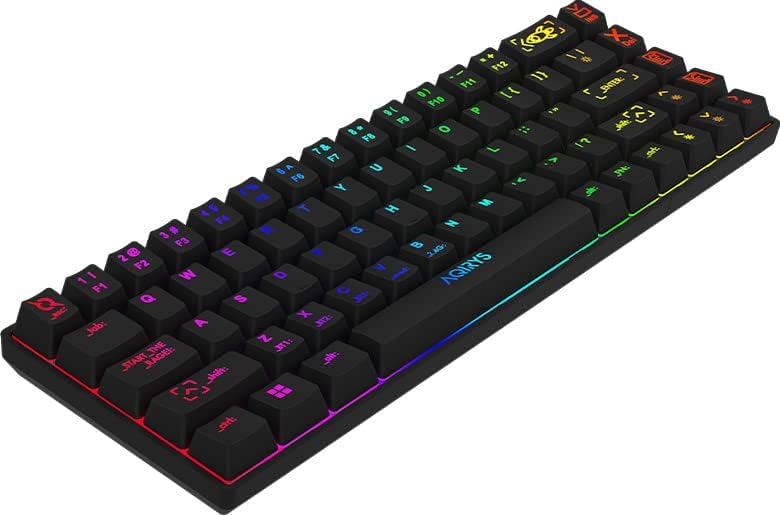
Image: Close-up of the AQIRYS Mira keyboard's keycaps, illustrating the US layout and RGB backlighting.
Maintenance
Cleaning the Keyboard
- Dust Removal: Use a can of compressed air to blow away dust and debris from between the keycaps.
- Surface Cleaning: Gently wipe the keycaps and chassis with a soft, lint-free cloth dampened with a small amount of water or a mild, non-abrasive cleaning solution. Avoid excessive moisture.
- Deep Cleaning: For thorough cleaning, you may use a keycap puller to remove keycaps and clean the switches and plate underneath. Ensure the keyboard is powered off and disconnected before removing keycaps.
Switch Replacement (Hot-Swap)
The AQIRYS Mira keyboard features hot-swappable switches, allowing for easy replacement without soldering.
- Power Off: Ensure the keyboard is disconnected from power and turned off.
- Remove Keycap: Use a keycap puller to carefully remove the keycap from the switch you wish to replace.
- Remove Switch: Use a switch puller to grasp the top and bottom clips of the switch. Gently pull the switch straight up and out of the PCB.
- Insert New Switch: Align the pins of the new Outemu 3-pin compatible switch with the holes on the PCB. Press the switch firmly until it clicks into place. Ensure the pins are not bent.
- Replace Keycap: Place the keycap back onto the new switch.

Image: An alternative view of the AQIRYS Mira keyboard, highlighting the keycap profiles and overall design.
Troubleshooting
- Keyboard not responding (Wired):
- Ensure the USB-C cable is securely connected to both the keyboard and the computer.
- Try a different USB port on your computer.
- Ensure the keyboard mode switch is set to 'Wired' or 'USB'.
- Keyboard not responding (2.4GHz Wireless):
- Ensure the 2.4GHz USB dongle is securely plugged into your device.
- Ensure the keyboard mode switch is set to '2.4G'.
- Check if the keyboard battery is charged.
- Try re-pairing by holding Fn + P for 3 seconds.
- Bluetooth pairing issues:
- Ensure the keyboard mode switch is set to 'BT'.
- Ensure your device's Bluetooth is enabled and discoverable.
- Make sure the keyboard is in pairing mode (e.g., Fn + Q held for 3-5 seconds, with the key flashing).
- Forget the device from your computer's Bluetooth settings and try pairing again.
- Try pairing to a different Bluetooth slot (BT1, BT2, BT3).
- Keys not registering or double-typing:
- Check for any debris under the keycap or around the switch.
- If a specific switch is faulty, consider replacing it using the hot-swap feature.
- Backlight not working or dim:
- Ensure the keyboard battery is charged.
- Adjust brightness using Fn + [{ and Fn + ]}.
- Cycle through backlight effects using Fn + \|.
- If using software, ensure settings are correctly applied.
Specifications
| Brand | AQIRYS |
| Model | Mira |
| Connectivity | 2.4GHz Wireless, Bluetooth, USB-C Wired |
| Layout | US Layout, 68 Keys (65% Form Factor) |
| Switches | Outemu Red Mechanical (Linear, 4mm travel, 47gF actuation) |
| Anti-Ghosting | N-Key Rollover, Full Anti-Ghosting |
| Backlight | Full RGB Dynamic Backlight |
| Battery | 1300 mAh Lithium Battery |
| Compatibility | PC (Windows 10), Mac, Mobile (Smartphone, Tablet), Console |
| Product Dimensions | 30.8 x 10.1 x 3.9 cm |
| Item Weight | 900 g |
| Material | Plastic, Rubber |
| Included Components | USB Cable |
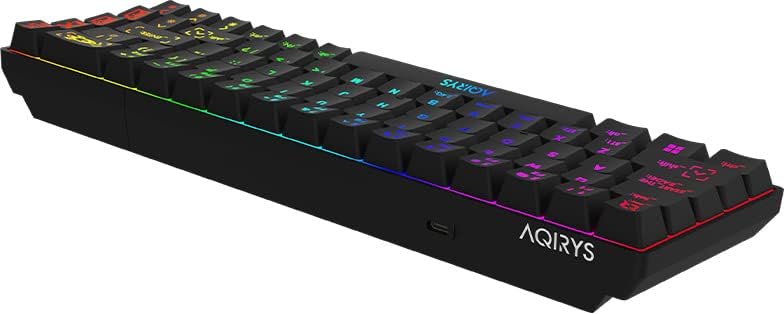
Image: A low-angle view of the AQIRYS Mira keyboard, highlighting the chassis design and rubber coating.
Warranty Information
For detailed warranty terms and conditions, please refer to the warranty card included with your product or visit the official AQIRYS website. Warranty coverage typically includes manufacturing defects for a specified period from the date of purchase. Keep your proof of purchase for warranty claims.
Customer Support
If you encounter any issues not covered in this manual or require further assistance, please visit the AQIRYS official website for support resources, FAQs, and contact information for customer service. You may also reach out to your retailer for product support.


