
1. Introduction
This manual provides essential information for setting up, operating, maintaining, and troubleshooting your Apple iPhone SE (3rd Gen) A2595. Designed for ease of use, this device combines powerful performance with a compact form factor.

Figure 1: Front view of the Apple iPhone SE (3rd Gen) in Red.
Key Features:
- 4.7-inch Retina HD display
- 5G capable for faster connectivity
- Advanced single-camera system with 12MP Wide camera
- 7MP FaceTime HD camera
- A15 Bionic chip for high performance
- Durable design with IP67 water resistance
- Home button with Touch ID for secure authentication
- Up to 15 hours of video playback
2. Setup
2.1 Unboxing and Initial Inspection
Your iPhone SE (3rd Gen) package includes the device and a USB-C to Lightning cable. Inspect all components for any visible damage. This renewed product is fully functional and comes with generic or original accessories.

Figure 2: Back view of the Apple iPhone SE (3rd Gen).
2.2 Powering On and Initial Configuration
- Press and hold the Side button until the Apple logo appears.
- Follow the on-screen instructions to select your language and region.
- Connect to a Wi-Fi network.
- Set up Touch ID and create a passcode.
- Restore from an iCloud or iTunes backup, or set up as a new iPhone.
- Sign in with your Apple ID or create a new one.
2.3 SIM Card Installation
The iPhone SE (3rd Gen) supports both physical Nano-SIM cards and eSIM. For physical SIM installation:
- Locate the SIM tray on the right side of the device.
- Insert a paperclip or SIM eject tool into the small hole next to the tray.
- Pull out the SIM tray, place your Nano-SIM card into the tray, and reinsert it into the iPhone.
For eSIM activation, follow the instructions provided by your carrier or navigate to Settings > Cellular > Add eSIM.
2.4 Charging the Device
Connect the provided USB-C to Lightning cable to the Lightning port at the bottom of your iPhone and to a compatible USB-C power adapter (sold separately). The iPhone SE (3rd Gen) supports fast charging up to 18W.

Figure 3: Bottom view of the Apple iPhone SE (3rd Gen) with Lightning port.
3. Operating
3.1 Basic Navigation
- Home Button: Press the Home button once to return to the Home screen. Double-press to open the App Switcher.
- Touch ID: Use your fingerprint on the Home button to unlock your iPhone and make purchases.
- Control Center: Swipe up from the bottom edge of the screen to access quick settings like Wi-Fi, Bluetooth, brightness, and volume.
- Notification Center: Swipe down from the top edge of the screen to view your notifications.
3.2 Camera Usage
The iPhone SE (3rd Gen) features a 12MP Wide rear camera and a 7MP FaceTime HD front camera. Open the Camera app to capture photos and videos.
- Photo Modes: Swipe left or right in the Camera app to switch between Photo, Portrait, Video, Slo-Mo, Time-Lapse, and Pano modes.
- Smart HDR 4: Automatically adjusts highlights and shadows for improved image quality.
- Photographic Styles: Customize the look of your photos with various styles.
- Video Recording: Record stunning 4K video at up to 60 frames per second.
Video 1: Learn how to use the iPhone SE (2022) and discover useful tips and tricks for its features.
3.3 Connectivity
- 5G: Enjoy faster download and upload speeds on compatible 5G networks.
- Wi-Fi: Connect to wireless networks for internet access.
- Bluetooth: Pair with wireless headphones, speakers, and other Bluetooth accessories.
4. Maintenance
4.1 Cleaning Your iPhone
To clean your iPhone, use a soft, lint-free cloth. Avoid abrasive materials, aerosols, or cleaning sprays. Do not use harsh chemicals or solvents.
4.2 Water and Dust Resistance
Your iPhone SE (3rd Gen) has a rating of IP67 under IEC standard 60529 (maximum depth of 1 meter up to 30 minutes). This means it is resistant to splashes, water, and dust under controlled laboratory conditions. However, water and dust resistance are not permanent conditions and resistance might decrease as a result of normal wear. Do not attempt to charge a wet iPhone.
4.3 Software Updates
Keep your iPhone's software up to date to ensure optimal performance and security. Go to Settings > General > Software Update to check for and install available updates.
4.4 Battery Care
To maximize your battery's lifespan, avoid extreme temperatures and keep your iPhone charged between 20% and 80%. For extended storage, charge the device to about 50% and power it off.
5. Troubleshooting
5.1 Common Issues and Solutions
- Device Unresponsive: If your iPhone is unresponsive, try a force restart. Press and quickly release the Volume Up button, then the Volume Down button, then press and hold the Side button until the Apple logo appears.
- App Crashing: Close the app from the App Switcher (double-press Home button and swipe up on the app) and reopen it. If the issue persists, restart your iPhone.
- Connectivity Problems: For Wi-Fi or Bluetooth issues, try toggling them off and on in Control Center or Settings. If problems continue, reset network settings (Settings > General > Transfer or Reset iPhone > Reset > Reset Network Settings).
- Battery Drain: Check Battery Usage in Settings > Battery to identify apps consuming excessive power. Adjust settings like screen brightness or disable background app refresh for less critical apps.
6. Specifications
| Feature | Specification |
|---|---|
| Model Name | iPhone SE (3rd Gen) |
| Item Model Number | A2595 |
| Product Dimensions | 5.45 x 2.65 x 0.29 inches |
| Item Weight | 5 ounces |
| Operating System | iOS 14 (upgradable) |
| CPU Model | A15 Bionic chip |
| RAM Memory Installed Size | 4 GB |
| Memory Storage Capacity | 128 GB |
| Standing Screen Display Size | 4.7 Inches |
| Cellular Technology | 5G |
| Battery Capacity | 2018 Milliamp Hours |
| Special Features | 3D Touch display, 3G/4G Data Capable, Face detection, Fingerprint, Home Button, Unlocked, Wireless Charging |
| Water Resistance | IP67 |
7. Warranty and Support
This Apple iPhone SE (3rd Gen) is a renewed product. Renewed products are fully functional and come with generic or original accessories and packaging. It is backed by a 90-day return policy for refund or replacement.
7.1 Amazon Renewed Conditions
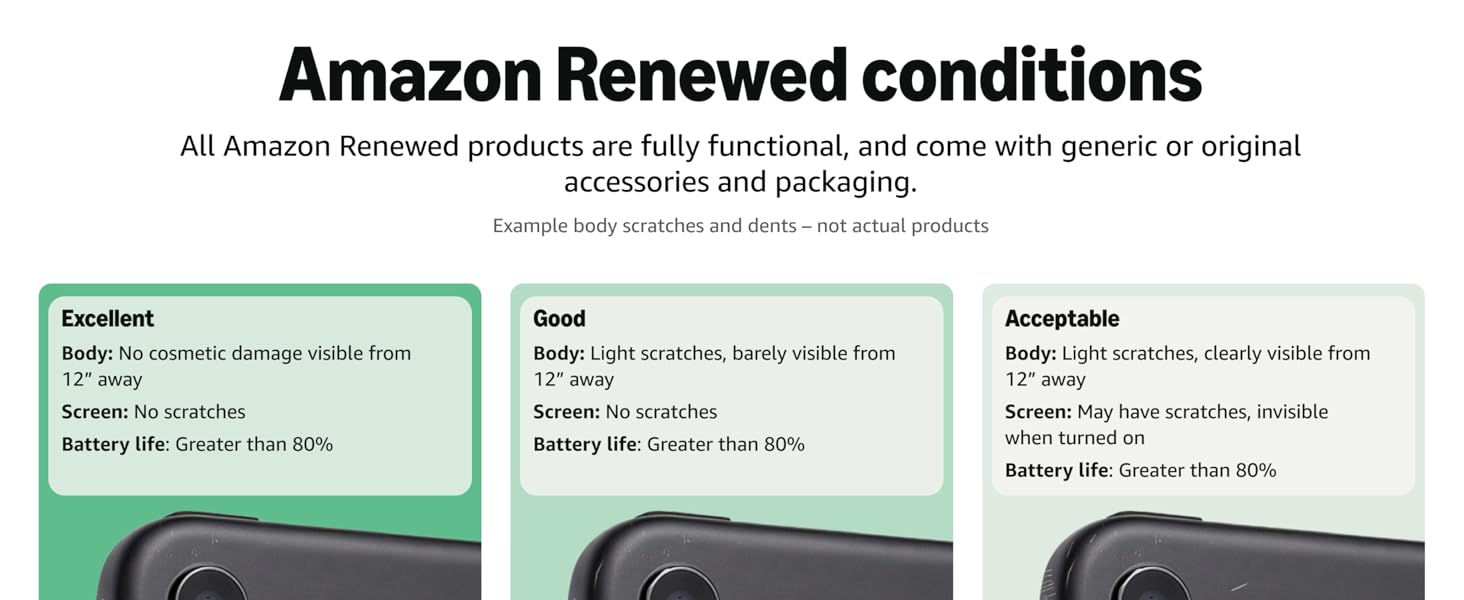
Figure 4: Amazon Renewed product condition guidelines.
7.2 Further Assistance
For additional support, please refer to the official Apple support website or contact your seller for specific warranty claims related to your renewed device.


