
Fellowes 48MC-R2
Fellowes 48MC-R2 Micro-Cut Shredder User Manual
Model: 48MC-R2
Introduction
Thank you for purchasing the Fellowes 48MC-R2 Micro-Cut Shredder. This shredder is designed for home use, offering secure disposal of confidential documents, credit cards, and CDs/DVDs. Its micro-cut technology ensures a high level of security, reducing waste volume significantly. This manual provides essential information for safe and efficient operation, maintenance, and troubleshooting.
Key features of your Fellowes 48MC-R2 Shredder include:
- Extended Continuous Operation: Designed for up to 30 minutes of continuous shredding, ideal for larger tasks.
- Micro-Cut Security: Shreds paper into tiny 2x12mm particles (Security Level P-5), making reconstruction virtually impossible.
- High Capacity: Can shred up to 8 sheets of A4 paper at once, including staples (up to No. 11) and paper clips.
- Auto-Reverse Function: Automatically reverses the motor if too many sheets are inserted, preventing paper jams.
- Versatile Shredding: Capable of shredding credit cards and CDs/DVDs through a dedicated slot.
- Generous Waste Bin: A 21-liter pull-out waste bin can hold approximately 500 sheets of shredded A4 paper.
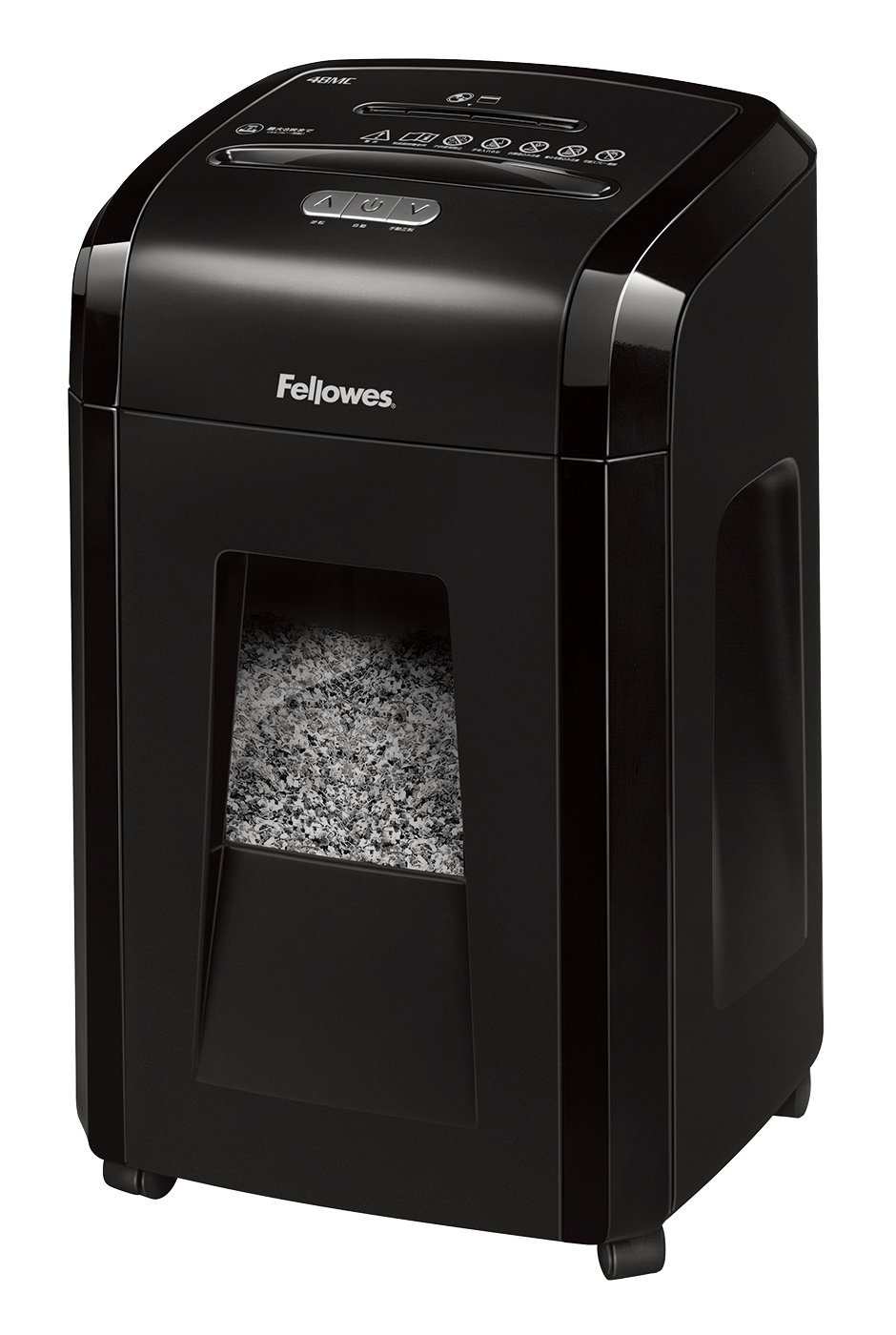
Setup
- Unpacking: Carefully remove the shredder from its packaging. Retain packaging for future transport or storage.
- Placement: Place the shredder on a flat, stable surface. Ensure there is adequate space around the unit for ventilation and to access the waste bin. The compact design allows for convenient placement under a desk or in a home office.
- Power Connection: Plug the power cord into a standard electrical outlet. Ensure the power switch, usually located at the back of the unit, is in the 'OFF' position before plugging in.
- Waste Bin: Ensure the waste bin is correctly inserted into the shredder body. The shredder will not operate if the bin is not properly seated.

Operating Instructions
- Power On: Locate the main power switch (often on the back) and turn it to the 'ON' position. Then, use the slide switch on the top panel to select 'AUTO'. The shredder is now ready for use.
- Shredding Paper: Insert up to 8 sheets of A4 paper into the paper entry slot. The shredder will automatically start and stop. For optimal performance, avoid exceeding the maximum sheet capacity. The auto-reverse function will activate if too much paper is inserted, pushing the paper back out to prevent jams.
- Shredding Credit Cards: Insert one credit card at a time into the dedicated card entry slot. The shredder will automatically process the card.
- Shredding CDs/DVDs: Insert one CD or DVD at a time into the dedicated CD/DVD entry slot. The shredder will cut the disc into 4 pieces.
- Continuous Use: This shredder is designed for 30 minutes of continuous operation. If the motor overheats, it will automatically shut off to prevent damage. Allow it to cool down for approximately 10 minutes before resuming operation.
- Emptying the Waste Bin: When the waste bin is full, the shredder will stop operating. Pull out the waste bin, empty the shredded material, and reinsert it securely.
- Power Off: After use, switch the slide switch to 'OFF' and turn off the main power switch.


Maintenance
Regular maintenance ensures the longevity and optimal performance of your shredder.
- Oiling the Cutters: It is recommended to oil the shredder cutters every two weeks or after every waste bin emptying to maintain shredding efficiency and reduce wear. Use Fellowes shredder oil or a compatible vegetable-based oil. Apply a thin line of oil across the paper entry slot while the shredder is running in reverse, or use a Fellowes maintenance sheet.
- Cleaning: Periodically wipe the exterior of the shredder with a soft, dry cloth. Do not use abrasive cleaners or solvents. Ensure the shredder is unplugged before cleaning.
- Waste Bin: Regularly empty the waste bin to prevent overfilling and potential jams.


Troubleshooting
| Problem | Possible Cause | Solution |
|---|---|---|
| Shredder does not start. | Power cord unplugged; main power switch off; waste bin not properly inserted; shredder overheated. | Check power connection; turn on main power switch; ensure waste bin is fully inserted; allow shredder to cool down for 10 minutes. |
| Paper jam. | Too many sheets inserted; paper not inserted straight. | Engage the auto-reverse function (if not automatic) or manually switch to reverse to clear the jam. Reduce the number of sheets for future shredding. |
| Shredder stops during operation. | Overheating due to continuous use; waste bin full. | Allow the shredder to cool down for approximately 10 minutes. Empty the waste bin. |
| Shredding performance decreases. | Cutters are not lubricated. | Oil the shredder cutters as described in the Maintenance section. |
Specifications
| Feature | Specification |
|---|---|
| Model Number | 48MC-R2 |
| Shred Type | Micro-Cut |
| Shred Size | 2 x 12 mm |
| Security Level | P-5 |
| Maximum Sheet Capacity | 8 sheets (A4, 70gsm) |
| Rated Sheet Capacity | 6 sheets (A4, 70gsm) |
| Feed Opening Width | 220 mm |
| Shredding Speed | 1.8 m/min |
| Continuous Use Time | 30 minutes |
| Cool Down Time | Approx. 10 minutes |
| Waste Bin Capacity | 21 Liters (approx. 500 A4 sheets) |
| Shreds | Paper, Staples (up to No. 11), Paper Clips, Credit Cards, CDs/DVDs |
| Dimensions (H x W x D) | 59 cm x 37 cm x 27.5 cm |
| Weight | 10 kg |
| Power Consumption | 300W |
| Power Type | Corded Electric |
| Color | Black |
| Origin | China |
Warranty & Support
Your Fellowes 48MC-R2 Micro-Cut Shredder comes with a 1-year warranty from the date of purchase, covering defects in materials and workmanship under normal use.
For technical assistance, troubleshooting not covered in this manual, or warranty claims, please contact Fellowes customer support. You can typically find contact information on the Fellowes official website or on the product packaging.
Please have your model number (48MC-R2) and proof of purchase ready when contacting support.
Related documents48MC-R2


Ask a question about this manual
Ask about setup, troubleshooting, compatibility, parts, safety, or missing instructions. Manuals+ will review the question and use this page’s manual context to help answer it.