
Introduction
Thank you for choosing the Admiral 50-inch Ultra HD LED Smart TV, model ADL50UWOSAC. This manual provides essential information for setting up, operating, maintaining, and troubleshooting your new television. Please read these instructions carefully before using the product to ensure proper operation and to maximize your viewing experience.
This television features a 4K LED display, Dolby Sound System, WebOS, built-in Chromecast, Bluetooth, and Wi-Fi connectivity, offering a wide range of entertainment options.
1. Setup
1.1 Unpacking
Carefully remove the TV from its packaging. Ensure all accessories are present, including the remote control, power cable, and stand components. Retain the packaging for future transport or service needs.
1.2 Stand Installation
To install the TV stand:
- Place the TV screen-down on a soft, flat surface to prevent damage.
- Align the stand bases with the corresponding slots on the bottom of the TV.
- Secure the stands using the provided screws. Ensure they are tightened firmly.
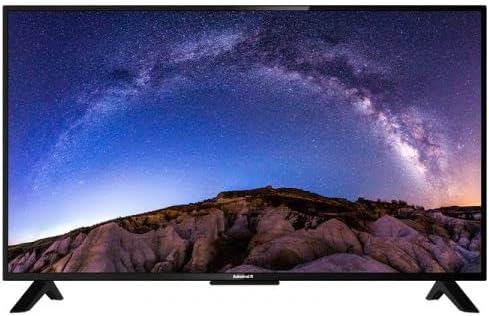
Image: Front view of the Admiral 50-inch Smart TV with its stand properly installed. This shows the display and the two support feet at the bottom.
1.3 Connecting Devices
Before connecting any devices, ensure the TV is unplugged from the power outlet.
- Power Cable: Connect the power cable to the TV's power input and then to a wall outlet.
- HDMI Devices: Use HDMI cables to connect external devices such as Blu-ray players, gaming consoles, or set-top boxes to the HDMI ports on the TV.
- USB Devices: Insert USB drives for media playback into the USB ports.
- Antenna/Cable: Connect an antenna or cable TV source to the RF input.

Image: Rear view of the Admiral 50-inch Smart TV, highlighting the location of various input ports including HDMI, USB, and power input.
1.4 Initial Power On and Setup Wizard
After connecting all necessary cables, plug the TV into a power outlet. Press the power button on the remote control or on the TV itself. The TV will guide you through the initial setup wizard, which includes:
- Language selection.
- Network connection (Wi-Fi or Ethernet).
- Channel scanning.
- Time zone settings.
2. Operating Instructions
2.1 Remote Control Functions
The provided remote control allows you to navigate the TV's features. Key functions include:
- Power Button: Turns the TV on or off.
- Input/Source: Selects the input source (HDMI 1, USB, TV, etc.).
- Volume Up/Down: Adjusts the sound level.
- Channel Up/Down: Changes TV channels.
- Navigation Buttons (Arrow Keys, OK): Navigates menus and confirms selections.
- Home Button: Accesses the Smart TV home screen (WebOS).
- App Shortcut Buttons: Direct access to popular streaming services like Netflix, YouTube, and Prime Video.
2.2 Smart TV Features (WebOS)
Your Admiral Smart TV runs on WebOS, providing an intuitive user interface for accessing various applications and content.
- Home Dashboard: Press the Home button to access the main dashboard, where you can find installed apps, input sources, and settings.
- App Store: Download and install additional applications from the integrated app store.
- Chromecast Built-in: Cast content from compatible mobile devices or computers directly to your TV. Ensure your device and TV are on the same Wi-Fi network.
- Bluetooth Connectivity: Connect Bluetooth-enabled devices such as headphones or soundbars wirelessly to the TV. Access Bluetooth settings in the TV menu.
- Wi-Fi Connectivity: Connect to your home wireless network for internet access and smart features. Manage Wi-Fi settings in the TV's network menu.
2.3 Input Source Selection
To switch between connected devices or TV channels, press the "Input" or "Source" button on your remote control. A menu will appear, allowing you to select the desired input (e.g., HDMI 1, HDMI 2, USB, TV).
3. Maintenance
3.1 Cleaning the TV
- Screen: Gently wipe the screen with a soft, lint-free cloth. For stubborn marks, slightly dampen the cloth with water or a specialized screen cleaner. Do not spray liquid directly onto the screen.
- Body: Use a soft, dry cloth to clean the TV's casing. Avoid using abrasive cleaners or solvents.
- Always unplug the TV before cleaning.
3.2 Software Updates
Periodically check for software updates through the TV's settings menu. Updates can improve performance, add new features, and enhance security. Ensure the TV is connected to the internet during the update process.
4. Troubleshooting
If you encounter issues with your TV, refer to the following common solutions before contacting support.
| Problem | Possible Solution |
|---|---|
| No power |
|
| No picture or sound |
|
| Remote control not working |
|
| Cannot connect to Wi-Fi |
|
5. Specifications
| Feature | Detail |
|---|---|
| Brand | Admiral |
| Model Number | ADL50UWOSAC |
| Screen Size | 50 Inches |
| Display Technology | LED |
| Resolution | 4K Ultra HD |
| Refresh Rate | 60 Hz |
| Operating System | WebOS |
| Special Features | Built-In Speaker, Dolby Sound System, Chromecast Built-in |
| Connectivity Technology | HDMI, USB, Wi-Fi, Bluetooth |
| Aspect Ratio | 16:9 |
| Product Dimensions (D x W x H) | 14D x 121W x 74H centimeters |
| Item Weight | 11.16 kg |
| Manufacturer | ADMIRAL TV |
6. Warranty Information
This Admiral 50-inch Smart TV (Model ADL50UWOSAC) comes with a 2-year warranty from the date of purchase. This warranty covers manufacturing defects and ensures peace of mind. Please retain your proof of purchase for warranty claims. For specific terms and conditions, refer to the warranty card included with your product or contact Admiral customer support.
7. Customer Support
If you require further assistance, have questions not covered in this manual, or need to report a technical issue, please contact Admiral customer support. Refer to the contact information provided on the product packaging or the official Admiral website for the most up-to-date support details.
When contacting support, please have your TV model number (ADL50UWOSAC) and serial number ready.
