
Introduction
This manual provides essential information for setting up, operating, maintaining, and troubleshooting your Apple Watch Series 8 GPS 45mm. Designed for health monitoring, fitness tracking, and seamless connectivity, this smart watch integrates advanced technology to enhance your daily life. Please read this guide thoroughly to ensure proper use and to maximize your device's capabilities.

Image: The Apple Watch Series 8, featuring a Starlight Aluminum Case and a matching Starlight Sport Band. The always-on Retina display shows a classic watch face with additional information such as UV index, temperature, and activity rings.
What's in the Box
Upon unboxing your Apple Watch Series 8, verify that all the following components are present:
- Apple Watch Series 8 Case (45mm Starlight Aluminum)
- Starlight Sport Band (M/L size, fits 160–210mm wrists)
- 1m Magnetic Charging Cable (USB-C)

Image: A visual representation of the Apple Watch Series 8 packaging contents, showing the watch case, the sport band, and the USB-C magnetic fast charging cable.
Setup
1. Charging Your Apple Watch
Before initial use, fully charge your Apple Watch. Connect the magnetic charging cable to the back of your watch and plug the USB-C end into a compatible power adapter (sold separately) or a USB-C port. The watch will display a charging indicator.
2. Attaching the Band
Slide the band pieces into the slots on the top and bottom of the Apple Watch case until you feel and hear a click. Ensure the band is securely fastened before wearing.
3. Pairing with iPhone
- Ensure your iPhone is running the latest iOS version and has Bluetooth and Wi-Fi enabled.
- Turn on your Apple Watch by pressing and holding the side button until the Apple logo appears.
- Bring your iPhone near your Apple Watch. A pairing screen will appear on your iPhone. Tap 'Continue'.
- Position your iPhone so that your Apple Watch appears in the viewfinder of the Apple Watch app.
- Follow the on-screen instructions on both devices to complete the pairing process, including setting up a passcode and choosing your preferred settings.
Operating Your Apple Watch
Navigation and Controls
- Digital Crown: Rotate to scroll, zoom, or adjust values. Press once to go to the watch face or app launcher. Double-press to switch between recently used apps. Press and hold to activate Siri.
- Side Button: Press once to open the Dock (recently used apps). Press and hold to access Emergency SOS, Medical ID, and power options. Double-press for Apple Pay.
- Touch Display: Tap to select, swipe to navigate, force touch for additional options (on supported apps).
Health Features
- Blood Oxygen App: Measure your blood oxygen levels on demand.
- ECG App: Generate an electrocardiogram similar to a single-lead ECG.
- Temperature Sensing: Provides retrospective ovulation estimates and advanced cycle tracking features.
- Sleep Tracking: Monitor your sleep stages (REM, Core, Deep) and overall sleep patterns.
- Heart Rate Monitoring: Track your heart rate throughout the day and receive notifications for high, low, or irregular rhythms.
Safety Features
- Crash Detection: Automatically detects severe car crashes and connects you with emergency services.
- Fall Detection: Detects hard falls and can initiate an emergency call if you are unresponsive.
- Emergency SOS: Press and hold the side button to quickly call emergency services and notify your emergency contacts.
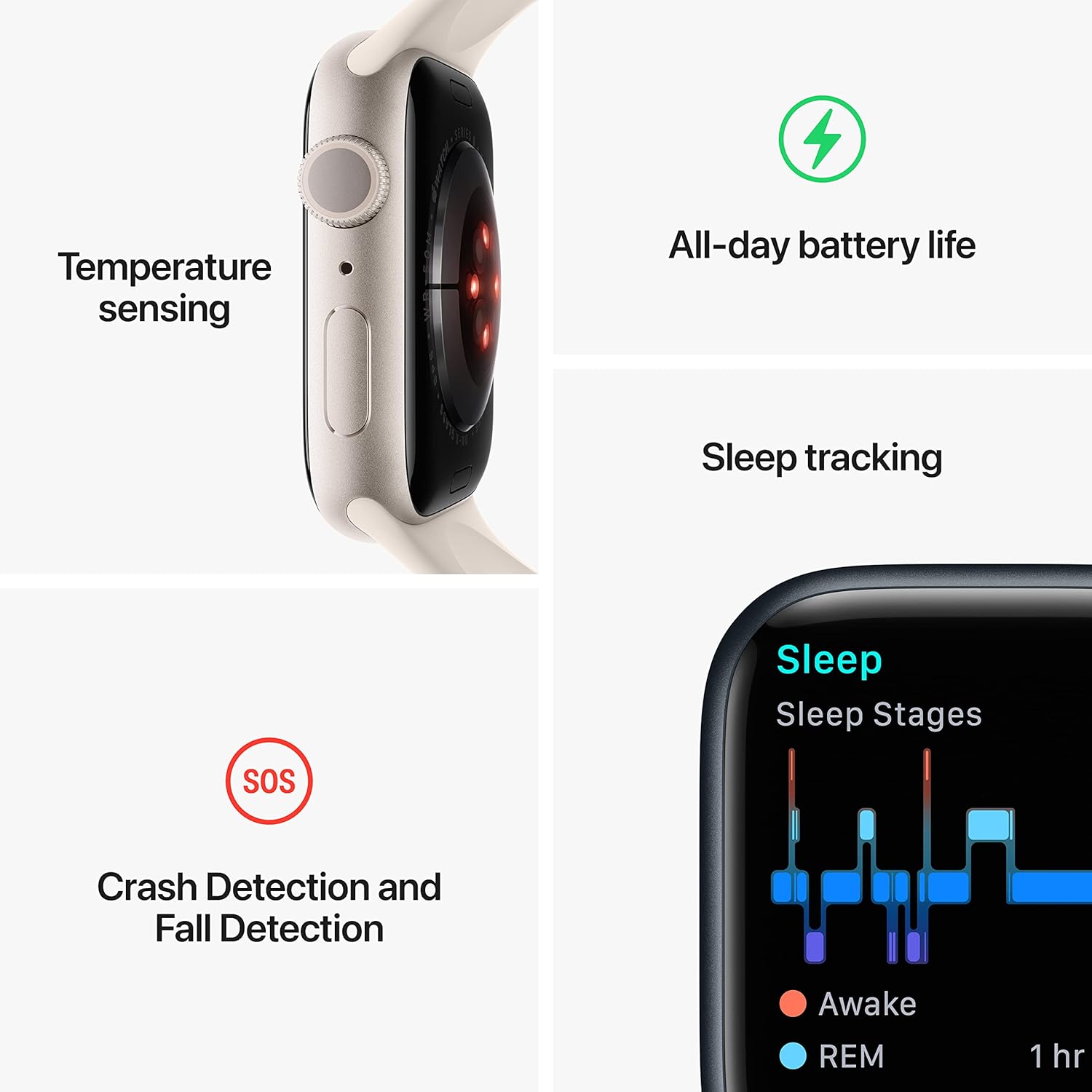
Image: A graphic illustrating key features of the Apple Watch Series 8: temperature sensing, all-day battery life, sleep tracking with sleep stages, and crash detection with fall detection.
Fitness Tracking
- Workout App: Track various workouts with advanced metrics.
- Activity Rings: Monitor your daily Move, Exercise, and Stand goals.
- GPS: Built-in GPS for accurate tracking of outdoor activities without your iPhone.
Connectivity and Communication
- Calls and Texts: Make and receive calls and send messages directly from your wrist when connected to your iPhone or Wi-Fi.
- Siri: Use voice commands for various tasks.
- Apple Pay: Make secure payments with a double-press of the side button.
- App Store: Access and download thousands of apps directly on your watch.
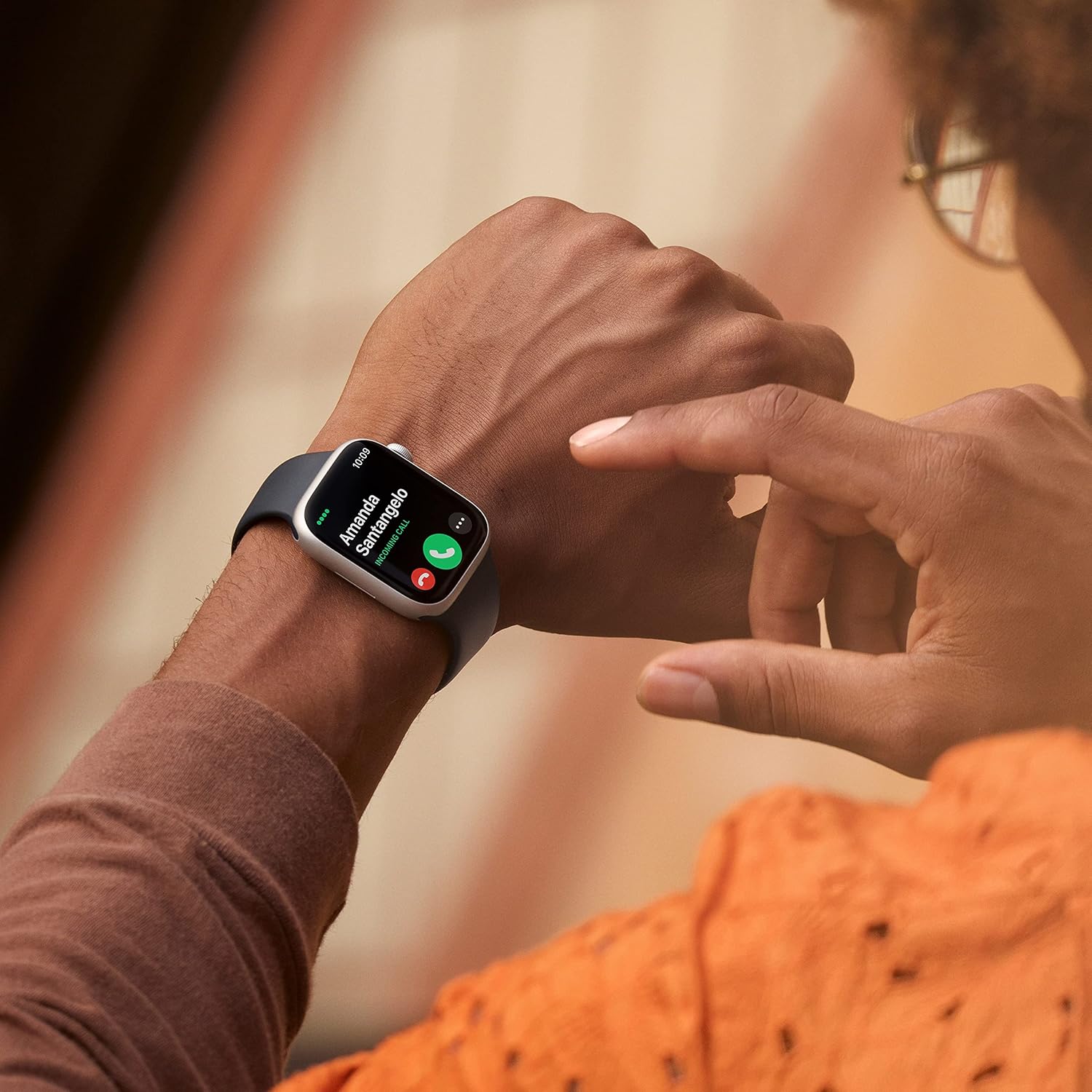
Image: A close-up of a person's wrist wearing an Apple Watch Series 8, displaying an incoming call from 'Amanda Santangelo' with options to accept or decline.
Maintenance
Cleaning Your Apple Watch
Regularly clean your Apple Watch to maintain its appearance and functionality. Use a soft, lint-free cloth. If necessary, lightly dampen the cloth with fresh water. Avoid using soaps, cleaning products, abrasive materials, or compressed air. Ensure the watch is dry before charging or wearing.
Band Care
Clean your sport band with a non-abrasive, lint-free cloth. For deeper cleaning, you can use a mild, hypoallergenic hand soap and rinse thoroughly with fresh water. Allow the band to air dry completely before reattaching it to your watch.
Software Updates
Keep your Apple Watch software updated to the latest version of watchOS for optimal performance, new features, and security enhancements. Updates can be managed through the Apple Watch app on your iPhone.
Troubleshooting
Watch Not Turning On or Responding
- Charge the Watch: Ensure the watch is charged. Connect it to the magnetic charging cable and a power source for at least 30 minutes.
- Force Restart: Press and hold both the side button and the Digital Crown for at least 10 seconds, until you see the Apple logo.
Pairing Issues
- Check iPhone Settings: Ensure Bluetooth and Wi-Fi are enabled on your iPhone.
- Restart Devices: Restart both your iPhone and Apple Watch.
- Reset Apple Watch: If pairing fails repeatedly, you may need to erase your Apple Watch and try pairing again. (Go to Settings > General > Reset > Erase All Content and Settings on the watch).
Battery Draining Quickly
- Check Battery Usage: In the Apple Watch app on your iPhone, go to My Watch > Battery to see which apps are consuming the most power.
- Adjust Settings: Reduce screen brightness, turn off Always-On Display if not needed, limit background app refresh, and disable unnecessary notifications.
- Software Update: Ensure your watchOS is up to date.
Specifications
| Model Number | MNUQ3LL/A |
| Brand | Apple |
| Screen Size | 45 Millimeters |
| Shape | Square |
| GPS | Built-in GPS |
| Battery Type | Lithium Ion |
| Wireless Communication Standard | 802.11n |
| Connectivity Technology | USB |
| Special Features | Activity Tracker, Heart Rate Monitor, Sleep Monitor, Blood Oxygen |
| Memory Storage Capacity | 32 GB |
| Operating System | WatchOS |
| Product Dimensions | 1.73 x 0.42 x 1.5 inches |
| Item Weight | 1.28 ounces |
Warranty and Support
Your Apple Watch Series 8 is covered by Apple's standard limited warranty. For detailed warranty information, please refer to the documentation included with your product or visit the official Apple support website. Apple also provides extensive online support resources, including user guides, troubleshooting articles, and community forums. For technical assistance, contact Apple Support directly.
For the most up-to-date information and support, please visit: support.apple.com/watch


