
Introduction
This manual provides detailed instructions for the CHONCHOW Pink Gaming Keyboard and Mouse Combo, Model 1920. Please read this guide thoroughly before using your new peripheral set to ensure optimal performance and longevity. This combo is designed for gaming and general computer use across various platforms.
Package Contents
- 1 x CHONCHOW Pink Gaming Keyboard
- 1 x CHONCHOW Pink Gaming Mouse
- 1 x User Manual (this document)
Specifications
| Feature | Detail |
|---|---|
| Package Dimensions | 17.72 x 8.27 x 2.01 inches |
| Item Weight | 1.94 pounds |
| Connectivity Technology | USB |
| Special Features | Backlit, Ergonomic |
| Compatible Devices | Gaming Console, Laptop, PS4, PS5, Personal Computer, Xbox |
| Color | Pink Keyboard and Mouse |
Setup Instructions
Connecting the Keyboard and Mouse
- Locate an available USB port on your computer or gaming console (PC, Laptop, PS4, PS5, Xbox).
- Plug the USB connector of the CHONCHOW Pink Gaming Keyboard into the USB port.
- Plug the USB connector of the CHONCHOW Pink Gaming Mouse into another available USB port.
- The devices are plug-and-play and should be automatically recognized by your system. No additional drivers are typically required.

Operating Instructions - Keyboard
LED Backlight Control
- Changing Backlight Modes: Press the FN key + the Light Bulb key (usually located near the right Ctrl key) to cycle through 3 dynamic backlight modes. The modes typically include color transitions like Blue→Red→Green, Cyan→Purple→Yellow, and Green→Blue→Red.
- Breathing Light Mode ON/OFF: Press FN + Light Bulb key to toggle the breathing effect on or off.
- Brightness Adjustment: Press FN + Page Up (PGUP) to increase brightness. Press FN + Page Down (PGDN) to decrease brightness.
- Light Speed Adjustment: Press FN + Minus (-) to decrease light speed. Press FN + Plus (+) to increase light speed.

Multimedia Function Keys
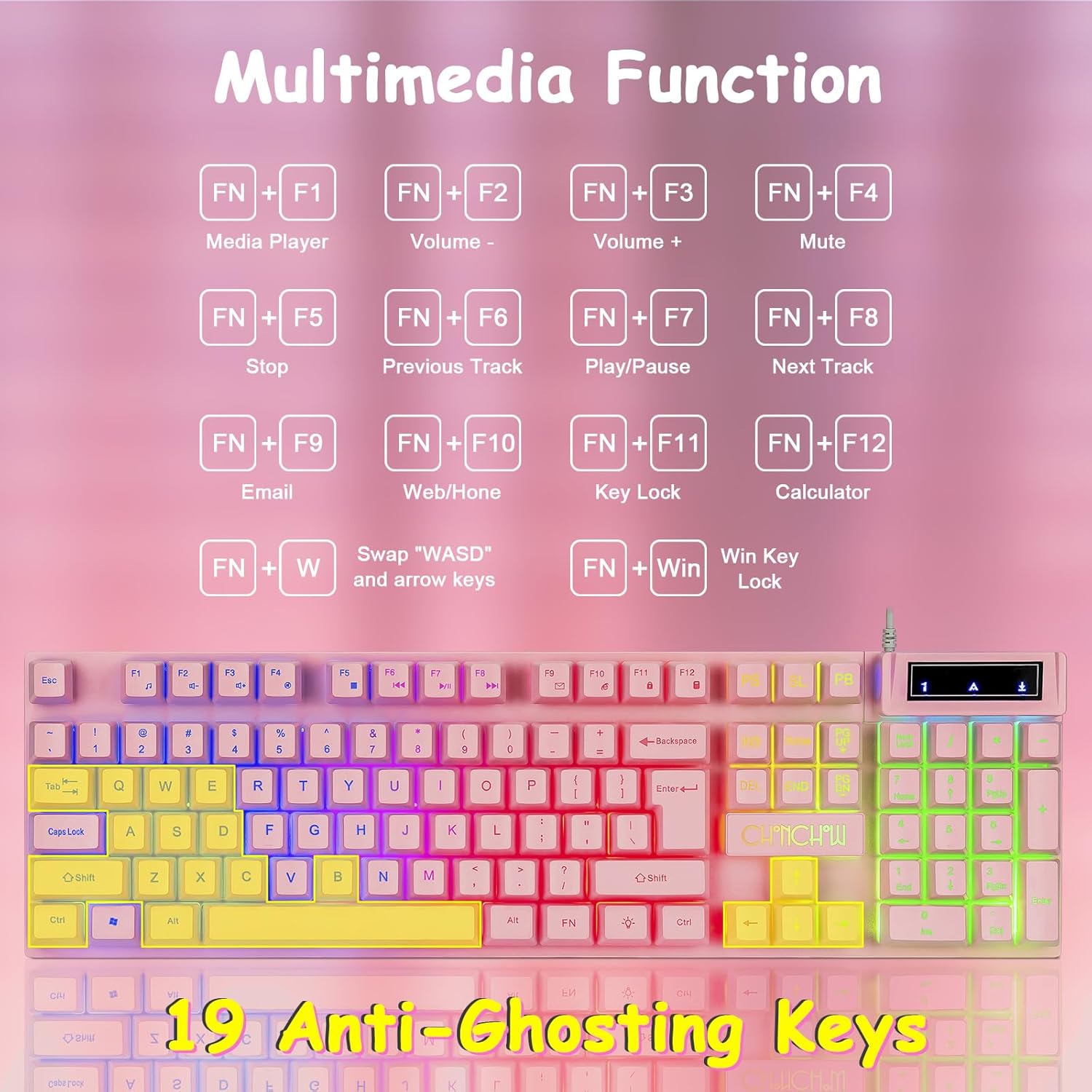
The keyboard features 12 multimedia shortcut keys accessible by pressing the FN key in combination with the F1-F12 keys:
- FN + F1: Media Player
- FN + F2: Volume Down
- FN + F3: Volume Up
- FN + F4: Mute
- FN + F5: Stop
- FN + F6: Previous Track
- FN + F7: Play/Pause
- FN + F8: Next Track
- FN + F9: Email
- FN + F10: Web/Home
- FN + F11: Key Lock
- FN + F12: Calculator
Special Gaming Functions
- WASD/Arrow Key Switching: Press FN + W to swap the functionality of the WASD keys with the arrow keys. Repeat to revert.
- Windows Key Lock: Press FN + Win to lock the Windows key, preventing accidental presses during gameplay. Repeat to unlock.
- Anti-Ghosting: The keyboard supports 19-key anti-ghosting, ensuring multiple simultaneous key presses are registered accurately.

Operating Instructions - Mouse
DPI Adjustment
The mouse features 4 adjustable DPI settings for precision control:
- Press the DPI+ button to increase DPI (1200 / 1800 / 2400 / 3600).
- Press the DPI- button to decrease DPI.
- The mouse's 7-color breathing LED effect will change to indicate the current DPI setting.

Mouse LED Control
- Turn ON/OFF LED: Long press the DPI button (located below the scroll wheel) to toggle the mouse's LED lighting on or off.
Ergonomics and Design
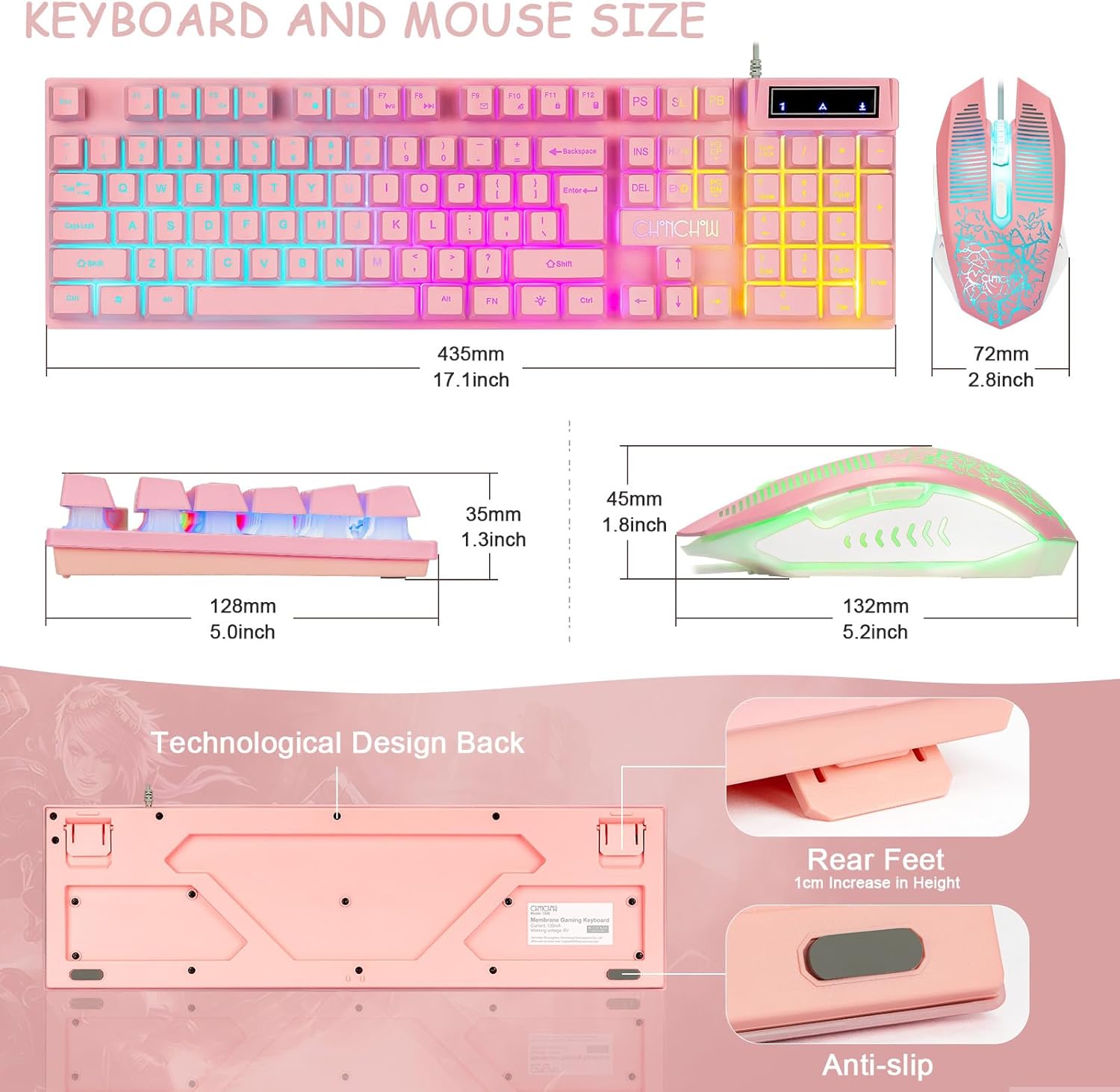
- Adjustable Keyboard Feet: The keyboard features adjustable feet (1cm height adjustment) to customize the typing angle for comfort.
- Curved Keycaps: Designed for natural finger positioning and reduced fatigue during extended use.
- Mouse Grip: The ergonomic wired mouse includes a rubber grip base for enhanced control and comfort.
- Crater Structure Keys: The keyboard utilizes crater structure keys for faster response and improved keystroke feel.
Maintenance and Care
- Cleaning: Use a soft, dry cloth to wipe down the keyboard and mouse. For stubborn dirt, a slightly damp cloth with mild soap can be used, ensuring no liquid enters the device.
- Avoid Liquids: Do not expose the keyboard or mouse to excessive moisture or liquids.
- Storage: Store the devices in a cool, dry place away from direct sunlight and extreme temperatures.
- Cable Management: Avoid sharp bends or excessive pulling on the USB cables to prevent damage.
Troubleshooting
| Problem | Solution |
|---|---|
| Keyboard/Mouse not responding. |
|
| LED lights are off or not changing. |
|
| Keys are sticking or not registering. |
|
| Mouse cursor movement is erratic or unresponsive. |
|
Warranty and Support
For warranty information and technical support, please refer to the official CHONCHOW website or contact their customer service directly. Keep your purchase receipt for warranty claims.
Manufacturer: CHONCHOW
Model Number: 1920
Date First Available: September 7, 2022
Official Product Videos
An official product video demonstrating the CHONCHOW Pink Gaming Keyboard and Mouse Combo in use, highlighting its features for both gaming and work environments.
An official product video showcasing the aesthetic appeal and functionality of the CHONCHOW Pink Gaming Keyboard.