
Baseus WKWG020213
Baseus Hub USB-C 12in1 Metal Gleam Series User Manual
Model: WKWG020213
Introduction
Thank you for choosing the Baseus Hub USB-C 12in1 Metal Gleam Series. This versatile docking station expands the connectivity of your USB-C enabled device, providing a wide range of ports for various peripherals and functions. This manual provides detailed instructions for setup, operation, maintenance, and troubleshooting to ensure optimal performance and longevity of your device.
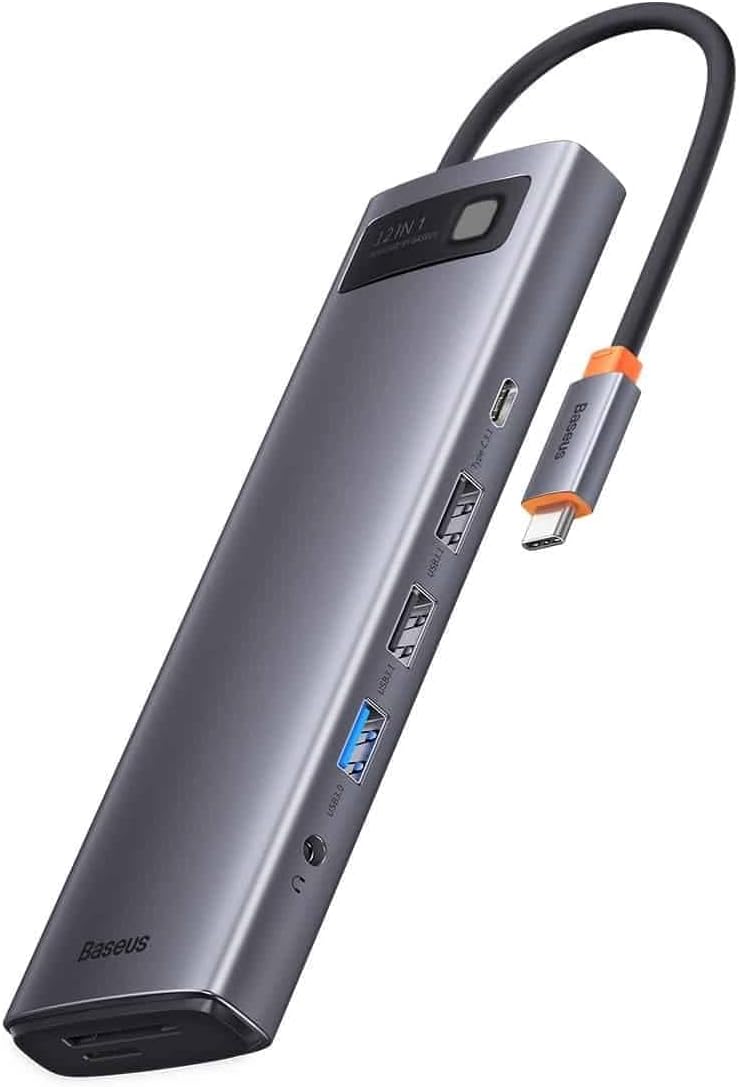
Image: The Baseus Hub USB-C 12in1 Metal Gleam Series, showcasing its sleek design and multiple ports.
Product Overview
The Baseus 12in1 Hub is designed to streamline your workspace by offering extensive connectivity options through a single USB-C port. It features a durable metal gleam finish and compact design.
Key Features:
- Multiple USB ports (USB 3.0, USB 2.0, USB Type-C) for data transfer and peripheral connection.
- HDMI output for high-definition video display.
- Ethernet port for stable wired network connection.
- SD and Micro SD card readers for memory expansion.
- Audio jack for headphones or speakers.
- Power Delivery (PD) port for charging your host device.

Image: Side view of the Baseus Hub, illustrating the arrangement of its various ports.
Setup Instructions
- Connect the Hub to your Device: Plug the integrated USB-C cable of the Baseus Hub into the USB-C port of your laptop, tablet, or smartphone. Ensure the connection is secure.
- Power Connection (Optional but Recommended): If your host device requires charging or if you are connecting power-intensive peripherals, connect a USB-C power adapter (not included) to the Power Delivery (PD) port on the hub. This will charge your host device and provide stable power to connected accessories.
- Connect Peripherals:
- USB Devices: Connect USB flash drives, external hard drives, keyboards, mice, or other USB peripherals to the available USB 3.0 or USB 2.0 ports.
- Display: Connect an HDMI cable from the hub's HDMI port to your monitor or TV for video output.
- Network: Connect an Ethernet cable to the RJ45 port for a wired internet connection.
- Memory Cards: Insert SD or Micro SD cards into the respective slots.
- Audio: Plug your headphones or speakers into the 3.5mm audio jack.
- Driver Installation: The Baseus Hub is typically plug-and-play and does not require additional drivers for most operating systems. If prompted, follow on-screen instructions for any necessary driver installations.
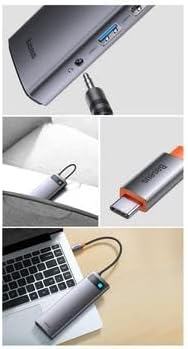
Image: The Baseus Hub connected to a laptop, demonstrating a typical setup.
Operating Instructions
Using USB Ports:
Connect your USB devices to the available USB 3.0 (blue interior) or USB 2.0 ports. USB 3.0 ports offer higher data transfer speeds (up to 5Gbps) and are backward compatible with USB 2.0 devices. USB 2.0 ports are suitable for keyboards, mice, and other standard peripherals.
HDMI Video Output:
The HDMI port supports video output to an external display. Connect an HDMI cable from the hub to your monitor or TV. Your operating system should automatically detect the external display. You can configure display settings (mirror, extend, primary display) through your device's display settings.
Ethernet Connection:
For a stable and fast internet connection, plug an Ethernet cable into the RJ45 port on the hub. Your device will typically recognize the wired connection automatically. Check your network settings if a connection is not established.
SD/Micro SD Card Readers:
Insert your SD or Micro SD card into the corresponding slot. The card will appear as a removable drive on your computer, allowing you to access and transfer files. Do not force cards into the slots; ensure correct orientation.
Audio Output:
Connect your 3.5mm headphones or speakers to the audio jack. Your device's audio output should automatically switch to the connected device. You may need to select the hub as the audio output device in your system's sound settings.
USB-C Power Delivery (PD):
The USB-C PD port allows you to charge your host device (laptop, tablet) while using the hub. Connect your original USB-C power adapter to this port. The hub will pass through power to your device and power its own functions and connected peripherals.
Maintenance
- Cleaning: Use a soft, dry cloth to clean the surface of the hub. Avoid using liquid cleaners, aerosols, or harsh chemicals, as they may damage the finish or internal components.
- Storage: When not in use, store the hub in a cool, dry place away from direct sunlight and extreme temperatures.
- Handling: Avoid dropping the hub or subjecting it to strong impacts. Do not bend or twist the integrated USB-C cable excessively.
- Ventilation: Ensure the hub has adequate ventilation during operation to prevent overheating. Do not cover it with cloths or place it in enclosed spaces.
Troubleshooting
- No display output via HDMI:
- Ensure the HDMI cable is securely connected to both the hub and the display. Check your device's display settings to confirm the external monitor is detected and configured correctly. Try a different HDMI cable or monitor if possible.
- USB devices are not recognized:
- Ensure the hub is securely connected to your host device. Try connecting the USB device to a different port on the hub. If using a high-power USB device (e.g., external hard drive), ensure the hub is connected to a power source via its PD port. Restart your host device.
- Slow data transfer speeds:
- Ensure you are using a USB 3.0 port for USB 3.0 devices. Some older USB-C ports on host devices may not support full USB 3.0 speeds. Ensure no other high-bandwidth operations are running simultaneously.
- Hub or connected devices are overheating:
- Disconnect all devices and the power source. Allow the hub to cool down. Ensure proper ventilation around the hub. If the issue persists, reduce the number of connected power-intensive devices.
- No internet connection via Ethernet:
- Verify the Ethernet cable is properly connected to both the hub and your router/modem. Check your device's network settings to ensure the wired connection is enabled and configured correctly. Try a different Ethernet cable.
Specifications
| Brand | Baseus |
| Model Number | WKWG020213 |
| Total USB Ports | 12 (various types) |
| Hardware Interface | HDMI, USB, USB 3.0, USB Type C, Ethernet, SD/Micro SD, Audio Jack |
| Compatible Devices | USB-C enabled laptops, tablets, smartphones, USB drives, monitors, etc. |
| Data Transfer Rate | Up to 48 Gigabits per second (aggregate) |
Warranty Information
Baseus products are manufactured to high-quality standards. This product is covered by a limited warranty against defects in materials and workmanship. The specific terms and duration of the warranty may vary by region and retailer. Please retain your proof of purchase for warranty claims. For detailed warranty information, refer to the official Baseus website or contact your local retailer.
Support
If you encounter any issues or have questions regarding your Baseus Hub USB-C 12in1 Metal Gleam Series, please refer to the troubleshooting section of this manual. For further assistance, you can:
- Visit the official Baseus website for FAQs and support resources.
- Contact Baseus customer service through their official channels.
- Reach out to the retailer from whom you purchased the product.
Ask a question about this manual
Ask about setup, troubleshooting, compatibility, parts, safety, or missing instructions. Manuals+ will review the question and use this page’s manual context to help answer it.