
1. Introduction
Thank you for choosing the YENKEE YMS 3030BK RGB Gaming Mouse Ultra Light Shotgun. This manual provides detailed instructions for setting up, operating, and maintaining your new gaming mouse. Please read this manual carefully before use to ensure optimal performance and longevity of your device.
The YENKEE YMS 3030BK RGB Gaming Mouse features an ergonomic design for comfortable use. Its unique ultra-light perforated construction promotes airflow, helping to keep your palm cool during extended use. Equipped with an accurate IC 6651 sensor, it offers precise tracking with a resolution of up to 6400 DPI, and includes customizable RGB backlighting.
2. Package Contents
Please check the package for the following items:
- 1 x YENKEE YMS 3030BK RGB Gaming Mouse Ultra Light Shotgun
- User Manual (this document)
3. Product Overview
3.1 Key Features
- Unique ultra-light perforated construction for improved airflow
- Ergonomic design for comfortable grip and to prevent palm sweat
- Customizable RGB backlight
- Accurate IC 6651 sensor with up to 6400 DPI resolution
- Wired USB connectivity
3.2 Mouse Components
The YMS 3030BK mouse typically includes the following components:
- Left Click Button
- Right Click Button
- Scroll Wheel / Middle Click Button
- DPI Adjustment Button (usually located behind the scroll wheel)
- Forward/Backward Side Buttons (typically on the left side)
- Optical Sensor (on the underside)
- USB Cable
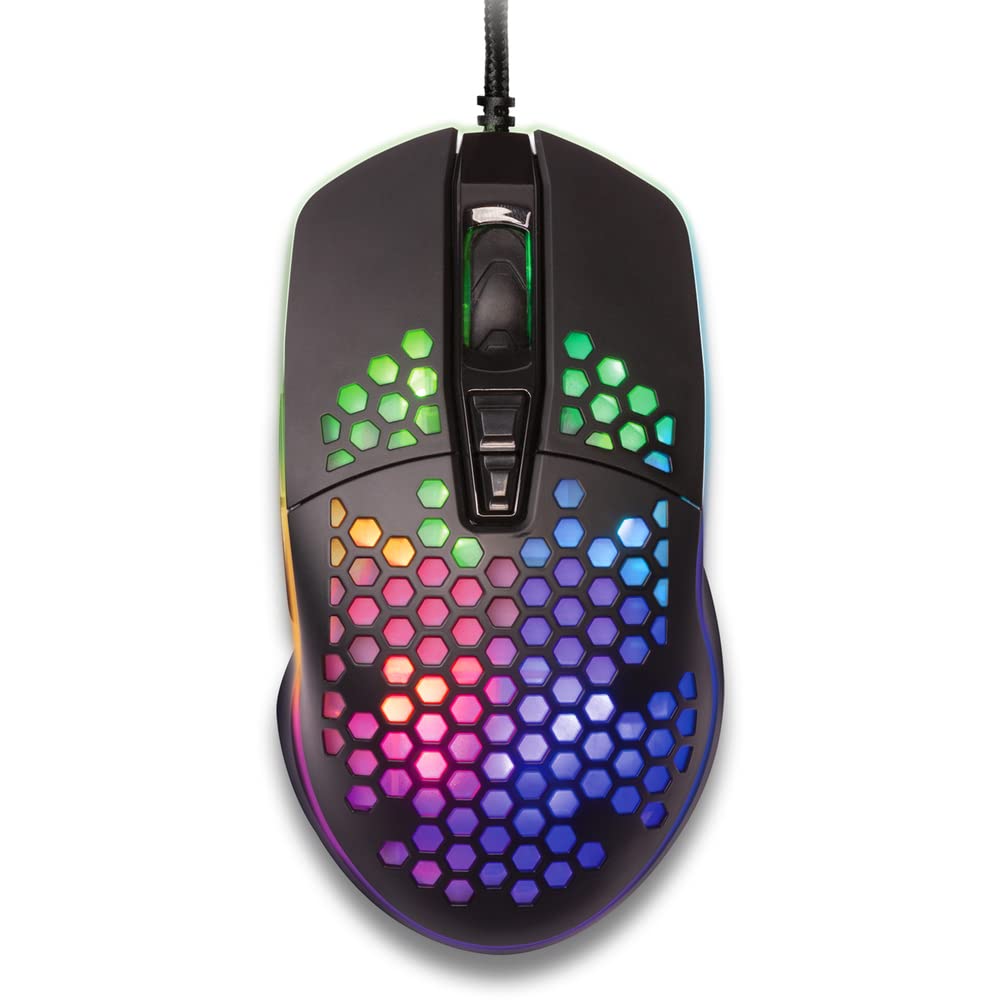
Figure 1: Top-down view of the YENKEE YMS 3030BK RGB Gaming Mouse, highlighting its ultra-light perforated design and ergonomic contours.
4. Setup
Follow these steps to set up your YENKEE YMS 3030BK gaming mouse:
- Connect the Mouse: Plug the USB connector of the mouse into an available USB port on your computer.
- Driver Installation: Your operating system (Windows 7, 8, Vista, XP) should automatically detect and install the necessary drivers. No additional software installation is typically required for basic functionality.
- Optional Software: For advanced customization of RGB lighting and button assignments, please visit the official YENKEE website to check for any dedicated software for the YMS 3030BK model.
5. Operating Instructions
5.1 Basic Operation
- Left Click: Primary action, selection.
- Right Click: Context menu, secondary action.
- Scroll Wheel: Scroll up/down, middle click for specific functions (e.g., opening links in new tabs).
- Side Buttons: Default functions are typically 'Forward' and 'Backward' in web browsers or file explorers. These can often be customized via software.
5.2 DPI Adjustment
The YMS 3030BK mouse features an IC 6651 sensor with a maximum resolution of 6400 DPI. You can adjust the DPI (Dots Per Inch) sensitivity on-the-fly using the dedicated DPI button, usually located behind the scroll wheel. Pressing this button will cycle through preset DPI levels, indicated by changes in the mouse's RGB lighting color or pattern. Refer to the optional software for precise DPI level configuration and customization.
5.3 RGB Lighting Customization
The RGB backlight of your mouse can be customized to match your preferences. While some mice offer onboard controls for basic lighting effects, full customization of colors, patterns, and brightness is typically achieved through the dedicated YENKEE software (if available). Please download and install the software from the official YENKEE website for advanced lighting options.
6. Maintenance
To ensure the longevity and optimal performance of your gaming mouse, follow these maintenance guidelines:
- Cleaning: Use a soft, dry cloth to wipe the surface of the mouse. For perforated areas, a soft brush or compressed air can help remove dust. Avoid using harsh chemicals or abrasive materials.
- Sensor Cleaning: Occasionally clean the optical sensor on the underside of the mouse with a cotton swab lightly dampened with isopropyl alcohol. Ensure it is completely dry before use.
- Cable Care: Avoid sharp bends or excessive pulling on the USB cable to prevent damage.
- Storage: Store the mouse in a clean, dry environment when not in use.
7. Troubleshooting
If you encounter issues with your YENKEE YMS 3030BK mouse, refer to the table below for common problems and solutions:
| Problem | Possible Cause | Solution |
|---|---|---|
| Mouse not responding | Loose USB connection, faulty USB port, driver issue. | Ensure USB cable is securely plugged in. Try a different USB port. Restart your computer. Check Device Manager for driver status. |
| Cursor movement is erratic or jumpy | Dirty optical sensor, unsuitable mouse pad surface. | Clean the optical sensor. Use a clean, uniform mouse pad. |
| DPI adjustment not working | Software conflict, button malfunction. | Ensure no conflicting software is running. If using custom software, check its settings. |
| RGB lighting not working or stuck | Software issue, power issue. | Check the YENKEE software settings. Unplug and replug the mouse. Restart your computer. |
8. Specifications
| Feature | Detail |
|---|---|
| Brand | YENKEE |
| Model Number | YMS 3030BK |
| Connectivity Technology | USB (Corded Electric) |
| Movement Detection Technology | Optical (IC 6651 Sensor) |
| Max DPI | 6400 DPI |
| Special Features | Ergonomic Design, Lightweight, Perforated Construction, RGB Backlight |
| Color | Black |
| Item Weight | 4.2 ounces (approx. 119 grams) |
| Product Dimensions (LxWxH) | 5.43 x 2.44 x 9.06 inches (approx. 13.8 x 6.2 x 23 cm) |
| Hardware Platform | Gaming |
| Operating System Compatibility | Windows 7, Windows 8, Windows Vista, Windows XP |
9. Warranty and Support
Warranty Information: For detailed warranty terms and conditions, please refer to the warranty card included with your product or visit the official YENKEE website. Warranty periods may vary by region and retailer.
Customer Support: If you require technical assistance or have questions regarding your YENKEE YMS 3030BK gaming mouse, please contact your retailer or visit the support section of the official YENKEE website for contact information and FAQs.


