
1. Product Overview
The NIIMBOT B1 Label Maker is a compact, inkless thermal label printer designed for ease of use in various settings, including office, home, and business. It connects seamlessly via Bluetooth to iOS and Android devices, and can also be used with a PC via USB. Its smart app features automatic label size detection, extensive customization options, and supports a wide range of label types for efficient organization.

Image: The NIIMBOT B1 Label Maker shown with various sample labels, highlighting its versatility for different applications.
2. Setup
2.1 Initial Setup & Charging
The NIIMBOT B1 comes with a built-in rechargeable battery. Use the included USB-C cable to charge the device. A full charge ensures portability and extended use.
2.2 App Installation & Bluetooth Connection
- Download the official "NIIMBOT" APP from your device's app store (iOS or Android).
- Open the app and select "B1" as your printer model.
- Long press the power button on the printer to turn it on. The blue light will flash.
- Connect via Bluetooth within the app. The printer will beep and the light will turn green upon successful connection.

Image: Step-by-step guide illustrating the easy connection process of the NIIMBOT B1 printer with the mobile application via Bluetooth.
2.3 Loading Labels
The NIIMBOT B1 features automatic label size detection thanks to its built-in RFID technology chip, eliminating the need for manual setup. Simply open the printer cover, insert the label roll with the sticker facing down, and close the cover. The printer will automatically adjust.

Image: Demonstration of the automatic label size detection feature, showing the printer recognizing the label roll without manual configuration.
2.4 PC Connection & Driver Installation
For PC use, connect the printer via a USB cable. Drivers are available for download on the official NIIMBOT website (www.niimbot.net). Once installed, you can design and print labels directly from your computer.
3. Operating Instructions
3.1 Using the NIIMBOT App
The NIIMBOT app offers extensive customization for your labels:
- Fonts: Choose from 30+ stylish fonts and multilingual support.
- Borders & Symbols: Add flair with 100+ borders and 1500+ symbols.
- Customization: Easily adjust text size, style, and formatting.
- Templates: Save custom templates for quick reprinting.
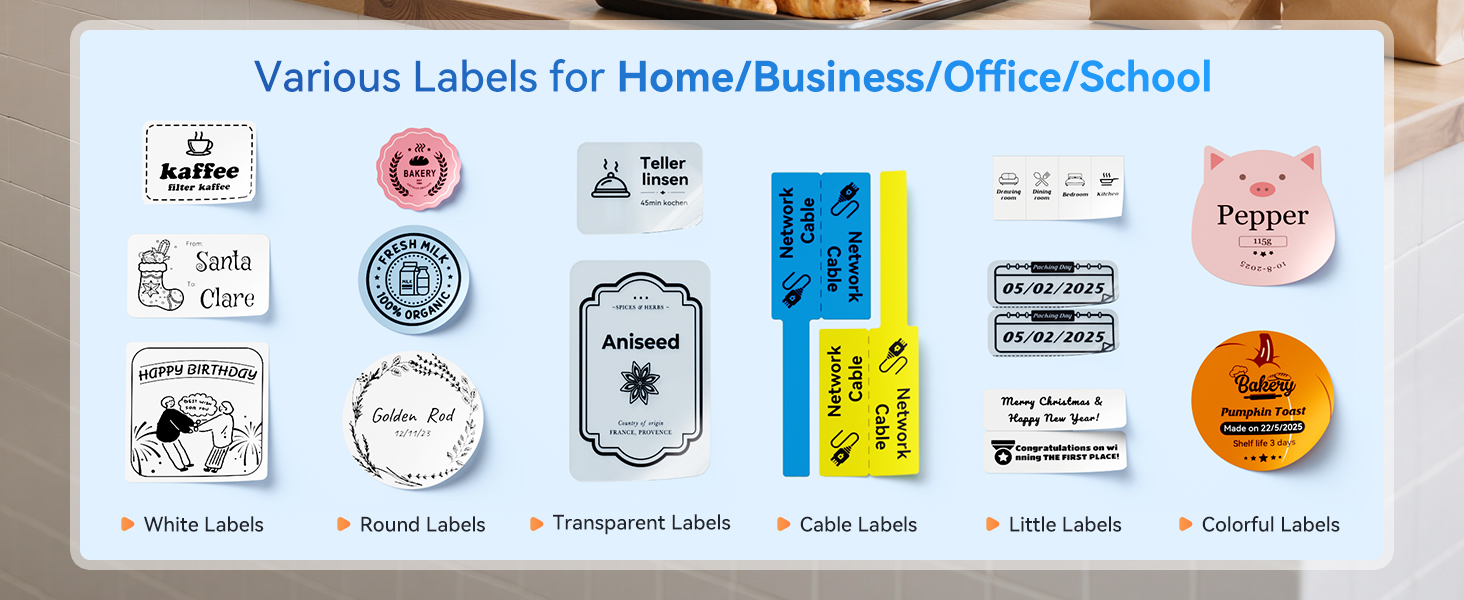
Image: A visual representation of the NIIMBOT app's design interface, showcasing options for creating unique and personalized labels.
3.2 Printing Labels
After designing your label in the app, simply click the "Print" button. The thermal printing technology ensures quick, high-quality, and inkless prints.
3.3 Label Types & Applications
The NIIMBOT B1 supports various label types (1-2 inch width) for diverse uses:
- Home Organization: Spice containers, toy storage, food storage.
- Office & Business: Warehouse management, document sorting, retail tags, jewelry tags.
- Specialty Labels: Medicine bottles, wire organization, expiration dates, gift tags.

Image: Examples of quick and easy labeling for home organization, including spice containers, toy bins, and food storage.

Image: Demonstrates the impact of small labels in business and office settings, such as for warehouse management and document organization.
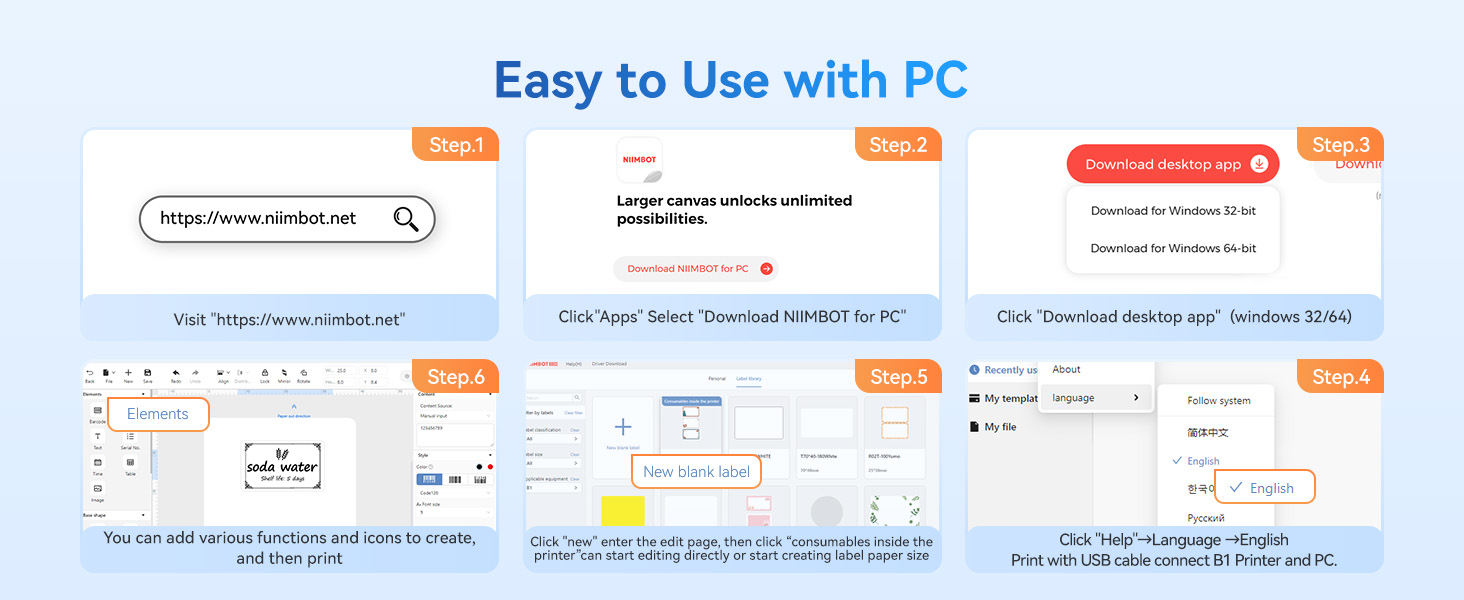
Image: Illustrates the use of the label maker for quickly labeling kitchen items like spices and condiments, promoting a tidy kitchen.
4. Maintenance
4.1 Cleaning
To ensure optimal print quality, periodically clean the thermal print head. Use a soft, lint-free cloth lightly dampened with isopropyl alcohol. Ensure the printer is off and disconnected from power before cleaning.
4.2 Label Storage
Store label rolls in a cool, dry place away from direct sunlight and extreme temperatures to prevent degradation of the thermal coating and adhesive.
5. Troubleshooting
Common Issues:
- Connectivity Problems: Ensure Bluetooth is enabled on your device and the printer is within range. Restart both the app and the printer.
- Poor Print Quality: Check if the label roll is inserted correctly. Clean the print head if smudges or faded prints occur.
- Label Feeding Issues: Ensure the label roll is properly seated and not jammed.
For further troubleshooting or repair assistance, please contact NIIMBOT customer support.
6. Specifications
| Feature | Detail |
|---|---|
| Brand | NIIMBOT |
| Model Name | B1 |
| Printing Technology | Thermal |
| Connectivity Technology | Bluetooth, USB |
| Printer Output | Monochrome |
| Max Print Speed (Monochrome) | 90 ppm |
| Max Print Resolution | 203 DPI |
| Printer Media Size Maximum | 2 inches |
| Compatible Devices | Smartphones (iOS, Android), Laptops |
| Item Weight | 0.5 Pounds (8 ounces) |
| Batteries | 1 A batteries required (included) |
| Included Components | Labels |
7. Support
For any questions, technical support, or warranty inquiries, please visit the official NIIMBOT website or contact their customer service directly. The user manual in PDF format is also available for download here.


