
Inkbird IVC-001W T6
Inkbird WiFi 6-inch Inline Duct Fan with Intelligent Controller
Model: IVC-001W T6 | Brand: Inkbird
1. Introduction
The Inkbird IVC-001W is a 6-inch inline duct fan designed for efficient ventilation, temperature, and humidity control in various environments such as grow tents, hydroponic systems, and general air circulation needs. It features a smart controller with Wi-Fi connectivity, allowing for remote monitoring and control via a dedicated mobile application. This manual provides detailed instructions for setting up, operating, and maintaining your Inkbird duct fan system.
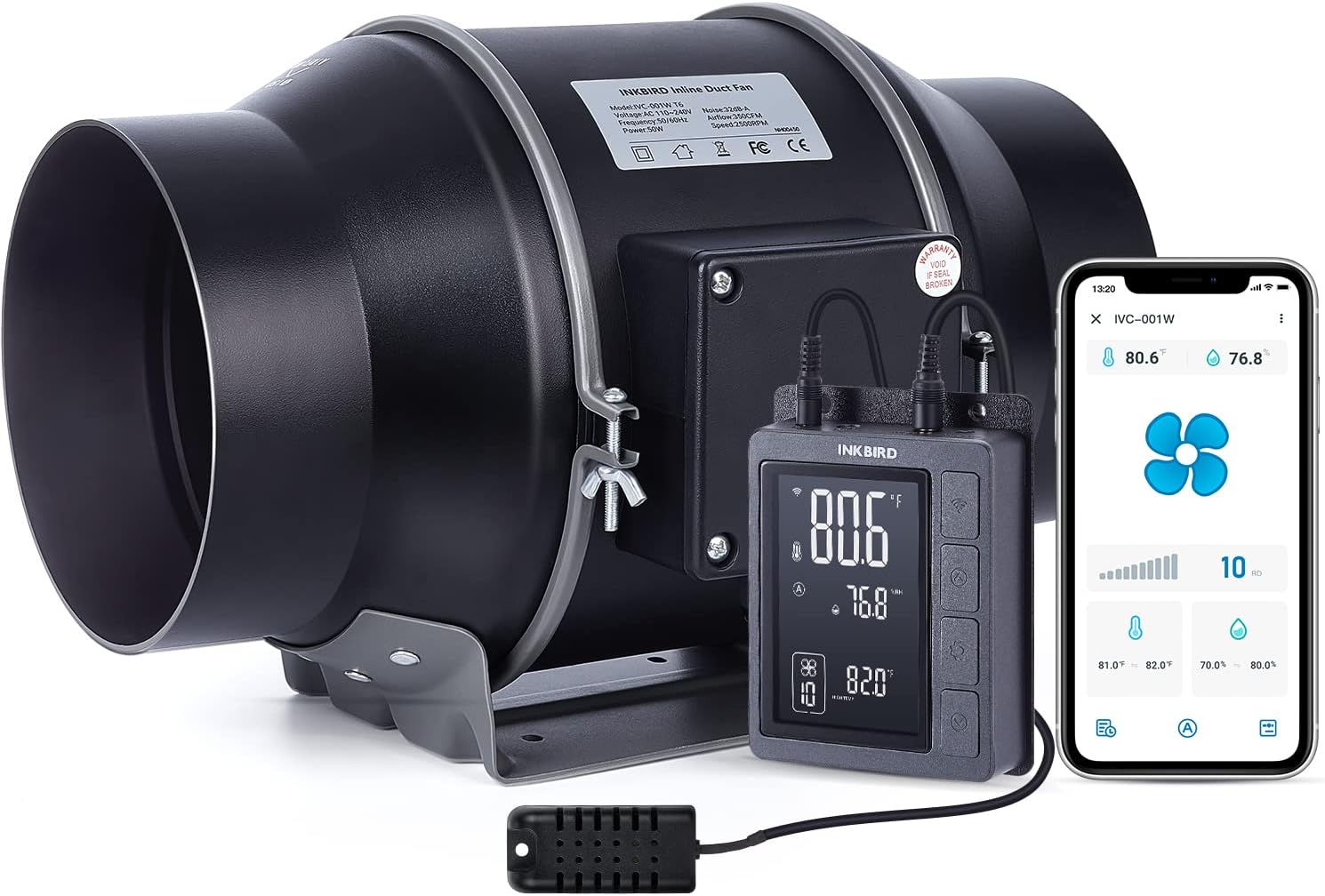
Figure 1.1: Inkbird 6-inch Inline Duct Fan with Smart Controller and external sensor.
2. What's Included
Upon unboxing your Inkbird IVC-001W system, please verify that all components listed below are present and in good condition.
- 1 x Inkbird 6-inch Inline Duct Fan
- 1 x Smart Controller (IVC-001W)
- 1 x Temperature and Humidity Sensor Probe
- 2 x Duct Clamps
- 6 x Cable Tie Mounts
- 6 x Wire Ties
- 6 x Duct Fan Screw Set
- 6 x Wood Screws
- 1 x Power Cord
- 1 x User Manual (this document)

Figure 2.1: Overview of the Inkbird Inline Duct Fan and its components, including dimensions of the fan, controller, and probe.
Video 2.1: An unboxing video demonstrating the contents of the Inkbird WiFi 6-inch Inline Duct Fan package.
3. Setup and Installation
Follow these steps to properly set up and install your Inkbird inline duct fan:
- Mount the Fan: Secure the inline duct fan in your desired location (e.g., inside a grow tent, attic, or basement) using the provided mounting brackets and screws. Ensure the fan is stable and positioned to optimize airflow.
- Connect Ducting: Attach appropriate ducting to both ends of the inline fan using the provided duct clamps. Ensure a tight seal to prevent air leaks.
- Connect Controller: Plug the fan's power cable into the smart controller. Connect the temperature and humidity sensor probe to the designated port on the controller.
- Power On: Plug the smart controller's power cord into a standard 120V AC outlet. The controller display will illuminate.
- App Connection: Download the "INKBIRD" app from your smartphone's app store. Follow the in-app instructions to connect the controller to your 2.4G WiFi network. This will enable remote control and monitoring.

Figure 3.1: The Wi-Fi enabled smart controller, showing its high-definition VA screen, adjustable brightness, child-lock function, variable fan speed, and simultaneous temperature/humidity monitoring.
Video 3.1: An unpacking video of the Inkbird WiFi 6-inch Inline Duct Fan, demonstrating the components and initial setup steps.
4. Operating Instructions
The Inkbird IVC-001W offers multiple control modes and features for precise environmental management.
4.1 Control Modes
The controller supports four primary operating modes:
- Automatic Mode: The fan automatically adjusts speed based on set temperature and humidity triggers.
- Manual Mode: Allows you to manually set the fan speed from 0-10. The fan will run at this speed until manually turned off or switched to another mode.
- Timer Mode: Program specific running schedules with customized start times and durations for up to 6 individual tasks per day.
- Shutdown Mode: All control functions are disabled, effectively turning off the system.
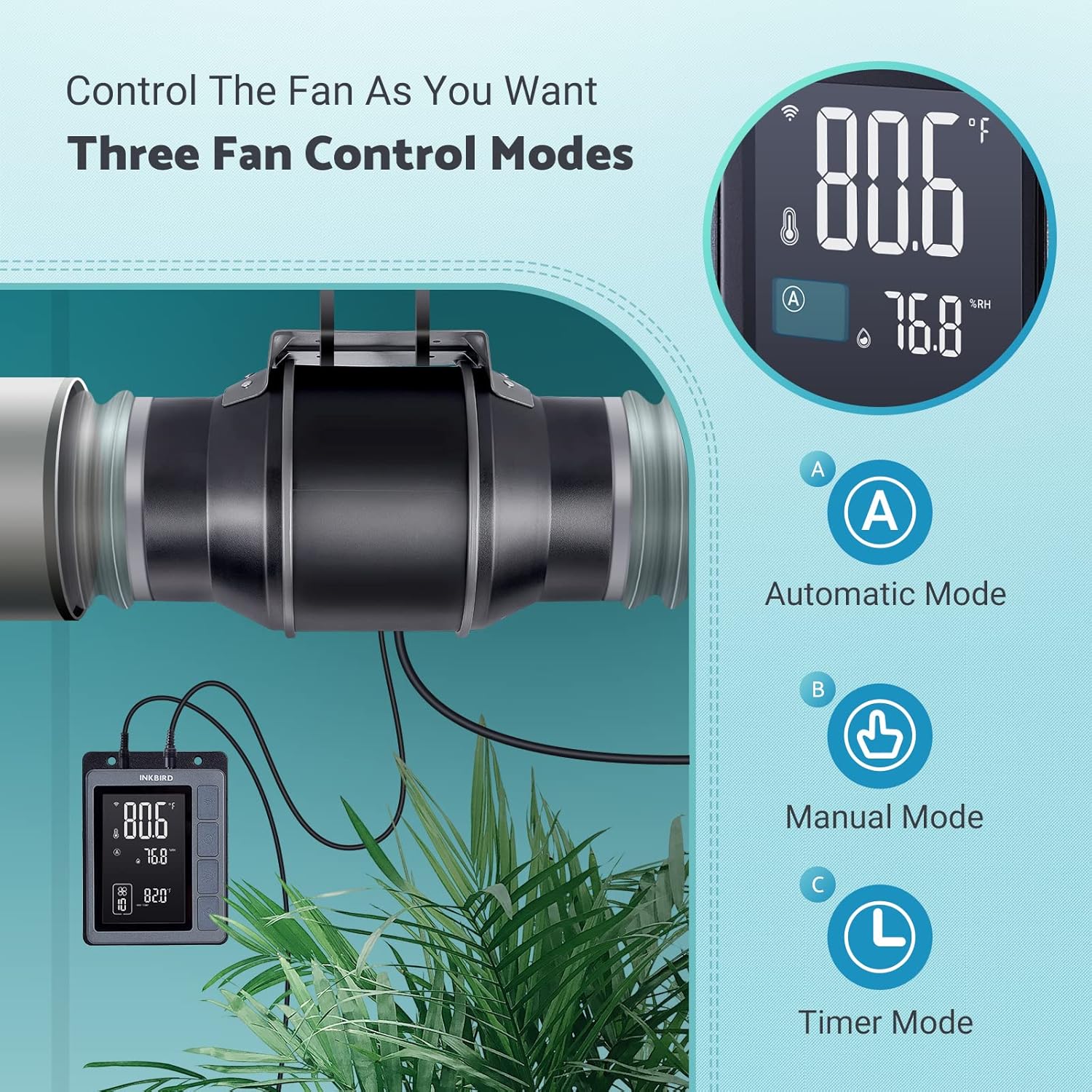
Figure 4.1: The three main control modes of the Inkbird Smart Controller: Automatic, Manual, and Timer.
4.2 App Control and Monitoring
The INKBIRD app provides comprehensive control and monitoring capabilities:
- Remote Control: Adjust settings, switch modes, and change fan speed from anywhere via your smartphone.
- Alert Notifications: Receive real-time alerts when temperature or humidity levels exceed your set target values.
- Data Export: View and export historical temperature and humidity data for analysis.
- Child Lock: Enable or disable the child lock function directly from the app to prevent unintended changes to settings.
- Screen Brightness: Adjust the controller's screen brightness via the app.

Figure 4.2: Remote control and alert notifications via the INKBIRD smartphone app.
Video 4.1: Demonstration of using the INKBIRD 6-inch inline duct fan controller, including setting parameters and navigating the interface.
Video 4.2: A guide on using the INKBIRD APP for the 6-inch inline duct fan, showcasing its three control modes and scheduling features.
5. Maintenance
Regular maintenance ensures optimal performance and longevity of your Inkbird duct fan.
- Cleaning: Periodically inspect the fan blades and housing for dust and debris buildup. Disconnect power before cleaning. Use a soft, dry cloth to wipe down surfaces. For stubborn dirt, a slightly damp cloth can be used, ensuring no moisture enters electrical components.
- Ducting Inspection: Check ducting for any tears, kinks, or disconnections that could impede airflow. Repair or replace as necessary.
- Sensor Care: Keep the temperature and humidity sensor probe clean and free from obstructions to ensure accurate readings.
- Removable Duct: The fan features a removable duct for quick disassembly, simplifying cleaning and maintenance tasks.

Figure 5.1: Internal components of the fan, highlighting the durable ABS housing, strong fan blades, and efficient EC brushless motor, which contribute to its low noise operation.
6. Troubleshooting
If you encounter issues with your Inkbird IVC-001W, refer to the following common problems and solutions:
| Problem | Possible Cause | Solution |
|---|---|---|
| Fan not turning on | No power, loose connection, incorrect mode. | Check power outlet, ensure all cables are securely connected. Verify the controller is not in Shutdown Mode. |
| Inaccurate temperature/humidity readings | Sensor obstructed or dirty, sensor malfunction. | Clean the sensor probe. Ensure it is placed in an area with good air circulation. If issues persist, contact support. |
| Cannot connect to Wi-Fi/App | Incorrect Wi-Fi password, 5G Wi-Fi network, distance from router. | Ensure you are connecting to a 2.4G Wi-Fi network. Double-check the password. Move the controller closer to your Wi-Fi router. |
| Fan is too noisy | Obstruction in fan, loose mounting, fan speed too high. | Check for debris in the fan. Ensure the fan is securely mounted. Reduce fan speed if noise is excessive. The fan operates at a low 32 dB. |
7. Specifications
- Brand: Inkbird
- Model Name: IVC-001W T6
- Electric Fan Design: Blower
- Power Source: AC (110-240V, 50/60Hz)
- Wattage: 50 watts
- Air Flow Capacity: 350 Cubic Feet Per Minute (CFM)
- Noise Level: 32 dB
- Number of Blades: 10
- Blade Material: Plastic
- Control Method: App
- Product Dimensions: 13.78"D x 10.51"W x 11.02"H
- Item Weight: 0.08 Ounces
- Recommended Uses: Exhausting, Cooling
- Indoor/Outdoor Usage: Outdoor

Figure 7.1: The fan's airflow capabilities, demonstrating its efficiency in ventilation and temperature/humidity control.
8. Warranty and Support
For warranty information, technical support, or any inquiries not covered in this manual, please refer to the official Inkbird website or contact Inkbird customer service directly. A digital version of this user manual is also available for download from the product's Amazon listing page.
Online User Manual: Download PDF
Related documentsIVC-001W T6

Ask a question about this manual
Ask about setup, troubleshooting, compatibility, parts, safety, or missing instructions. Manuals+ will review the question and use this page’s manual context to help answer it.