
Introduction
The OBZ QR USB 2D Wired Barcode Scanner is a versatile and robust device designed for efficient and accurate scanning of various barcode types. This scanner supports 1D, 2D, and QR codes, making it suitable for a wide range of applications in retail, logistics, libraries, and more. Its plug-and-play functionality ensures easy setup across multiple operating systems.
Setup Instructions
1. Connecting the Scanner
The OBZ QR USB 2D Wired Barcode Scanner features a simple plug-and-play design, requiring no driver installation for most operating systems.
- Connect the USB Cable: Insert the USB cable from the scanner into an available USB port on your computer or POS system.
- System Recognition: The operating system (Windows, Mac OS, Android, Linux) will automatically detect and install the necessary device drivers. This process typically takes only a few seconds.
- Ready for Use: Once recognized, the scanner is ready to use with applications such as Excel, Word, or any inventory/POS software.
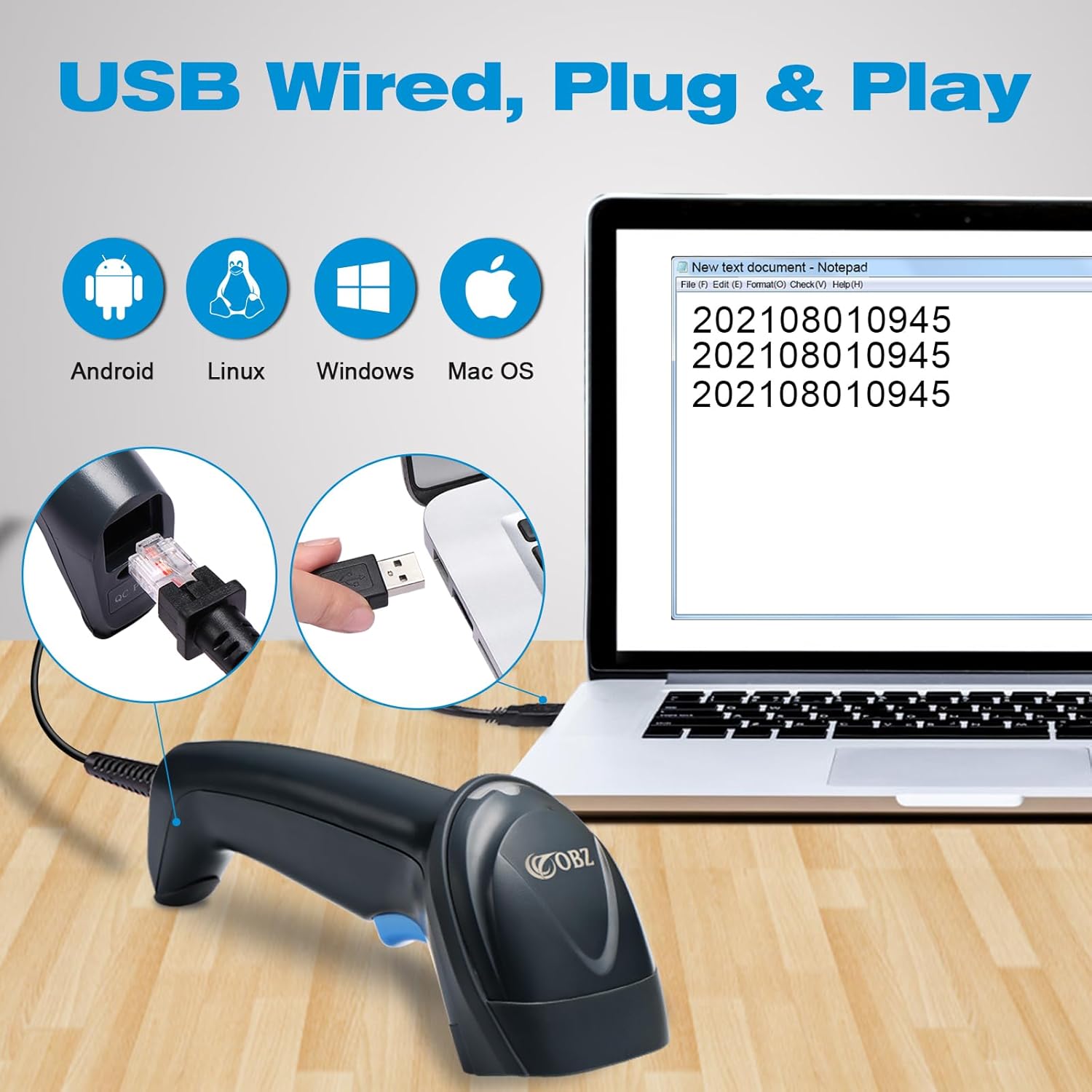
Image: The scanner connected to a laptop, illustrating its plug-and-play USB connectivity and broad operating system compatibility.
2. Language Configuration
To ensure correct character output, configure the scanner to your preferred language:
- Locate the language configuration barcodes in the included quick start guide or a separate configuration sheet.
- Scan the barcode corresponding to your desired language (e.g., English, French, German, Spanish, Italian).

Image: Visual representation of various language options for scanner configuration.
Operating Instructions
1. Scanning Barcodes
The scanner utilizes advanced CMOS technology to decode over 30 barcode formats, including 1D (EAN13, UPC-A, Code128, Code39), 2D (PDF417, Data Matrix), and QR codes. It can read codes from printed labels or displayed on screens, even if they are damaged or distorted.

Image: The scanner demonstrating its ability to read different types of barcodes from both physical labels and digital screens.
2. Scanning Modes
The scanner offers three operational modes to suit different scanning needs:
- Manual Mode: Press the trigger button to scan each barcode individually.
- Continuous Mode: The scanner continuously emits a beam, scanning any barcode that passes within its field of view without needing to press the trigger.
- Auto-sensing Mode: The scanner automatically detects a barcode in its field of view and scans it without manual trigger activation.

Image: Visual representation of the scanner's decoding capabilities for challenging barcodes and its three scanning modes.
3. Adding Prefixes or Suffixes
The scanner can be configured to add custom prefixes or suffixes to the scanned data. This feature is useful for data formatting or system integration.
- Refer to the programming guide (usually found in the manual or a separate configuration sheet) for specific barcodes to scan to enable and define prefixes/suffixes.
- Scan the appropriate configuration barcodes to add characters before or after the scanned data.

Image: Examples of how prefixes and suffixes can be added to scanned barcode data.
4. Sound and LED Prompts
The scanner provides audible (buzzer) and visual (LED) feedback for successful scans and operational status.
- You can enable or disable the sound feedback by scanning specific configuration barcodes.
- The LED indicator typically illuminates upon a successful scan or to indicate power/connection status.

Image: Visual cues for the scanner's LED and buzzer feedback mechanisms.
Maintenance
1. Cleaning
To maintain optimal performance, keep the scanner clean:
- Use a soft, dry cloth to wipe the exterior of the scanner.
- For the scanning window, use a soft, lint-free cloth lightly dampened with a mild cleaning solution (e.g., screen cleaner). Avoid abrasive materials or harsh chemicals.
- Ensure no liquid enters the device.
2. Durability and Handling
The scanner features a reinforced structure with an anti-shock TPU coating, designed to withstand drops up to 3 meters (approximately 10 feet) onto hard surfaces. Its ergonomic grip also helps prevent accidental drops during intensive use.

Image: The scanner demonstrating its robust anti-shock design, capable of withstanding drops.
Troubleshooting
| Problem | Possible Cause | Solution |
|---|---|---|
| Scanner does not read barcodes. | Loose USB connection, incorrect scanning mode, damaged barcode, scanner malfunction. | Ensure USB cable is securely connected. Check if the correct scanning mode (Manual, Continuous, Auto-sensing) is selected. Try scanning a known good barcode. If issue persists, try on another computer. |
| Incorrect characters or output after scanning. | Incorrect language setting, keyboard layout mismatch (e.g., English keyboard setting on a French system). | Scan the appropriate language configuration barcode. Ensure your computer's keyboard layout matches the scanner's configuration. Refer to the programming guide for advanced settings. |
| Cannot scan specific barcode types (e.g., certain QR codes, postage stamps). | Barcode type not enabled, specific format not supported, or poor barcode quality. | Verify that the scanner supports the specific barcode format. Some specialized barcodes may require specific configuration or may not be supported. Ensure the barcode is clear and undamaged. |
| Scanner is unresponsive. | Power issue, USB connection problem. | Check USB cable connection. Try plugging the scanner into a different USB port or another computer to rule out port issues. |
Specifications
- Brand: OBZ
- Model: QR USB 2D Wired Barcode Scanner
- Color: Blue
- Operating System Compatibility: Windows, Mac OS, Android, Linux
- Connectivity Technology: USB (Wired)
- Compatible Devices: Computer, Laptop, POS systems
- Scan Rate: 300 images per second
- Product Dimensions: 7 cm (D) x 8.3 cm (W) x 17.2 cm (H)
- Max Storage Temperature: 158 Degrees Fahrenheit (70 Degrees Celsius)
- Operating Voltage: 5 Volts
- Power Source: Electric cable (USB powered)
- Rechargeable Battery: No
- Compliant Specifications: CE, RoHS, WEEE
- Real View Angle: 10 degrees
Warranty Information
This OBZ QR USB 2D Wired Barcode Scanner comes with a 2-year manufacturer warranty. Please retain your proof of purchase for warranty claims. The warranty covers defects in materials and workmanship under normal use. It does not cover damage caused by misuse, accidents, unauthorized modifications, or improper maintenance.
Support
For technical assistance, troubleshooting beyond this manual, or warranty inquiries, please contact OBZ customer support. Refer to the product packaging or the official OBZ website for the most current contact information.
When contacting support, please have the following information ready:
- Product Model: QR USB 2D Wired Barcode Scanner
- ASIN: B0BCPN8CWH
- Date of Purchase
- A detailed description of the issue


