
1. Introduction
The OBZ Desktop 1D 2D QR Barcode Scanner is an automatic, omnidirectional device designed for efficient and accurate scanning. It can read various barcode types, including 1D, 2D, and QR codes, from labels, paper, mobile phone screens, and computer displays. Its user-friendly design and robust decoding capabilities make it suitable for a wide range of applications, from retail to libraries.
Key Features:
- Automatic omnidirectional scanning for 1D, 2D, and QR codes.
- High sensitivity and accuracy for reading codes from various surfaces.
- Hands-free operation with an ultra-wide scanning window and adjustable head.
- Plug and Play functionality via USB, no driver installation required.
- Compatible with Windows, Android, and Linux operating systems.
- Automatic sleep and wake-up function for energy efficiency.
- Enhanced decoding capability for fuzzy, color, reflective, damaged, distorted, and dirty codes.

Image 1.1: The scanner features a user-friendly design with buzzer and LED indicators, an adjustable scanning head (up to 30 degrees), and an extra-large scanning window for ease of use.
2. Setup
2.1 Connecting the Scanner
The OBZ Desktop Barcode Scanner is designed for simple Plug and Play operation. No special drivers or software installations are required.
- Locate the USB cable provided with your scanner.
- Connect one end of the USB cable to the USB port on the back of the scanner.
- Connect the other end of the USB cable to an available USB port on your computer or host device.
- The scanner will power on automatically, indicated by an LED light, and will be ready for use.
2.2 System Compatibility
The scanner is compatible with a variety of operating systems, ensuring broad usability:
- Windows (XP/7/8/10)
- Android
- Linux

Image 2.1: The scanner offers broad compatibility with various operating systems, including Windows, Linux, and Android, and features a 2.0-meter USB cable for flexible placement.
3. Operating Instructions
3.1 Basic Scanning Operation
The OBZ scanner operates automatically, providing a hands-free scanning experience.
- Ensure the scanner is connected to your host device and powered on.
- Place the item with the barcode in front of the scanner's window.
- The scanner will automatically detect and read the barcode. A buzzer sound and LED indicator will confirm a successful scan.
- For optimal performance, ensure the barcode is within the scanning window and relatively flat.

Image 3.1: The compact, hands-free design of the scanner saves counter space and improves operational efficiency by allowing users to scan items without needing to hold the device.
3.2 Automatic Sleep and Wake Function
To conserve energy and enhance convenience, the scanner features an automatic sleep and wake-up function:
- If the scanner is not used for a certain period, it will automatically enter standby (sleep) mode.
- When a barcode is brought close to the scanning window, the scanner will automatically wake up and perform the scan.
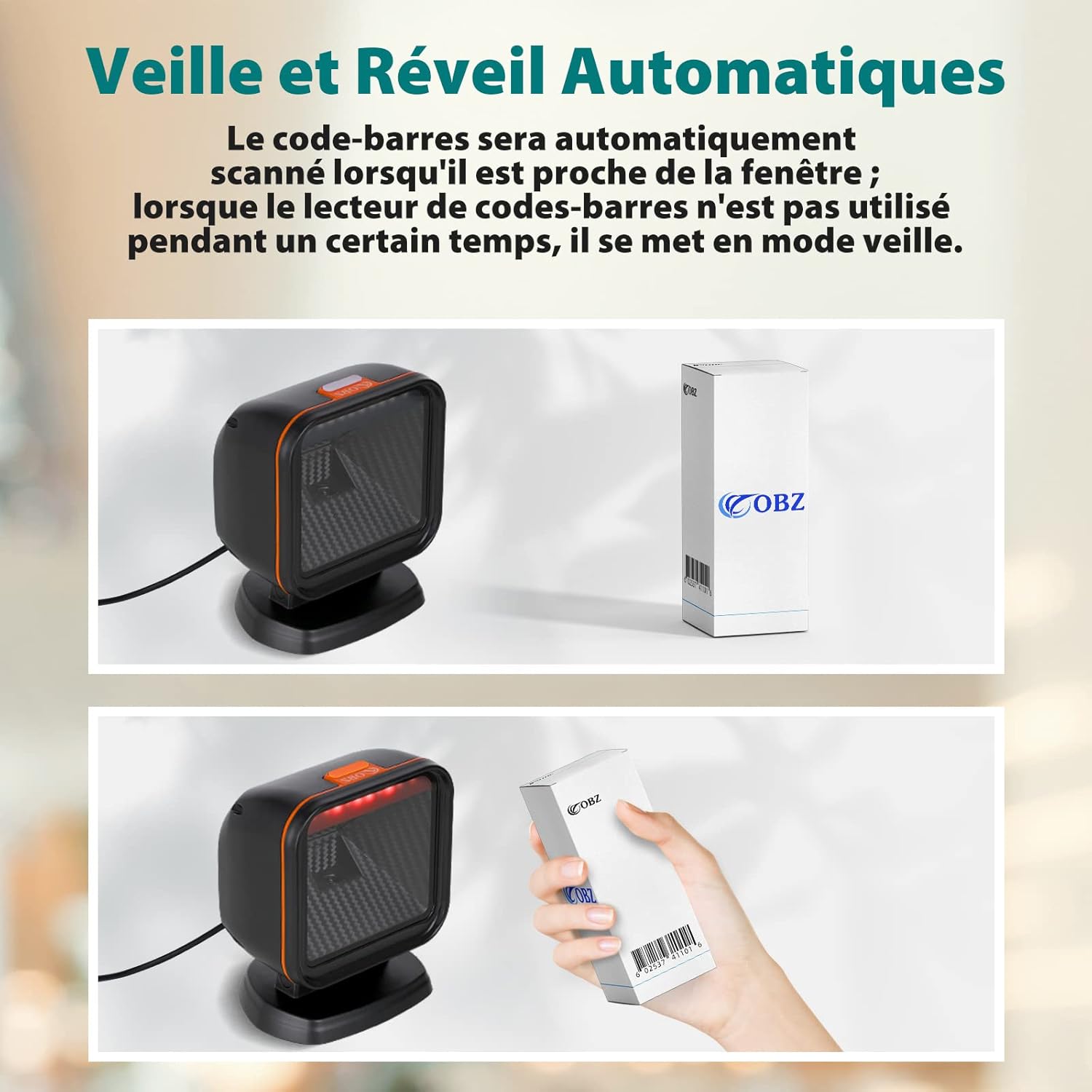
Image 3.2: The scanner automatically enters sleep mode when idle and instantly wakes up to scan a barcode when an item is presented to its window.
3.3 Supported Barcode Types
The scanner supports a wide range of 1D and 2D barcode symbologies, including those that are fuzzy, colored, reflective, damaged, distorted, or dirty:
- 1D Barcodes: Codabar, Code 39, Code 32, Interleaved 2 of 5, N.I.S.I 2 of 5, Code 93, Straight 2 of 5, Industrial 2 of 5, Straight 2 of 5 IATA, Matrix 2 of 5, Code 11, Code 128, ISBT 128, GS1-128, UPC-A, UPC-E0, EAN / JAN-13, EAN /JAN-8, ISBN, MSI, GS1 Databar Omnidirectional, GS1 Databar Limited, GS1 Databar.
- 2D Barcodes: PDF417, MicroPDF417, QR-Code, MicroQR, DataMatrix, Aztec Code, MaxiCode, GS1 Composite, Codablock A, Codablock F.
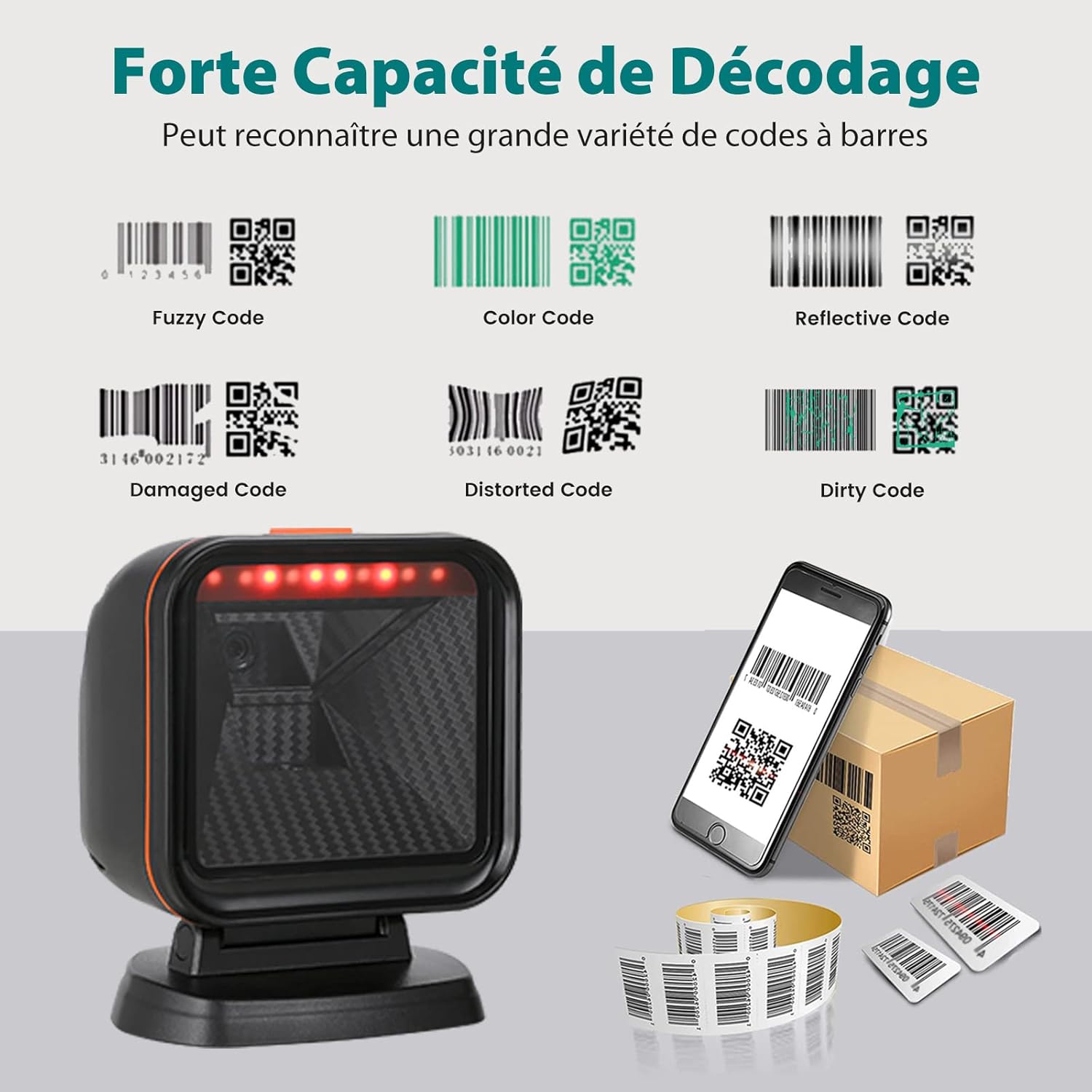
Image 3.3: The scanner boasts strong decoding capabilities, able to read various challenging barcode types including fuzzy, color, reflective, damaged, distorted, and dirty codes.
3.4 Multilingual Keyboard Support
The scanner supports multilingual keyboard output, allowing for integration into various international systems. Specific language settings can typically be configured by scanning programming barcodes found in the full product manual or by consulting the manufacturer's support resources.

Image 3.4: The scanner supports multilingual keyboard layouts, including English, German, Italian, French, Spanish, and Japanese, for global usability.
4. Maintenance
Proper maintenance ensures the longevity and optimal performance of your OBZ Barcode Scanner.
- Cleaning: Regularly clean the scanning window with a soft, lint-free cloth. For stubborn smudges, use a mild glass cleaner applied to the cloth (not directly to the scanner). Avoid abrasive materials or harsh chemicals.
- Handling: Handle the scanner with care. Avoid dropping it or subjecting it to strong impacts.
- Environment: Operate and store the scanner in a clean, dry environment, away from extreme temperatures, direct sunlight, and excessive dust.
- Cable Care: Do not pull the scanner by its USB cable. Ensure the cable is not kinked or pinched, which could damage the internal wiring.
5. Troubleshooting
If you encounter issues with your OBZ Barcode Scanner, refer to the following common troubleshooting steps:
- Scanner Not Reading Barcodes:
- Ensure the USB cable is securely connected to both the scanner and the host device.
- Check if the scanner is powered on (LED indicator should be active).
- Clean the scanning window for any obstructions or smudges.
- Verify that the barcode is not severely damaged or unreadable.
- Ensure the barcode is presented correctly within the scanning window.
- No Data Output:
- Confirm that the host device (computer, POS system) recognizes the scanner as an input device.
- Test the scanner with a simple text editor (e.g., Notepad) to see if scanned data appears.
- Restart your computer or host device.
- Incorrect Data Output (e.g., wrong characters):
- This might indicate a keyboard language mismatch. Refer to the scanner's full programming manual for instructions on setting the correct keyboard language.
- Scanner Not Waking Up Automatically:
- Ensure the scanner is in an environment where it can detect movement or proximity to a barcode.
- If the issue persists, try disconnecting and reconnecting the USB cable.
If these steps do not resolve the issue, please contact customer support for further assistance.
6. Specifications
Detailed technical specifications for the OBZ Desktop 1D 2D QR Barcode Scanner:
| Feature | Specification |
|---|---|
| Brand | OBZ |
| Model | B0BCPKTG2L |
| Product Dimensions | 14.4 x 11.8 x 9.5 cm |
| Item Weight | 390 grams |
| Connectivity Technology | USB |
| Compatible Devices | Laptop (and other compatible host devices) |
| Power Source | Corded Electric |
| Scan Rate | 300 fps |
| Operating Voltage | 5 Volts |
| Maximum Storage Temperature | 70°C (158°F) |
| Specifications Met | FCC |

Image 6.1: Detailed view of the scanner's dimensions (14.45cm width, 11.8cm depth, 9.5cm height) and key components including the indicator light, USB port, and adjustable head.
7. Warranty and Support
7.1 Product Warranty
This OBZ Barcode Scanner comes with a standard manufacturer's warranty. Please refer to the warranty card included in the product packaging for specific terms, conditions, and duration. Keep your purchase receipt as proof of purchase for any warranty claims.
7.2 Customer Support
For technical assistance, troubleshooting beyond this manual, or warranty inquiries, please contact OBZ customer support through the retailer where the product was purchased or visit the official OBZ website for contact information. When contacting support, please have your product model (B0BCPKTG2L) and purchase details ready.


