
1. Introduction
The JLab Epic Cam USB HD Webcam delivers high-definition video quality for all your communication needs. Featuring full 2K video resolution at 30 frames per second and a 5-megapixel camera, it ensures a clear and sharp image. Equipped with auto-focus, dual omni-directional microphones, and adjustable zoom and exposure levels, this webcam is designed for versatile use in various environments.
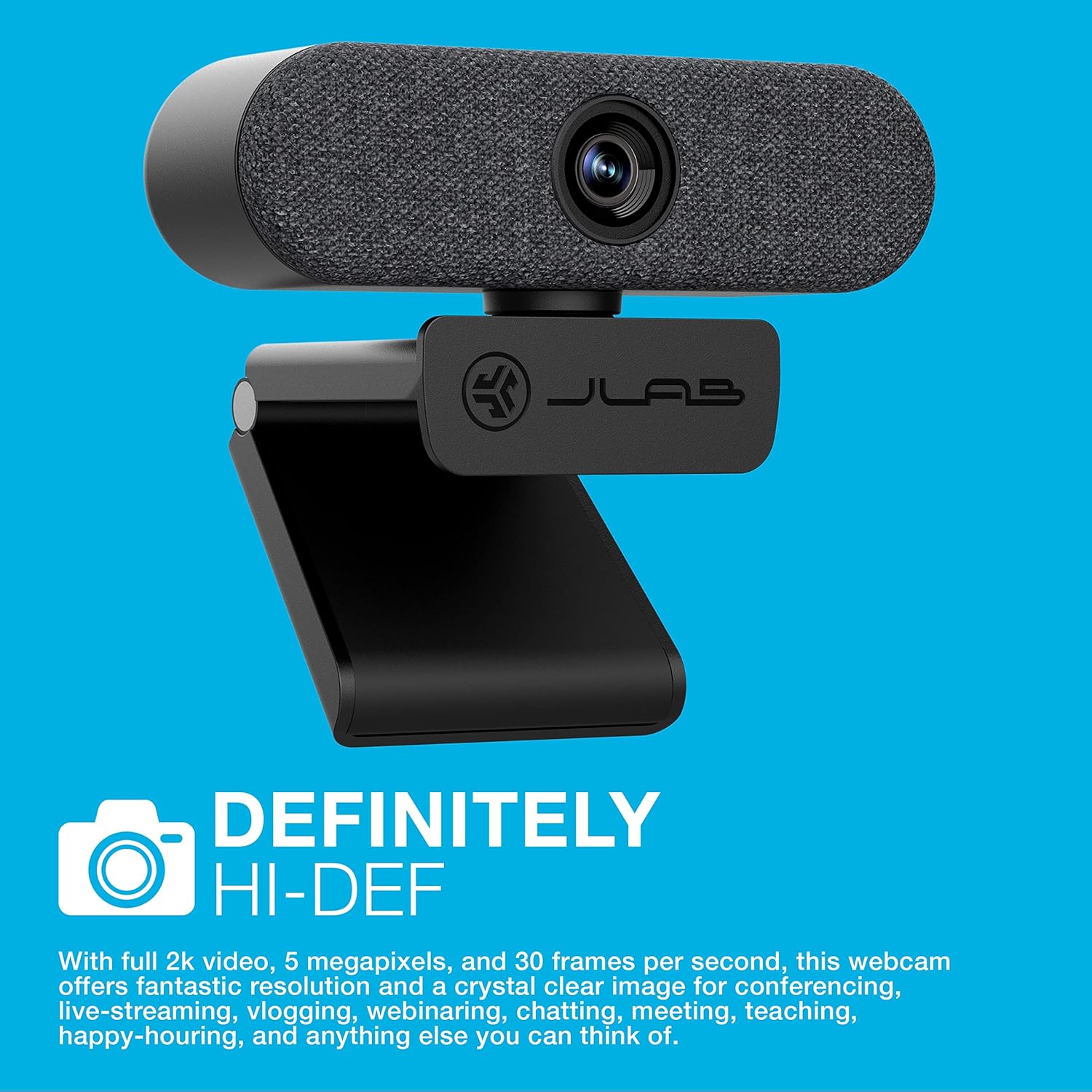
Image: The JLab Epic Cam USB HD Webcam, showcasing its sleek black design with a grey fabric faceplate, securely mounted on top of a computer monitor.

Image: A close-up of the JLab Epic Cam USB HD Webcam, highlighting its high-definition capabilities with a text overlay stating 'DEFINITELY HI-DEF'.
Product Overview Video
Video: An official JLab product overview, demonstrating the key features and benefits of the Epic Cam USB HD Webcam as part of the Work Series.
2. What's in the Box
Your JLab Epic Cam USB HD Webcam package includes the following items:
- JLab Epic Cam USB HD Webcam
- Removable Face Plates (Black and White)
- Quick Start Guide

Image: The JLab Epic Cam USB HD Webcam, its USB cable, two interchangeable fabric faceplates (black and light grey), and the Quick Start Guide, laid out on a wooden surface.
3. Setup
The JLab Epic Cam is designed for easy plug-and-play setup, ensuring you can start using it quickly with minimal effort.
3.1 Connecting the Webcam
- Connect to your Device: Plug the integrated USB-A cable from the Epic Cam into an available USB port on your PC, Mac, or Chromebook. The device is automatically recognized, and no additional drivers are typically required.
- Position the Webcam: Use the universal adjustable clip to securely mount the webcam on top of your monitor or laptop screen. The clip is designed to provide a stable fit without causing damage.
- Tripod Mounting: For alternative placement, the webcam's base includes a standard tripod thread, allowing it to be mounted on a tripod (not included) for more flexible positioning.

Image: A hand gently adjusting the JLab Epic Cam, demonstrating its flexible mounting and positioning on a monitor.
3.2 Compatibility
The JLab Epic Cam is broadly compatible with various operating systems and devices:
- PC (Windows)
- Mac (macOS)
- Chromebook (Chrome OS)

Image: The JLab Epic Cam displayed alongside logos for Mac, Windows, Android, and Linux, indicating its broad compatibility across different operating systems.
4. Operating the Webcam
The Epic Cam offers intuitive controls and features to enhance your video calls and recordings.
4.1 Video Quality and Field of View
- Resolution: Enjoy crisp 2K (2560x1440) video at 30 frames per second, or 1080p at 30 FPS, with a 5-megapixel camera for high-quality visuals.
- Field of View: The 90-degree wide-angle lens provides a broad perspective, ideal for individual use or including multiple participants in a conference room.
- Auto-Focus & Light Correction: The webcam automatically adjusts focus and corrects lighting conditions to ensure you always look your best, even in varying light environments.

Image: A close-up view of the JLab Epic Cam mounted on a monitor, with a hand interacting with the touch-sensitive controls on top of the webcam.
4.2 Audio Features
- Dual Omni-Directional Microphones: Integrated dual microphones capture clear audio from all directions, ensuring your voice is heard naturally during calls and recordings.

Image: The JLab Epic Cam featuring a white fabric faceplate, accompanied by the text 'SOUND ON POINT', emphasizing its superior audio capabilities.
4.3 On-Device Controls
The Epic Cam features touch-sensitive buttons on its top surface for quick adjustments:
- Zoom: Adjust the zoom level to frame yourself perfectly.
- Exposure: Toggle between 15 exposure settings to optimize your appearance in various lighting conditions without needing external software.

Image: A hand pressing one of the touch-sensitive buttons on the top of the JLab Epic Cam, illustrating the ease of adjusting settings directly on the device.
4.4 Customization
- Interchangeable Face Plates: The webcam comes with magnetic, removable fabric face plates in black and white, allowing you to match your desk aesthetic.

Image: An exploded view of the JLab Epic Cam, illustrating its main body and the two interchangeable fabric faceplates (black and light grey) that can be swapped to customize its appearance.
5. Maintenance
To ensure the longevity and optimal performance of your JLab Epic Cam, follow these simple maintenance guidelines:
- Lens Cleaning: Gently wipe the camera lens with a soft, lint-free cloth to remove dust or smudges. Avoid using harsh chemicals or abrasive materials.
- General Cleaning: Use a dry or slightly damp cloth to clean the body of the webcam. Ensure no moisture enters the device.
- Storage: When not in use, store the webcam in a clean, dry place away from extreme temperatures and direct sunlight.
6. Troubleshooting
If you encounter any issues with your JLab Epic Cam, refer to the following common troubleshooting steps:
- No Video/Audio: Ensure the USB cable is securely connected to both the webcam and your computer. Try a different USB port. Verify that the webcam is selected as the primary video and audio input device in your application settings (e.g., Zoom, Teams, Windows Camera app).
- Poor Image Quality: Check your lighting conditions. Use the on-device exposure controls to adjust brightness. Ensure the lens is clean and free from obstructions.
- Auto-Focus Issues: Make sure there are no objects too close to the lens that might interfere with the auto-focus mechanism.
- Microphone Not Working: Confirm that the webcam's microphone is enabled and set as the default input device in your computer's sound settings and the application you are using.
- Compatibility Issues: Ensure your operating system is up to date. While plug-and-play, some systems may benefit from a restart after initial connection.
7. Specifications
| Feature | Detail |
|---|---|
| Brand Name | JLab |
| Item Weight | 5.9 ounces |
| Product Dimensions | 1.99 x 3.62 x 1.99 inches |
| Item Model Number | WEPICCAMRBLK124 |
| Color Name | Black |
| Special Features | Low Light |
| Photo Sensor Technology | CMOS |
| Video Capture Resolution | 2K |
| Maximum Focal Length | 3.5 Millimeters |
| Maximum Aperture | 30 f |
| Flash Memory Type | Micro SD |
| Video Capture Format | MP4 |
| Supported Audio Format | AAC, MP3 |
| Screen Size | 2.8 Inches |
| Connectivity Technology | USB |
8. Warranty & Support
JLab stands by the quality of its products. The Epic Cam USB HD Webcam typically comes with a 2-year manufacturer's warranty.
8.1 Extended Protection Plans
Additional protection plans are available for purchase to extend coverage beyond the standard warranty:
- 2-Year Protection Plan: Available for $6.99 (one-time payment).
- 3-Year Protection Plan: Available for $8.99 (one-time payment).
- Complete Protect: A monthly plan for $16.99 covering all eligible past and future purchases.
8.2 Customer Support
For technical assistance, warranty claims, or further information, please visit the official JLab support website or contact their customer service.
