Introduction
This manual provides detailed instructions for the setup, operation, and maintenance of your Eyoyo Bluetooth 2D QR Barcode Scanner. This device is designed for efficient barcode scanning, offering both standalone Bluetooth functionality and a convenient back-clip design for smartphones. It is compatible with Android, iOS, iPad, and iPhone devices, making it suitable for various applications such as warehouse inventory and book management.
Package Contents
Please verify that all items are present in the package:
- Eyoyo Bluetooth 2D QR Barcode Scanner
- USB Charging Cable
- User Manual (this document)
- (Optional: Lanyard, if included)
Setup
1. Charging the Scanner
Before initial use, fully charge the scanner. Connect the provided USB charging cable to the scanner's charging port and to a standard USB power adapter (not included) or a computer's USB port.

Image: The scanner features a 1600mAh rechargeable battery, providing approximately 10 hours of working time and 720 hours of standby time. A full charge takes about 1.5 hours.
- Battery Capacity: 1600 mAh
- Charging Time: Approximately 1.5 hours
- Working Time: Approximately 10 hours
- Standby Time: Approximately 720 hours
2. Bluetooth Connection
The scanner connects to your smartphone or tablet via Bluetooth.
- Turn on the scanner by pressing the power button.
- Enable Bluetooth on your smartphone or tablet.
- Search for available Bluetooth devices. The scanner should appear as "Eyoyo Scanner" or similar.
- Select the scanner from the list to pair. A successful connection will typically be indicated by an LED light on the scanner.
3. Attaching to a Phone (Back-Clip Mode)
The scanner features a retractable holder designed to attach to smartphones with lengths between 5.4 and 6.5 inches.

Image: Installation and removal process for attaching the scanner to a smartphone.
- Hold the phone against the top of the scanner.
- Gently pull down the scanner's retractable holder to secure the phone.
- Ensure the phone is firmly seated in the holder.
- To remove, pull the scanner's holder downwards to release the phone.
Operating Instructions
1. Scanning Barcodes
The Eyoyo scanner is equipped with a 2D scan engine capable of decoding various 1D and 2D barcodes quickly and efficiently.

Image: The scanner's powerful capability to read various barcode types, including those on screens, curved surfaces, or poorly printed.
- Supported 1D Barcodes: ISBN/UPC/EAN, UPC/EAN with supplements, Code39, Interleaved 2 of 5, Code93, Code 128, Codabar.
- Supported 2D Barcodes: QR Code, Data Matrix, PDF417.
- The scanner can read barcodes from mobile phone, tablet, and computer displays, as well as curved, wide, poorly printed, or damaged barcodes.
2. Scan Button Design
The scanner features three scan buttons for ergonomic use, allowing for convenient scanning from various positions.

Image: The three scan buttons located on the top, left, and right sides of the device for versatile operation.
- Press any of the three scan buttons (top, left, or right) to activate the scanner and read a barcode.
3. Two Usage Modes
The Eyoyo scanner offers flexibility in how it can be used.
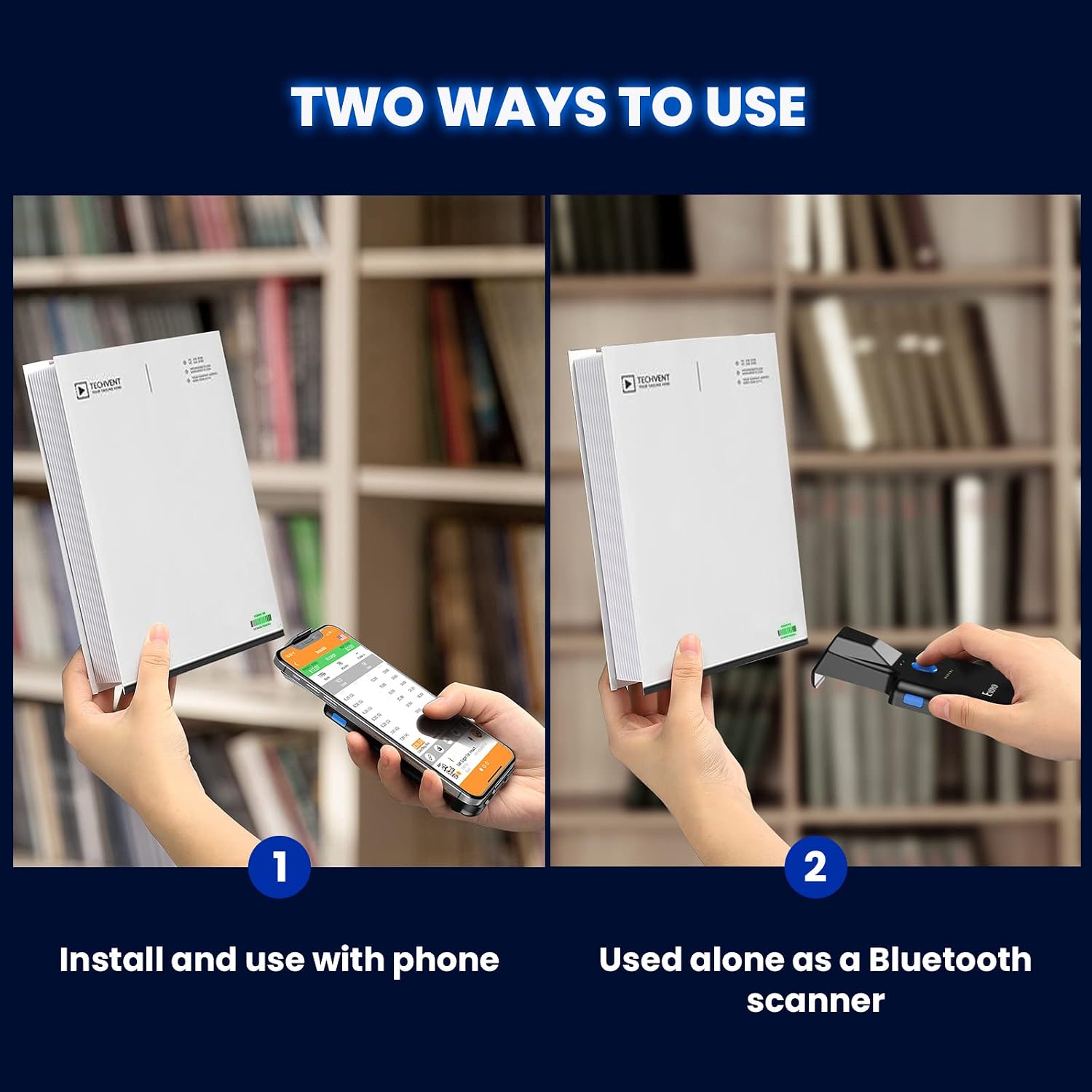
Image: The scanner can be used either attached to a smartphone or as a standalone Bluetooth scanner.
- Back-Clip Mode: Attach the scanner to your smartphone. This allows you to view scanned data directly on your phone's screen while scanning.
- Standalone Bluetooth Scanner: Use the scanner independently, connecting it via Bluetooth to a compatible device (e.g., computer, tablet) for data transmission.

Image: The scanner integrated with a smartphone, demonstrating its use for checking prices and quantities.
Maintenance
Proper maintenance ensures the longevity and optimal performance of your scanner.
- Cleaning: Use a soft, dry, lint-free cloth to clean the scanner's exterior. For the scanning window, use a lens cleaning cloth and a mild cleaning solution if necessary. Avoid abrasive materials or harsh chemicals.
- Storage: Store the scanner in a cool, dry place away from direct sunlight and extreme temperatures.
- Battery Care: To prolong battery life, avoid fully discharging the battery frequently. If storing for an extended period, charge the battery to about 50% and recharge every few months.
- Physical Protection: While robust, avoid dropping the scanner or subjecting it to strong impacts.
Troubleshooting
If you encounter issues with your Eyoyo barcode scanner, refer to the following common problems and solutions:
| Problem | Possible Cause / Solution |
|---|---|
| Scanner does not turn on. | Battery may be depleted. Charge the scanner for at least 1.5 hours. |
| Unable to pair via Bluetooth. |
|
| Scanner not reading barcodes. |
|
| Scanned data is incorrect or incomplete. |
|
Specifications
| Feature | Detail |
|---|---|
| Brand | Eyoyo |
| Model Number | B0BCGQBPF6 |
| Connectivity Technology | Bluetooth |
| Compatible Devices | Smartphone, Tablet (Android, iOS, iPad, iPhone) |
| Power Source | Battery Powered (Wired for charging) |
| Battery Type | 1 Nonstandard Battery (included) |
| Battery Capacity | 1600 mAh |
| Package Dimensions | 17.1 x 9.3 x 4.2 cm |
| Item Weight | 170 g (approx. 90g/3.1oz for the scanner itself) |
| Decoding Performance | 1D & 2D barcodes (ISBN/UPC/EAN, Code39, QR, Data Matrix, PDF417, etc.) |
| Phone Compatibility (Back-Clip) | Smartphones with length 5.4-6.5 inches |
Warranty Information
Eyoyo products typically come with a limited manufacturer's warranty. For specific details regarding the warranty period and terms for your Eyoyo Bluetooth 2D QR Barcode Scanner, please refer to the warranty card included in your product packaging or visit the official Eyoyo website. Keep your purchase receipt as proof of purchase for warranty claims.
Customer Support
If you require further assistance, technical support, or have questions not covered in this manual, please contact Eyoyo customer service. Contact information can usually be found on the official Eyoyo website or on the product packaging.
Website: www.eyoyo.com (Please verify the official website for the most current information.)


