
HOCO GM15
HOCO GM15 Business Wireless Mouse User Manual
Model: GM15 | Brand: HOCO
1. Introduction
This manual provides detailed instructions for the proper use, setup, and maintenance of your HOCO GM15 Business Wireless Mouse. Please read this manual thoroughly before using the product to ensure optimal performance and longevity. Keep this manual for future reference.
2. Product Overview
The HOCO GM15 is a versatile dual-mode wireless mouse designed for business and everyday use. It offers both 2.4G wireless and Bluetooth connectivity, allowing seamless switching between devices. The mouse features adjustable DPI settings for precise control.

Figure 2.1: The HOCO GM15 Business Wireless Mouse with its accompanying USB receiver.
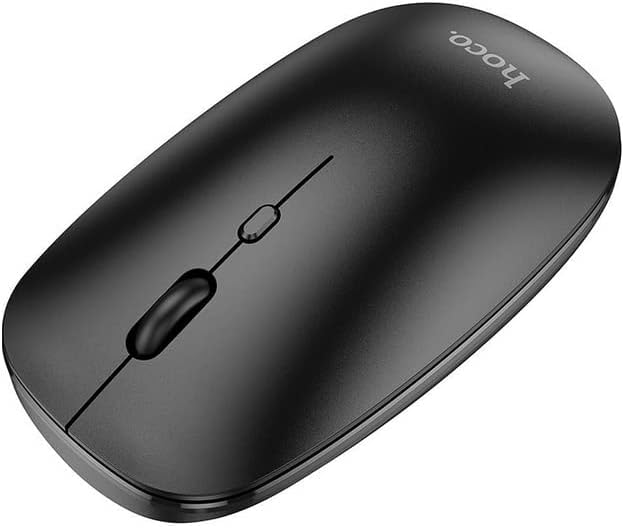
Figure 2.2: Top view of the HOCO GM15 mouse, highlighting the scroll wheel and DPI adjustment button.
3. Setup
3.1 Battery Installation
- Locate the battery compartment cover on the underside of the mouse.
- Gently slide or lift the cover to open the compartment.
- Insert one AA battery (not included) into the compartment, ensuring the polarity (+/-) matches the indicators.
- Replace the battery compartment cover until it clicks securely into place.
3.2 Connecting via 2.4G Wireless
- Remove the USB receiver from its storage slot, usually located within the battery compartment.
- Plug the USB receiver into an available USB port on your computer or device.
- Turn on the mouse using the power switch on its underside.
- Ensure the mouse is in 2.4G mode. This is typically indicated by a switch or button on the mouse. The mouse should automatically connect to your device.

Figure 3.1: The HOCO GM15 mouse connected to a laptop using the 2.4G USB receiver.
3.3 Connecting via Bluetooth
- Turn on the mouse using the power switch on its underside.
- Switch the mouse to Bluetooth mode. This is usually done via a dedicated switch or button on the mouse's underside or top. An indicator light may flash to show it's in pairing mode.
- On your computer or device, navigate to the Bluetooth settings.
- Search for new devices. The mouse should appear as "HOCO GM15" or similar.
- Select the mouse to pair. Once paired, the indicator light will typically become solid or turn off.
4. Operating Instructions
4.1 DPI Adjustment
The HOCO GM15 mouse features adjustable DPI (Dots Per Inch) settings, allowing you to change cursor sensitivity. This is useful for different tasks, such as precise graphic design work or faster navigation.
- Locate the DPI button, typically positioned behind the scroll wheel (refer to Figure 2.2).
- Press the DPI button to cycle through the available sensitivity settings: 800 DPI, 1200 DPI, and 1600 DPI.
- The cursor speed will change with each press, allowing you to select your preferred sensitivity.
4.2 Mode Switching
To switch between 2.4G wireless and Bluetooth modes:
- Locate the mode switch on the underside of the mouse.
- Slide the switch to select either the 2.4G icon or the Bluetooth icon, depending on your desired connection method.
- Ensure your device is properly set up for the chosen connection mode as described in Section 3.
5. Maintenance
Proper maintenance ensures the longevity and optimal performance of your HOCO GM15 mouse.
- Cleaning: Use a soft, dry cloth to wipe the surface of the mouse. For stubborn dirt, slightly dampen the cloth with water. Avoid using harsh chemicals or abrasive materials.
- Sensor Cleaning: Occasionally, clean the optical sensor on the underside of the mouse with a cotton swab to prevent tracking issues.
- Battery Replacement: Replace the battery when the mouse performance degrades or if it stops responding. Always use a fresh AA battery.
- Storage: When not in use for extended periods, turn off the mouse to conserve battery life. Store the USB receiver in its designated slot to prevent loss.
6. Troubleshooting
If you encounter issues with your HOCO GM15 mouse, refer to the following common problems and solutions:
| Problem | Possible Cause | Solution |
|---|---|---|
| Mouse not responding | Low battery; Mouse is off; Incorrect connection mode; USB receiver not plugged in (2.4G); Bluetooth not paired. | Replace battery; Turn on mouse; Switch to correct mode (2.4G/BT); Plug in USB receiver; Pair via Bluetooth settings. |
| Cursor movement is erratic or jumpy | Dirty optical sensor; Uneven surface; Interference. | Clean the optical sensor; Use on a smooth, opaque surface (e.g., mouse pad); Move closer to the receiver/device. |
| Cannot connect via Bluetooth | Mouse not in pairing mode; Bluetooth on device is off; Already connected to another device. | Ensure mouse is in Bluetooth pairing mode (flashing light); Enable Bluetooth on your device; Disconnect from other devices. |
| 2.4G connection issues | USB receiver not recognized; Interference; Mouse too far from receiver. | Try a different USB port; Reduce distance between mouse and receiver; Avoid strong electromagnetic interference. |
7. Specifications
| Feature | Detail |
|---|---|
| Model Number | GM15 |
| Connectivity | 2.4G Wireless, Bluetooth |
| DPI Settings | 800 / 1200 / 1600 DPI |
| Product Dimensions | 4.4 x 11 x 19.1 cm |
| Weight | 100 g |
| Manufacturer | HOCO |
| Country of Origin | China |
8. Warranty and Support
HOCO products are designed and manufactured to the highest quality standards. For information regarding warranty coverage, technical support, or service inquiries, please refer to the warranty card included with your purchase or visit the official HOCO website. Please retain your proof of purchase for warranty claims.
Related documentsGM15


Ask a question about this manual
Ask about setup, troubleshooting, compatibility, parts, safety, or missing instructions. Manuals+ will review the question and use this page’s manual context to help answer it.