The Memoqueen Phomemo D30 Cable Labels are designed for organizing and identifying various cables and wires. These labels are compatible with Phomemo D30 series thermal label printers and offer durable, self-adhesive properties.
Key Features
Label Size: Each label measures 0.49” x 2.91” (12.5mm x 74mm). Each roll contains 65 labels, and this package includes 3 rolls.
Material Properties: Labels are waterproof, tear-resistant, oil-proof, flexible, and self-adhesive.
Thermal Printing: Utilizes thermal printing technology, requiring no ink or toner. Produces clear and durable labels with an easy-to-peel split backing for simple application.
Compatibility: Specifically designed for use with Phomemo D30 Thermal Label Printers, including D30, D30S, and D30Pro models.
Versatile Application: Ideal for organizing computer cords, charger cords, electrical cords, ethernet cables, network cables, and other wires. Also suitable for labeling laboratory test tubes, items in warehouses, chemistry labs, schools, hotels, and hospitals.
Figure 1: Phomemo D30 Cable Label Dimensions (12.5mm x 74mm).Figure 2: Key material advantages of the cable labels: waterproof, strong adhesion, abrasion resistant, and oil proof.Figure 3: Phomemo D30 Cable Label rolls and individual label design.
2. Setup and Installation
To use the Memoqueen Phomemo D30 Cable Labels, you will need a compatible Phomemo D30 series thermal label printer and the "Print Master" application.
2.1 Loading the Label Roll
Ensure your Phomemo D30 printer is powered off.
Open the printer's cover.
Insert the label roll into the designated compartment, ensuring the labels feed out correctly with the printable side facing the print head.
Close the printer cover securely.
Figure 4: Phomemo D30 series printers compatible with these labels.
Video 1: Demonstrates how to load the label roll into the Phomemo D30 Bluetooth Label Maker and print various decorative labels. This video shows the physical setup of the label roll within the printer.
2.2 App Installation
Download the "Print Master" app from the APP STORE (for iOS devices) or Google Play (for Android devices). This application is required to design and print labels.
3. Operating Instructions
3.1 Connecting to the Printer
Turn on your Phomemo D30 printer.
Open the "Print Master" app on your smartphone or tablet.
Follow the in-app instructions to connect to your D30 printer via Bluetooth.
3.2 Designing and Printing Labels
Within the "Print Master" app, select the appropriate label template for cable labels.
Customize your label with text, numbers, graphics, symbols, logos, barcodes, or QR codes. The app supports importing label text from Excel files for bulk printing.
Review the print preview to ensure the label appears as desired.
Initiate printing. The printer will produce the labels without the need for ink or toner.
Video 2: Illustrates the use of Phomemo D30 labels for date marking food items in storage containers and bags. This video demonstrates practical application of the printed labels.
3.3 Applying Cable Labels
Carefully peel the printed label from its backing.
Wrap the label around the desired cable or wire, ensuring the printable area is visible and the adhesive tab secures it.
Press firmly along the entire label to ensure strong adhesion.
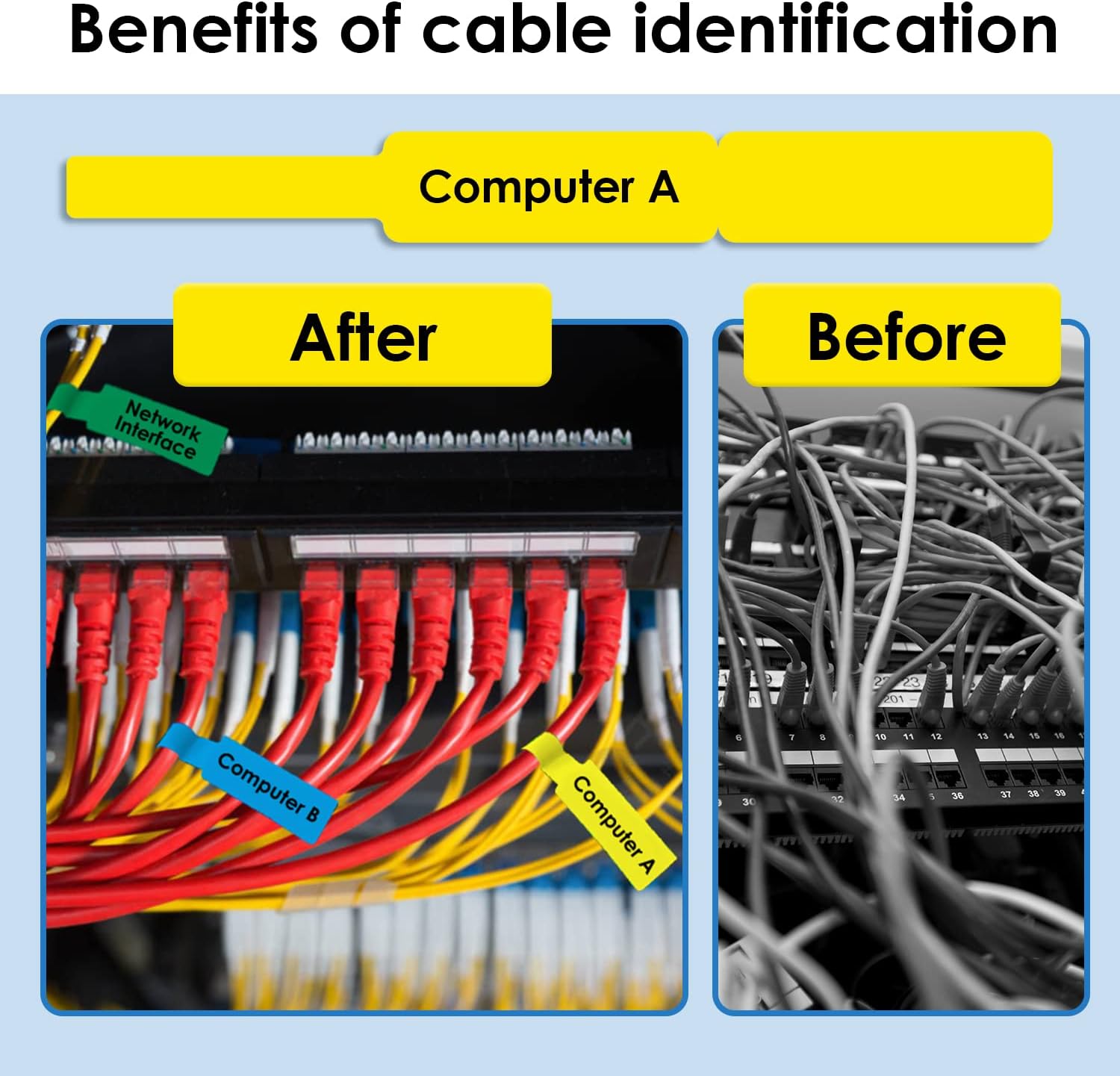
Figure 5: Example of cable organization using Phomemo D30 labels.
4. Maintenance
Storage: Store unused label rolls in a cool, dry place away from direct sunlight to preserve adhesive quality and print sensitivity.
Cleaning: If print quality degrades, consult your Phomemo D30 printer manual for instructions on cleaning the print head. Avoid touching the adhesive side of the labels to prevent contamination.
Removal: Labels are designed to be removed without leaving sticky residue. Peel slowly and carefully.
5. Troubleshooting
Problem
Possible Cause
Solution
Labels not printing clearly
Low printer battery; dirty print head; incorrect print density setting in app.
Charge printer; clean print head (refer to printer manual); adjust print density in "Print Master" app.
Labels not adhering well
Surface is dirty or oily; label roll is old or improperly stored; insufficient pressure during application.
Clean surface before applying; ensure labels are stored correctly; apply firm pressure when attaching.
Printer not connecting to app
Bluetooth is off; printer is out of range; app or printer needs restart.
Ensure Bluetooth is enabled; move printer closer to device; restart both app and printer.
Labels are jammed in printer
Improper loading of label roll; foreign object in printer.
Open printer cover, carefully remove jammed labels, and re-load correctly. Check for obstructions.
6. Specifications
Attribute
Detail
Brand
Memoqueen
Model Number
DXL12.574-35-65YL
Label Dimensions
12.5mm x 74mm (0.49" x 2.91")
Labels per Roll
65 labels
Quantity
3 Rolls
Color
Yellow (Black print on Yellow paper)
Material Type
Thermal Paper (Waterproof, Tear-resistant, Oil-proof, Flexible, Self-adhesive)
Item Weight
2.08 ounces
Product Dimensions
1.97 x 1.97 x 1.97 inches (packaging/roll dimensions)
7. Warranty and Support
For warranty information or technical support regarding your Memoqueen Phomemo D30 Cable Labels or compatible printer, please contact Memoqueen customer service. Refer to the product packaging or the official Memoqueen website for current contact details.
Manufacturer: Memoqueen
Ask a question about this manual
Ask about setup, troubleshooting, compatibility, parts, safety, or missing instructions. Manuals+ will review the question and use this page’s manual context to help answer it.