
1. Introduction
This manual provides detailed instructions for the setup, operation, and maintenance of your OBZ F2-JP Omnidirectional Automatic Sensor Barcode Scanner. Please read this guide thoroughly to ensure proper use and to maximize the performance of your device.

Figure 1: OBZ F2-JP Barcode Scanner
The OBZ F2-JP is designed for efficient and accurate scanning of various barcode types, making it ideal for retail, POS systems, and inventory management.
2. Product Overview
The OBZ F2-JP barcode scanner features advanced CMOS image technology and an automatic sensor for hands-free operation. It is capable of reading both 1D and 2D barcodes quickly and accurately.
Key Features:
- Hands-Free Scanning: Designed for desktop use, eliminating the need to pick up the scanner, which enhances operational speed and efficiency.
- Versatile Barcode Compatibility: Reads 1D codes (Code128, Code39, UPC, EAN13) and 2D codes (QR Code) from various surfaces including labels, paper, mobile phone screens, and computer displays. It can also accurately read deformed or damaged barcodes.
- Payment Code Support: Compatible with popular payment QR codes such as Rakuten Pay, PayPay, LINE Pay, WeChat Pay, and Alipay.
- Plug & Play Connectivity: Requires no software or driver installation. Simply connect via USB cable to your computer or device.
- Automatic Sensor & CMOS Imaging: Utilizes an automatic sensor for faster barcode detection and CMOS image scanning technology for rapid and precise data capture.
- Wide Application: Suitable for use in convenience stores, supermarkets, bookstores, hospitals, pharmacies, and other commercial environments.

Figure 2: Automatic Sensor and CMOS Image Technology

Figure 3: 1D and 2D Barcode Scanning Capability
3. Setup
The OBZ F2-JP barcode scanner is designed for simple plug-and-play installation.
Installation Steps:
- Unpack the scanner and ensure all components are present.
- Connect the USB cable from the scanner to an available USB port on your computer or POS system.
- The operating system (Windows, Linux, Android, macOS) will automatically detect and install the necessary drivers. No manual driver installation is required.
- Once the installation is complete, the scanner is ready for use.
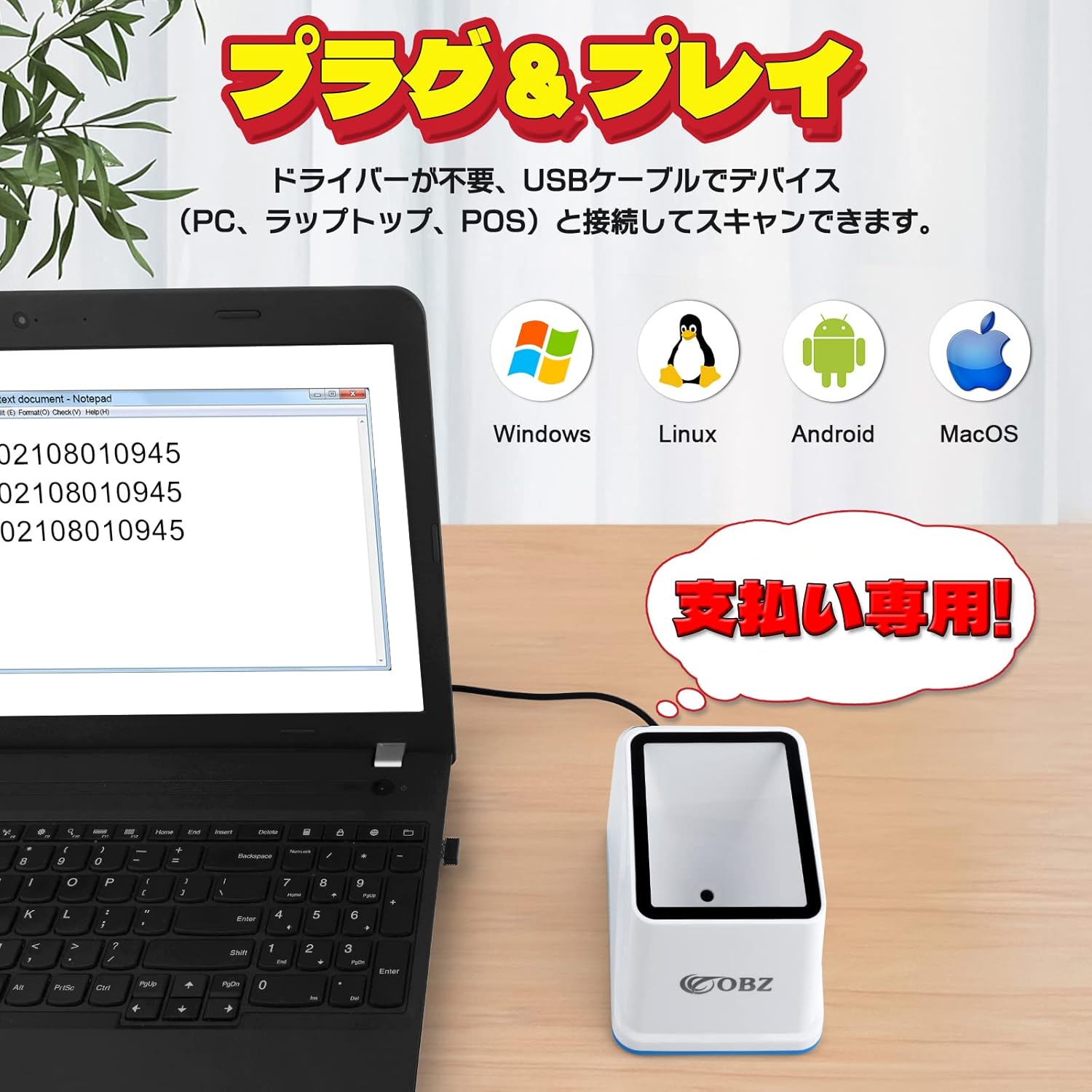
Figure 4: Plug & Play Connectivity with Various Operating Systems
Note: A protective film is applied to the scan window. Please remove it before use for optimal performance.
4. Operating Instructions
The OBZ F2-JP scanner operates with an automatic sensor, simplifying the scanning process.
Basic Scanning:
- Place the item with the barcode in front of the scanner's window.
- The scanner will automatically detect the barcode and emit a successful scan indication (e.g., a beep or light change).
- The scanned data will be transmitted to your connected computer or POS system as keyboard input.
Scanning Payment Codes:
The scanner is optimized for reading payment QR codes from mobile phone screens.
- Ensure the customer's mobile device displays the payment QR code clearly.
- Position the mobile phone screen with the QR code facing the scanner's window.
- The scanner will automatically read the QR code, facilitating quick payment processing.

Figure 5: Payment Process with OBZ F2-JP Scanner
5. Maintenance
To ensure the longevity and optimal performance of your OBZ F2-JP barcode scanner, follow these simple maintenance guidelines:
- Cleaning: Regularly clean the scanner's window with a soft, lint-free cloth. For stubborn smudges, a small amount of mild glass cleaner can be applied to the cloth (not directly to the scanner).
- Handling: Avoid dropping the scanner or subjecting it to strong impacts.
- Environment: Operate the scanner in a clean, dry environment. Protect it from extreme temperatures and direct sunlight.
- Cable Care: Do not bend or twist the USB cable excessively. Ensure it is not pinched or placed under heavy objects.
6. Troubleshooting
If you encounter issues with your OBZ F2-JP barcode scanner, please refer to the following common solutions:
| Problem | Possible Cause | Solution |
|---|---|---|
| Scanner does not power on. | USB cable not properly connected or faulty USB port. | Ensure the USB cable is securely connected to both the scanner and the computer. Try a different USB port. |
| Scanner does not read barcodes. | Barcode is damaged, poorly printed, or not within scanning range/angle. Scan window is dirty. | Ensure the barcode is clear and undamaged. Adjust the distance and angle of the barcode to the scanner. Clean the scan window. |
| Scanned data is incorrect or incomplete. | Incorrect keyboard layout setting on the computer. | Verify your computer's keyboard language settings match the expected output. |
| Scanner makes a sound in a foreign language. | Default voice prompt setting. | Refer to the product's comprehensive user guide (PDF) for instructions on adjusting sound settings or disabling voice prompts. |
7. Specifications
Below are the technical specifications for the OBZ F2-JP Barcode Scanner:
| Feature | Specification |
|---|---|
| Model Number | F2-JP |
| Color | White |
| Scanning Principle | CMOS Image |
| Minimum Element Resolution | ≥10mil |
| Trigger Mode | Automatic Sensor Scan |
| Image Sensor | 640x480 pixels |
| Actual Scan Angle | 50 degrees |
| Connectivity | USB Cable |
| Compatible OS | Android, Linux, MAC, Windows |
| Product Dimensions | 13 x 9 x 9 cm |
| Product Weight | 180 g |
| Cable Length | 1.2 meters |
| Material | ABS+PC |

Figure 6: High-End Barcode Reader Specifications
8. Warranty and Support
OBZ specializes in the development and manufacture of barcode scanners and is committed to providing high-quality products and customer satisfaction.
- Warranty: This product comes with a three-year warranty from the date of purchase.
- Customer Support: If you have any questions, require assistance, or encounter any issues not covered in this manual, please do not hesitate to contact our customer support team.
- Bulk Orders & Customization: We welcome bulk orders and also offer custom-made services to meet specific business requirements.


