
Edifier MF200
Edifier MF200 USB Powered Multimedia Bluetooth Soundbar User Manual
Model: MF200
Introduction
Thank you for purchasing the Edifier MF200 USB Powered Multimedia Bluetooth Soundbar. This manual provides detailed instructions for setting up, operating, and maintaining your new soundbar. Please read this manual thoroughly before use to ensure proper functionality and to maximize your listening experience.

Figure 1: Front view of the Edifier MF200 Soundbar, showcasing its sleek design and integrated controls on the right side.
Package Contents
Please check the contents of your package to ensure all items are present:
- Edifier MF200 Soundbar
- Carry Pouch
- USB-C to USB-C Cable
- User Manual (this document)
Setup
Follow these steps to set up your Edifier MF200 Soundbar:
- Placement: Place the soundbar on a stable, flat surface, such as a desk or shelf, preferably in front of your monitor or TV for optimal sound projection.
- Power Connection: Connect the provided USB-C to USB-C cable to the USB-C port on the back of the soundbar. Connect the other end to a USB power source (e.g., computer USB port, USB wall adapter 5V 1A). The soundbar will power on automatically.
- Audio Connection:
- Bluetooth: The soundbar will enter Bluetooth pairing mode automatically upon first power-on. The indicator light will flash.
- AUX Input: For wired connection, connect an audio device (e.g., MP3 player, laptop) to the 3.5mm AUX input port on the soundbar using a 3.5mm audio cable (not included).
- USB Audio: Connect the soundbar to your computer via the USB-C cable for digital audio playback.

Figure 2: Rear view of the Edifier MF200 Soundbar, showing the USB-C power/audio input and the 3.5mm AUX input port.
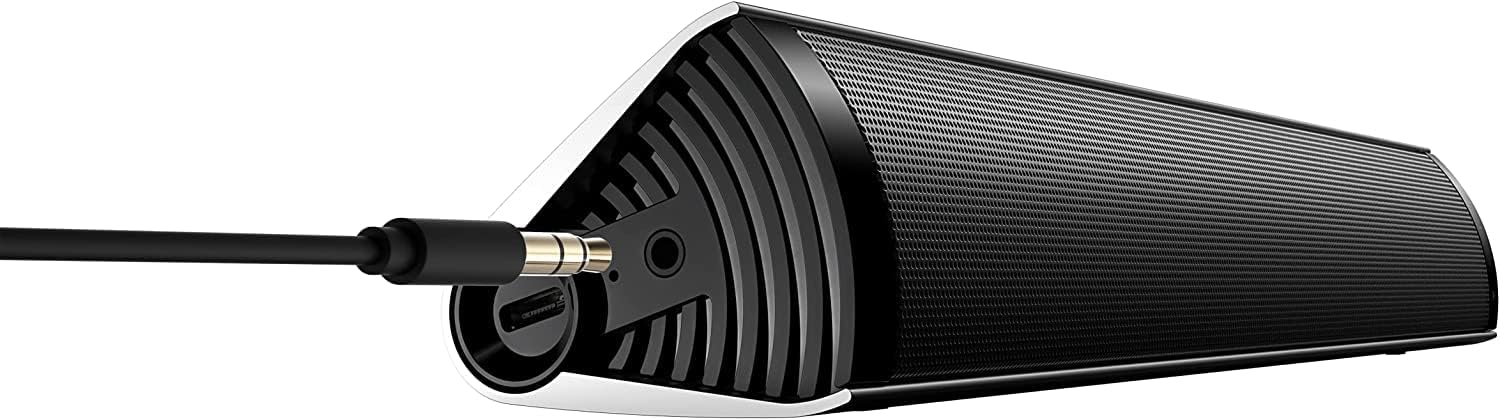
Figure 3: The Edifier MF200 Soundbar with a 3.5mm AUX cable connected to its input port, demonstrating a wired audio connection.
Operating Instructions
The Edifier MF200 features intuitive controls for easy operation.
Controls Overview

Figure 4: A hand demonstrating the touch control functionality on the Edifier MF200, highlighting the multi-function knob.
- Power Button (Top Left): Press and hold to power on/off.
- Volume Up (+): Press to increase volume.
- Volume Down (-): Press to decrease volume.
- Multi-function Knob (Right Side):
- Press: Play/Pause (in Bluetooth mode), Answer/End Call.
- Press and Hold: Enter Bluetooth pairing mode (when not connected), Reject Call.
- Rotate: Adjust volume.
- Previous Track (|<): Press to go to the previous track (in Bluetooth mode).
- Next Track (>|): Press to go to the next track (in Bluetooth mode).
Bluetooth Pairing
- Ensure the soundbar is powered on. The indicator light on the multi-function knob will flash blue, indicating it's in pairing mode.
- On your device (smartphone, tablet, computer), enable Bluetooth and search for new devices.
- Select "EDIFIER MF200" from the list of available devices.
- Once paired, the indicator light will turn solid blue. You can now play audio through the soundbar.
- To disconnect or pair with a new device, press and hold the multi-function knob until the indicator light flashes again.
AUX Input Mode
When a 3.5mm audio cable is connected to the AUX input, the soundbar will automatically switch to AUX mode. Disconnect the AUX cable to return to Bluetooth or USB audio mode.
USB Audio Mode
Connect the soundbar to your computer via the USB-C cable. The computer should recognize the MF200 as an audio output device. Select it from your computer's sound settings.
Battery and Charging
The Edifier MF200 features a built-in rechargeable battery for portable use.
- Battery Life: The soundbar provides up to 10 hours of music playtime on a full charge.
- Charging: Connect the soundbar to a USB power source using the provided USB-C cable. The indicator light will show charging status (e.g., red for charging, off or green for fully charged, depending on model specifics).
- Low Battery: When the battery is low, the indicator light may flash or change color to alert you.

Figure 5: Visual representation of the Edifier MF200's battery life, indicating up to 10 hours of music playback on a single charge.
Maintenance
To ensure the longevity and optimal performance of your Edifier MF200 Soundbar, follow these maintenance guidelines:
- Cleaning: Use a soft, dry cloth to wipe the surface of the soundbar. Do not use liquid cleaners, aerosols, or abrasive solvents.
- Storage: When not in use for extended periods, store the soundbar in a cool, dry place, away from direct sunlight and extreme temperatures. Use the provided carry pouch for protection.
- Avoid Moisture: Keep the soundbar away from water and high humidity. It is not waterproof.
- Handle with Care: Avoid dropping or subjecting the soundbar to strong impacts.
Troubleshooting
If you encounter any issues with your Edifier MF200 Soundbar, please refer to the following common problems and solutions:
| Problem | Possible Cause / Solution |
|---|---|
| No power |
|
| No sound |
|
| Bluetooth connection unstable or unable to pair |
|
| Sound distortion |
|
Specifications
Detailed technical specifications for the Edifier MF200 Soundbar:

Figure 6: A detailed list of technical specifications for the Edifier MF200 Soundbar, including input types, Bluetooth version, driver units, and dimensions.
| Feature | Detail |
|---|---|
| Model Name | MF200 |
| Input Types | Bluetooth / USB-C sound card / 3.5mm AUX |
| Bluetooth Version | 5.0 |
| Driver Units | 36mm full-range × 2 |
| Frequency Response | 100Hz-20KHz |
| Output Power | 4W+4W (RMS) |
| Signal-to-Noise Rate | ≥85dB (A) |
| Noise Level | ≤25dB (A) |
| Battery Capacity | 2200mAh |
| Bluetooth Playtime | 10 hours |
| Power Input | DC 5V 1A |
| Product Dimensions (W×H×D) | 293mm × 45mm × 53mm (11.54"D x 1.77"W x 2.09"H) |
| Net Weight | 0.5kg (1.1 lbs) |
| Connectivity Technology | Bluetooth, USB |
| Speaker Type | Tweeter |
| Surround Sound Channel Configuration | 2.1 |
Warranty and Support
The Edifier MF200 Soundbar comes with a limited warranty. For detailed warranty terms and conditions, please refer to the warranty card included in your package or visit the official Edifier website.
For technical support, troubleshooting assistance, or service inquiries, please contact Edifier customer support through their official website or the contact information provided in your product documentation.
Online Resources: www.edifier.com
Related documentsMF200


Ask a question about this manual
Ask about setup, troubleshooting, compatibility, parts, safety, or missing instructions. Manuals+ will review the question and use this page’s manual context to help answer it.