1. Introduction
Thank you for choosing the Skyworth 55-inch 4K QLED Google TV, Model 55SUE9500. This manual provides essential information for the safe and efficient use of your television. Please read it thoroughly before operating the device and retain it for future reference.
This television features a 55-inch QLED 4K UHD display, Google TV operating system, Dolby Vision & HDR 10+ support, Google Assistant with far-field voice control, Dolby Atmos, DTS Virtual X, and built-in Chromecast. It is designed to deliver a high-quality viewing and smart home entertainment experience.
2. Safety Information
Always adhere to the following safety precautions to prevent electric shock, fire, or damage to the television:
- Do not expose the TV to rain or moisture.
- Do not open the TV casing; refer all servicing to qualified personnel.
- Ensure proper ventilation around the TV.
- Use only the power cord supplied with the TV.
- Keep the TV away from direct sunlight, heat sources, and strong magnetic fields.
- Clean the TV with a soft, dry cloth. Avoid liquid cleaners.
3. Package Contents
Verify that all items are present in the package:
- Skyworth 55-inch 4K QLED Google TV (Model 55SUE9500)
- Remote Control
- Power Cable
- TV Stand (2 pieces)
- Screws for Stand Installation
- User Manual (this document)
4. Product Overview
Front View
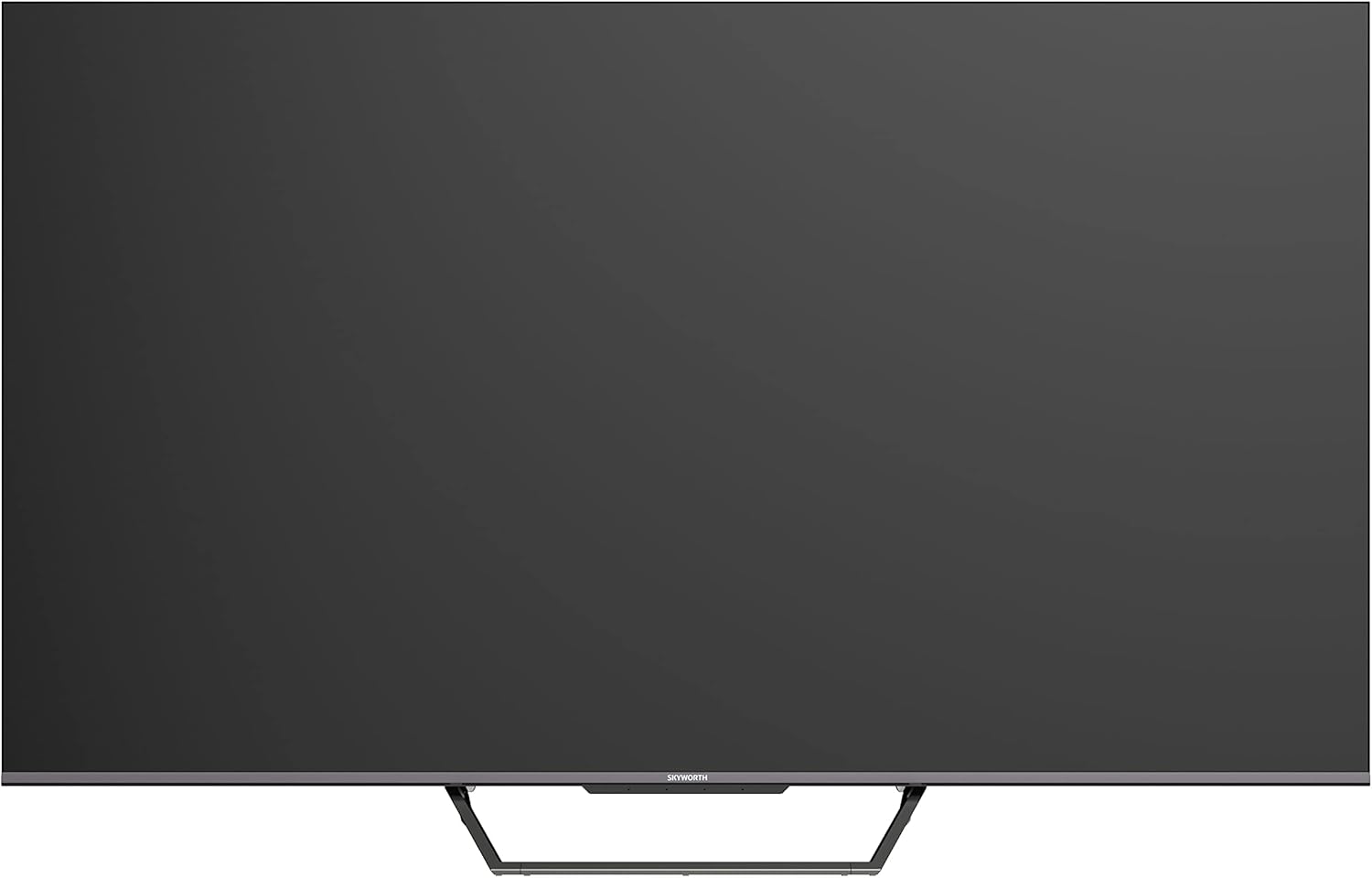
This image displays the front of the Skyworth 55-inch 4K QLED Google TV, showcasing its slim bezels and central stand design.
Side View

This image shows the side profile of the television, highlighting its thin design and the depth of the screen.
Back View

This image provides a view of the back panel of the TV, including the mounting points and general layout.
Input/Output Ports

This image details the various input and output ports located on the side/back of the television, including HDMI, USB, and other connectivity options.

The television offers multiple interfaces to meet various connectivity needs, including USB (x2), RF, AV IN, HDMI (x3), LAN, and Digital Out.
5. Setup
5.1 Stand Installation
To install the TV stand:
- Carefully place the TV face down on a soft, flat surface to prevent screen damage.
- Align the stand pieces with the corresponding slots on the bottom of the TV.
- Secure the stand using the provided screws. Ensure they are tightened firmly.

The TV features a unique U-shaped central base design, crafted with metal die-casting technology for stability.
5.2 Connecting Peripherals
Connect your external devices (e.g., cable box, Blu-ray player, gaming console) to the appropriate HDMI or AV IN ports. For internet access, connect an Ethernet cable to the LAN port or use the built-in Wi-Fi.
5.3 Initial Power On
After connecting all necessary cables, plug the power cable into an electrical outlet. Press the power button on the remote control or the TV to turn it on. Follow the on-screen instructions to complete the initial setup, including network connection, Google account login, and channel scanning.
6. Operating Instructions
6.1 Remote Control
The remote control allows you to navigate the Google TV interface, adjust volume, change channels, and access smart features. Ensure batteries are correctly inserted.
6.2 Google TV Interface
Your TV runs on Google TV OS, providing a personalized content experience. The home screen displays recommended content, installed apps, and quick access to settings.

Google TV refines the Android TV experience with personalized content and tailored recommendations based on your viewing habits and interests.

Enjoy abundant resources with Google TV, including over 700,000 movies & TV series and millions of songs from platforms like Netflix, YouTube, and Prime Video.
6.3 Smart Features
- Hands-Free Voice Control: Use "Hey Google" to search for shows, get recommendations, and control your TV with your voice.
- Chromecast Built-in: Easily cast content from your compatible mobile devices (Android and iOS) to the TV.
- Bidirectional Bluetooth: Connect Bluetooth headphones or speakers to the TV, or use the TV as a speaker for your mobile devices.
- Kids Care: Set up profiles for children with age-appropriate content recommendations and parental controls.
- Google Duo: Make video calls directly from your TV to connect with friends and family.
- Google Photos: Share and view your memories on the big screen.

Ask Google to quickly search for shows, get recommendations, and control your TV using voice commands. Simply say "Hey Google" to activate.
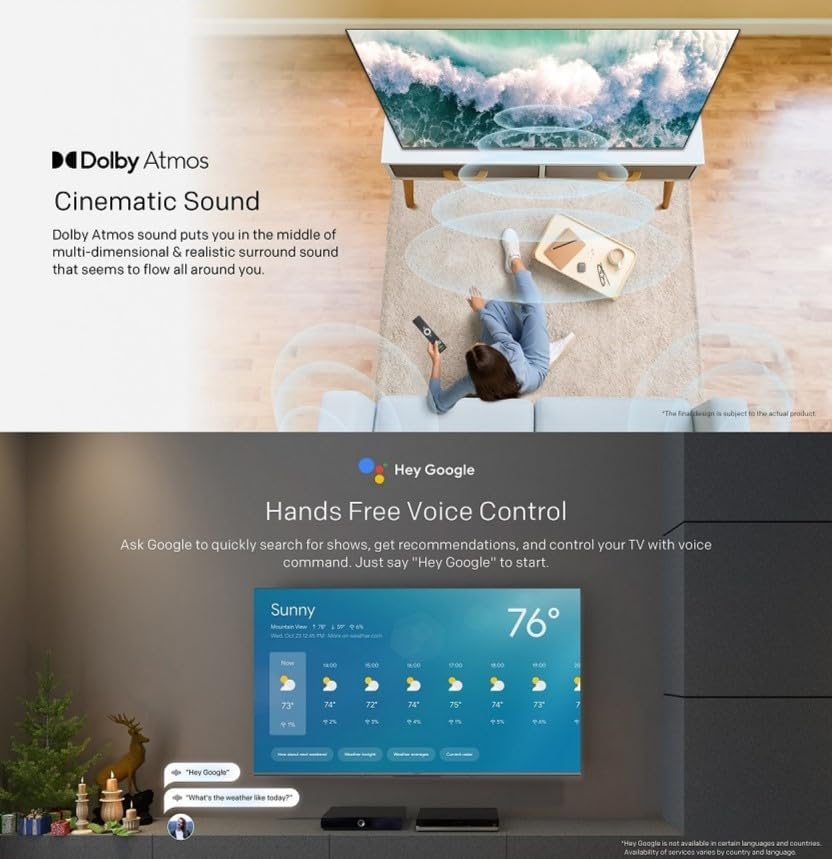
The TV supports bidirectional Bluetooth, allowing connection to mobile phones and Bluetooth audio products for versatile sound options.

This image highlights key features such as Kids Care for child-friendly content, Google Duo for video calls, Google Photos for sharing memories, and Chromecast built-in for easy content casting.
6.4 Picture and Sound Settings
Access the settings menu to customize picture and sound preferences.
- QLED 4K UHD with Dolby Vision & HDR10+: Experience vibrant colors and enhanced contrast.
- Filmmaker Mode: Disables post-processing to preserve the original aspect ratios, colors, and frame rates as intended by the filmmaker.
- Dolby Atmos & DTS Virtual X: Enjoy immersive, multi-dimensional sound.
- Health Platform: Includes Eye Protection Mode, Night Mode, and Auto Volume Control for comfortable viewing.
- Flicker Free: Reduces eye strain by minimizing screen flicker.

With Dolby Vision and advanced HDR10+, the TV enhances the viewing experience, producing images with greater realism and brightness.

Filmmaker Mode ensures a cinematic experience by disabling post-processing, preserving the director's original vision.
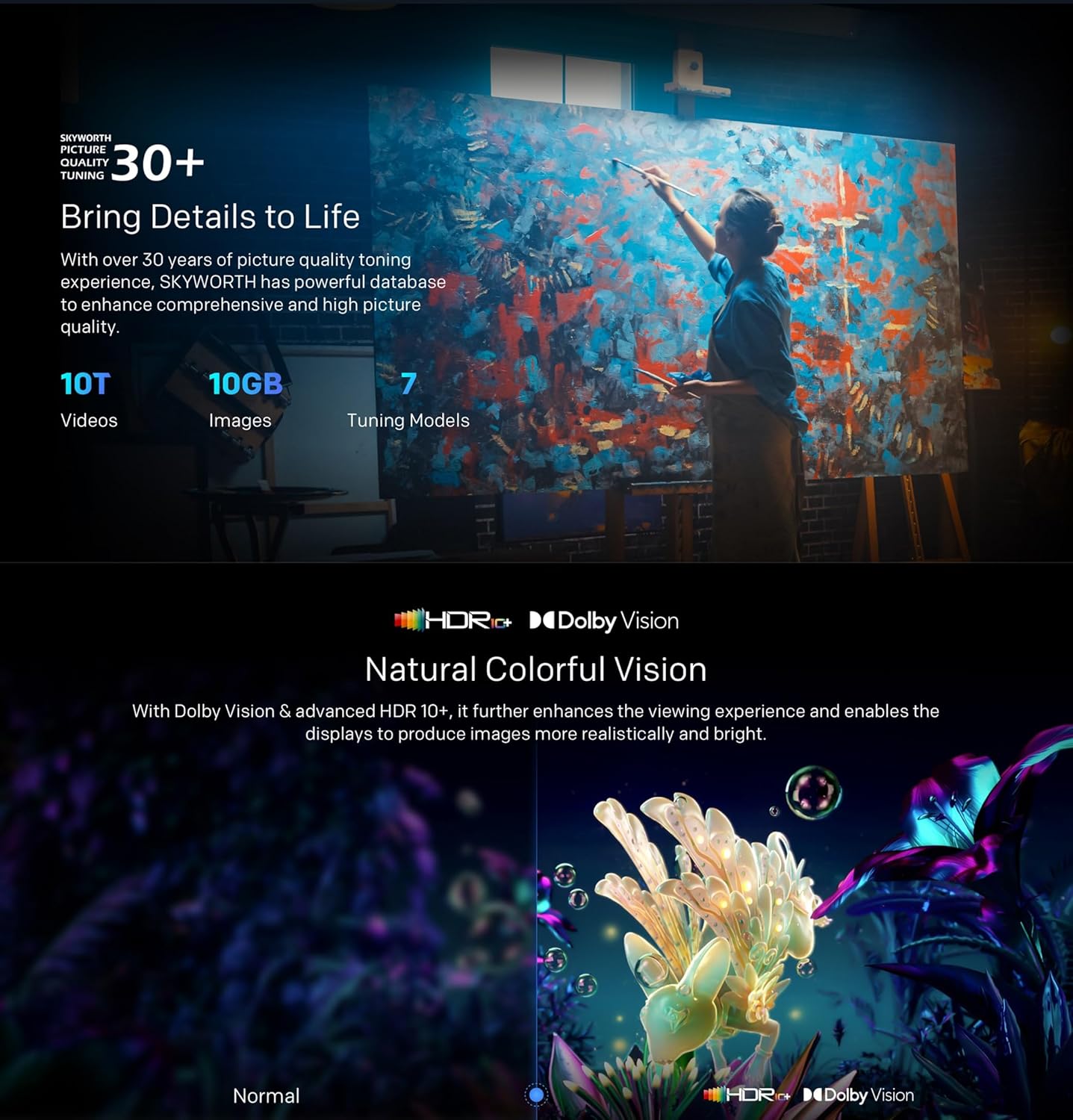
Dolby Atmos sound technology provides a multi-dimensional and realistic surround sound experience that flows around you.

The Health Platform allows you to choose comfort modes such as Eye Protection Mode, Night Mode, or Auto Volume Control for an optimized viewing experience.

Flicker Free technology effectively reduces harm from rapid flickers by adapting direct current backlight, protecting your eye health.
7. Maintenance
7.1 Cleaning
To clean the TV screen and casing:
- Unplug the TV from the power outlet before cleaning.
- Use a soft, lint-free cloth to gently wipe the screen. For stubborn marks, slightly dampen the cloth with water or a specialized screen cleaner (ensure it's TV-safe).
- Wipe the casing with a soft, dry cloth. Avoid abrasive cleaners or solvents.
7.2 Software Updates
Your Google TV may receive automatic software updates. Ensure your TV is connected to the internet to receive these updates, which can improve performance and add new features. You can also manually check for updates in the settings menu.
8. Troubleshooting
If you encounter issues with your TV, refer to the following common solutions:
| Problem | Possible Solution |
|---|---|
| No power | Check if the power cable is securely plugged into the TV and the wall outlet. Try a different outlet. |
| No picture, but sound is present | Ensure the correct input source is selected. Check cable connections to external devices. |
| No sound, but picture is present | Check volume levels and mute settings. Verify audio cable connections. |
| Remote control not working | Replace batteries. Ensure no obstructions between the remote and the TV's IR sensor. |
| Wi-Fi connection issues | Restart your router and the TV. Check network settings on the TV. Ensure the TV is within range of your Wi-Fi signal. |
If the problem persists, please contact customer support.
9. Specifications
The following table outlines the key specifications for the Skyworth 55SUE9500 TV:
| Feature | Description |
|---|---|
| Model Number | 55SUE9500 |
| Screen Size | 55 Inches |
| Display Technology | QLED |
| Resolution | 4K UHD (3840 x 2160) |
| Refresh Rate | 60 Hz |
| Operating System | Google TV |
| HDR Support | Dolby Vision, HDR10+ |
| Audio Technology | Dolby Atmos, DTS Virtual X |
| Processor | Chameleon Extreme 2.0 |
| RAM | 2GB |
| Storage | 16GB |
| Connectivity | Wi-Fi, Bluetooth 5.1, Ethernet (LAN) |
| Ports | HDMI x3, USB x2, RF, AV IN, Digital Out |
| Special Features | Google Assistant, Chromecast Built-in, Game Mode, Flicker Free, Health Platform, Filmmaker Mode |
| Product Dimensions (with stand) | 122.5 x 77 x 26 cm (approx.) |
| Weight (with stand) | 12.2 kg (approx.) |

This diagram provides detailed measurements of the television, including its width, height, and depth, both with and without the stand, along with the corresponding weights.
10. Warranty and Support
10.1 Warranty Information
Your Skyworth 55-inch 4K QLED Google TV Model 55SUE9500 comes with a 2-year warranty. This warranty covers manufacturing defects and malfunctions under normal use. Please retain your proof of purchase for warranty claims. The warranty does not cover damage caused by misuse, accidents, unauthorized repairs, or acts of nature.
10.2 Customer Support
For technical assistance, troubleshooting beyond this manual, or warranty service, please contact Skyworth customer support. Refer to the contact information provided in your product packaging or on the official Skyworth website for your region.


