1. Introduction
Thank you for choosing the Zowill Fingerprint Door Lock. This smart lock provides advanced security and convenient keyless entry through multiple methods, including biometric fingerprints, user codes, and traditional keys. This manual will guide you through the installation, setup, and operation of your new lock to ensure optimal performance and security.

Figure 1.1: Zowill Fingerprint Door Lock (Oil Bronze)
2. Safety Information
- Read all instructions carefully before installation and use.
- Do not attempt to disassemble or modify the lock. This may cause damage and void the warranty.
- Use only specified AA batteries. Do not mix old and new batteries or different types of batteries.
- Keep keys in a safe place away from the lock.
- Ensure the door frame is sturdy and properly aligned for secure operation.
3. Package Contents
Verify that all components are present before beginning installation:
- Exterior Keypad Assembly
- Interior Assembly (with battery compartment)
- Deadbolt Latch
- Mounting Plate
- Strike Plate and Dust Box
- Mounting Screws
- 2 x Traditional Keys
- Installation Template
- Reset Pin
4. Installation
The Zowill Fingerprint Door Lock is designed for easy installation. A screwdriver and four AA batteries (not included) are required.
4.1 Prepare the Door
If replacing an existing deadbolt, remove it completely. Ensure the door has standard bore holes (2-1/8" or 54mm diameter for the main hole, 1" or 25mm diameter for the latch hole). Use the provided template if drilling new holes or verifying existing ones.

Figure 4.1: Product Dimensions and Door Preparation
4.2 Install the Deadbolt Latch
Insert the deadbolt latch into the edge of the door. Ensure the latch is oriented correctly for your door's swing (it can be adjusted for 2-3/8" or 2-3/4" backset). Secure it with screws.
4.3 Install the Exterior Keypad Assembly
Feed the cable from the exterior keypad assembly through the main bore hole. Align the keypad assembly with the deadbolt latch and press it firmly against the door. Ensure the spindle passes through the latch mechanism.
4.4 Install the Interior Mounting Plate
On the interior side of the door, place the mounting plate over the spindle and cable. Secure it to the exterior assembly using the provided long screws. Ensure the plate is flush and stable.
4.5 Connect and Install the Interior Assembly
Connect the cable from the exterior assembly to the interior assembly. Carefully tuck the excess cable into the door. Align the interior assembly with the mounting plate, ensuring the spindle engages properly. Secure the interior assembly to the mounting plate with screws.
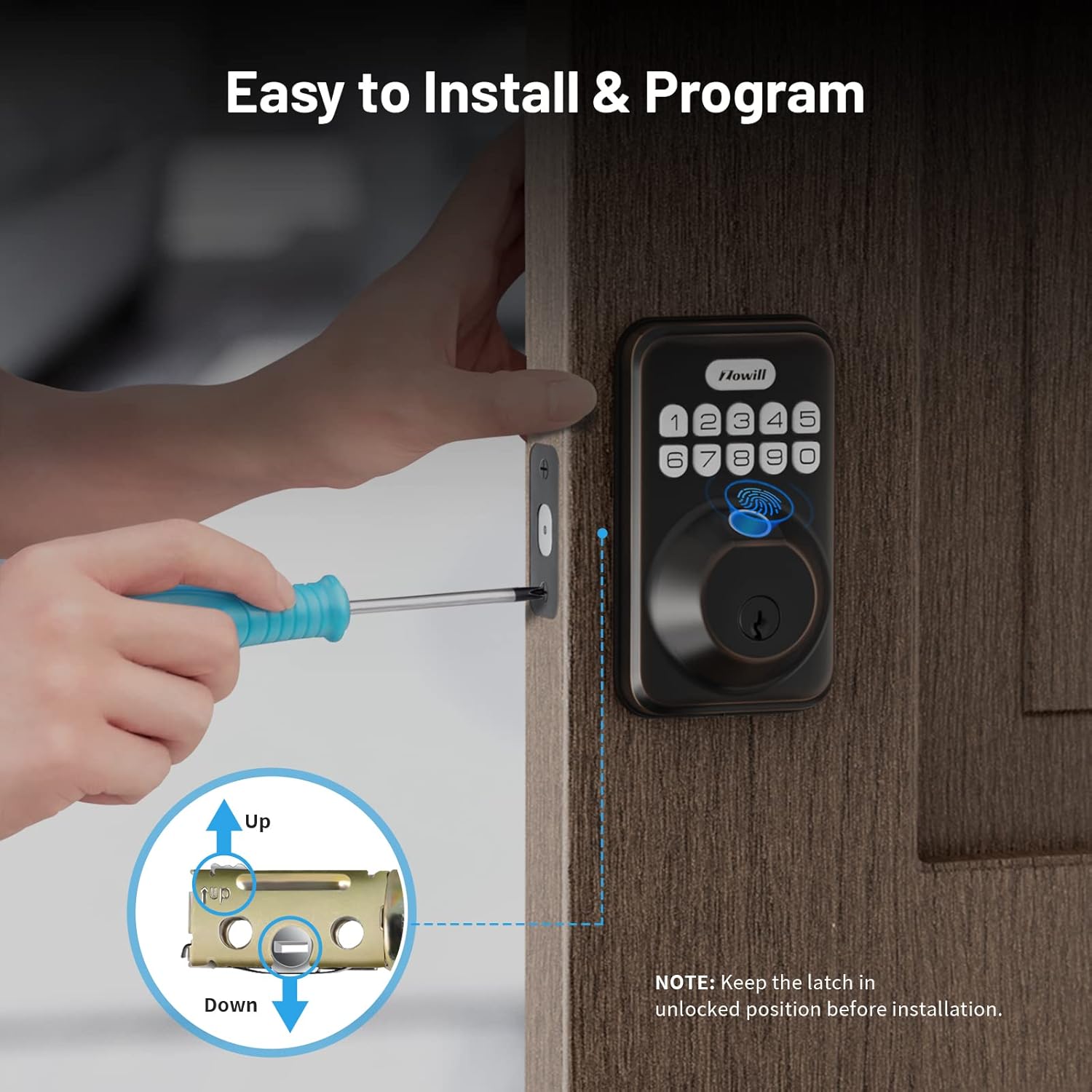
Figure 4.2: Easy Installation Steps
4.6 Insert Batteries
Open the battery cover on the interior assembly. Insert four new AA batteries, ensuring correct polarity. The lock will perform an automatic handing process to detect the door's direction (left or right swing).
5. Setup & Operating Instructions
Your Zowill smart lock offers various convenient access methods.
5.1 Master Code Setup
Upon first use, you will need to set a Master Code. This code is essential for programming all other settings and user codes. Refer to the detailed instructions in the included user guide for specific steps.
5.2 Fingerprint Enrollment
The lock supports up to 20 unique fingerprints. To enroll a fingerprint, enter your Master Code, then follow the voice prompts to place your finger on the sensor multiple times until successfully registered.

Figure 5.1: 0.3s Fingerprint Verification
5.3 User Code Programming
You can program up to 20 user codes (4-10 digits long). Enter your Master Code, then select the option to add a new user code and input your desired sequence. One-time use codes can also be generated for temporary access.

Figure 5.2: Supports 20 Fingerprints & 20 Pin Codes
5.4 Auto-Lock Feature
Enable the auto-lock feature to automatically secure your door after a set period (10-99 seconds) once it closes. This provides added peace of mind.

Figure 5.3: Auto-Lock & One-Touch Locking
5.5 Anti-Peeping Password
Enhance security by entering random digits before or after your actual access code. This feature prevents others from guessing your code by observing your input pattern.
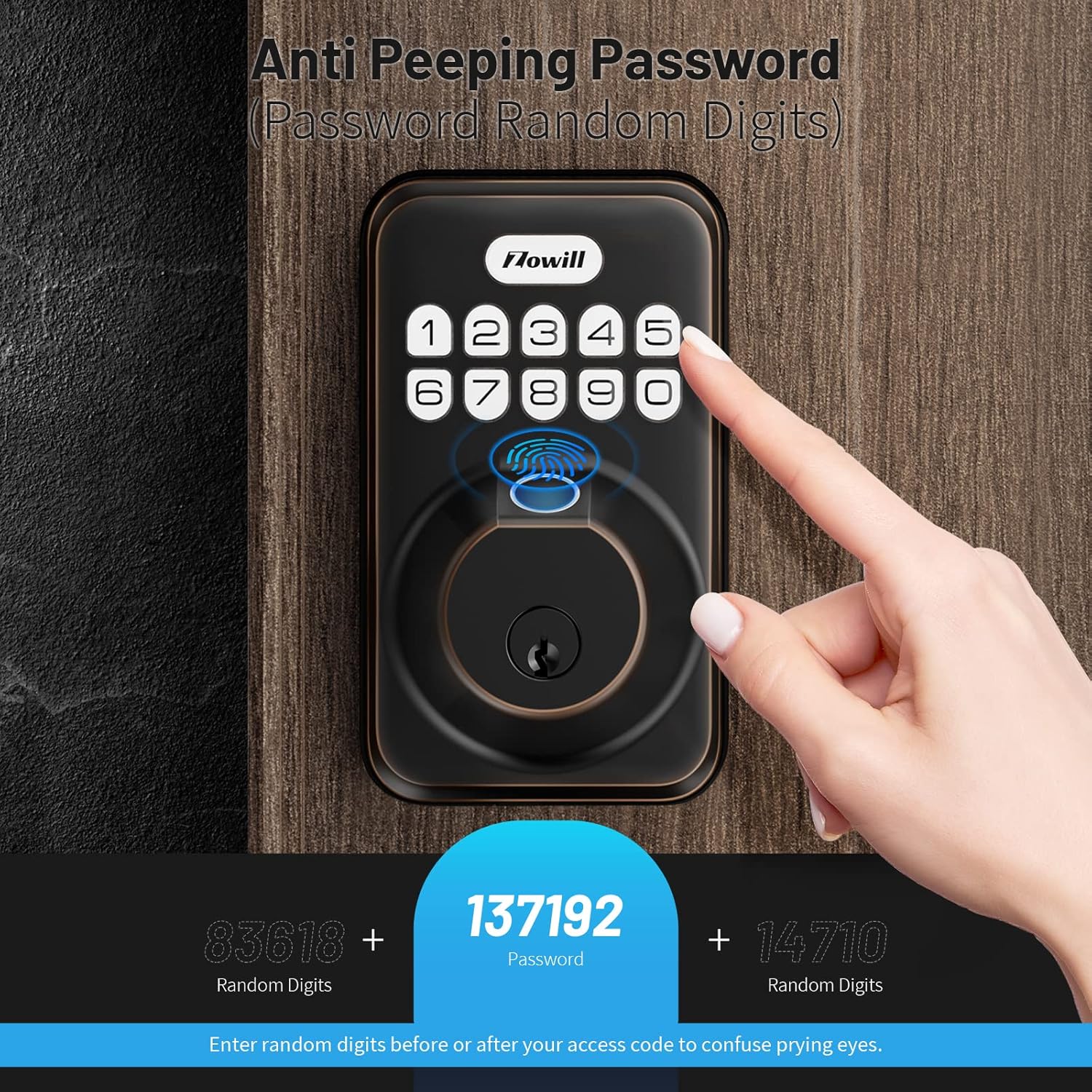
Figure 5.4: Anti-Peeping Password
5.6 Vacation Mode
Activate Vacation Mode for increased security when you are away for an extended period. This mode disables all user codes and fingerprints, allowing access only via the Master Code or physical key.

Figure 5.5: Vacation Mode
5.7 Mute Mode
For quiet operation, especially at night, enable the Mute Mode to silence keypad tones and voice prompts.

Figure 5.6: Mute Mode
6. Multi-Function & Security Features
The Zowill smart lock is designed with multiple features to enhance your home security and convenience:
- 0.3s Unlocking: Rapid fingerprint recognition for quick access.
- Multiple Access Methods: Fingerprint, keypad code, and physical key.
- IP54 Water Resistance: Durable design to withstand various weather conditions.
- Low Battery Alert: Notifies you when batteries are running low, ensuring you have time to replace them.
- ANSI Grade 3 Certified: Tested for durability and security, meeting industry standards.
- Automatic Door Handing: Simplifies installation by automatically detecting door swing direction.

Figure 6.1: Multi-Function & Security Overview

Figure 6.2: IP54 Waterproof Rating

Figure 6.3: Automatic Door Handing
7. Maintenance
7.1 Battery Replacement
When the low battery alert sounds, replace all four AA batteries promptly. To replace, remove the interior assembly's battery cover, replace the old batteries with new ones, and reattach the cover.
7.2 Cleaning
Clean the lock's surface with a soft, damp cloth. Avoid abrasive cleaners or solvents that could damage the finish or electronic components.
8. Troubleshooting
- Lock not responding: Check battery levels and ensure they are inserted correctly. If issues persist, perform a factory reset using the provided reset pin (refer to user guide for location).
- Fingerprint not recognized: Ensure your finger is clean and dry. Try re-enrolling your fingerprint.
- Keypad not lighting up: Check batteries. The keypad lights up on touch.
- Auto-lock not working: Verify the auto-lock feature is enabled and the delay time is set correctly in the programming menu.
9. Specifications
| Attribute | Detail |
|---|---|
| Brand | Zowill |
| Model Name | DK02A |
| Lock Type | Biometric, Keypad |
| Dimensions (L x W x H) | 6.9 x 4.9 x 3.3 inches |
| Material | Zinc alloy and stainless steel, in addition to Aluminum |
| Color | Oil Bronze |
| Item Weight | 1.9 pounds |
| Power Source | 4 x AA Batteries (not included) |
| Water Resistance | IP54 |
| Security Grade | ANSI Grade 3 |
10. Warranty & Support
For detailed warranty information and customer support, please refer to the official Zowill website or the contact information provided in your product packaging. Additional resources, including a comprehensive User Guide and Troubleshooting Guide, are available in PDF format via the links provided with your purchase.
You can also visit the Zowill Store on Amazon for more products and information.


