
Introduction
The Rraycom BW4 Wireless Security Camera is designed to provide comprehensive surveillance for your home, both indoors and outdoors. This battery-powered camera offers 2K QHD resolution, advanced AI motion detection, color night vision, two-way audio communication, and seamless integration with Alexa. This manual provides detailed instructions for setup, operation, maintenance, and troubleshooting to ensure optimal performance of your device.
What's in the Box
- 3 x Rechargeable Battery Security Camera
- 3 x Metal Mount
- 3 x Screws Set
- 3 x USB Cable
- 1 x User Manual
Product Overview
The Rraycom BW4 camera features a compact, bullet-style design in white, making it discreet and easy to install. It includes a camera lens, a motion sensor, a USB charging port, and a micro SD card slot for local storage.

Setup
1. Download the O-KAM App
To begin, download the official O-KAM app on your smartphone. You can scan the QR code provided in the quick start guide or search for "O-KAM" in your device's app store (Google Play or Apple App Store).
2. Powering On and Charging
The camera is battery-powered (5200mAh) and comes with a USB cable for charging. Ensure the camera is fully charged before initial use. The USB port is located at the bottom of the camera, protected by a weather-resistant cover.
3. Mounting the Camera
The Rraycom BW4 camera features a 100% wireless design, offering flexible installation options. Use the included metal mounts and screws to securely attach the camera to a wall or desired surface. Position the camera to achieve the optimal viewing angle (110 degrees).

4. Connecting to Wi-Fi
After powering on the camera, open the O-KAM app and follow the on-screen instructions to add a new device. The camera supports 2.4GHz Wi-Fi networks only. You will be prompted to scan a QR code displayed on your phone with the camera's lens to establish the connection.
Operating Instructions
Live View and Two-Way Audio
Access the live feed of your camera through the O-KAM app. The two-way audio feature allows you to hear and speak to visitors or deter unwanted guests directly from your smartphone. Simply tap the microphone icon in the app to activate the two-way communication.

Motion Detection and Alerts
The camera is equipped with AI motion detection, capable of distinguishing human figures to reduce false alarms. When motion is detected, you will receive instant alerts on your smartphone. You can customize activity zones within the app to focus detection on specific areas.

Night Vision Modes
The Rraycom BW4 offers 2K QHD color night vision, allowing you to see clear, full-color details even in low-light conditions. It also supports traditional black and white night vision. The app allows you to switch between these modes or enable smart night vision.

Siren and Spotlight Alarm
In case of suspicious activity, you can activate a loud siren and a bright spotlight directly from the app to scare off intruders. This feature provides an active deterrent for enhanced security.
Storage Options
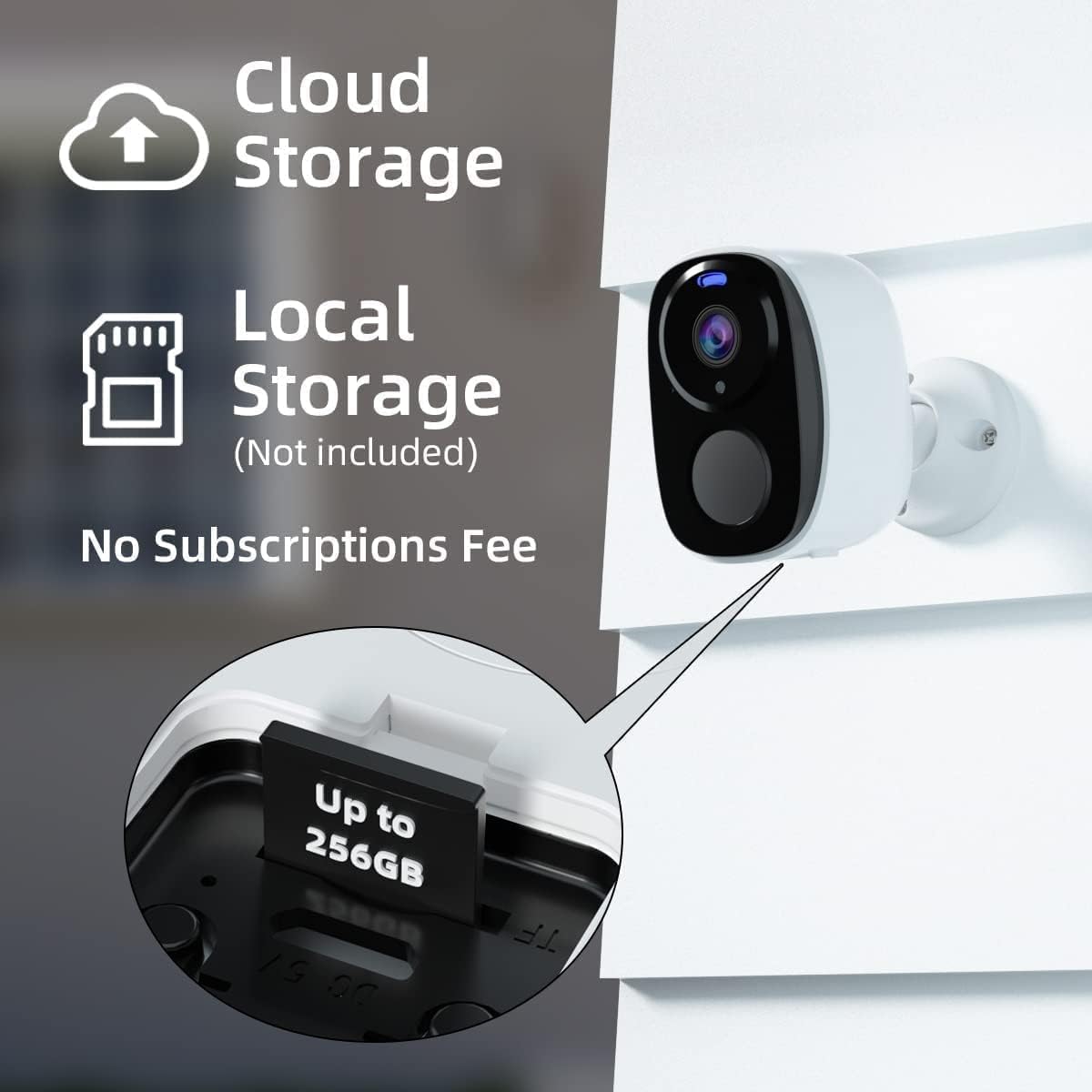
The camera supports local storage via a micro SD card (up to 256GB, not included). Additionally, Rraycom offers cloud storage options, including a free 1-day trial, allowing you to save and review recorded footage without a monthly fee for basic use.
Alexa Integration
The Rraycom BW4 camera works with Alexa. You can use voice commands like "Alexa, show me the living room" to view the live feed on compatible Alexa-enabled devices such as the Echo Show, providing hands-free monitoring.

Maintenance
Battery Management
The camera is powered by a 5200mAh rechargeable battery. Battery life varies based on usage and motion detection frequency. For continuous power, the camera is compatible with a solar panel (not included).

Weather Resistance
With an IP65 waterproof rating, the Rraycom BW4 camera is designed to withstand various weather conditions, making it suitable for outdoor installation. Ensure the USB port cover is securely closed to maintain its waterproof integrity.

Troubleshooting
- Camera not connecting to Wi-Fi: Ensure your Wi-Fi network is 2.4GHz. Verify the Wi-Fi password is correct. Place the camera closer to your Wi-Fi router during setup.
- Poor image quality: Check your Wi-Fi signal strength in the camera's location. Clean the camera lens with a soft cloth.
- False motion alerts: Adjust the motion detection sensitivity settings in the O-KAM app. Define specific activity zones to exclude areas with frequent, irrelevant movement.
- Battery draining quickly: Reduce the frequency of motion detection recordings or live view sessions. Consider purchasing a compatible solar panel for continuous charging.
- Two-way audio issues: Ensure your phone's microphone is enabled for the O-KAM app. Check the volume settings on both your phone and the camera.
Specifications
| Feature | Specification |
|---|---|
| Brand | Rraycom |
| Model Name | BW4W-3pc |
| Connectivity Technology | Wireless (2.4GHz Wi-Fi) |
| Indoor/Outdoor Usage | Indoor, Outdoor |
| Controller Type | O-KAM App |
| Mount Type | Wall Mount |
| Color | White |
| Enclosure Material | ABS Plastic |
| Water Resistance Level | IP65 Waterproof |
| Alert Type | Motion Only |
| Effective Still Resolution | 3 MP |
| Video Capture Resolution | 2K |
| Frame Rate | 30fps |
| Night Vision Range | 33 Feet |
| Night Vision | Color Night Vision |
| Battery Power | 5200 Milliampere Hour (mAh) |
| Viewing Angle | 110 Degrees |
| Zoom Type | Digital Zoom (6x) |
| Storage | Micro SD Card (up to 256GB), Cloud Storage |
Warranty and Support
Rraycom provides a manufacturer warranty for 1 year from the date of purchase. For technical support or warranty claims, please refer to the contact information provided in your product packaging or visit the official Rraycom website.