
FOXWELL NT809TS
FOXWELL NT809TS Diagnostic Tool User Manual
Model: NT809TS
1. Product Overview
The FOXWELL NT809TS is a full-featured diagnostic tool designed for automotive professionals and enthusiasts. It combines comprehensive system diagnostics with advanced TPMS (Tire Pressure Monitoring System) capabilities, including sensor programming, activation, and relearn functions. This device operates on Android 9.0, offering a user-friendly interface and wireless connectivity for efficient vehicle maintenance and repair.
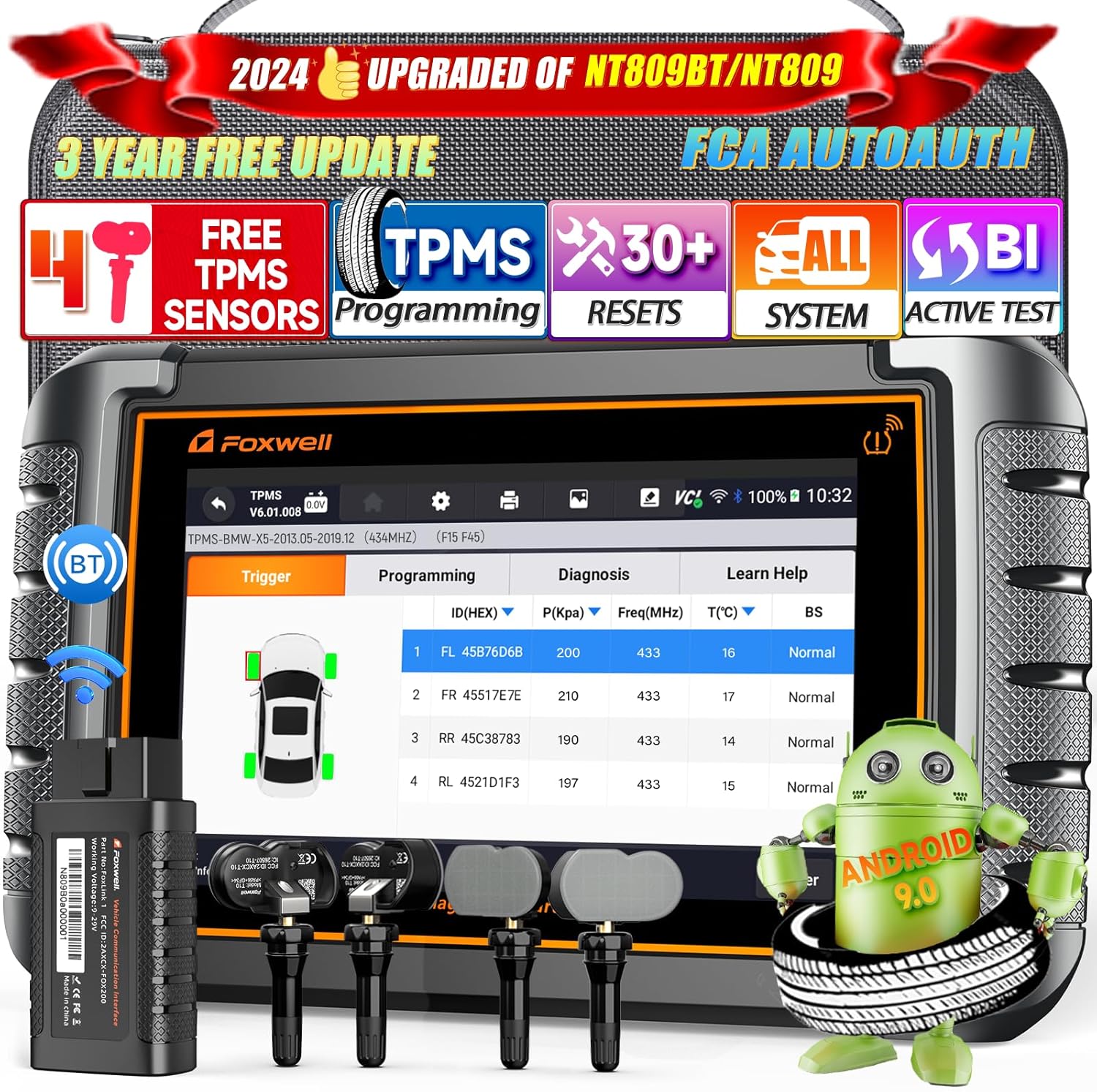
Figure 1.1: FOXWELL NT809TS Main Unit and Included Components
2. Setup
Before first use, ensure the device is fully charged. The NT809TS connects to your vehicle's OBD-II port via the included Bluetooth VCI dongle, allowing for wireless operation.
2.1 Initial Device Setup
- Power On: Press and hold the power button to turn on the NT809TS.
- Language Selection: Follow the on-screen prompts to select your preferred language (24 languages supported).
- Wi-Fi Connection: Connect the device to a stable Wi-Fi network for updates and online features.
- Registration: Register your device following the instructions provided in the quick start guide.
2.2 VCI Dongle Connection
- Locate your vehicle's OBD-II port (typically under the dashboard).
- Plug the Bluetooth VCI dongle into the OBD-II port. Ensure a secure connection.
- The VCI dongle will automatically pair with the NT809TS unit via Bluetooth. A successful connection will be indicated on the device screen.
3. Operating Instructions
3.1 General Vehicle Diagnosis
The NT809TS can diagnose all available electronic systems in your vehicle, providing comprehensive fault code reading, live data streaming, and freeze frame analysis.
- From the main menu, select "Diagnostic".
- Choose your vehicle's make, model, and year. The device supports over 150 car brands and 10,000+ vehicles.
- The tool will automatically read the VIN (Vehicle Identification Number) or allow manual selection.
- Perform a "Quick Scan" to identify all systems and their status (e.g., Engine, Transmission, ABS, SRS, BCM).
- Select a specific system to read and clear fault codes, view live data in text or graph format, or perform active tests.

Figure 3.1: OE-Level All-System Diagnostic Interface

Figure 3.2: Access to All Electronic Systems
3.2 TPMS Functions
The NT809TS offers comprehensive TPMS services, including diagnosis, programming, activation, and relearn for 99.99% of TPMS sensors.

Figure 3.3: TPMS One-Stop Service Capabilities
Video 3.1: Detailed demonstration of FOXWELL NT809TS TPMS programming and diagnostic functions.
3.2.1 Diagnose TPMS System
This function allows you to read TPMS sensor ID, frequency, pressure, temperature, and battery level, and identify issues within the TPMS system.
- Select "TPMS" from the main menu.
- Choose "Diagnosis".
- Follow the on-screen instructions to scan each tire sensor. The device will display sensor data and any related fault codes.

Figure 3.4: TPMS System Diagnosis Interface
3.2.2 Program TPMS Sensors
Program new FOXWELL T10 sensors (4 PCS included) to replace faulty or blank sensors. The NT809TS supports various programming methods.
- Select "TPMS" from the main menu, then "Programming".
- Choose a programming method:
- Auto Create: Generates a new ID for the sensor.
- Copy by Input: Manually enter the ID of an existing sensor.
- Copy by Activation: Copy the ID from an activated sensor.
- Copy by OBD: Copy the ID from the vehicle's ECU via OBD.
- Place the new sensor close to the device and follow the on-screen prompts to complete programming.

Figure 3.5: TPMS Sensor Programming Workflow

Figure 3.6: Available TPMS Programming Methods
3.2.3 Activate TPMS Sensors
Activate 99.99% of OEM and universal TPMS sensors (315/433 MHz) to read their data.
- Select "TPMS" from the main menu, then "Trigger".
- Position the device near the tire valve stem and follow the on-screen instructions to activate the sensor.
- The device will display the sensor's ID, pressure, temperature, and battery status upon successful activation.

Figure 3.7: TPMS Sensor Activation Process
3.2.4 Relearn TPMS Sensors
After replacing or programming TPMS sensors, they must be relearned to the vehicle's ECU to ensure proper communication and accurate readings. The NT809TS supports various relearn procedures.
- Select "TPMS" from the main menu, then "Relearn".
- Choose the appropriate relearn method for your vehicle:
- Stationary Relearn: Requires the vehicle to be stationary.
- Automatic Relearn: Often requires driving the vehicle for a period.
- OBD Relearn: Uses the OBD-II port to write new sensor IDs directly to the ECU.
- Follow the on-screen instructions to complete the relearn process.

Figure 3.8: TPMS Sensor Relearn Methods
3.3 30+ Maintenance Services
The NT809TS provides over 30 common maintenance and reset functions, covering various vehicle systems. Compatibility may vary by vehicle make and model.
- ABS Bleeding
- Oil Reset
- EPB (Electronic Parking Brake) Service
- DPF (Diesel Particulate Filter) Regeneration
- SAS (Steering Angle Sensor) Calibration
- BMS (Battery Management System) Reset
- Injector Coding
- Throttle Position Sensor (TPS) Reset
- Gear Learn
- And many more.

Figure 3.9: Advanced Maintenance Service Functions

Figure 3.10: Maintenance Service Selection Screen
3.4 Bidirectional Control / Active Test
This function allows the diagnostic tool to send commands to the vehicle's ECU to activate specific components or systems, helping to pinpoint problems with greater accuracy. This is crucial for troubleshooting and verifying repairs.
- Fuel Pump Test: Activate the fuel pump to check its operation.
- Cooling Fan Test: Turn on/off the cooling fan.
- Injector Tests: Test individual fuel injectors.
- Headlights/Windows/Doors/Wiper Tests: Control various electrical components.
- ABS Pump Motor: Test the ABS pump motor.

Figure 3.11: Bidirectional Control Functionality

Figure 3.12: Bi-directional Control / Active Test Examples
4. Maintenance
Regular maintenance of your NT809TS device ensures optimal performance and longevity.
4.1 Software Updates
The NT809TS offers 3 years of free Wi-Fi updates. Regularly update the software to ensure compatibility with the latest vehicle models and access new features.
- Connect the device to a stable Wi-Fi network.
- From the main menu, select "Update".
- Follow the on-screen instructions to download and install available updates.

Figure 4.1: Update Online at Your Fingertips
4.2 Device Care
- Keep the device clean using a soft, dry cloth. Avoid abrasive cleaners.
- Store the device in its sturdy carrying case when not in use to protect it from dust and physical damage.
- Avoid exposing the device to extreme temperatures or direct sunlight for prolonged periods.
5. Troubleshooting
This section addresses common issues you might encounter with your NT809TS device.
| Problem | Possible Cause | Solution |
|---|---|---|
| Device does not power on. | Low battery; Power button not pressed correctly; Internal fault. | Charge the device fully. Ensure the power button is pressed and held for a few seconds. If issue persists, contact support. |
| Cannot connect to vehicle. | VCI dongle not properly connected; Bluetooth issue; Vehicle ignition off. | Ensure VCI dongle is securely plugged into OBD-II port. Check Bluetooth connection on NT809TS. Turn vehicle ignition to ON position. |
| VIN reading fails or freezes. | Vehicle communication issue; Software glitch. | Restart the device and vehicle. Try manual VIN entry. Ensure software is updated. |
| TPMS sensor programming/activation fails. | Sensor too far from device; Incorrect sensor type; Sensor faulty. | Place sensor within 0-20cm of the device. Verify sensor compatibility (FOXWELL T10). Try a different sensor if available. |
For issues not listed here or if solutions do not resolve the problem, please refer to the official user guide (PDF) or contact FOXWELL technical support.
6. Specifications
- Model: NT809TS
- Operating System: Android 9.0
- Display: 7.0-inch Touch Screen (1024*600 resolution)
- Memory: 32GB
- Battery: 4000 mAh
- Connectivity: Wi-Fi, Bluetooth (80 inches wireless connection range)
- TPMS Functions: TPMS Diagnosis, Programming, Activation, Relearn (supports 433MHz & 315MHz sensors)
- Diagnostic Functions: All System Diagnosis, Bidirectional Control / Active Test, 30+ Maintenance Services
- Vehicle Coverage: 150+ Car Brands, 10000+ Vehicles (including CAN-F, CAN, KWP, DOIP Protocol, FCA Autoauth with adapter)

Figure 6.1: NT809TS vs. Other NT809 Series Models

Figure 6.2: Internal Features and Design of NT809TS
7. What's in the Box
Your FOXWELL NT809TS package includes the following items:
- 1 × NT809TS Main Unit
- 4 × T10 TPMS Sensors
- 1 × Bluetooth VCI Dongle
- 1 × USB Type-C Cable
- 1 × Sturdy Carrying Case
8. Warranty and Support
FOXWELL provides comprehensive support for your NT809TS diagnostic tool:
- Software Updates: Enjoy 3 years of free software updates via Wi-Fi.
- Technical Support: Lifetime professional technical support is available.
- Remote Control Assistance: Remote assistance is provided for troubleshooting and guidance.
For any inquiries or assistance, please contact FOXWELL customer support through the provided channels.
Related documentsNT809TS


Ask a question about this manual
Ask about setup, troubleshooting, compatibility, parts, safety, or missing instructions. Manuals+ will review the question and use this page’s manual context to help answer it.