
1. Introduction
This manual provides detailed instructions for the RisoPhy Wireless Mechanical Keyboard. This keyboard offers versatile connectivity options, customizable RGB backlighting, and programmable keys, designed for both gaming and everyday use. Please read this manual thoroughly to ensure proper setup and operation of your device.
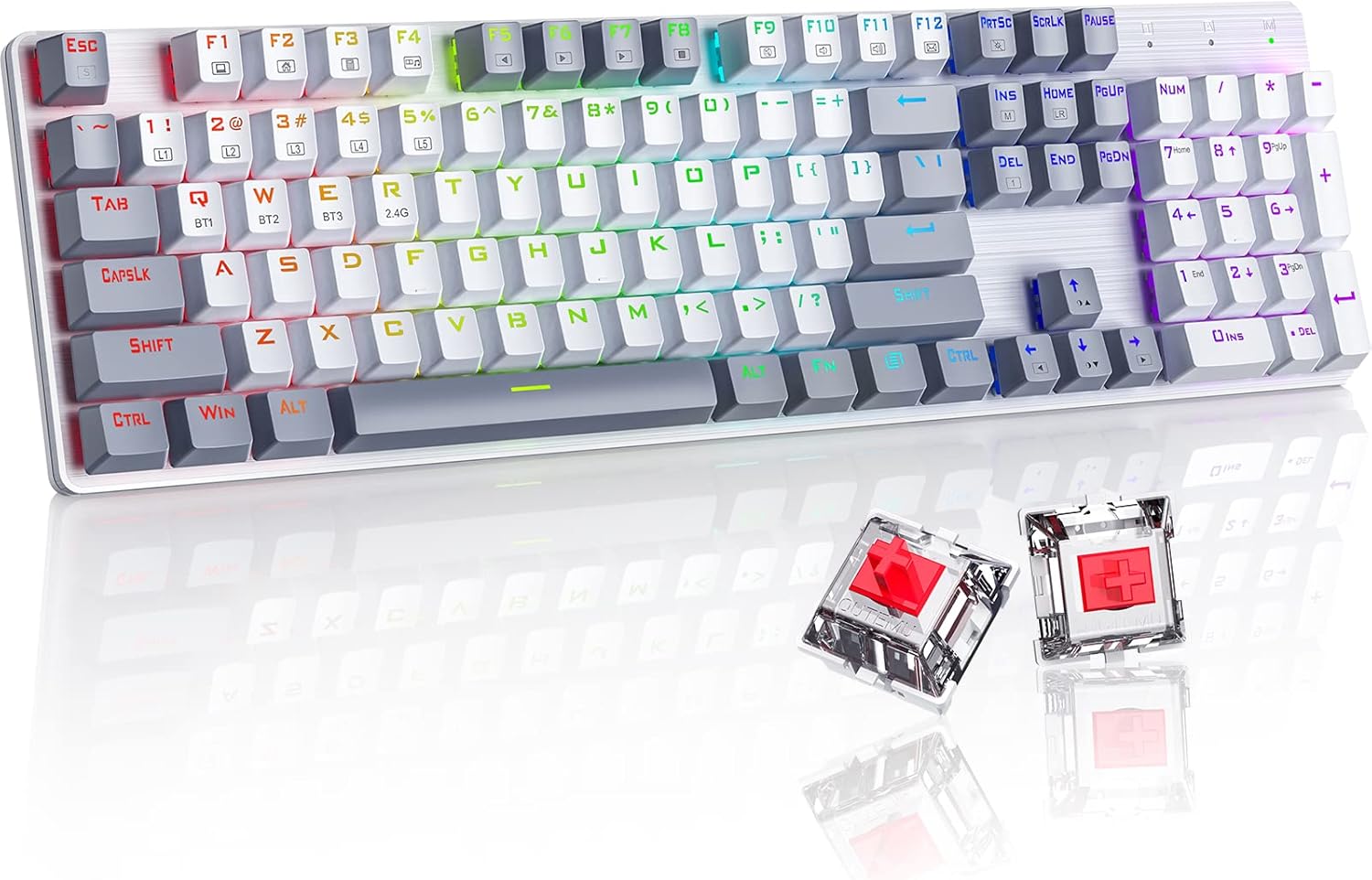
Image: The RisoPhy Wireless Mechanical Keyboard, showcasing its full 104-key layout, RGB backlighting, and two red mechanical switches detached for display.
2. Package Contents
Verify that all items are present in your package:
- 1 x RisoPhy Wireless Mechanical Keyboard
- 1 x USB Type-C Cable
- 1 x 2.4GHz USB Receiver
- 1 x User Manual (this document)
- 1 x Keycap Puller

Image: A visual representation of the package contents, including the keyboard, USB-C cable, 2.4GHz receiver, user manual, and keycap puller.
3. Setup and Connectivity
The RisoPhy keyboard supports three connection modes: Wired (USB-C), 2.4GHz Wireless, and Bluetooth. You can connect up to 5 devices simultaneously (1 via 2.4G, 3 via Bluetooth, 1 via Wired).

Image: An illustration demonstrating the three connectivity modes: Bluetooth 5.0, 2.4G Wireless, and Wired Mode, with the keyboard connected to a PC, laptop, and tablet.
3.1 Wired Mode
- Connect the provided USB Type-C cable to the keyboard's port and the other end to your computer's USB port.
- The keyboard will automatically be recognized and ready for use.
3.2 2.4GHz Wireless Mode
- Locate the 2.4GHz USB receiver in the keyboard's storage compartment (usually on the underside).
- Plug the USB receiver into an available USB port on your computer.
- Switch the keyboard's mode selector to 2.4G. The keyboard will connect automatically.
3.3 Bluetooth Mode
The keyboard supports up to three Bluetooth devices (BT1, BT2, BT3).
- Switch the keyboard's mode selector to Bluetooth.
- To pair a new device, press and hold FN + Q (BT1), FN + W (BT2), or FN + E (BT3) for 3-5 seconds until the corresponding key (Q, W, or E) flashes rapidly. This indicates pairing mode.
- On your device (PC, laptop, tablet, phone), enable Bluetooth and search for new devices.
- Select "RisoPhy Keyboard" (or similar name) from the list of available devices to complete pairing.
- Once paired, the key (Q, W, or E) will stop flashing and remain steadily lit.
3.4 Switching Between Connected Devices
To switch between paired Bluetooth devices or the 2.4G connection:
- For Bluetooth devices: Briefly press FN + Q, FN + W, or FN + E to switch to the corresponding paired device.
- For 2.4G Wireless: Ensure the mode selector is set to 2.4G.
4. Operating Features
4.1 RGB Backlighting Control
The keyboard features 20 RGB backlight modes, 16.8 million colors, and 5 brightness levels. Use the following FN key combinations to control the backlighting:
- FN + INS: Switch Backlight Mode (cycle through 20 modes).
- FN + ↑: Increase Backlight Brightness.
- FN + ↓: Decrease Backlight Brightness.
- FN + ←: Speed Down Backlight Effect.
- FN + →: Speed Up Backlight Effect.
- FN + DEL: Switch Backlight Color (for modes that support color changes).
- FN + PRTSC: Turn On/Off Backlight.

Image: A close-up of the keyboard's right side, highlighting the FN key combinations for controlling RGB backlight modes, brightness, speed, and color.
4.2 Custom Lighting Modes
The keyboard offers 5 custom lighting modes (FN+1 to FN+5).
- Press FN + 1~5 to enter one of the custom lighting modes.
- While in a custom mode, press FN + Home to begin customizing the light.
- Press each key you wish to customize to set its light to your preferred color.
- After customization, press FN + Home again to save the settings for that custom mode.
4.3 Programmable Keys and Macros
All 104 keys can be reassigned, and macros can be created using the dedicated driver software. This allows for personalized key functions and complex command sequences for enhanced productivity or gaming.
- Download the RisoPhy keyboard driver software from the official website.
- Install the software on your computer.
- Use the software interface to remap keys, create macros, and fine-tune RGB lighting effects.

Image: A screenshot of the RisoPhy keyboard's software interface, showing options for backlight customization, programmable key settings, and macro creation.
4.4 Multimedia and Function Keys
The keyboard includes dedicated FN key combinations for multimedia control and system functions:
| Key Combination | Function |
|---|---|
| FN + F1 | My Computer |
| FN + F2 | Home Page |
| FN + F3 | Calculator |
| FN + F4 | Media Player |
| FN + F5 | Previous Song |
| FN + F6 | Next Song |
| FN + F7 | Play/Pause |
| FN + F8 | Stop Playing |
| FN + F9 | Mute |
| FN + F10 | Volume Down |
| FN + F11 | Volume Up |
| FN + F12 |

Image: A visual guide to the FN key combinations (F1-F12) and their corresponding multimedia and system functions.
5. Maintenance
5.1 Cleaning the Keyboard
Regular cleaning helps maintain the keyboard's performance and appearance.
- Disconnect the keyboard from all power sources before cleaning.
- Use a soft, lint-free cloth slightly dampened with water or a mild cleaning solution to wipe the keycaps and chassis.
- For dust and debris between keys, use compressed air.
- Avoid using harsh chemicals or abrasive materials.
5.2 Keycap Removal and Replacement
The keyboard features durable PBT keycaps. You can remove them for deeper cleaning or customization using the provided keycap puller.
- Gently attach the keycap puller to the keycap you wish to remove.
- Pull upwards with steady, even pressure until the keycap detaches from the switch stem.
- To replace, align the keycap with the switch stem and press down firmly until it clicks into place.

Image: A close-up showing keycaps removed from the keyboard, revealing the mechanical switches underneath, alongside a keycap puller tool.
6. Troubleshooting
If you encounter issues with your RisoPhy keyboard, refer to the following common solutions:
| Problem | Possible Solution |
|---|---|
| Keyboard not responding in wireless mode. | Ensure the keyboard is charged. Check if the 2.4G receiver is properly plugged in or if Bluetooth is paired. Switch to wired mode to confirm basic functionality. |
| Bluetooth connection issues. | Ensure the keyboard is in Bluetooth mode and the correct BT channel (Q, W, or E) is selected. Forget the device on your computer/phone and re-pair. Ensure your device's Bluetooth is enabled. |
| Backlighting not working or incorrect. | Press FN + PRTSC to toggle backlighting. Adjust brightness with FN + ↑/↓. Cycle modes with FN + INS. |
| Keys double-typing or not registering. | Clean under the keycaps. If the issue persists, it might indicate a switch problem. Contact customer support if under warranty. |
| Keyboard not charging. | Ensure the USB Type-C cable is securely connected to both the keyboard and a working USB port. Try a different cable or USB port. |
7. Specifications
- Model: RisoPhy
- Connectivity: 2.4G Wireless, Bluetooth 5.0, USB-C Wired
- Key Count: 104 Keys
- Switch Type: Mechanical Red Switches
- Keycaps: Bicolor PBT Keycaps
- Backlighting: RGB (20 modes, 16.8 million colors, 5 brightness levels)
- Programmability: All keys programmable, macro support via driver
- Anti-Ghosting: N-Key Rollover
- Compatible Devices: PC, Laptop, Gaming Console, Phone, Tablet
- Material: Acrylonitrile Butadiene Styrene (ABS)
- Item Weight: Approximately 2.01 pounds (0.91 kg)
- Package Dimensions: 17.68 x 5.91 x 2.17 inches (44.9 x 15 x 5.5 cm)

Image: A close-up of the mechanical red switches, detailing their specifications such as 80 million click life, 40g force, and 2.0mm distance, along with a force-travel diagram.
8. Warranty and Support
RisoPhy products are designed for reliability and performance. For warranty information, please refer to the documentation included with your purchase or visit the official RisoPhy website. If you require technical assistance or have questions not covered in this manual, please contact RisoPhy customer support.
You can find more information and contact details on the RisoPhy Store.

Image: A customer support representative wearing a headset, symbolizing available assistance for product inquiries.


