
Product Overview
The Andoer Portable 720P Digital Camera is a compact and versatile device designed for capturing high-quality photos and videos. Featuring an 18-megapixel image sensor and 720P high-definition video recording capabilities, it is equipped with an 8X digital zoom, anti-shake technology, and a 2.7-inch TFT display. This camera is ideal for users seeking an easy-to-use solution for documenting moments.

Figure 1: Front and back view of the Andoer Portable 720P Digital Camera, showcasing its compact design and display screen.
What's in the Box
Upon unboxing your Andoer Digital Camera, please ensure all the following items are present:
- Digital Camera (Silver)
- Rechargeable Lithium Battery
- USB Charging Cable
- Wrist Strap
- Carry Bag
- User Manual (English)

Figure 2: Contents of the Andoer Digital Camera package, including the camera, wrist strap, carry bag, USB cable, and user manual.
Important Safety Information
Please read all safety instructions carefully before using the camera. Keep this manual for future reference.
- Do not expose the camera to water or moisture.
- Avoid dropping the camera or subjecting it to strong impacts.
- Keep the camera away from direct sunlight and high temperatures.
- Do not attempt to disassemble or repair the camera yourself.
- Use only the specified battery and charging cable.

Figure 3: Safety warning regarding plastic packaging. Always keep plastic bags away from infants and children to prevent suffocation.
Setup Guide
1. Charging the Battery
The camera is powered by a built-in rechargeable lithium battery. Before first use, fully charge the battery.
- Locate the battery compartment on the side or bottom of the camera.
- Insert the provided lithium battery into the compartment, ensuring correct polarity.
- Close the battery compartment cover securely.
- Connect the USB charging cable to the camera's USB port and the other end to a USB power adapter (not included) or a computer's USB port.
- The charging indicator light will illuminate during charging and turn off when fully charged.
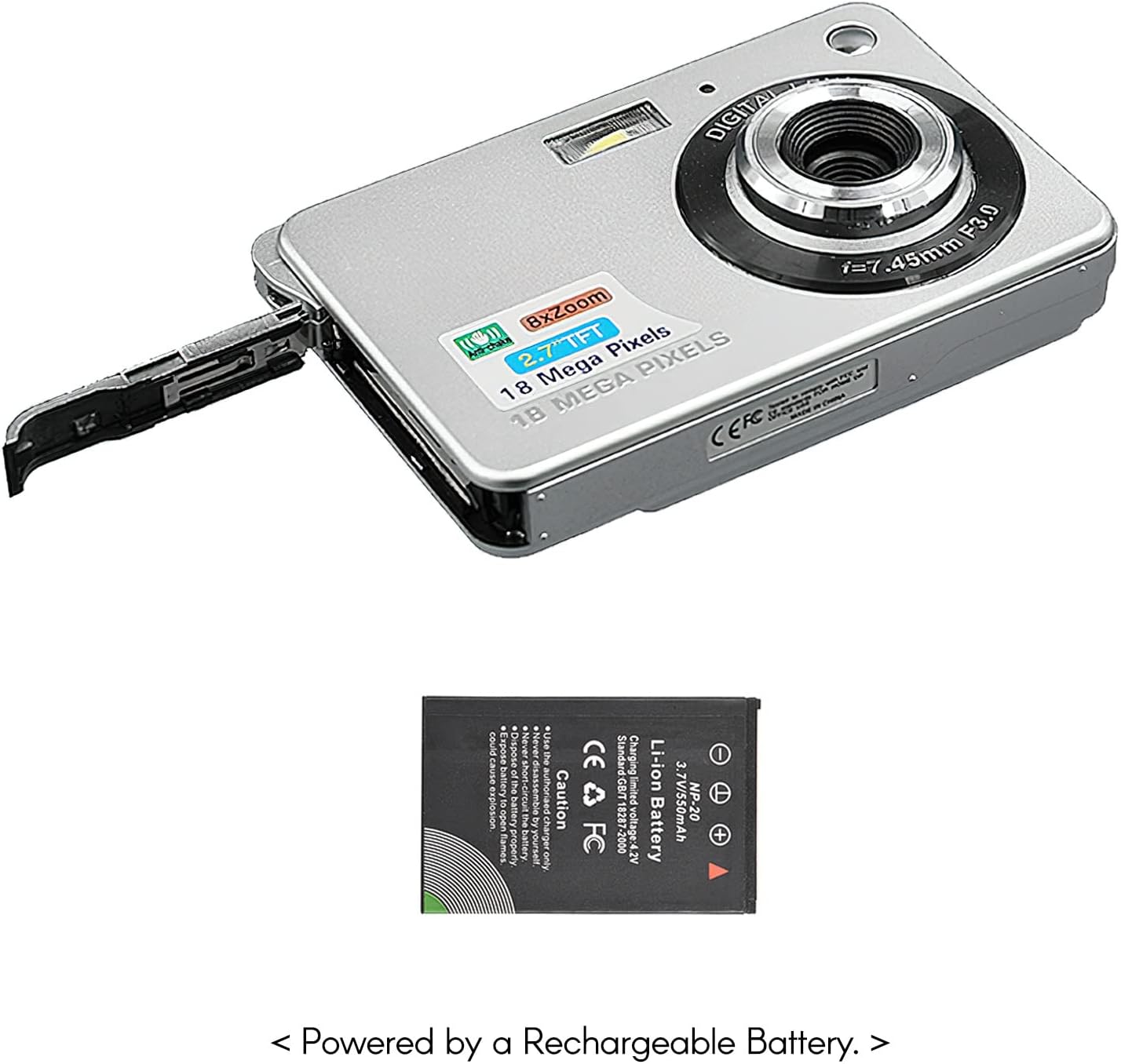
Figure 4: The camera with its battery compartment open, illustrating the placement of the rechargeable lithium battery.
2. Inserting a Memory Card (Not Included)
This camera requires an SD memory card (up to 32GB) to store photos and videos. The memory card is not included in the package.
- Ensure the camera is powered off.
- Locate the SD card slot, usually near the battery compartment.
- Insert the SD card with the metal contacts facing down (or as indicated by the slot diagram) until it clicks into place.
- To remove, gently push the card in until it springs out.
3. Powering On/Off
To power on the camera, press and hold the power button located on the top or side of the camera until the screen illuminates. To power off, press and hold the power button again until the screen turns off.
Operating Your Camera
1. Basic Photography
The camera can capture high-quality still images up to 18 Megapixels.
- Turn on the camera.
- Frame your shot using the 2.7-inch TFT display.
- Press the shutter button halfway down to focus, then press fully to take the picture.

Figure 5: The camera's display showing a captured image, demonstrating its 18 Megapixel photo capability.
2. Video Recording
Record videos in 720P high definition.
- Switch the camera to video mode (refer to on-screen icons or mode button).
- Press the record button (often marked with a red dot) to start recording.
- Press the record button again to stop recording.

Figure 6: The camera's display showing a video playback, indicating its 720P high-definition video recording function.
3. Zoom Function
Utilize the 8X digital zoom to get closer to your subjects.
- While in photo or video mode, use the zoom in/out buttons (often marked with 'W' for Wide and 'T' for Telephoto) to adjust the zoom level.

Figure 7: A visual comparison on the camera's screen demonstrating the effect of 8X digital zoom.
4. Display Screen
The camera features a 2.7-inch TFT display for framing shots, reviewing media, and navigating menus.

Figure 8: The camera's 2.7-inch LCD display showing a clear image, emphasizing its HD capability.
5. Scene Modes
Optimize your photos for different environments using various scene modes:
- Auto: Standard mode for general use.
- Night Portrait: For capturing portraits in low light.
- Night Scenery: For landscapes in low light.
- Portrait: Enhances facial features.
- Scenery: Optimizes for wide landscape shots.
- Sport: For capturing fast-moving subjects.
- Party: Suitable for indoor events with mixed lighting.
- Beach: Adjusts for bright, reflective environments.
- High Sensitivity: For extremely low light conditions.
6. Special Features
The camera includes several features to enhance your photography experience:
- Anti-Shake: Reduces blur caused by camera movement.
- Face Detect: Automatically detects and focuses on faces.
- Smile Capture: Automatically takes a photo when a smile is detected.
- Multi-Snapshot: Captures multiple images in quick succession.
- Self-Timer: Options for 2, 5, or 10-second delays before taking a photo.
- Built-in Flash: Provides illumination in dark conditions.
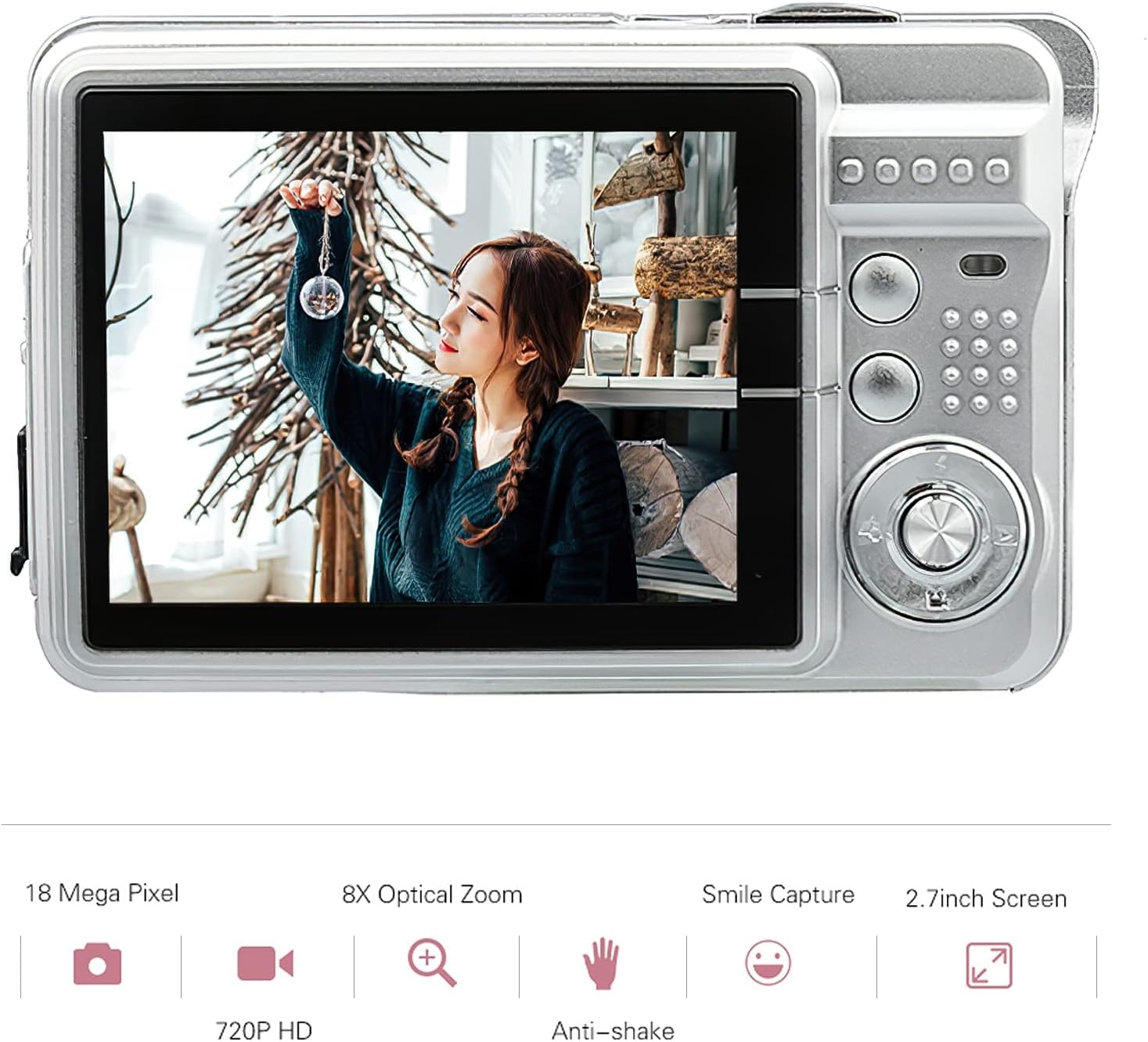
Figure 9: Visual representation of the camera's main features, including resolution, zoom, smile capture, screen size, video quality, and anti-shake.
Care and Maintenance
Proper care will extend the life of your Andoer Digital Camera.
Cleaning the Camera
- Use a soft, dry cloth to clean the camera body.
- For the lens and screen, use a specialized lens cleaning cloth and solution. Avoid abrasive materials.
- Do not use strong detergents or solvents.
Battery Care
- Avoid fully discharging the battery frequently.
- Store the camera with a partially charged battery if not used for extended periods.
- Do not expose the battery to extreme temperatures.
Storage
- Store the camera in a cool, dry place, away from dust and direct sunlight.
- Use the provided carry bag for protection during transport.
Troubleshooting
If you encounter issues with your camera, refer to the following common problems and solutions:
Camera Not Turning On
- Ensure the battery is fully charged.
- Check that the battery is inserted correctly.
- Try connecting the camera to a power source with the USB cable.
Images Are Blurry
- Ensure the lens is clean and free of smudges.
- Check lighting conditions; use flash if necessary.
- Hold the camera steady when taking pictures, or use the anti-shake feature.
Battery Not Charging
- Verify the USB cable is securely connected to both the camera and the power source.
- Try a different USB port or power adapter.
- Ensure the battery is properly seated in the compartment.
Memory Card Error
- Ensure the memory card is inserted correctly.
- Try reformatting the memory card (this will erase all data).
- Test with a different compatible SD card.
Technical Specifications
| Feature | Specification |
|---|---|
| Image Sensor | CMOS Sensor |
| Display | 2.7 Inch TFT |
| Picture Resolution | 18M (4895x3672), 16M, 14M, 12M, 10M, 8M, 7M, 5M, 3M, 2M, VGA |
| Video Resolution | 1280x720, 720x480, 640x480 VGA, 320x240 QVGA |
| Digital Zoom | 8X |
| Anti-Shake | Yes |
| Face Detect | Yes |
| Smile Capture | Yes |
| Self-Timer | Off/ 2 sec/ 5 sec/ 10 sec |
| Exposure | EV-3 to EV+3 |
| White Balance | Auto/ Daylight/ Cloudy/ Incandescent/ Fluorescent |
| File Format | JPEG (Picture), AVI (Video) |
| Power Supply | 1 * Lithium battery (3.7V 550mAh) |
| Supported System | Windows XP, VISTA, WIN7, MAC |
| Item Size | 9 * 6 * 2cm (3.5 * 2.4 * 0.8in) |
| Item Weight | 90g (3.2oz) |
Warranty and Support
Warranty Information
Andoer products are manufactured to high quality standards. This product comes with a standard manufacturer's warranty against defects in materials and workmanship from the date of purchase. Please retain your proof of purchase for warranty claims. The warranty does not cover damage caused by misuse, accident, unauthorized modification, or normal wear and tear.
Customer Support
For technical assistance, troubleshooting, or warranty inquiries, please contact Andoer customer support. Refer to the contact information provided on the product packaging or the official Andoer website for the most up-to-date support channels.
Note: Specific contact details are not provided in this manual. Please refer to the product packaging or manufacturer's website for support.