
Introduction
This manual provides comprehensive instructions for the installation, operation, and maintenance of the Extel Code Connect Wired Video Door Phone Kit. It includes details on the monitor, outdoor unit with integrated keypad, and the DIN rail transformer, ensuring secure and convenient access control for your home.
Please read this manual carefully before installation and use to ensure proper function and safety. Keep this manual for future reference.
Package Contents
The Extel Code Connect kit includes the following components:
- 1 x Extel Connect Indoor Monitor (Ref 720320)
- 1 x Outdoor Unit with Integrated Keypad
- 1 x Power Supply Unit (for monitor)
- 1 x Surface Mount Box for Outdoor Unit
- 1 x Flush Mount Box for Outdoor Unit
- Mounting Screws
- Wall Plugs
- 1 x Modular DIN Rail Transformer (Ref 512275)

Figure 1: Extel Code Connect Kit components.
Safety Information
- Ensure all power is disconnected before performing any installation or wiring.
- Installation should be performed by a qualified electrician if you are unsure about electrical wiring.
- Do not expose the outdoor unit to direct water jets or immerse it in water.
- Use only the provided power supply and transformer.
- Keep children away from electrical components.
Setup and Installation
1. Wiring the DIN Rail Transformer
The modular DIN rail transformer (Ref 512275) is designed for integration into your electrical panel. Ensure proper wiring according to local electrical codes.

Figure 2: DIN Rail Transformer installation example.
2. Mounting the Outdoor Unit
The outdoor unit can be either surface-mounted or flush-mounted using the provided boxes. Choose a location that offers a clear view of visitors and is protected from direct heavy rain.
- Surface Mount: Attach the surface mount box to the wall using screws and wall plugs. Route the necessary wiring through the back of the box. Secure the outdoor unit to the box.
- Flush Mount: Cut an appropriate opening in the wall for the flush mount box. Secure the flush mount box within the opening. Route wiring and then attach the outdoor unit.
3. Mounting the Indoor Monitor
Select a convenient indoor location for the monitor, typically near the main entrance. Mount the monitor bracket to the wall and connect the wiring from the outdoor unit and power supply. Secure the monitor onto its bracket.
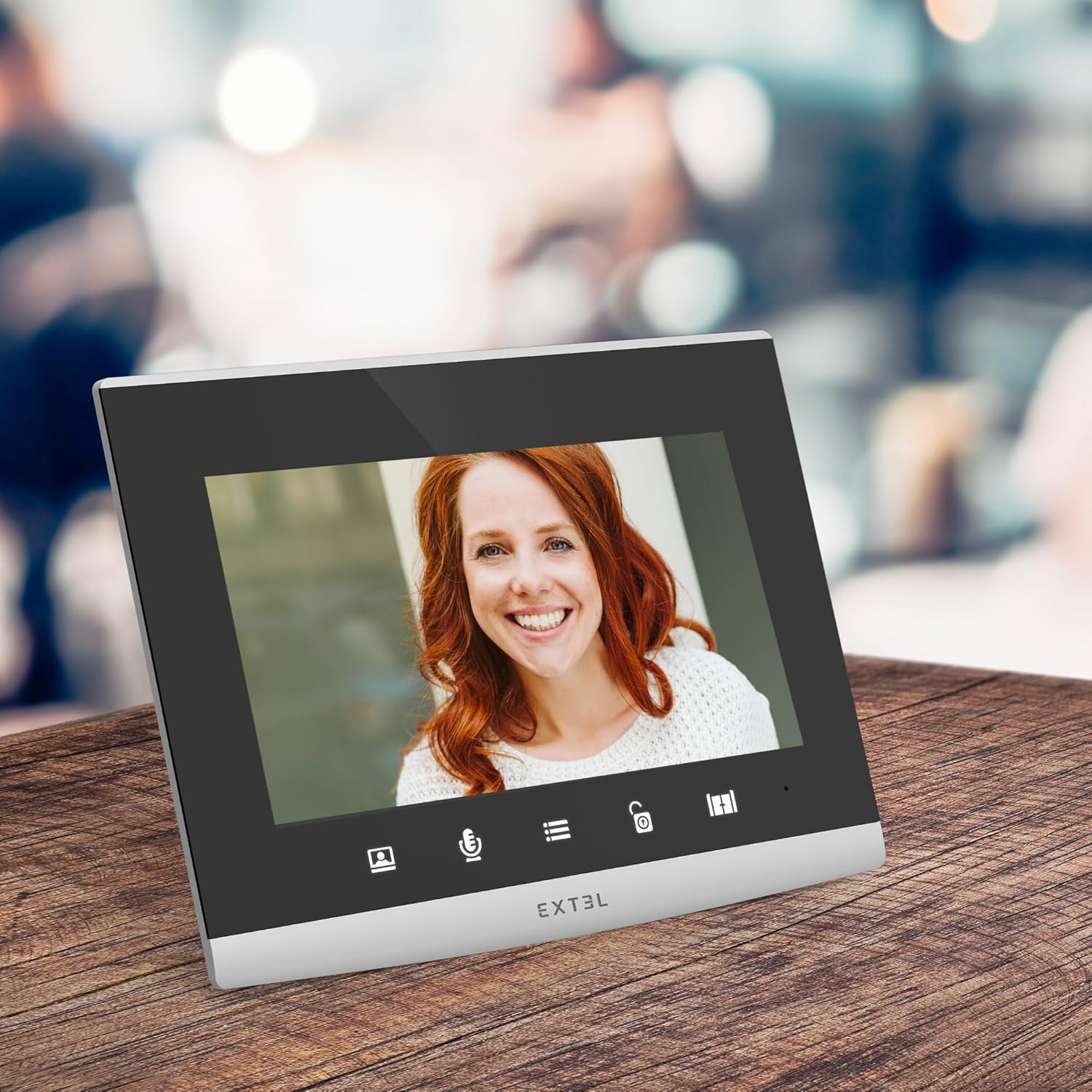
Figure 3: Extel Code Connect Indoor Monitor.
4. Connecting the System
The Extel Code Connect system typically uses a 2-wire connection between the outdoor unit and the indoor monitor. Refer to the detailed wiring diagram included in the separate installation guide for specific connections to the transformer, outdoor unit, and indoor monitor.
5. Initial Power-Up and Configuration
Once all components are securely installed and wired, connect the system to power. Follow the on-screen prompts on the indoor monitor for initial setup, including language selection and time/date settings. Refer to the Extel Connect app manual for smartphone integration.
Operating Instructions
1. Answering a Call
- From the Indoor Monitor: When a visitor presses the call button, the monitor will ring and display the visitor's image. Press the "Answer" button to communicate.
- From the Extel Connect App: If your smartphone is connected, you will receive a notification when a visitor is at your door. Open the app to view and communicate with the visitor, even when you are away from home.
2. Opening Access
You can open a gate or door connected to the system:
- From the Indoor Monitor: Press the "Open" button on the monitor.
- From the Extel Connect App: Use the "Open" function within the app for remote access control.
3. Using the Integrated Keypad
The outdoor unit features an integrated keypad for coded entry. Program access codes through the indoor monitor settings. Visitors or residents can enter a pre-set code to gain access without needing a key or the app.
4. Extel Connect App Features
The Extel Connect smartphone application enhances your control and security:
- Visitor Notifications: Receive alerts on your smartphone when someone is at your door.
- Live and Recorded View: View live video or review recorded photos/videos of visitors.
- Remote Access: Open your gate or door remotely from anywhere with an internet connection.

Figure 4: Product packaging illustrating app features.
5. Enhanced Security Features
- Door Check: Monitor your entrance without blind spots.
- Photo/Video Recording: Automatically record visitors when you are absent.
- Night Vision: Clear visibility even in low-light conditions.
- HD Image: High-definition video for better identification.
6. QR Code Access (for Property Rental)
For temporary property rentals (e.g., guesthouses, Airbnb), the Extel Code Connect allows you to generate a unique QR Code from your smartphone. You can set the validity period for the code and send it to your guest. The guest can then present the QR Code to the outdoor unit's reader for temporary access.
Maintenance
- Cleaning: Use a soft, damp cloth to clean the indoor monitor and outdoor unit. Do not use abrasive cleaners or solvents.
- Inspection: Periodically check wiring connections for any signs of wear or damage.
- Software Updates: Ensure your Extel Connect app and monitor firmware are up to date for optimal performance and security.
Troubleshooting
- No Power: Check the power supply connections and ensure the DIN rail transformer is receiving power. Verify circuit breakers.
- No Image/Sound: Check the 2-wire connection between the outdoor unit and indoor monitor. Ensure all cables are securely connected.
- App Connectivity Issues: Ensure your smartphone has a stable internet connection and the Extel Connect app is updated. Check your home Wi-Fi network.
- Keypad Not Responding: Verify that the keypad is clean and free from debris. Re-enter and test programmed codes.
If you encounter persistent issues, please refer to the detailed troubleshooting guide on the Extel website or contact customer support.
Specifications
| Feature | Detail |
|---|---|
| Brand | EXTEL |
| Model Reference | 720320TRANS |
| Product Weight | 1.82 Kilograms |
| Connectivity | Wired (2-wire system), Wi-Fi (for app connectivity) |
| Outdoor Unit Features | Integrated Keypad, Night Vision, HD Camera, IP54 rating |
| Indoor Monitor Features | Color Display, Call Answering, Door/Gate Opening, Photo/Video Recording |
| Transformer Output | 12V-15V-17V |
| App Compatibility | Extel Connect (iOS & Android) |
Warranty and Support
The Extel Code Connect Wired Video Door Phone Kit comes with a 2-year guarantee. Please retain your proof of purchase for warranty claims.
For technical assistance, troubleshooting, or warranty inquiries, please contact Extel customer support. Contact details can typically be found on the official Extel website or on the product packaging.
You can also visit the Extel Brand Store for more information.