
Andoer e417fe28-cba1-49bd-8acb-ddcd73b41592
Andoer 4K Digital Video Camera User Manual
Model: e417fe28-cba1-49bd-8acb-ddcd73b41592
1. Introduction
This user manual provides detailed instructions for operating your Andoer 4K Digital Video Camera. Please read this manual thoroughly before using the camera to ensure proper operation and to maximize its performance. Keep this manual for future reference.
1.1 Package Contents
Upon opening the package, please verify that all items listed below are present and in good condition:
- 1 x Andoer 4K Digital Video Camera
- 2 x NP-40 Li-ion Battery (one pre-installed)
- 1 x USB Cable
- 1 x Video Cable
- 1 x Remote Control
- 1 x Camera Bag
- 1 x User Manual (English)

Image: The Andoer 4K Digital Video Camera, remote control, and two NP-40 Li-ion batteries, illustrating the main components included in the package.
2. Product Features
The Andoer 4K Digital Video Camera is equipped with a range of features designed to enhance your video recording and photography experience:
- 4K Ultra HD Video Recording: Capture stunning videos at 4K/30fps and 2.7K/30fps resolutions.
- 56MP Still Image Capture: Produce high-resolution photos up to 56 megapixels (interpolation).
- 3.0 Inch IPS Touchscreen: A rotatable 270° touchscreen for intuitive control and versatile viewing angles.
- 18X Digital Zoom: Bring distant subjects closer without compromising image quality.
- IR Night Vision: Record clear and natural footage in low-light or dark environments.
- WiFi Connectivity: Easily connect to your smartphone or tablet via the DV-CAM APP for remote control, live view, and file transfer.
- Face Detection & Anti-Shake: Enhance focus and stability for clearer shots.
- External Microphone Support: Hot shoe mount for connecting an external microphone for improved audio quality.
- Standard Tripod Mount: 1/4 inch thread for mounting on a tripod or other accessories.

Image: An infographic highlighting the camera's main features including 4K 56MP resolution, 18X Digital Zoom, Face Detection, Night Vision, Dual Outputs, Digital Anti-shake, IPS Touchscreen, WiFi Connection, and Built-in Microphone.
3. Getting Started
3.1 Battery Installation and Charging
The camera uses NP-40 Li-ion batteries. One battery is typically pre-installed. Ensure batteries are fully charged before first use.
- Open the battery compartment cover located at the bottom of the camera.
- Insert the NP-40 battery, ensuring the correct polarity.
- Close the battery compartment cover securely.
- To charge, connect the camera to a power source using the provided USB cable. The charging indicator light will illuminate.
- Charging is complete when the indicator light turns off.
3.2 SD Card Installation
The camera supports SD/SDHC cards up to 128GB (Class 6 or above recommended, not included).
- Locate the SD card slot, usually on the side or bottom of the camera.
- Insert the SD card with the metal contacts facing the correct direction (refer to the diagram near the slot). Push until it clicks into place.
- To remove, gently push the card in again until it springs out.
4. Basic Operation
4.1 Power On/Off
- Power On: Open the LCD screen or press the Power button.
- Power Off: Close the LCD screen or press and hold the Power button.
4.2 Recording Video
- Turn on the camera.
- Ensure the camera is in video recording mode (indicated by an icon on the screen). If not, use the Mode button to switch.
- Press the Record button (usually a red circle) to start recording.
- Press the Record button again to stop recording.
4.3 Taking Photos
- Turn on the camera.
- Ensure the camera is in photo mode.
- Frame your shot using the LCD screen.
- Press the Photo button (often a camera icon or shutter button) to take a picture.
4.4 Zoom Function
The camera features 18X digital zoom.
- Use the T (Telephoto) button to zoom in.
- Use the W (Wide) button to zoom out.

Image: A visual demonstration of the 18X digital zoom capability, showing how the camera can magnify distant subjects.
4.5 Playback
- In standby mode, press the Playback button (often an arrow icon) to enter playback mode.
- Use the navigation buttons to browse through your recorded videos and photos.
- Press the OK button to play a video or view a photo in full screen.
- Press the Playback button again to exit playback mode.
5. Advanced Functions
5.1 WiFi Connection
The camera supports WiFi connectivity for remote control and file transfer via the DV-CAM APP.
- Download and install the "DV-CAM" APP on your smartphone or tablet from your device's app store.
- On the camera, navigate to the WiFi settings and enable WiFi. The camera's WiFi network name (SSID) and password will be displayed.
- On your smartphone/tablet, go to WiFi settings and connect to the camera's WiFi network using the provided password.
- Open the DV-CAM APP. You can now view live footage, control recording, take photos, and download files directly to your mobile device.

Image: A visual representation of the camera's WiFi function, showing a smartphone connected to the camera to view live footage or transfer files.
5.2 IR Night Vision
The IR Night Vision feature allows you to record in low-light conditions.
- To activate IR Night Vision, locate the IR button or setting in the camera menu.
- When activated, the camera will use infrared light to illuminate the scene, capturing clear black and white footage in darkness.

Image: A side-by-side comparison demonstrating the effectiveness of IR Night Vision, showing a scene in normal light versus the same scene captured in darkness using infrared.
5.3 3.0 Inch IPS Touchscreen
The 3.0-inch IPS touchscreen offers intuitive control and can be rotated 270 degrees for various shooting angles, including self-recording.
- Tap the screen to access menu options or focus.
- Swipe to navigate through playback or menu pages.
- Rotate the screen to face forward for vlogging or self-portraits.
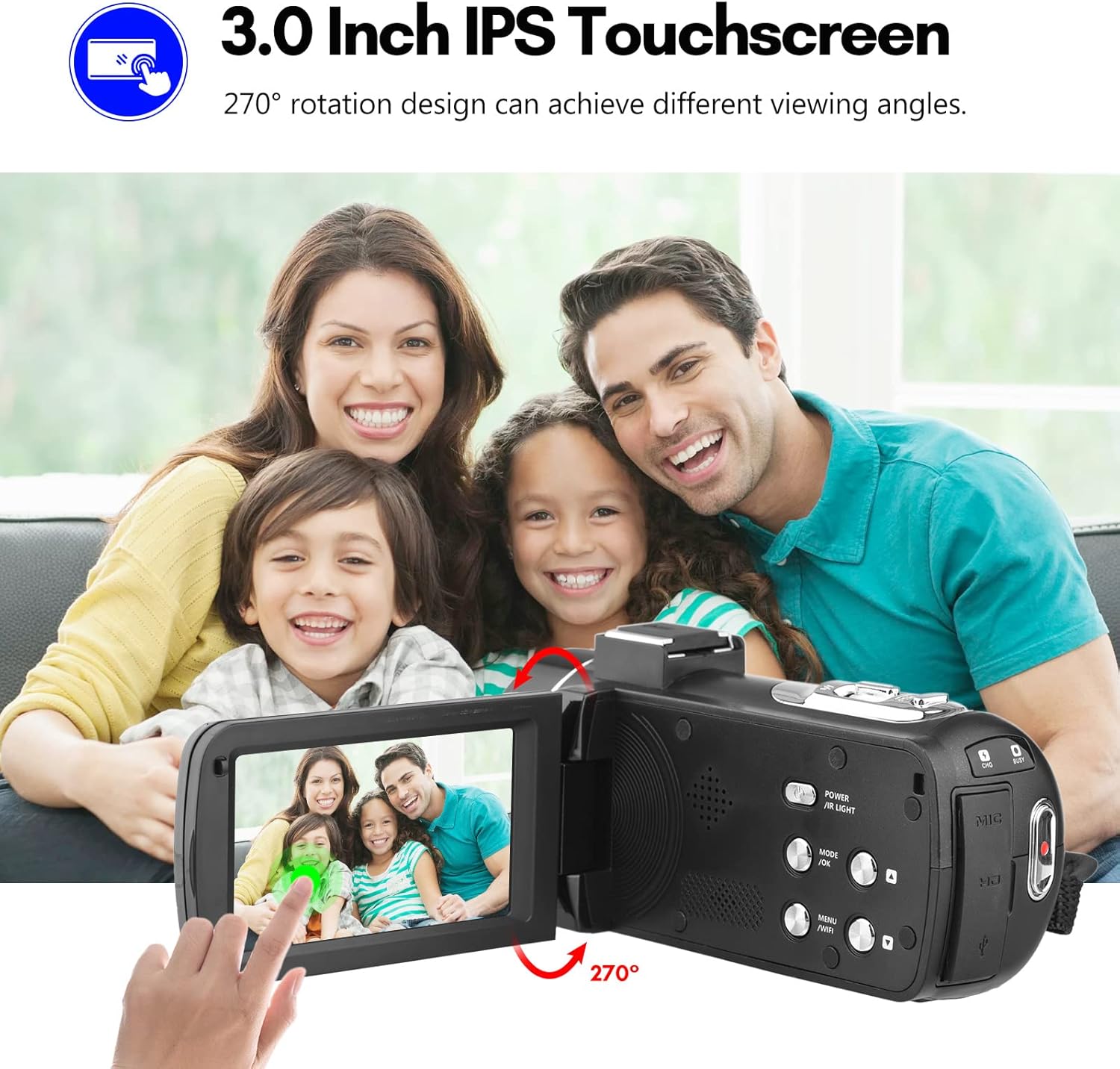
Image: The Andoer camera with its 3.0-inch IPS touchscreen rotated, demonstrating its 270-degree rotation capability for flexible viewing and self-recording.
5.4 Menu Settings
Access the camera's menu to adjust various settings such as video resolution, photo resolution, white balance, exposure, self-timer, and auto power off.
- Press the MENU button to enter the settings menu.
- Use the navigation buttons or touchscreen to select options.
- Press OK to confirm selections.
- Press MENU again to exit.
6. Connectivity
The camera offers multiple connectivity options for viewing and transferring your media.
6.1 Connecting to a TV (HD Multimedia Interface)
- Ensure the camera is turned off.
- Connect one end of the HD multimedia interface cable (not explicitly listed in package contents, but mentioned in description) to the camera's HD port and the other end to an HD input on your TV.
- Turn on the TV and select the correct HD input source.
- Turn on the camera. The camera's display will be mirrored on the TV screen, allowing you to view photos and videos.
6.2 Connecting to a Computer (USB)
- Ensure the camera is turned off.
- Connect the camera to your computer using the provided USB cable.
- Turn on the camera. It will typically enter "Mass Storage" or "PC Camera" mode. Select "Mass Storage" to access files.
- The camera will appear as a removable disk drive on your computer, allowing you to transfer files.

Image: An illustration detailing how to connect the Andoer camera to a television via HD multimedia interface and to a computer via USB for viewing and transferring media.
7. Maintenance
7.1 Cleaning the Camera
- Use a soft, dry cloth to clean the camera body.
- For the lens, use a specialized lens cleaning cloth and lens cleaning solution. Avoid touching the lens with your fingers.
- Do not use strong detergents or solvents, as they may damage the camera's finish.
7.2 Storage
- When not in use for extended periods, remove the battery from the camera.
- Store the camera in a cool, dry place, away from direct sunlight and extreme temperatures.
- Use the provided camera bag to protect it from dust and scratches.
8. Troubleshooting
| Problem | Possible Cause | Solution |
|---|---|---|
| Camera does not power on. | Battery is dead or incorrectly inserted. | Charge the battery or re-insert it correctly. |
| Cannot record video/take photos. | SD card is full, locked, or not inserted. | Delete files, unlock the SD card, or insert an SD card. |
| Poor image/video quality. | Lens is dirty; insufficient lighting; incorrect settings. | Clean the lens; use IR Night Vision in low light; adjust resolution/exposure settings. |
| WiFi connection issues. | Incorrect password; APP not installed; distance too far. | Verify password; install DV-CAM APP; move closer to camera. |
9. Specifications
| Feature | Detail |
|---|---|
| Image Sensor | CMOS |
| ISO | Auto, 100, 200, 400, 800, 1600 |
| Storage | SD/SDHC Card, max. 128GB (Class 6 or above) |
| Lens | Fixed, f/2.6, f=7.0mm |
| Focus Distance | 0.5m to infinity |
| Screen | 3.0 Inch IPS Touchscreen (270° rotation) |
| Photo Format & Resolution | JPG, 56M/ 48M/ 30M/ 24M/ 20M/ 16M/ 12M/ 8M/ 5M |
| Video Format & Resolution | MP4, 4K/30fps, 2.7K/30fps, 1080P/60fps, 1080P/30fps, 720P/60fps, 720P/30fps |
| Digital Zoom | 18X |
| IR Light | <1.0M |
| White Balance | Auto/ Daylight/ Cloudy/ Tungsten/ Fluorescent |
| Exposure | ±3.0EV |
| Self Timer | OFF/2s/ 5s/ 10s |
| Auto Power OFF | OFF/ 1min/3min/ 5min/ 10min |
| Microphone | Built-in, supports external microphone |
| Power Supply | 1 x NP-40 Li-ion Battery |
| Remote Control Battery | 2 x AAA Batteries (Not Included) |
| Camera Size | 12.6 x 5.8 x 5.9cm / 5 x 2.3 x 2.3in |
| Camera Weight | 318g / 11.2oz |
10. Warranty and Support
For warranty information and technical support, please refer to the official Andoer website or contact their customer service. Keep your purchase receipt as proof of purchase.
You can visit the official Andoer store on Amazon for more information: Andoer Store
11. Safety Information
Please observe the following safety precautions to prevent injury or damage to the product:
- Do not expose the camera to extreme temperatures, direct sunlight, or high humidity.
- Keep the camera away from water and other liquids.
- Do not attempt to disassemble or modify the camera. Repairs should only be performed by authorized service personnel.
- Keep plastic bags and packaging materials away from babies and children to avoid suffocation hazards.

Image: A multi-language warning label emphasizing the importance of keeping plastic bags away from children to prevent suffocation.
Related documentse417fe28-cba1-49bd-8acb-ddcd73b41592

Ask a question about this manual
Ask about setup, troubleshooting, compatibility, parts, safety, or missing instructions. Manuals+ will review the question and use this page’s manual context to help answer it.