
Introduction
This manual provides detailed instructions for the safe and efficient operation of your Pristar PS-100E Label Maker Machine. Please read this manual thoroughly before using the device and keep it for future reference.
The Pristar PS-100E is a portable, handheld thermal transfer label printer designed for various organizational needs in office, home, and school environments. It features automatic cutting, multi-line printing, and compatibility with various TZe label tapes.
Box Contents
Verify that all items listed below are included in your package.
- 1 x Pristar PS-100E Label Maker
- 1 x 0.47'' (12mm) TZe-FX231 Label Tape (White with Black Ink)
- 1 x DC Adapter
- 1 x Rechargeable Lithium Polymer Battery
- 1 x Operating Manual (this document)

Image: The Pristar PS-100E Label Maker shown with its included accessories: the label maker unit, a roll of TZe-FX231 label tape, a DC power adapter, a rechargeable lithium polymer battery, and the user manual.
Product Features Overview
The PS-100E label maker is equipped with several features designed for ease of use and versatility.
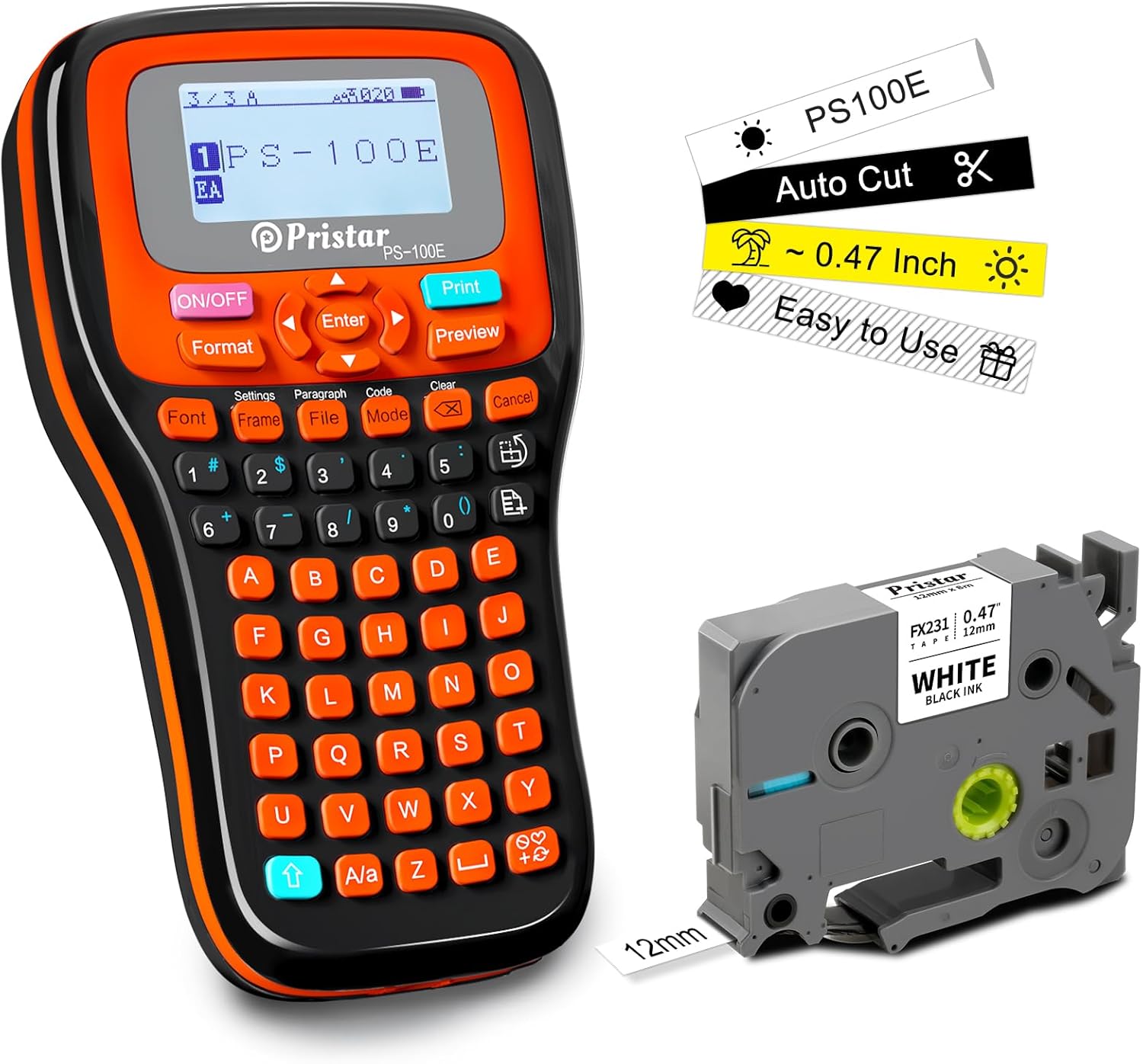
Image: Front view of the Pristar PS-100E Label Maker, highlighting its display, QWERTY keyboard, and key features such as auto-cut functionality and compatibility with 0.47-inch (12mm) tape.
- Automatic Cutting: The device automatically cuts the label tape after printing, ensuring clean and precise labels without manual intervention.
- Multi-Line Printing: Supports printing up to 4 lines of text on compatible tapes.
- Backlit Display: The screen is backlit for clear visibility in various lighting conditions.
- QWERTY Keyboard: Features a familiar keyboard layout for easy text input.
- Multiple Power Options: Can be powered by the included rechargeable lithium polymer battery, DC adapter, or 6 x AAA dry batteries (not included).
- Wide Tape Compatibility: Supports TZe label tapes with widths of 3.5mm, 6mm, 9mm, and 12mm.
- Barcode and QR Code Printing: Capable of printing various barcode and QR code formats.

Image: A visual comparison highlighting the advantages of the Pristar PS-100E, including auto-cutting mode, 4-line max printing, 3-way charging, 4 margins setting, backlit screen, and auto-tighten tape feature, contrasted with typical features of other label makers.
Setup
1. Powering the Device
The PS-100E offers three power options:
- Rechargeable Lithium Polymer Battery: Insert the included rechargeable battery into the battery compartment located on the back of the device. Ensure correct polarity.
- DC Power Adapter: Connect the included DC adapter to the power port on the side of the label maker and plug it into a wall outlet. This also charges the rechargeable battery.
- AAA Dry Batteries (Optional): For portable use without the rechargeable battery or adapter, insert 6 x AAA batteries (not included) into the battery compartment. Ensure correct polarity.
2. Installing Label Tape
- Open the tape cassette cover on the back of the label maker.
- Insert the label tape cassette (e.g., TZe-FX231) into the compartment, ensuring it clicks into place. The tape should feed smoothly through the tape guide.
- Close the tape cassette cover.

Image: Rear view of the Pristar PS-100E Label Maker with the tape compartment open, illustrating how to insert a label tape cassette. The auto-cutting mechanism is also visible.
Operating Instructions
1. Basic Operation
- Power On/Off: Press the ON/OFF button to turn the device on or off.
- Text Input: Use the QWERTY keyboard to type your desired text. The backlit LCD screen will display your input.
- Navigation: Use the arrow keys to move the cursor within the text.
- Enter: Press the Enter button to confirm selections or move to the next line.
- Clear: Press the Clear button to delete characters.
- Preview: Press the Preview button to see how your label will look before printing.
2. Formatting Labels
The PS-100E offers various formatting options to customize your labels.
- Font: Press the Font button to change font styles and sizes.
- Format: Press the Format button to adjust text alignment, width, and other layout settings.
- Frame: Press the Frame button to add decorative frames around your text.
- Symbols: Access a wide range of symbols by pressing the Symbol key (often indicated by a symbol icon or accessed via Shift + a key).
- Multi-Line Printing: To print on multiple lines (up to 4), press the Enter key after completing each line of text.
3. Advanced Features
- Auto-Cut: The machine automatically cuts the label after printing. This feature ensures clean cuts and saves time.
- Continuous Printing: For printing multiple identical labels, use the continuous printing function. Refer to the on-screen menu under "Settings" or "Mode" for options like "Serial" or "Batch Print".
- Barcode/QR Code Printing: Select the "Code" or "Barcode" option from the menu to generate and print barcodes or QR codes. Ensure the data entered is valid for the chosen code type.
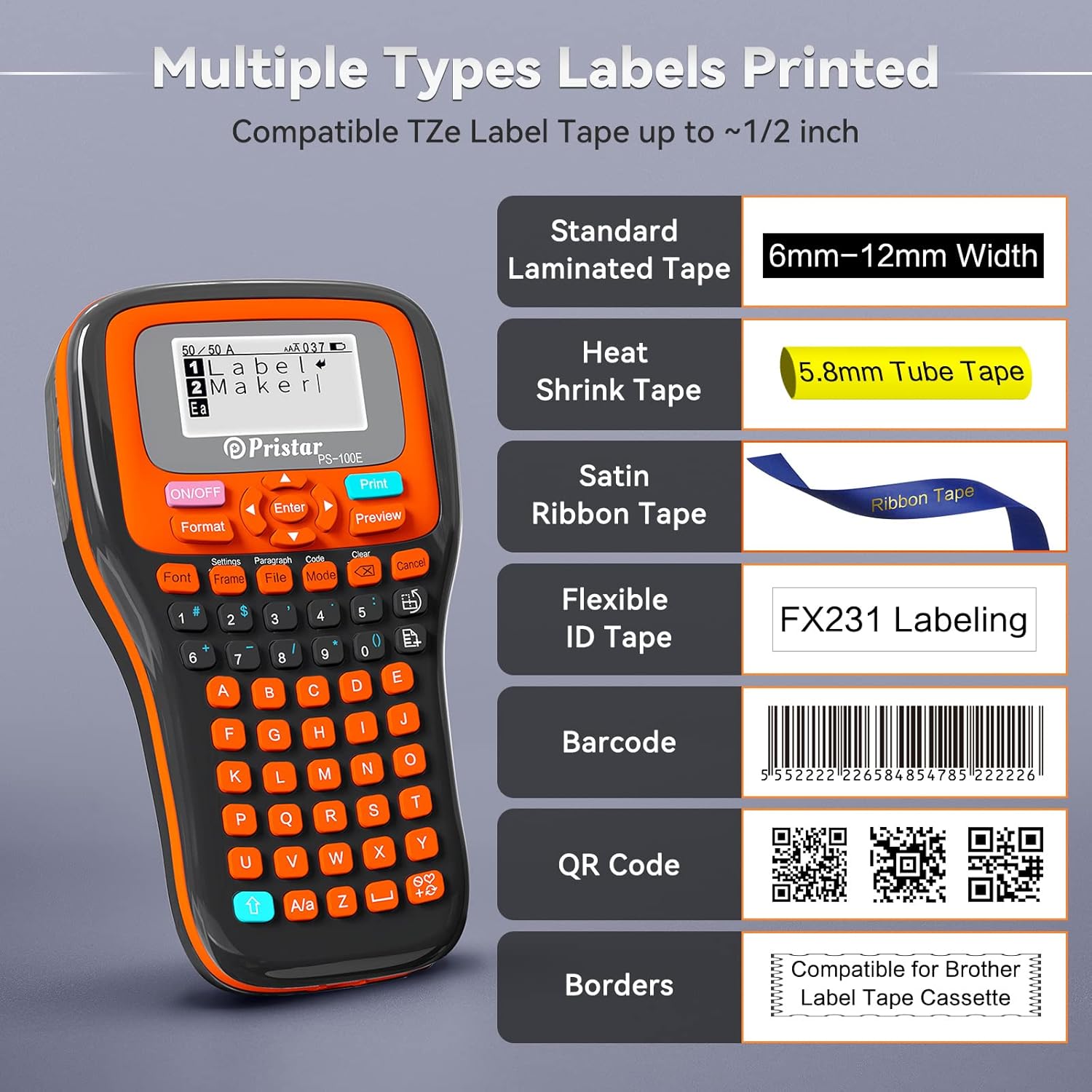
Image: The Pristar PS-100E Label Maker's screen showing examples of various label types it can print, such as standard laminated tape, heat shrink tubes, satin ribbon, flexible ID tape, barcodes, QR codes, and labels with decorative borders.
4. Printing Labels
Once your label text and formatting are complete, press the Print button. The label maker will print and automatically cut the label.
Maintenance
- Cleaning the Print Head: If print quality degrades, gently clean the print head with a cotton swab dampened with isopropyl alcohol. Ensure the device is off and unplugged before cleaning.
- Cleaning the Cutter Blade: Periodically check the cutter blade for any tape residue. Use a soft brush to remove debris. Do not touch the blade directly.
- Battery Care: If using the rechargeable battery, charge it regularly. If storing the device for an extended period, remove all batteries (rechargeable and AAA) to prevent leakage.
- Storage: Store the label maker in a cool, dry place away from direct sunlight and extreme temperatures.
Troubleshooting
| Problem | Possible Cause | Solution |
|---|---|---|
| Device does not power on. | Low battery; Incorrect battery installation; Power adapter not connected. | Charge the rechargeable battery or replace AAA batteries. Ensure batteries are inserted with correct polarity. Verify DC adapter connection. |
| Poor print quality (faded, lines). | Print head dirty; Tape cassette not installed correctly; Low battery. | Clean the print head. Reinstall the tape cassette. Ensure sufficient power. |
| Tape does not feed or jams. | Tape cassette incorrectly installed; Tape tangled; Cutter blade obstructed. | Reinstall tape cassette. Check for and remove any tape tangles. Clean the cutter blade area. |
| Labels print multiple times unexpectedly. | "Multi-print" or "Serial" setting enabled. | Check the print settings (e.g., under "Mode" or "Settings") and ensure multi-print is set to 1 or disabled if not desired. |
| "Shift" button confusion. | The "Shift" function is often mapped to the blue arrow up button. | Use the blue arrow up button for "Shift" functionality to access secondary characters and functions. |
| Labels are not cutting automatically. | Auto-cut feature disabled; Cutter blade jammed. | Check settings to ensure auto-cut is enabled. Clean the cutter blade area for obstructions. |
Specifications
| Feature | Detail |
|---|---|
| Model | PS-100E |
| Printing Method | Thermal Transfer Printing |
| Resolution | 180 dpi |
| Printing Speed | 15mm/s |
| Compatible Tape Widths | 3.5mm, 6mm, 9mm, 12mm (TZe series) |
| Cutting Mode | Automatic Cutting |
| Max Print Lines | 4 Lines |
| Power Options | Rechargeable Lithium Polymer Battery (1500 mAh), DC Power Adapter (9V 1.5A), 6 x AAA Dry Batteries (not included) |
| Screen | Backlit LCD Display |
| Keyboard | QWERTY (57 Silicone Buttons) |
| Dimensions (L x W x H) | 8.31 x 4.76 x 2.17 inches (approx. 21.1 x 12.1 x 5.5 cm) |
| Weight (without battery) | 480g |
| Stand-by Time | 500 Hours |
Warranty and Support
The Pristar PS-100E Label Maker comes with a 12-month warranty from the date of purchase. This warranty covers manufacturing defects and malfunctions under normal use.
For technical support, warranty claims, or inquiries about compatible accessories and tapes, please contact Pristar customer service. Refer to the contact information provided on the product packaging or the official Pristar website.
For more information and product updates, visit the official Pristar Store: Pristar Store on Amazon.
For general information about label makers and their applications, you may refer to resources like Wikipedia.
For information related to the manufacturer, you may visit www.cnkailan.com.
Applications
The Pristar PS-100E is versatile and can be used for a wide range of labeling tasks, including:
- Organizing files and folders in offices.
- Labeling storage bins and containers at home.
- Marking cables and wires for identification.
- Creating labels for school projects and supplies.
- Labeling food containers and pantry items.
- Identifying plants in gardens.

Image: A collage demonstrating diverse applications of the Pristar PS-100E Label Maker, such as labeling small electronic components, network cables, office binders, kitchen spice jars, and plant pots.

Image: An electrician using the Pristar PS-100E Label Maker to create and apply labels for wires within an electrical panel, demonstrating its utility in industrial or technical settings for clear identification.


