
1. Introduction
This manual provides instructions for the WIWU Detachable Wireless Keyboard Case with Trackpad, designed to enhance your iPad experience by transforming it into a versatile workstation. This accessory combines a protective case with a detachable keyboard and a precision trackpad, offering multiple modes for typing, viewing, sketching, and reading.

The WIWU keyboard case offers a laptop-like experience for your iPad.
2. Compatibility
This keyboard case is compatible with the following Apple iPad models:
- Apple iPad Pro 11-inch (1st generation)
- Apple iPad Pro 11-inch (2nd generation)
- Apple iPad Pro 11-inch (3rd generation)
- Apple iPad Pro 11-inch (4th generation)
- Apple iPad Air (4th generation)
- Apple iPad Air (5th generation)
- Apple iPad (10th generation)
3. Package Contents
The package includes:
- WIWU iPad Pro 11 Inch Keyboard Case
- USB-C Charging Cable
- User Manual
4. Product Features
- Detachable Wireless Keyboard: Easily attach or detach the keyboard from the case for flexible use.
- Integrated Trackpad: Supports multi-touch gestures for precise navigation.
- 7-Color Adjustable Backlight: Customize your typing experience with various backlight colors and brightness levels.
- Full Protection Case: Durable design provides comprehensive protection for your iPad.
- Built-in Apple Pencil Holder: Securely store and charge your Apple Pencil.
- Adjustable Kickstand: Offers multiple viewing angles (90°-135°) for comfort.
- Long-lasting Battery: Up to 150 days standby time and 90 days of typing on a single charge.
- Magnetic Adsorption: Strong magnets ensure secure attachment of the iPad and keyboard.
- Auto-sleep Mode: Conserves battery life by automatically putting the iPad to sleep when closed.

Key features of the WIWU keyboard case.

The keyboard features 7-color adjustable backlighting.
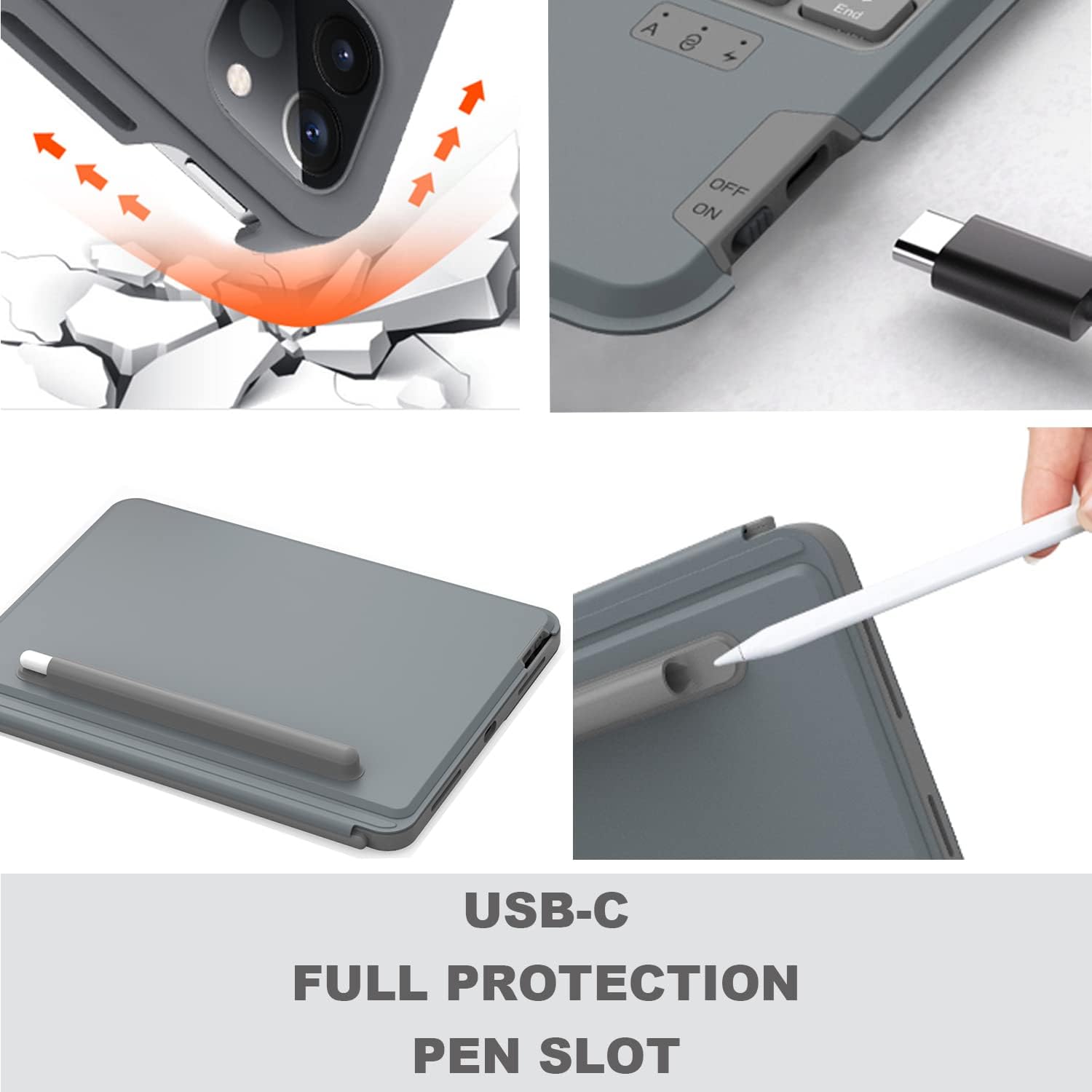
Details on USB-C charging, full protection, and the pen slot.

The keyboard offers extended battery life for prolonged use.
5. Setup Instructions
5.1 Charging the Keyboard
Before first use, fully charge the keyboard using the provided USB-C cable. Connect the USB-C end to the keyboard's charging port and the other end to a USB power adapter (not included).
5.2 Inserting Your iPad
- Carefully align your iPad with the protective case.
- Gently press the iPad into the case, ensuring all edges are securely fitted.
- Ensure the camera protection cover pieces are correctly placed if applicable for your iPad model.

The keyboard magnetically attaches to the iPad case.
5.3 Bluetooth Pairing
- Turn on the keyboard using the power switch located on the side.
- Press the Fn + Del keys simultaneously on the keyboard to enter Bluetooth pairing mode. The Bluetooth indicator light will flash.
- On your iPad, go to Settings > Bluetooth and turn Bluetooth on.
- Select "WIWU Keyboard" (or similar name) from the list of available devices.
- Once connected, the Bluetooth indicator light on the keyboard will stop flashing.
6. Operating Instructions
6.1 Keyboard Usage
The keyboard functions like a standard QWERTY keyboard. Use it for typing documents, emails, and navigating your iPad.
6.2 Trackpad Gestures
The integrated trackpad supports various multi-touch gestures for efficient navigation:
- Open Control Center: Use one finger to move the pointer to select the status icons at the top right, then click. Alternatively, swipe up with one finger from the bottom right corner.
- View Slide Over: Use one finger to swipe the pointer past the right edge of the screen. To hide Slide Over, swipe right again.
- Scroll Left or Right: Swipe two fingers left or right.

Common trackpad gestures for iPad navigation.
6.3 Adjusting Backlight
To adjust the keyboard backlight color and brightness:
- Press the light bulb icon key to cycle through brightness levels.
- Press Fn + PgUp or Fn + PgDn to change backlight colors.
6.4 Adjusting Viewing Angles
The case features an adjustable kickstand that allows you to set your iPad at various angles between 90° and 135° for optimal viewing and typing comfort.

The kickstand provides flexible viewing angles.
6.5 Multiple Usage Modes
The detachable design and adjustable kickstand allow for various modes:
- Typing Mode: iPad attached to the keyboard, propped up for typing.
- Viewing Mode: Keyboard detached, iPad propped up for watching videos or video calls.
- Sketching/Reading Mode: Keyboard detached, iPad laid flat or held for drawing or reading.

The case supports multiple modes for different activities.

The case allows for both vertical and landscape orientations.
Official video demonstrating the WIWU Detachable Wireless Keyboard Case features and usage.
7. Maintenance
- Cleaning: Use a soft, damp cloth to clean the case and keyboard. Avoid harsh chemicals.
- Battery Care: To prolong battery life, avoid fully discharging the keyboard frequently. Charge it regularly.
- Storage: When not in use for extended periods, store the keyboard case in a cool, dry place.
8. Troubleshooting
- Keyboard not connecting via Bluetooth:
- Ensure the keyboard is charged and powered on.
- Verify Bluetooth is enabled on your iPad.
- Try re-pairing the keyboard by pressing Fn + Del.
- Restart both your iPad and the keyboard.
- Trackpad not responding or erratic cursor:
- Ensure the keyboard is fully charged. Low battery can affect trackpad performance.
- Disconnect and reconnect the Bluetooth connection.
- Clean the trackpad surface to remove any debris.
- Check iPad settings for trackpad sensitivity.
- Keys not responding:
- Ensure the keyboard is connected and charged.
- Test individual keys. If only some keys are affected, contact support.
9. Specifications
| Feature | Detail |
|---|---|
| Brand | WIWU |
| Model Number | 6936686404181 |
| Connectivity Technology | Bluetooth, USB (for charging) |
| Keyboard Description | Ergonomic |
| Power Source | Battery Powered |
| Switch Type | Scissor-Switch |
| Keyboard Layout | QWERTY |
| Number of Keys | 78 |
| Item Weight | 400 Grams |
10. Warranty and Support
For any product inquiries, technical assistance, or warranty information, please contact WIWU customer support. WIWU offers 7x24-hour online support to assist you with any issues or questions you may have regarding your keyboard case.
Please refer to your purchase documentation or the official WIWU website for specific warranty terms and contact details.


