
BenQ GP500
BenQ GP500 Smart Projector User Manual
Model: GP500 | Brand: BenQ
Introduction
The BenQ GP500 is a state-of-the-art 4K LED home projector designed to deliver an unparalleled cinematic experience. Featuring True 4K HDR with 90% DCI-P3 color gamut and auto color calibration, it ensures long-lasting color accuracy and consistency. Its unique quad-directional sound output provides a true 360° sound field, filling any room with immersive audio. This manual will guide you through the setup, operation, and maintenance of your GP500 projector, ensuring you get the most out of its advanced features.

Figure 1: Front view of the BenQ GP500 Smart Projector, showcasing its lens and speaker grille.
What's in the Box
- Power Cord
- Remote Control
- User Manual
- Warranty Card
Setup
Physical Placement
The BenQ GP500 is designed for flexible placement. Its compact dimensions (7.2 x 10.2 x 10.5 inches) and 11.9 pounds weight allow for easy movement. It features an optical zoom knob for flexible placement and adjustable leveling feet for stable tabletop or shelf use. For ceiling mounting, it includes four mounting points.

Figure 2: Dimensions of the BenQ GP500 projector (10.2 inches W x 7.2 inches H x 10.5 inches D).

Figure 3: Examples of projection distances for 100, 120, and 150-inch screens.
Connectivity
The GP500 offers versatile connectivity options including Bluetooth, Wi-Fi, USB, and HDMI. It features two HDMI ports (one with Audio Return), two USB-A ports (2A and 1A), an Audio Out jack, and an SPDIF port. The Android TV dongle is conveniently housed within the projector itself.

Figure 4: Rear view showing the projector's connectivity ports.

Figure 5: Location of the internal Android TV dongle slot.
Initial Setup & Auto-Correction
The GP500 simplifies setup with smart installation features like auto-focus, 2D keystone correction, screen fit, and object avoidance. These features automatically adjust the image for optimal viewing, even on imperfect surfaces or when the projector is moved.
Video 1: This video demonstrates the automatic setup features of the BenQ GP500, including auto-focus and keystone correction, ensuring a perfectly aligned image with minimal effort.
Operating
Smart OS and Entertainment
The GP500 comes with Android TV, providing access to Google Play Store with over 5,000 apps, movies, shows, live sports, games, and music. The included Unity Remote Control manages both the projector and the Android TV dongle, offering a seamless user experience. Google Assistant is also integrated for voice control.

Figure 6: The Android TV interface offers endless entertainment options.
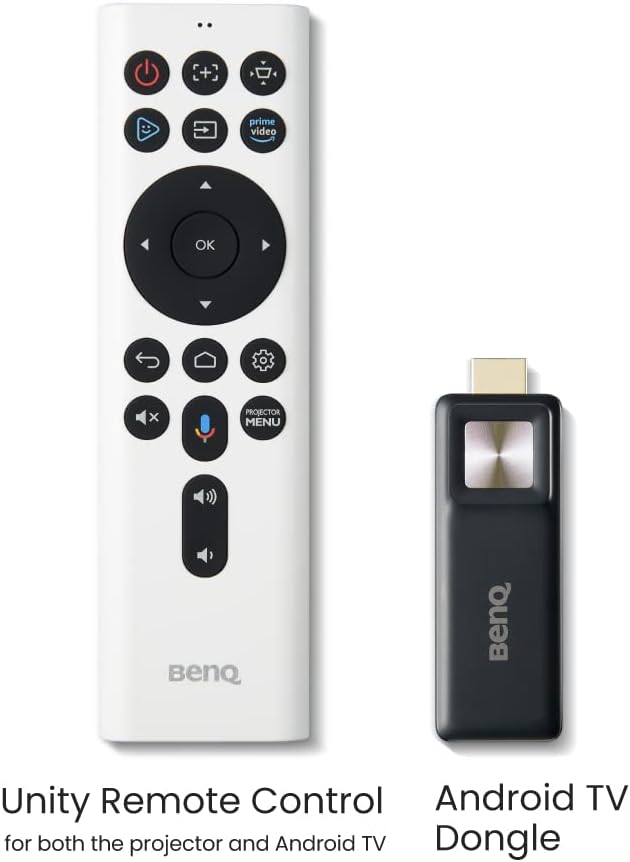
Figure 7: Unity Remote Control for both projector and Android TV dongle.
Picture and Sound Quality
The GP500 delivers True 4K HDR with 90% DCI-P3 CinematicColor and LED Auto Color Calibration for vibrant, accurate colors. Its four drivers provide a true 360° sound field for an immersive auditory experience. The projector is designed for optimal performance in light-controlled environments, offering exceptional detail and realism.

Figure 8: The GP500 supports 4K UHD, HDR10, HLG, and features CinematicColor with Auto Color Calibration.

Figure 9: The projector's 360-degree sound field provides room-filling audio from every angle.
Maintenance
To ensure the longevity and optimal performance of your BenQ GP500 projector, regular maintenance is recommended. Keep the lens clean using a soft, lint-free cloth. Ensure proper ventilation by keeping the air vents clear of obstructions. Avoid exposing the projector to extreme temperatures or humidity. Refer to the detailed cleaning instructions in the included User Manual for specific guidelines.
Troubleshooting
Common Issues and Solutions
- Auto-focus/Keystone Issues: If automatic adjustments are not working as expected, try manually adjusting the focus using the optical zoom knob or accessing the 2D keystone settings in the menu. Ensure the projector is placed on a stable, flat surface and that there are no objects obstructing the projection path.
- Software Glitches: If the Android TV dongle freezes or experiences issues, try restarting the projector. Ensure your projector's firmware and Android TV apps are up to date.
- Low Brightness: Ensure the projector is in a light-controlled environment for optimal viewing. Check the brightness settings in the picture menu.
- Image Artifacts/Speckle: While the GP500 is designed to minimize laser speckle, some users may notice it, especially on certain screen types or in specific lighting conditions. Experiment with different projection surfaces or ambient light levels.
- No Picture/Power Issues: If the projector is dead on arrival or experiences power issues, ensure the power cord is securely connected. If the problem persists, refer to the warranty information for support.
Specifications
| Feature | Detail |
|---|---|
| Product Dimensions | 7.2 x 10.2 x 10.5 inches |
| Item Weight | 11.9 pounds |
| Item Model Number | GP500 |
| Display Resolution | 3840 x 2160 (4K UHD) |
| Brightness (ANSI lumens) | 1500 |
| Connectivity Technology | Bluetooth, Wi-Fi, USB, HDMI, 3.5mm Jack |
| Special Features | Built-In Speaker, Auto Obstacle Avoidance, Built-In 3D, Auto Focus, Wi-Fi Ready |
| Recommended Uses | Education, Living Room, Home Cinema, Gaming, Business |
| First Available | October 1, 2022 |
Warranty & Support
Your BenQ GP500 projector comes with a manufacturer's warranty. For detailed information regarding warranty coverage, terms, and conditions, please refer to the Warranty Card included in the product packaging. For technical support, troubleshooting assistance, or service inquiries, please visit the official BenQ support website or contact their customer service. You may also consider purchasing extended protection plans for additional coverage.
- 2-Year Protection Plan
- 3-Year Protection Plan
- Complete Protect (Renews Monthly Until Cancelled)
Related documentsGP500


Ask a question about this manual
Ask about setup, troubleshooting, compatibility, parts, safety, or missing instructions. Manuals+ will review the question and use this page’s manual context to help answer it.