
1. Introduction
Thank you for choosing the OneOdio A70 Bluetooth Over-Ear Headphones. This manual provides essential information for setting up, operating, and maintaining your headphones to ensure optimal performance and longevity. Please read this manual thoroughly before use.
2. Package Contents
Verify that all items listed below are included in your package:
- OneOdio A70 Wireless Headphones
- Pouch for headphones
- 3.5mm Audio Plug Cable
- Dual-duty cable (6.35mm to 3.5mm)
- USB Charging Cable
- User Manual (this document)
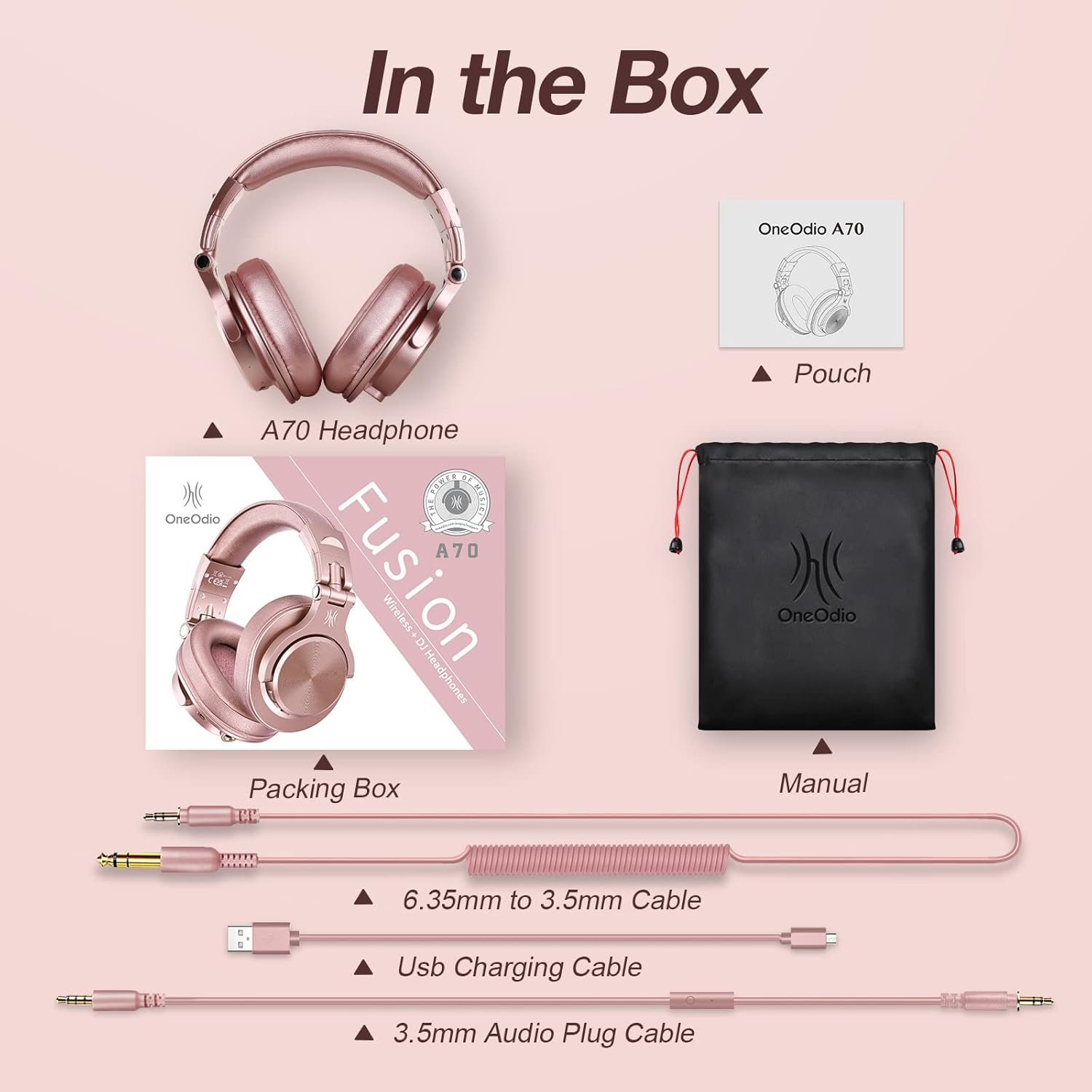
Image: All items included in the OneOdio A70 headphone package, including the headphones, various cables, and a carrying pouch.
3. Product Overview
The OneOdio A70 headphones are designed for versatility, offering both wireless Bluetooth and wired connectivity options. They feature a comfortable over-ear design with soft ear pads and an adjustable headband for extended wear.

Image: A pair of OneOdio A70 over-ear headphones in Rose Gold, showcasing their design and included audio cables.
Key Features:
- High-Resolution Sound: Equipped with 40mm neodymium drivers for powerful bass and dynamic stereo sound.
- Dual Mode: Seamlessly switch between wireless Bluetooth and wired connections.
- Extended Playtime: Up to 72 hours of audio playback in wireless mode.
- Comfortable Design: Over-ear, ergonomic design with soft memory cotton and skin-friendly protein leather ear pads.
- Foldable and Rotatable: Space-saving design with 90-degree swiveling ear pads and a foldable headband.
- Audio Sharing: Unique SharePort feature allows multiple users to listen simultaneously.
- Wired Aux Jack Lock: Ensures a stable connection for wired use.
4. Setup
4.1 Charging the Headphones
Before first use, fully charge your headphones. Use the provided USB charging cable to connect the headphones to a USB power source (e.g., computer USB port, wall adapter). The LED indicator will show charging status and turn off or change color when fully charged.
4.2 Bluetooth Pairing
- Ensure the headphones are powered off.
- Press and hold the Multi-function button (usually the power button) for approximately 5-7 seconds until the LED indicator flashes blue and red alternately, indicating pairing mode.
- On your device (smartphone, tablet, laptop), enable Bluetooth and search for available devices.
- Select "OneOdio A70" from the list of found devices.
- Once connected, the LED indicator will flash blue slowly or remain solid blue.

Image: A smartphone screen displaying the Bluetooth settings, with "OneOdio A70" highlighted as a discoverable device, illustrating the pairing process.
4.3 Wired Connection
The A70 headphones support two types of wired connections:
- 3.5mm to 3.5mm Cable: Connect one end to the 3.5mm jack on your headphones and the other end to the 3.5mm audio output of your device (e.g., smartphone, laptop, tablet).
- 6.35mm to 3.5mm Cable: Connect the 6.35mm end to professional audio equipment (e.g., DJ mixer, guitar amplifier) and the 3.5mm end to the headphones.
The wired connection automatically disables Bluetooth, conserving battery life.

Image: A visual guide demonstrating the wide compatibility of the headphones, showing connections via 3.5mm jack to mobile devices and 6.35mm jack to professional audio equipment like guitar amplifiers.

Image: A detailed diagram illustrating the different wired connection options, including 3.5mm to 3.5mm for cellphones/laptops and 6.35mm to 3.5mm for turntables/amplifiers.
5. Operation
5.1 Power On/Off
- Power On: Press and hold the Multi-function button until the LED indicator lights up.
- Power Off: Press and hold the Multi-function button until the LED indicator turns off.
5.2 Music Playback and Call Management (Bluetooth Mode)
The headphones feature integrated controls for managing audio and calls:
- Play/Pause: Press the Multi-function button once.
- Next Track: Press and hold the Volume Up button.
- Previous Track: Press and hold the Volume Down button.
- Volume Up: Short press the Volume Up button.
- Volume Down: Short press the Volume Down button.
- Answer/End Call: Press the Multi-function button once.
- Reject Call: Press and hold the Multi-function button.
5.3 In-Line Mic Controls (Wired Mode with compatible cable)
If using the 3.5mm audio cable with an in-line microphone, you can control playback and calls directly from the cable:
- Play/Pause: Press the button once.
- Answer/End Call: Press the button once.

Image: A visual representation of the in-line microphone and its controls, detailing how to play/pause music and answer/end calls with single presses.
5.4 Audio Sharing Function (SharePort)
The A70 headphones feature a unique audio sharing capability:
- Pair the main A70 headphones with your device via Bluetooth or connect using a 3.5mm audio cable.
- Plug the 6.35mm end of the dual-duty cable into the 6.35mm jack on the main A70 headphones.
- Connect the 3.5mm end of the dual-duty cable to the 3.5mm audio input of a second pair of headphones.
- Both headphones will now receive audio from the same source.

Image: A couple sharing audio from a laptop, demonstrating the audio sharing feature of the OneOdio A70 headphones.
5.5 Voice Assistant
Activate your device's voice assistant (e.g., Siri, Google Assistant) by pressing the Multi-function button twice in quick succession.

Image: A woman interacting with a voice assistant on her smartphone while wearing OneOdio A70 headphones, illustrating the voice control feature.
6. Comfort and Portability
The OneOdio A70 headphones are designed for comfort during long listening sessions and easy portability.
- Adjustable Headband: The headband can be extended or retracted to fit various head sizes.
- Swiveling Ear Pads: The ear pads can swivel 90 degrees for single-ear monitoring and a comfortable fit.
- Foldable Design: The headphones can be folded compactly for storage and travel, fitting easily into the included pouch or a suitcase.

Image: Detail of the adjustable headband mechanism, showing how it extends for a customized fit.

Image: Close-up of an ear cup swiveling 90 degrees, highlighting its flexibility for monitoring or storage.

Image: The OneOdio A70 headphones folded compactly and placed inside a suitcase, demonstrating their portability.
7. Maintenance
To ensure the longevity and optimal performance of your OneOdio A70 headphones, follow these maintenance guidelines:
- Cleaning: Use a soft, dry cloth to wipe the headphones. Do not use harsh chemicals or abrasive materials. For ear pads, gently wipe with a damp cloth if necessary, and allow to air dry completely.
- Storage: When not in use, store the headphones in the provided pouch to protect them from dust and scratches. Avoid storing them in extreme temperatures or high humidity.
- Cable Care: Handle cables gently. Avoid sharp bends or excessive pulling, which can damage the connectors or wiring.
- Avoid Moisture: Do not expose the headphones to water or other liquids. If they get wet, power them off immediately and allow them to dry completely before use.
8. Troubleshooting
If you encounter issues with your OneOdio A70 headphones, refer to the following common solutions:
- No Power: Ensure the headphones are fully charged. Connect them to a power source using the USB charging cable.
- No Sound (Bluetooth):
- Check if the headphones are paired and connected to your device.
- Ensure the volume on both the headphones and your device is turned up.
- Try unpairing and re-pairing the headphones with your device.
- No Sound (Wired):
- Ensure the audio cable is securely plugged into both the headphones and your audio source.
- Verify that the correct audio jack (3.5mm or 6.35mm) is used for your device.
- Test with a different audio cable if available.
- Cannot Pair via Bluetooth:
- Make sure the headphones are in pairing mode (LED flashing blue and red).
- Ensure your device's Bluetooth is enabled and within the 33-foot range.
- Turn off and on both the headphones and your device, then try pairing again.
- Clear previous Bluetooth connections on your device if too many are stored.
- Poor Sound Quality:
- For Bluetooth, ensure there are no obstructions between the headphones and your device, and that you are within range.
- For wired, ensure the cable is fully inserted and not damaged.
- Test with different audio sources or files to rule out source issues.
9. Specifications
| Feature | Specification |
|---|---|
| Model Name | A70 |
| Brand | OneOdio |
| Connectivity Technology | Wireless (Bluetooth), Wired |
| Bluetooth Version | 5.0 |
| Bluetooth Range | 33 Feet (10 meters) |
| Audio Driver Type | Dynamic Driver (40mm Neodymium) |
| Frequency Range | 20Hz-20KHz |
| Frequency Response | 40 KHz |
| Impedance | 32 Ohm |
| Sensitivity | 110 dB |
| Headphones Jack | 3.5 mm Jack |
| Battery Life | Up to 72 Hours (Wireless Mode) |
| Noise Control | Sound Isolation |
| Material | Cotton (Carrying Case), Protein Leather (Ear Pads) |
| Item Weight | 0.25 Kilograms (8.8 ounces) |
| Product Dimensions | 6.6 x 5.5 x 4.09 inches |
| Compatible Devices | Smartphones, Laptops, Desktops, Tablets, Gaming Consoles, Televisions |
10. Warranty and Support
OneOdio products are designed and manufactured to the highest quality standards. For warranty information and customer support, please refer to the documentation included with your purchase or visit the official OneOdio website. Keep your proof of purchase for any warranty claims.


