
Targus DM4240PUSZ
Targus 24-inch USB-C Docking Monitor User Manual
Model: DM4240PUSZ
Introduction
Thank you for choosing the Targus 24-inch USB-C Docking Monitor. This integrated display solution is designed to simplify your workspace by combining a high-resolution monitor with a versatile docking station. It provides seamless connectivity, power delivery, and essential peripherals like a webcam and microphones, all through a single USB-C cable.
This manual provides detailed instructions for setting up, operating, maintaining, and troubleshooting your new monitor. Please read it thoroughly before use to ensure optimal performance and longevity of your device.

Image: Front view of the Targus 24-inch USB-C Docking Monitor.
Setup
Follow these steps to set up your Targus 24-inch USB-C Docking Monitor:
- Unpack the Monitor: Carefully remove all components from the packaging. Ensure all parts are present: monitor, stand, power adapter, USB-C cable, and any other included accessories.
- Assemble the Stand: Attach the monitor panel to the stand base. Ensure it is securely fastened according to the quick start guide included in the box.
- Connect Power: Plug the power adapter into the monitor's DC IN port and then into a power outlet.
- Connect to Your Device:
- For full docking functionality (video, data, power delivery), connect your laptop or compatible device to the monitor's USB-C (100W Delivery) port using the provided USB-C cable.
- Alternatively, for video only, connect your device using an HDMI or DisplayPort cable to the corresponding ports on the monitor.
- Connect Peripherals: Utilize the various ports on the monitor to connect your essential peripherals:
- USB-A 3.2 Gen 1 Ports: For keyboard, mouse, external hard drives, etc.
- RJ45 Gigabit Ethernet Port: For wired network connection.
- Combo Audio In/Out: For headphones or external speakers.
- DC Out (2nd Monitor): To power an optional secondary Targus monitor (DM4240SUSZ, sold separately).
- Power On: Press the power button on the monitor. Your connected device should automatically detect the display.

Image: Rear view of the monitor highlighting various input/output ports for connectivity.
Setup Video Guide
Video: An official video demonstrating the setup and features of the Targus 24-inch USB-C Docking Monitor with 100W Power Delivery.
Operating Instructions
The Targus Docking Monitor offers various features to enhance your productivity:
- Display Adjustments: The monitor features adjustable height, screen tilt (-5° to 23°), 360-degree swivel, and 90-degree pivot for portrait or landscape orientation. Adjust the screen to your preferred viewing angle for ergonomic comfort.
- Built-in Webcam and Microphones: The integrated 2M Pixel webcam and dual microphones allow for clear video conferencing without needing external devices. Ensure your operating system grants permission for applications to access the camera and microphone.
- Daisy-Chaining Secondary Monitor: For an expanded workspace, you can connect a secondary Targus monitor (DM4240SUSZ, sold separately) by daisy-chaining it from the primary docking monitor. Refer to the secondary monitor's manual for specific connection instructions.
- Operating System Compatibility: The monitor and its docking features are compatible with Windows, macOS, Chrome OS, Android, and Linux platforms, providing broad flexibility for various computing environments.
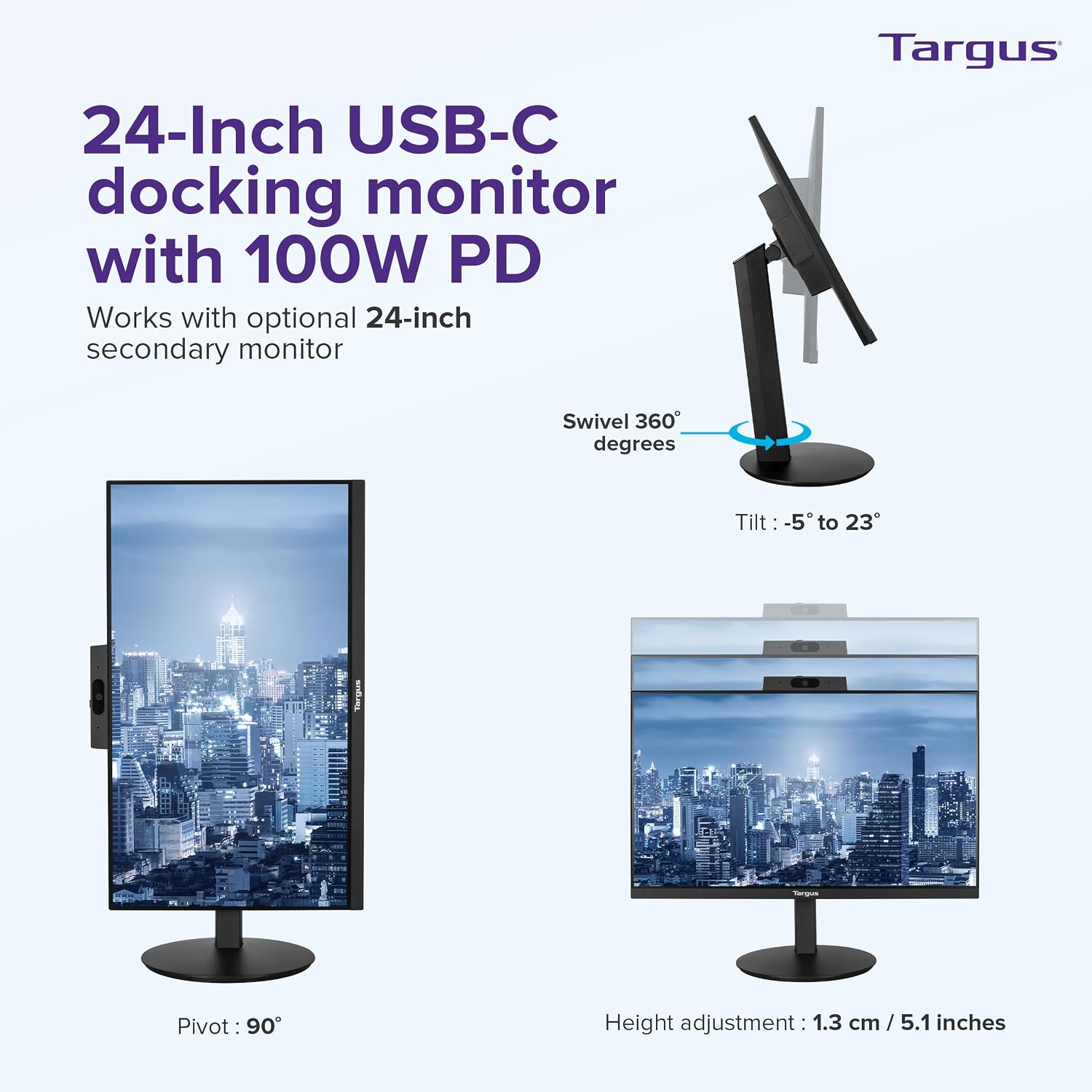
Image: Diagram illustrating the monitor's swivel, tilt, pivot, and height adjustment capabilities.

Image: A dual monitor setup demonstrating the use of a primary Targus docking monitor with a secondary monitor.
Maintenance
To ensure the longevity and optimal performance of your Targus Docking Monitor, follow these maintenance guidelines:
- Cleaning the Screen: Use a soft, lint-free cloth slightly dampened with water or a non-abrasive screen cleaner. Never spray liquid directly onto the screen.
- Cleaning the Casing: Wipe the monitor casing with a soft, dry cloth. Avoid using harsh chemicals or abrasive materials.
- Ventilation: Ensure the ventilation openings on the monitor are not blocked. Proper airflow prevents overheating.
- Storage: If storing the monitor for an extended period, disconnect it from power and store it in a cool, dry place, ideally in its original packaging.
- Avoid Extreme Conditions: Do not expose the monitor to extreme temperatures, humidity, or direct sunlight.
Troubleshooting
If you encounter issues with your Targus Docking Monitor, refer to the following common problems and solutions:
| Problem | Possible Solution |
|---|---|
| No display/Black screen |
|
| No audio from speakers/headphones |
|
| Webcam/Microphones not working |
|
| Peripherals (keyboard, mouse) not responding |
|
If the problem persists after trying these solutions, please contact Targus customer support.
Specifications
| Feature | Detail |
|---|---|
| Model Number | DM4240PUSZ |
| Screen Size | 24 Inches (23.8" diagonal viewable area) |
| Screen Resolution | 1920x1080 (Full HD 1080p) |
| Max Screen Resolution | 1920 x 1200 |
| Aspect Ratio | 16:9 |
| Screen Surface Description | Glossy |
| USB-C Power Delivery | Up to 100W |
| USB Ports | 2x USB-A 3.2 Gen 1, 1x USB-C (Host) |
| Video Ports | 1x HDMI, 1x DisplayPort In, 2x DisplayPort 1.2 (1 In/1 Out) |
| Audio | Built-in speakers, 2x Microphones, 1x Combo Audio In/Out |
| Webcam | Integrated 2M Pixel webcam |
| Ethernet | 1x GB Ethernet port (RJ45) |
| Adjustability | Adjustable Height, Tilt, 360° Swivel, 90° Pivot |
| Item Weight | 11 pounds |
| Product Dimensions | 3 x 10 x 10 inches (LxWxH) |
| Color | One Color |
Warranty and Support
Targus products are designed for quality and reliability. For information regarding the warranty period and terms for your DM4240PUSZ monitor, please refer to the warranty card included with your product or visit the official Targus website.
For technical support, troubleshooting assistance beyond this manual, or to inquire about replacement parts, please contact Targus Customer Support through their official website or the contact information provided in your product documentation. Please have your model number (DM4240PUSZ) and purchase details ready when contacting support.
Related documentsDM4240PUSZ


Ask a question about this manual
Ask about setup, troubleshooting, compatibility, parts, safety, or missing instructions. Manuals+ will review the question and use this page’s manual context to help answer it.