
Introduction
Thank you for purchasing the Polarlander 9602G 1 Din Car Stereo. This manual provides detailed instructions for the installation, operation, and maintenance of your new multimedia player. Please read this manual thoroughly before use to ensure proper functionality and to prevent damage.
The Polarlander 9602G features a 7-inch retractable HD touchscreen, GPS navigation, Bluetooth connectivity, FM radio, USB/TF/AUX input, Mirror Link for Android/iOS devices, steering wheel control compatibility, and support for DVR and rear view cameras.
Setup and Installation
1. Package Contents
Before installation, please verify that all components are present:
- Main Unit (Car Stereo)
- User Manual
- Installation Keys (2)
- Power Cord (3)
- Remote Control
- GPS Antenna
- Rear View Camera
- DVR
2. Wiring Diagram Overview
The unit requires a 12V DC power supply. Ensure all connections are secure and correctly matched to your vehicle's wiring harness. Incorrect wiring can cause damage to the unit or vehicle electrical system.
- Power: Connect the yellow wire to the constant 12V supply, the red wire to the accessory 12V supply (switched with ignition), and the black wire to ground.
- Speakers: Connect the speaker wires to your vehicle's speakers. Ensure correct polarity for optimal sound.
- GPS Antenna: Connect the GPS antenna to the dedicated port on the rear of the unit and mount it in a location with a clear view of the sky.
- Rear View Camera: Connect the camera's video output to the 'CAM IN' port and its power to the reverse light circuit for automatic activation.
- DVR: Connect the DVR to the designated USB port or input.
- Steering Wheel Control: Connect the steering wheel control wires to your vehicle's steering wheel control interface, if applicable.
3. Physical Installation
Install the 1 Din unit into your vehicle's dashboard opening. Secure it using the provided installation keys or mounting hardware. Ensure the retractable screen mechanism has sufficient clearance to operate freely.

Image: Unit dimensions for installation reference. The unit measures approximately 18.8cm (width) x 5cm (height) x 16.5cm (depth) with the screen retracted, and the screen extends to 7 inches.
Operating Instructions
1. Basic Controls
- Power On/Off: Press the power button to turn the unit on or off.
- Volume: Use the rotary knob or touchscreen controls to adjust the volume.
- Screen Retraction: The 7-inch screen is retractable. Use the dedicated button or touchscreen option to extend or retract the display.
- Touchscreen: Navigate menus and control functions by touching the screen.
2. GPS Navigation
The unit comes with built-in GPS functionality. Access the navigation application from the main menu. Ensure the GPS antenna is properly installed for accurate positioning.

Image: The car stereo displaying GPS navigation, showing a map with route guidance and traffic information.
3. Bluetooth Connectivity
Pair your mobile phone via Bluetooth for hands-free calling and audio streaming.
- Go to the Bluetooth menu on the car stereo.
- Enable Bluetooth on your mobile phone and search for available devices.
- Select 'Topway(3A30)' or similar device name from your phone's list.
- Enter the PIN '0000' if prompted.
- Once paired, you can make/receive calls and play music wirelessly.
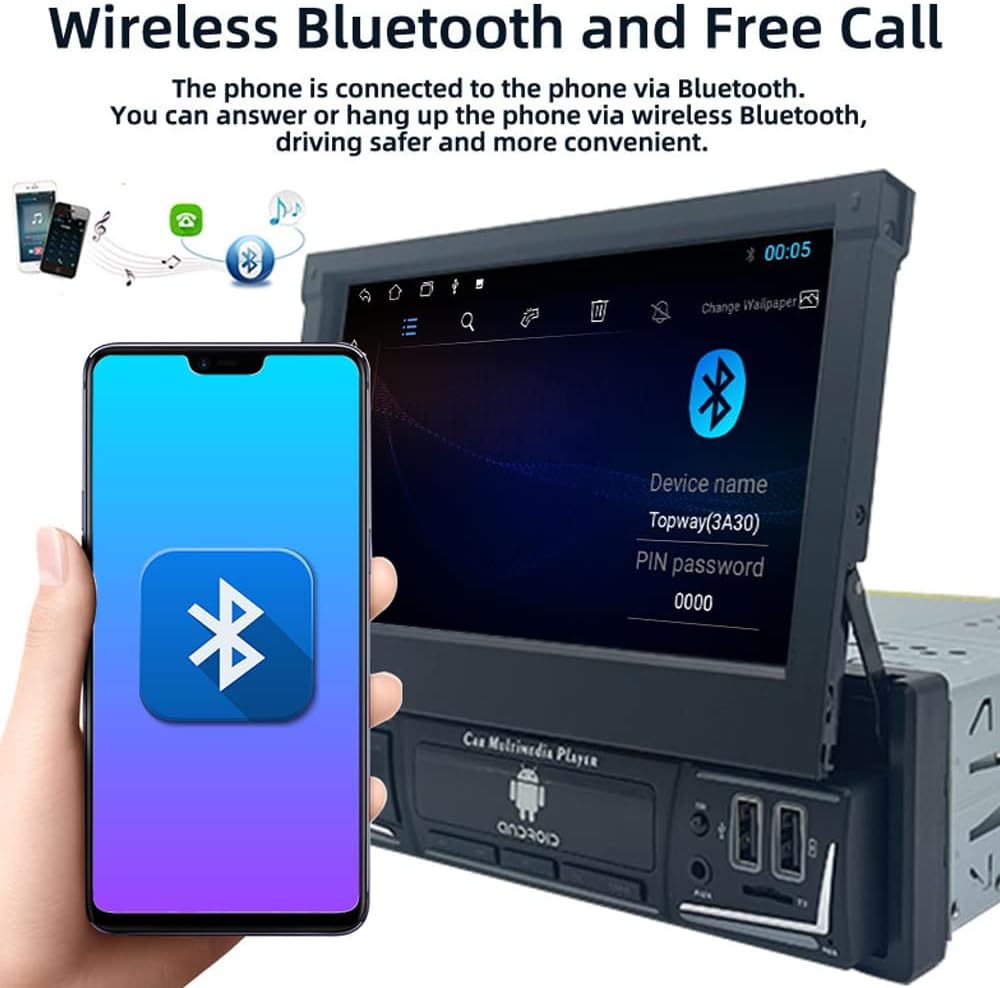
Image: The car stereo displaying the Bluetooth pairing screen, indicating a device name and PIN for connection.
4. FM Radio
Access the FM radio function to listen to your favorite stations.
- Auto Scan: Use the 'AS' button to automatically search and store available stations.
- Manual Tuning: Use the arrow buttons to manually tune to frequencies.
- Presets: Store up to 18 FM stations across three bands (FM1, FM2, FM3).

Image: The car stereo displaying the FM radio interface, showing the current frequency and preset options.
5. Media Playback (USB/SD/AUX)
The unit supports various media sources for audio and video playback.
- USB: Insert a USB flash drive into the USB port. The unit will automatically detect and play compatible media files.
- TF Card: Insert a TF (microSD) card into the TF card slot.
- AUX-in: Connect external audio devices using a 3.5mm audio cable to the AUX-in port.

Image: The car stereo displaying music playback, with icons representing USB, SD card, and AUX input options.
6. Mirror Link Function
Mirror Link allows you to display your smartphone's screen on the car stereo's display and control it from the stereo.
- Connect your Android or iOS phone to the unit via a USB cable.
- Follow the on-screen prompts to enable Mirror Link.
- For Android, you may need to enable USB debugging in developer options.

Image: The car stereo screen mirroring a smartphone, demonstrating the Mirror Link feature.
7. Steering Wheel Control
If your vehicle supports steering wheel controls, you can configure them to operate the car stereo.
- Access the 'Steering Wheel Control' settings in the unit's menu.
- Follow the on-screen instructions to program each button on your steering wheel to a corresponding function on the stereo.

Image: The car stereo displaying its main menu with app icons, illustrating the use of steering wheel controls to navigate functions.
8. Backlight Button Colors
Customize the backlight color of the physical buttons on the unit.
- Navigate to the 'Settings' menu and find 'Button Backlight' or similar option.
- Choose from 7 available colors or set it to cycle automatically.

Image: The car stereo unit showcasing its buttons illuminated in various colors, demonstrating the 7-color backlight feature.
9. Rear View Camera and DVR
The unit supports a rear view camera and DVR for enhanced safety and recording.
- Rear View Camera: When the vehicle is shifted into reverse, the screen will automatically display the rear view camera feed.
- DVR: If a DVR is connected, access its functions through the dedicated app on the stereo's interface to record and manage footage.
Maintenance
- Cleaning the Screen: Use a soft, lint-free cloth to gently wipe the touchscreen. Avoid abrasive cleaners or solvents.
- Software Updates: Periodically check the manufacturer's website for any available software or firmware updates to ensure optimal performance and access to new features.
- General Care: Avoid exposing the unit to extreme temperatures, direct sunlight for prolonged periods, or excessive moisture.
Troubleshooting
If you encounter issues, refer to the following common problems and solutions:
- No Power:
- Check all power connections (yellow, red, black wires) for proper contact and voltage.
- Verify the vehicle's fuse for the stereo is intact.
- No Sound:
- Ensure speaker wires are correctly connected and not short-circuited.
- Check volume levels and mute settings.
- Verify audio source selection.
- Bluetooth Not Connecting:
- Ensure Bluetooth is enabled on both the stereo and your phone.
- Delete previous pairings and try pairing again.
- Restart both devices.
- GPS Not Working / Inaccurate:
- Ensure the GPS antenna is properly connected and has a clear view of the sky.
- Check GPS settings in the unit's menu.
- Screen Not Responding:
- Perform a soft reset by pressing the reset button (if available) or turning the unit off and on.
- Ensure the screen is clean and free of debris.
If problems persist, consult a qualified technician or contact customer support.
Specifications
| Model Number | 9602G |
| Screen Size | 7 Inch Retractable HD Touch Screen |
| Power Supply | 12V DC |
| Connectivity | Bluetooth, Wi-Fi, USB, Auxiliary |
| Controller Type | Android, iOS (via Mirror Link) |
| Special Features | Touchscreen, GPS Navigation, FM Radio, Mirror Link, Steering Wheel Control, DVR & Rear View Camera Support |
| Radio Frequency | FM 87.5MHz - 108MHz |
| Audio Output Mode | Stereo |
| Supported Formats | MPEG, WAV, WMA (and others via MP5 player) |
| Dimensions (approx.) | 18.8cm x 5cm x 16.5cm (unit body) |
Warranty Information
This product is covered by a manufacturer's warranty against defects in materials and workmanship. The specific terms and duration of the warranty may vary. Please retain your proof of purchase for warranty claims. For detailed warranty information, refer to the documentation included with your purchase or contact the seller.
Customer Support
If you require further assistance, have questions not covered in this manual, or need technical support, please contact the seller or manufacturer directly. Provide your product model number (9602G) and purchase details when seeking support.
For general inquiries, you may visit the Polarlander brand page on Amazon.