
Introduction
The ORICO 6626C3 is a high-performance dual-bay docking station designed for 2.5-inch and 3.5-inch SATA SSDs and HDDs. It provides a convenient, tool-free solution for accessing and managing your data with USB 3.2 Gen 2 connectivity, offering fast transfer speeds and broad compatibility. This manual provides essential information for setting up, operating, and maintaining your docking station.
Package Contents
Please verify that all items are present in your package:
- ORICO 6626C3 Dual Bay Hard Drive Docking Station
- 12V Power Adapter
- USB-C Data Cable
- User Manual

Features
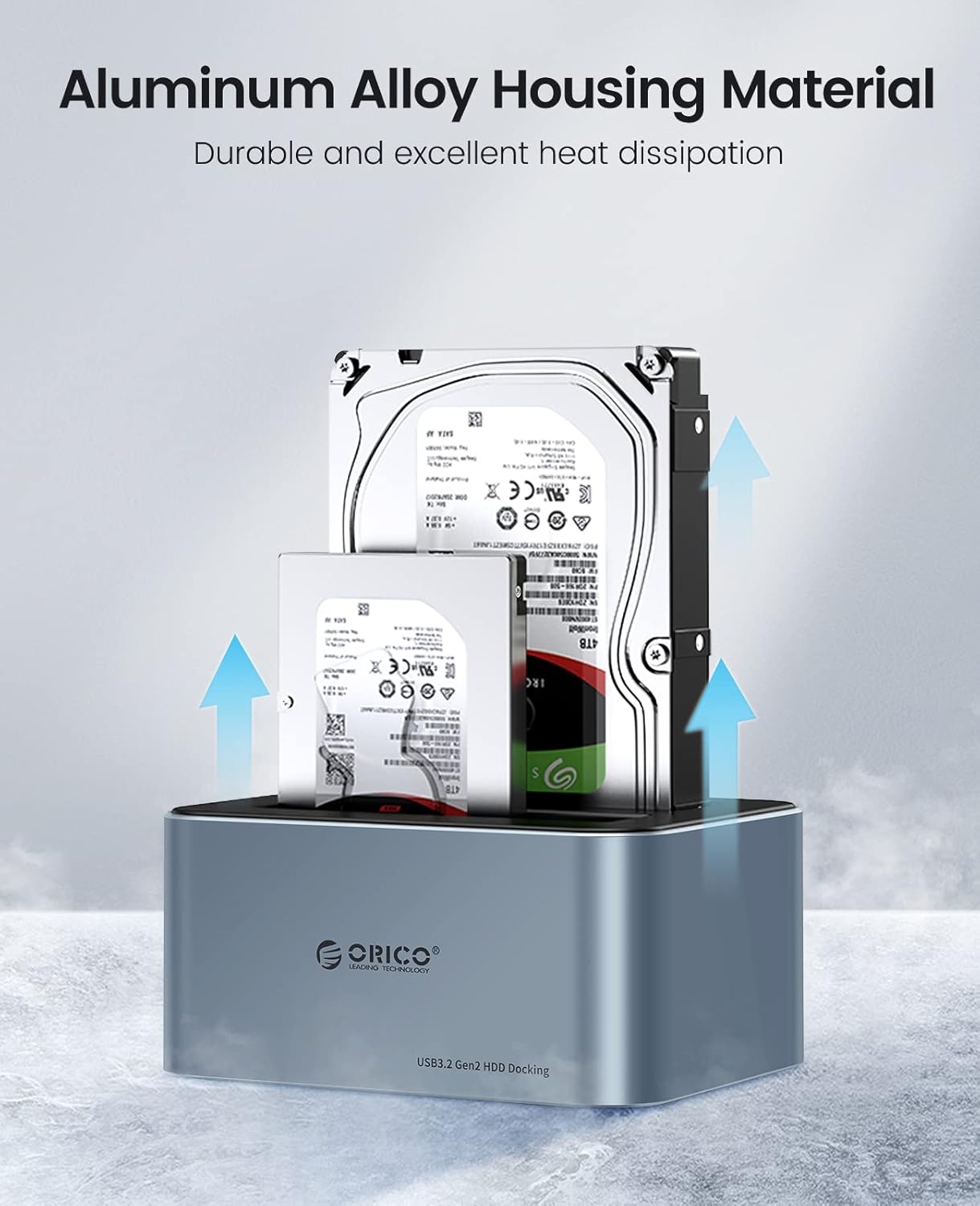
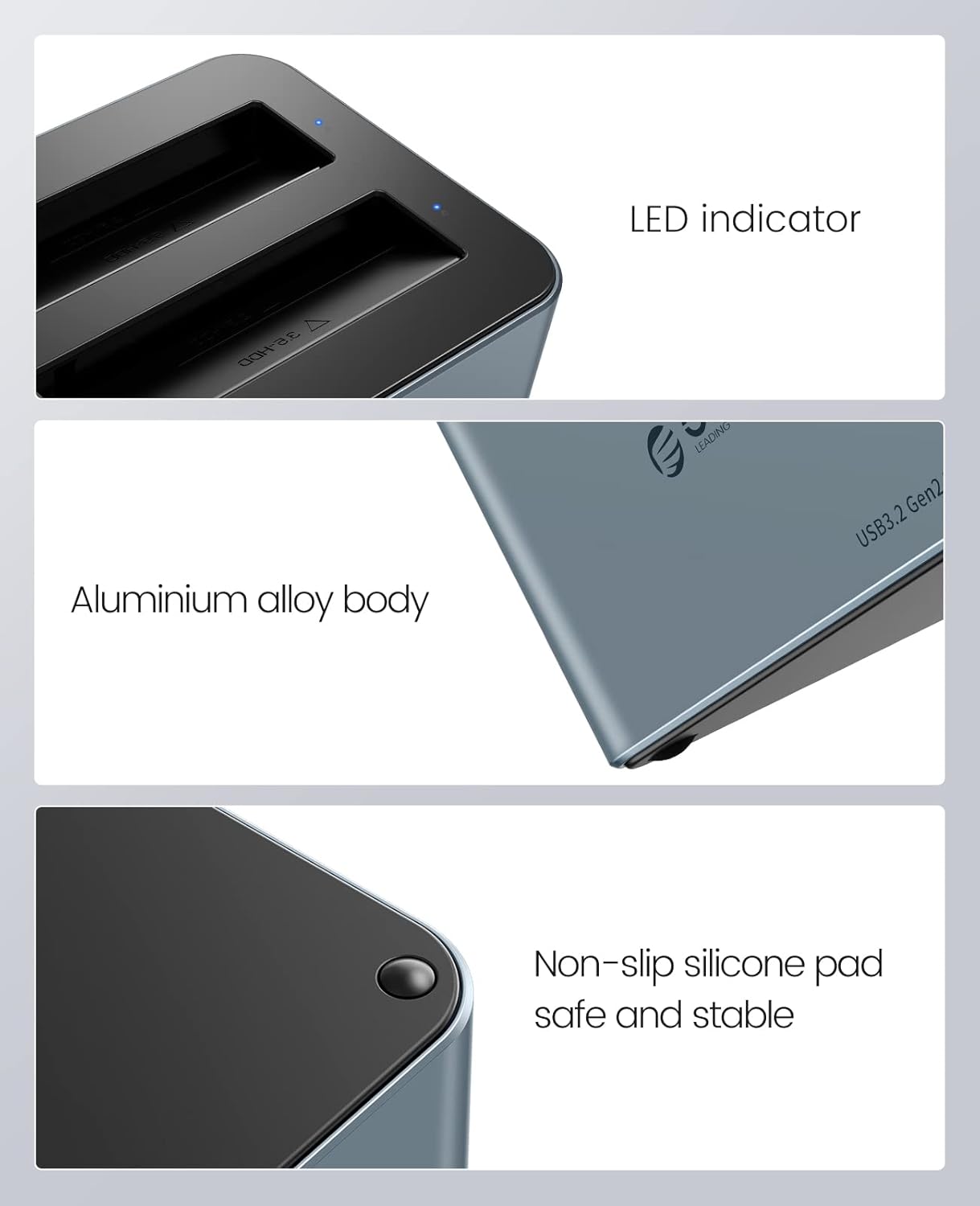
- Premium Aluminum Alloy Construction: Durable and robust design with excellent heat dissipation for stable performance.
- High-Speed Data Transfer: Equipped with USB 3.2 Gen 2 Type-C interface, supporting up to 6Gbps transfer speed and UASP acceleration protocol, which is up to 70% faster than traditional USB 3.0.
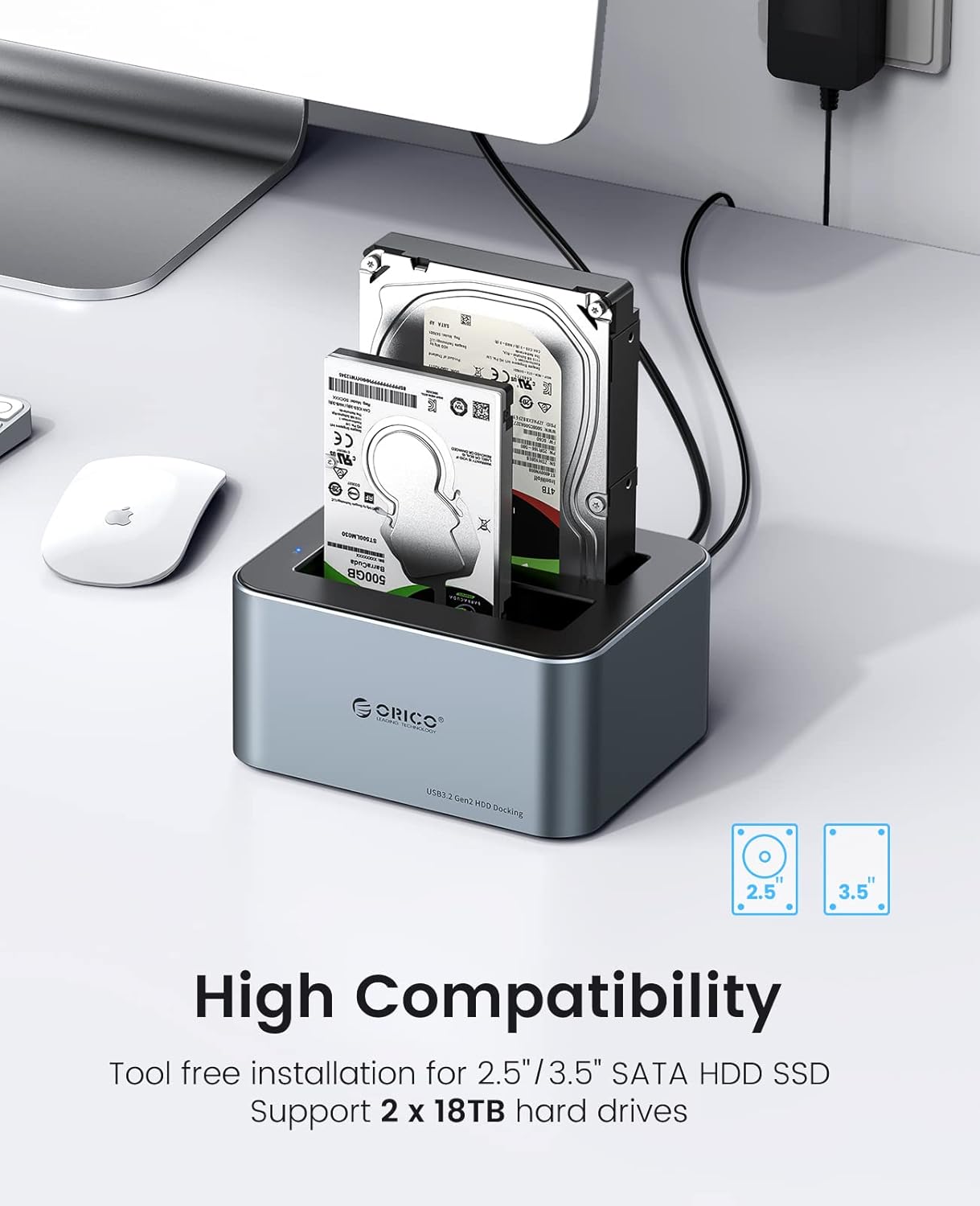
- Broad Compatibility: Supports 2.5-inch and 3.5-inch SATA I/II/III HDDs and SSDs, with a maximum capacity of 18TB per bay (total 36TB).
- Tool-Free Installation: Easy plug-and-play setup without the need for tools.
- Universal Device Support: Compatible with a variety of USB-C and USB-A devices including laptops, desktops, tablets, routers, and projectors.
- Operating System Compatibility: Works with Windows, Mac OS, Linux OS, and iPad OS.
- Energy Saving: Features an automatic sleep mode after 10 minutes of inactivity to conserve power.
- Enhanced Stability: Non-slip silicone pads provide shock-resistant and vibration-dampening functions.
- LED Indicator: Provides clear status indication of operation.

Setup
- Insert Hard Drives: Gently slide your 2.5-inch or 3.5-inch SATA SSD/HDD into the drive bays of the docking station. Ensure the drive is fully seated in the connector. The tool-free design allows for easy insertion and removal.
- Connect Power: Connect the provided 12V power adapter to the DC input port on the docking station, then plug the adapter into a power outlet.
- Connect to Computer: Use the included USB-C data cable to connect the docking station to your computer. If your computer only has USB-A ports, use the provided USB-A converter.
- Power On: Press the power button on the docking station (if available) or ensure it powers on automatically upon connection. The LED indicator will illuminate to show it is active.

Operating Instructions
- Drive Recognition: Once connected and powered on, your operating system should automatically detect the inserted hard drives. They will appear as removable storage devices.
- Data Transfer: You can now drag and drop files to and from the drives, or use them for backup and storage purposes. The USB 3.2 Gen 2 interface with UASP ensures fast and efficient data transfer.
- LED Indicator: The blue LED indicator on the docking station will show the operational status. A steady light typically indicates power, while blinking may indicate data activity.
- Auto Sleep Function: To save energy and extend drive lifespan, the docking station will automatically enter sleep mode after 10 minutes of inactivity. It will wake up automatically when accessed.
- Safe Removal: Always safely eject the hard drives from your operating system before physically removing them from the docking station or disconnecting the power/USB cable to prevent data corruption.
Maintenance
- Cleaning: Keep the docking station clean and free from dust. Use a soft, dry cloth to wipe the exterior. Avoid using liquid cleaners or solvents. The anti-dust plug cover helps maintain cleanliness.
- Heat Dissipation: The aluminum alloy housing is designed for efficient heat dissipation. Ensure the docking station is placed in a well-ventilated area to prevent overheating, especially during prolonged use.
- Handling: Handle the docking station with care. Avoid dropping it or subjecting it to strong impacts.
- Storage: When not in use, store the docking station in a cool, dry place away from direct sunlight and extreme temperatures.

Troubleshooting
- Drive Not Detected:
- Ensure the hard drive is properly seated in the bay.
- Verify the power adapter is securely connected and the docking station is powered on.
- Try connecting the docking station to a different USB port on your computer.
- Test with a different USB cable if available.
- Check Disk Management (Windows) or Disk Utility (Mac) to see if the drive is recognized but uninitialized or unformatted.
- Slow Transfer Speeds:
- Ensure your computer's USB port supports USB 3.2 Gen 2 (or at least USB 3.0) for optimal performance.
- Verify that your operating system and drivers support UASP.
- Avoid connecting through unpowered USB hubs.
- The actual speed may vary depending on the hard drive's performance and system configuration.
- Docking Station Disconnects Randomly:
- Ensure all cables (power and USB) are firmly connected.
- Check for power fluctuations.
- Avoid placing the docking station near strong electromagnetic interference sources.
Specifications
| Feature | Specification |
|---|---|
| Model Number | 6626C3 |
| Brand | ORICO |
| Material | Aluminum Alloy, Plastic |
| Color | Grey |
| Compatible Drive Type | 2.5/3.5 inch SATA I/II/III HDD/SSD |
| Number of Bays | 2 |
| Max Capacity per Drive | 18TB |
| Interface | USB 3.2 Gen 2 Type-C |
| Transfer Speed | Up to 6Gbps (with UASP) |
| Power Supply | 12V/3A Power Adapter |
| Compatible Operating Systems | Windows, Mac OS, Linux OS, iPad OS |
Warranty and Support
ORICO products come with a standard manufacturer's warranty. For detailed warranty information, technical support, or customer service inquiries, please refer to the warranty card included in your package or visit the official ORICO website. Please have your product model number (6626C3) and purchase information ready when contacting support.


