
1. Introduction
Welcome to the user manual for your Azpen Xcite X1160 11.6 Inch Laptop. This guide provides essential information for setting up, operating, maintaining, and troubleshooting your device. Please read this manual thoroughly to ensure proper use and to maximize your laptop's performance and longevity.
2. Safety Information
- Power Adapter: Use only the original power adapter provided with your laptop. Using unauthorized adapters may damage the device and void your warranty.
- Battery Care: Do not attempt to replace the battery yourself. Avoid exposing the laptop to extreme temperatures, direct sunlight, or liquids.
- Cleaning: Disconnect the power adapter before cleaning. Use a soft, dry cloth. Avoid liquid cleaners or aerosols.
- Ventilation: Ensure proper airflow around the laptop. Do not block ventilation openings.
- Disassembly: Do not attempt to disassemble or repair the laptop yourself. Contact customer support for assistance.
3. Package Contents
Verify that all items are present in your package:
- Azpen Xcite X1160 11.6 Inch Laptop
- Power Adaptor
4. Product Overview
Familiarize yourself with the physical components and ports of your Azpen Xcite X1160 laptop.

Front view of the Azpen Xcite X1160 laptop, displaying the screen and keyboard layout.

Front view of the Azpen Xcite X1160 laptop, highlighting the display and keyboard.

Top-down view of the Azpen Xcite X1160 laptop, showing the full keyboard and screen.

Bottom view of the Azpen Xcite X1160 laptop, showing ventilation and rubber feet.

Closed view of the Azpen Xcite X1160 laptop, displaying the Azpen brand logo on the lid.
Ports and Connectivity:
- USB 3.0 Type-C Ports: Two ports for high-speed data transfer and connecting compatible peripherals.
- 3.5mm Headphone Jack: For connecting headphones or external speakers.
- 3.5mm Power Connector: For connecting the power adapter to charge the laptop.
- Wi-Fi: Integrated 802.11bgn for wireless internet access.
- Bluetooth: For connecting wireless accessories such as mice, keyboards, or headphones.
5. Setup
5.1 Charging the Battery
Before first use, connect the power adapter to the laptop's 3.5mm power connector and plug it into a power outlet. Allow the laptop to charge fully. The charging indicator light will typically change color or turn off when charging is complete.
5.2 Initial Power On and Windows Setup
- Press and hold the power button located on the laptop's chassis until the screen illuminates.
- Follow the on-screen instructions to complete the Windows 10 Home initial setup. This includes selecting your region, language, creating a user account, and connecting to a Wi-Fi network.
- Once setup is complete, your laptop will be ready for use.
6. Operating Instructions
6.1 Power On/Off
- To Power On: Press the power button.
- To Shut Down: Click the Windows Start button, then select Power > Shut down.
- To Restart: Click the Windows Start button, then select Power > Restart.
- To Sleep: Click the Windows Start button, then select Power > Sleep, or close the laptop lid.
6.2 Using the Touchpad
The integrated touchpad functions as a mouse. Use the following gestures:
- Single Tap: Left-click.
- Two-Finger Tap: Right-click.
- Two-Finger Scroll: Drag two fingers up or down to scroll.
- Pinch-to-Zoom: Pinch two fingers together or spread them apart to zoom in or out.
6.3 Using the Keyboard
The laptop features a standard QWERTY keyboard. Function keys (F1-F12) often have secondary functions (e.g., volume control, screen brightness) accessible by pressing the 'Fn' key simultaneously.
6.4 Connecting to Wi-Fi
- Click the Wi-Fi icon in the taskbar (usually in the bottom-right corner).
- Select your desired Wi-Fi network from the list.
- Click 'Connect' and enter the network password if prompted.
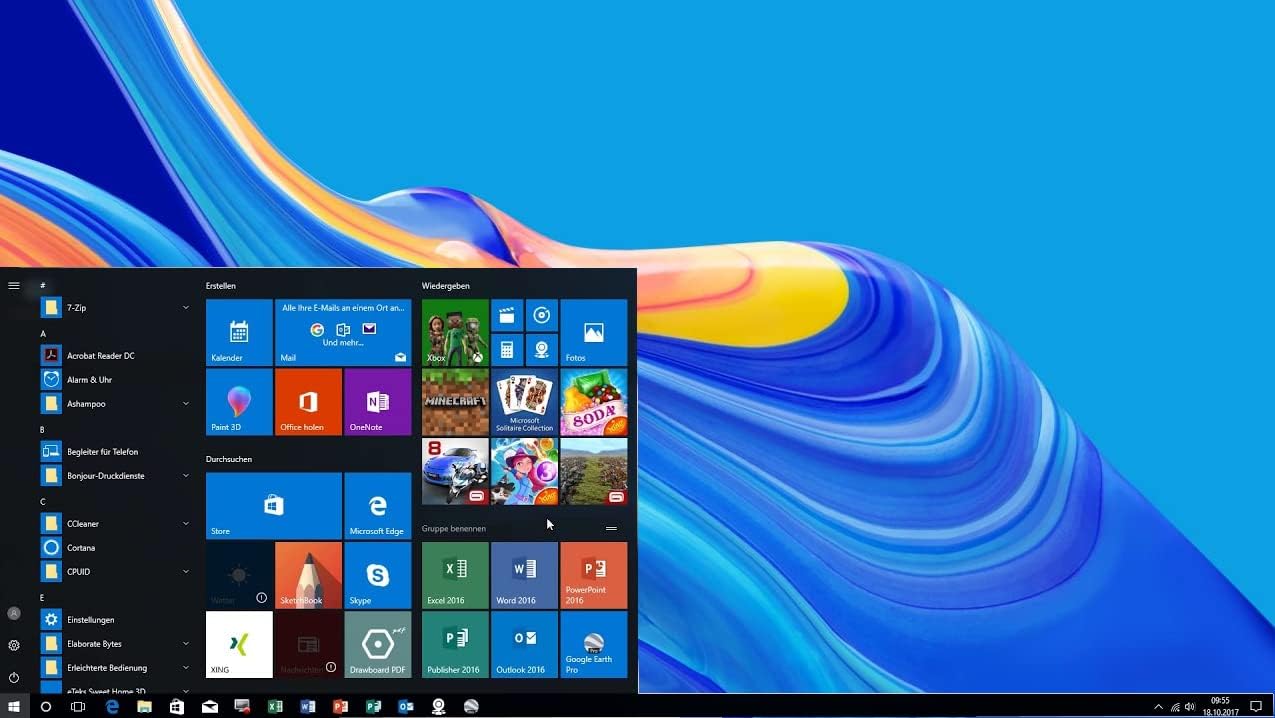
Screen view of the Azpen Xcite X1160 laptop showing the Windows 10 Start Menu.
6.5 Connecting Bluetooth Devices
- Go to 'Settings' > 'Devices' > 'Bluetooth & other devices'.
- Ensure Bluetooth is turned 'On'.
- Put your Bluetooth device into pairing mode.
- Click 'Add Bluetooth or other device' and select 'Bluetooth'.
- Choose your device from the list and follow any on-screen prompts to complete pairing.
7. Maintenance
7.1 Cleaning Your Laptop
- Screen: Use a soft, lint-free microfiber cloth. For stubborn smudges, lightly dampen the cloth with water or a screen-specific cleaning solution.
- Keyboard and Chassis: Use a soft, dry cloth. A can of compressed air can remove dust from between keys.
- Avoid harsh chemicals, abrasives, or excessive moisture.
7.2 Battery Care
- To prolong battery life, avoid fully discharging the battery frequently.
- Store the laptop in a cool, dry place if not used for extended periods.
7.3 Software Updates
Regularly check for and install Windows updates to ensure your system has the latest security patches and performance improvements. Go to 'Settings' > 'Update & Security' > 'Windows Update'.
7.4 Storage Management
Periodically clear unnecessary files and applications to maintain optimal performance. You can use Windows' built-in 'Disk Cleanup' tool or manually uninstall programs from 'Settings' > 'Apps' > 'Apps & features'.
8. Troubleshooting
This section addresses common issues you might encounter with your laptop.
| Issue | Possible Solution |
|---|---|
| Laptop does not power on. | Ensure the power adapter is securely connected and plugged into a working outlet. Allow the battery to charge for at least 30 minutes before attempting to power on again. |
| Wi-Fi not connecting. | Check if Wi-Fi is enabled in Windows settings. Restart your router and modem. Verify the Wi-Fi password. |
| Slow performance. | Close unnecessary applications. Check for and install Windows updates. Run a disk cleanup. Consider uninstalling unused software. |
| Screen is blank or flickering. | Try adjusting screen brightness using the function keys. Restart the laptop. If connected to an external monitor, disconnect it. |
9. Specifications
Detailed technical specifications for the Azpen Xcite X1160 laptop.

The Azpen Xcite X1160 is powered by an Intel Quad-Core Processor.
| Feature | Detail |
|---|---|
| Model | X1160 |
| Screen Size | 11.6 Inches |
| Screen Resolution | 1366 x 768 pixels |
| Processor | Intel Processor N4000 Lake (up to 2.68 GHz) |
| RAM | 4 GB LPDDR4 |
| Storage | 64 GB EMMC (Expandable via Micro SD up to 128GB) |
| Operating System | Windows 10 Home |
| Graphics | Intel Gen8-LP |
| Wireless Connectivity | 802.11bgn, Bluetooth |
| Ports | 2 USB 3.0 Type-C, 3.5mm Headphone Jack, 3.5mm Power Connector |
| Battery Life | Up to 6 hours |
| Weight | 3.08 pounds |
| Dimensions (LxWxH) | 10.9 x 0.6 x 7.5 inches |
10. Warranty and Support
For warranty information and technical support, please refer to the documentation included with your purchase or visit the official Azpen website. Keep your proof of purchase for warranty claims.