
iHome iWW33
iHome POWERBOOST Quad 4-in-1 Dual Qi Wireless Fast Charger
Model: iWW33
Brand: iHome
Introduction
The iHome POWERBOOST Quad (model iWW33) is a versatile 4-in-1 charging station designed to power your essential devices efficiently. This unit combines dual Qi wireless charging pads, an integrated Apple Watch charger, an AirPods charging pad, and an additional USB charging port, all within a compact design that also features a digital alarm clock.
It is engineered for convenience, providing a centralized solution for charging multiple devices simultaneously, making it ideal for bedside tables or office desks. The intelligent clock display with auto-dimmer and SureAlarm battery backup ensures reliability.
Package Contents
Please verify that all items are present in your package:
- iHome POWERBOOST Quad (iWW33) Unit
- Dual Qi Certified wireless charging pads (integrated)
- Apple Watch charger (integrated)
- AirPods charger (integrated)
- Additional USB charging port (integrated)
- AC Power Adapter (100V-240V universal voltage)
Note: USB charging cables for external devices are not included.
Product Features
- Wireless Charging Station: Features two Qi-certified wireless charging pads for iPhone, Android, and other compatible devices.
- Apple Watch Charger: Integrated charging solution for Apple Watch.
- AirPods Charger: Dedicated wireless charging pad for AirPods and other compatible earbud cases.
- USB Charging Port: Includes an additional USB charging port (USB-A or USB-C) for wired charging of other devices.
- Digital Alarm Clock: Built-in alarm clock with snooze function.
- Intelligent Clock Display: Features an auto-dimmer to adjust display brightness based on room lighting.
- SureAlarm Battery Backup: Maintains alarm settings during power failures (requires 1 Lithium Metal battery, not specified if included or user-replaceable).
- Total Power Output: 30W total power output.
Setup
Unpack the Unit:
Carefully remove the iHome POWERBOOST Quad from its packaging.
Connect Power:
Plug the included AC power adapter into the "DC Input" port on the back of the unit. Then, plug the other end of the adapter into a standard wall outlet (100V-240V).

Figure 1: Rear view of the iHome POWERBOOST Quad, highlighting the power input and USB ports.
Set Time and Date:
Refer to the unit's display and controls to set the current time and date. Use the "Date Set" button on the back of the unit for initial setup.
Install Backup Battery (Optional but Recommended):
Locate the battery compartment (if present, typically on the bottom or back) and insert the required Lithium Metal battery for SureAlarm functionality. This ensures alarm settings are maintained during power outages.
Operating Instructions
Wireless Charging (Phones & AirPods)
Place Device:
Place your Qi-compatible smartphone or AirPods case directly onto one of the designated wireless charging pads. Ensure the device is centered on the pad for optimal charging.

Figure 2: Devices placed on the iHome POWERBOOST Quad for charging.
Verify Charging:
A charging indicator (e.g., LED light on the unit or charging icon on your device's screen) should illuminate or appear to confirm that charging has begun. If charging does not start, reposition the device.

Figure 3: Overview of the iHome POWERBOOST Quad's 4-in-1 charging capabilities.
Apple Watch Charging
Position Apple Watch:
Place your Apple Watch onto the integrated Apple Watch charging stand. Ensure the watch is securely seated and aligned with the charging module.

Figure 4: Detail of the Apple Watch charging area.
Confirm Charging:
The Apple Watch display should show a charging indicator. If not, adjust its position.
USB Charging
Connect USB Cable:
Plug a compatible USB charging cable (not included) into the USB-A or USB-C port on the back of the unit. Connect the other end of the cable to your device (e.g., iPad, another phone).

Figure 5: Illustrates simultaneous charging of multiple devices, including via USB port.
Begin Charging:
Charging will commence automatically. Monitor your device's screen for charging confirmation.
Alarm Clock Functions
Setting Alarms:
Use the dedicated buttons on the unit (refer to the physical controls) to set your desired alarm time and alarm tone. You can typically set alarms for every day, weekdays, or weekends.

Figure 6: Alarm clock and Surealarm features.
Snooze Function:
Press the Snooze button (usually a large button on top or front) to temporarily silence the alarm for a set period.
Auto Dimming Display:
The display features an automatic dimming sensor that adjusts the LED brightness according to the ambient room lighting. This feature helps maintain comfortable visibility without being overly bright in dark environments.
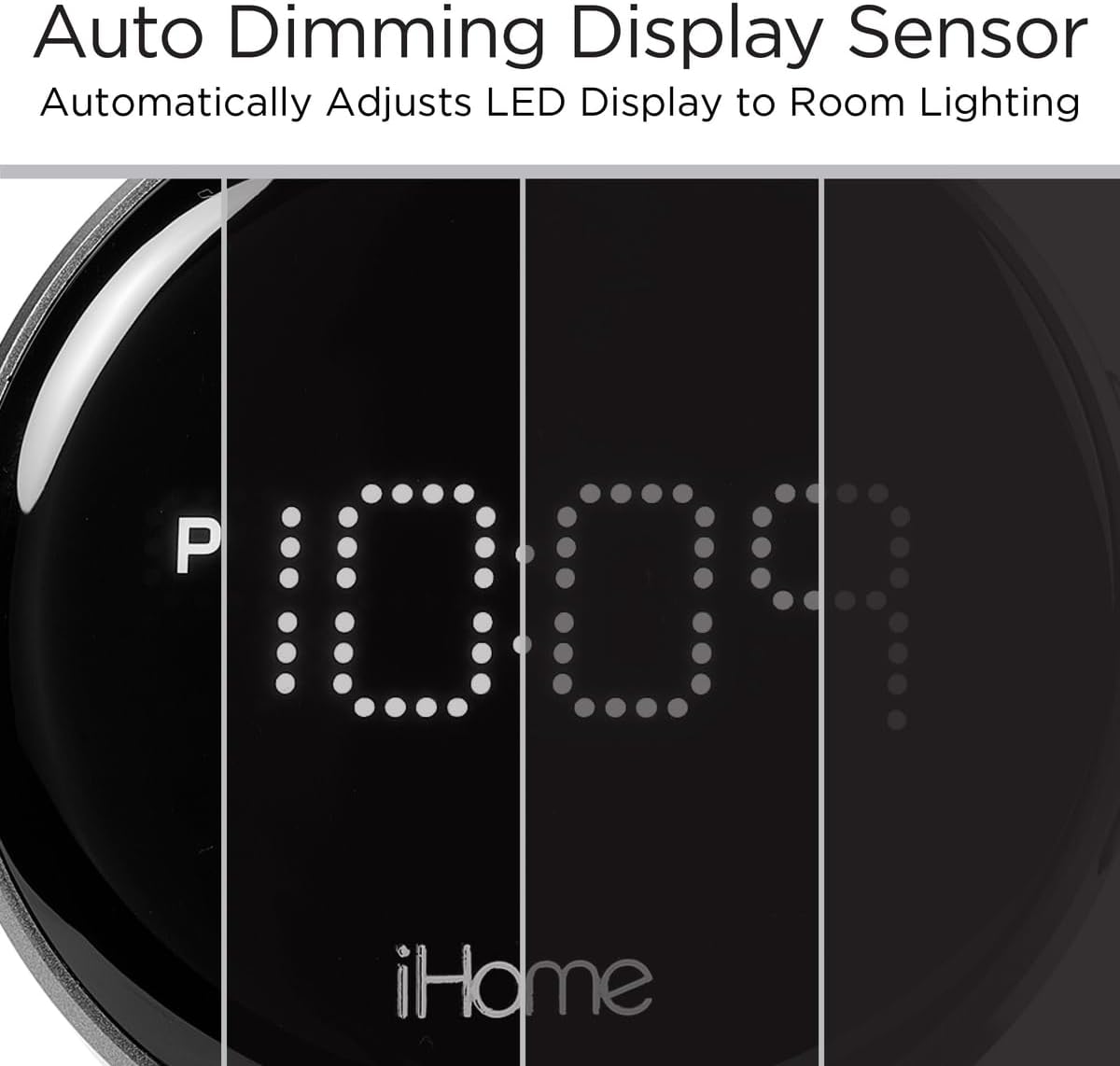
Figure 7: Auto-dimming display sensor in action.
Maintenance
- Cleaning: Disconnect the power adapter before cleaning. Use a soft, dry cloth to wipe the unit. Do not use liquid cleaners or abrasive materials.
- Dust Prevention: Keep the charging pads and ports free of dust and debris to ensure optimal charging performance.
- Battery Replacement: If the SureAlarm battery backup feature is not functioning, replace the Lithium Metal battery as per the instructions in the full user manual (if available) or by contacting customer support.
Troubleshooting
| Problem | Possible Cause | Solution |
|---|---|---|
| Device not charging wirelessly. | Device not properly aligned on the charging pad. Device case is too thick. Device is not Qi-compatible. Power adapter not connected or faulty. | Reposition the device to ensure it is centered on the charging pad. Remove thick or metallic cases. Verify your device supports Qi wireless charging. Ensure the power adapter is securely plugged into the unit and a working outlet. |
| Apple Watch not charging. | Watch not correctly placed on the stand. Watch band interfering with contact. | Adjust the Apple Watch's position on the integrated charger. Ensure the watch is flat against the charging module. |
| USB port not charging. | USB cable is faulty or incompatible. Device requires more power than available. | Try a different USB cable. Ensure the device is compatible with standard USB charging. |
| Alarm clock display is too bright/dim. | Auto-dimming sensor is active. | The display automatically adjusts. Ensure the sensor area is not obstructed. Manual brightness adjustment may be available via controls (refer to full manual). |
| Alarm settings lost after power outage. | SureAlarm backup battery is dead or not installed. | Install or replace the Lithium Metal backup battery. |
Specifications
| Attribute | Detail |
|---|---|
| Product Dimensions | 7 x 5 x 4 inches |
| Item Weight | 1.46 pounds |
| Model Number | iWW33 |
| Power Input | 100V-240V Universal Voltage Adapter |
| Total Power Output | 30W |
| Wireless Charging | Dual Qi Certified pads (up to 15W Fast Wireless Charging for compatible devices, 5W for AirPods) |
| USB Charging Ports | USB-A and USB-C (for additional wired charging) |
| Compatible Devices | iPhone, Android, AirPods, Apple Watch, other USB-chargeable devices |
| Special Features | Fast Charging, Multi Device Charging, Wireless Charging, Digital Alarm Clock, Auto Dimming Display Sensor, SureAlarm Battery Backup |
| Color | Black |
| Manufacturer | SDI Technologies |
Warranty and Support
Specific warranty details and direct support contact information are not available in the provided product data. For warranty claims, technical assistance, or further inquiries, please refer to the official iHome website or contact iHome customer service directly. Keep your purchase receipt as proof of purchase for warranty purposes.
Related documentsiWW33


Ask a question about this manual
Ask about setup, troubleshooting, compatibility, parts, safety, or missing instructions. Manuals+ will review the question and use this page’s manual context to help answer it.