
1. Introduction
The SPC Jasper 2 4G is a user-friendly flip mobile phone designed for ease of use, particularly for seniors. It features large buttons, a dual-screen display, 4G connectivity, and a dedicated SOS emergency button. This manual provides detailed instructions for setting up, operating, and maintaining your device.
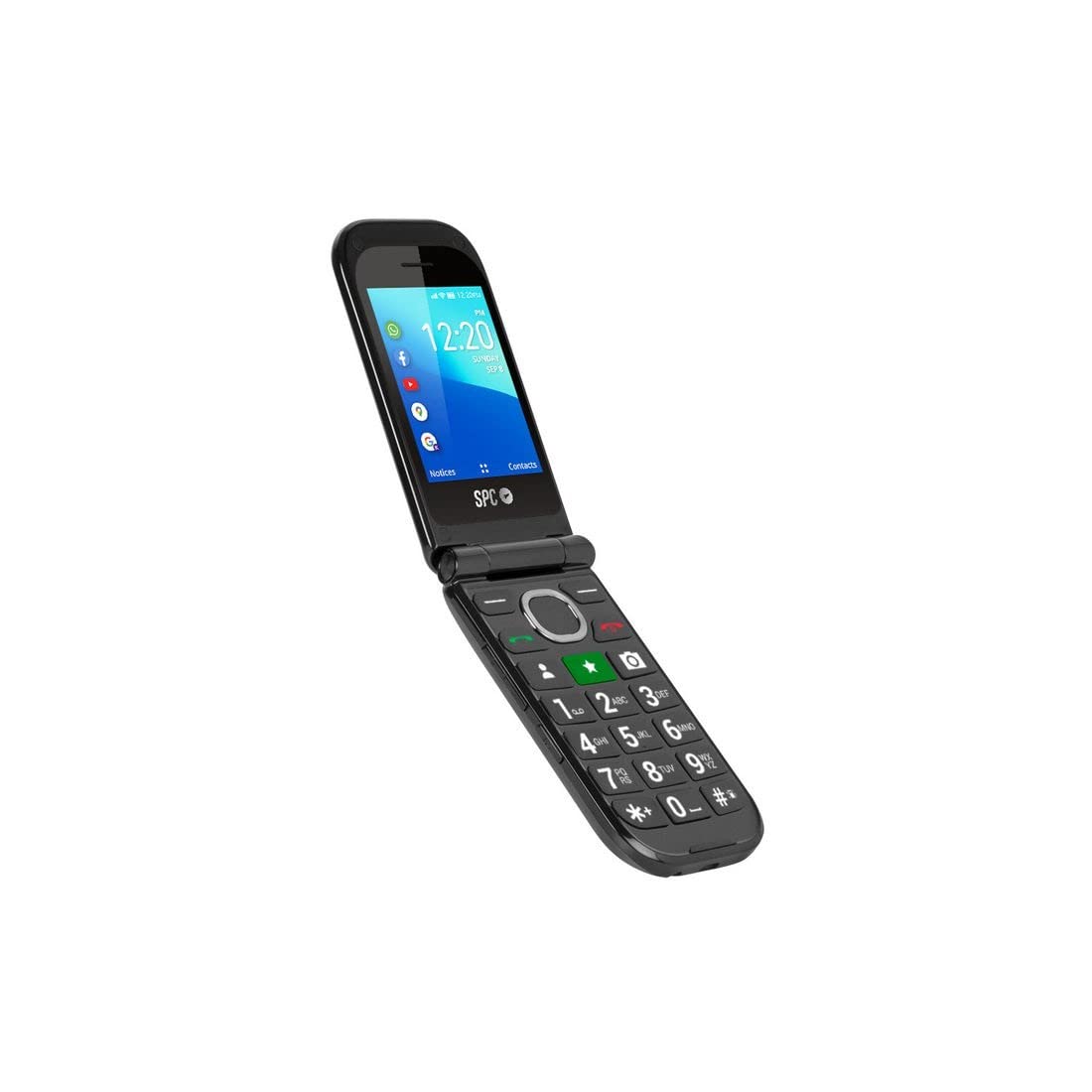
Figure 1: SPC Jasper 2 4G Flip Phone (Closed)
2. Package Contents
Ensure all the following items are present in your product box:
- SPC Jasper 2 4G Mobile Phone
- Charging Base
- Power Adapter
- Battery
- User Manual
3. Product Overview
The SPC Jasper 2 4G is engineered for simplicity and functionality. Key features include:
3.1. Dual Screen Design
The phone features two screens: an internal 2.8-inch display for main operations and an external 1.44-inch display for quick information like time, date, and incoming call notifications without opening the phone.

Figure 2: Internal Screen Display

Figure 3: External Screen Display
3.2. Large Buttons and Keypad
The phone features a large, well-spaced keypad for easy dialing and navigation, reducing the chance of errors.

Figure 4: Large Keypad for Easy Use
3.3. SOS Emergency Button
Located on the back of the phone, the SOS button provides a quick way to contact pre-configured emergency contacts. Pressing it for 3 seconds initiates an automatic sequence of calls.

Figure 5: SOS Emergency Button
3.4. Hearing Aid Compatibility
The SPC Jasper 2 4G offers M3/T3 level hearing aid compatibility, allowing users to connect their hearing aids for clearer call audio and reduced external interference.
4. Setup
4.1. Inserting SIM Card and Battery
- Carefully open the back cover of the phone.
- Insert your standard-sized SIM card into the designated slot. Ensure it is correctly oriented.
- Place the battery into its compartment, aligning the contacts.
- Replace the back cover until it clicks securely into place.
4.2. Charging the Phone
Before first use, fully charge the phone battery.
- Connect the power adapter to the charging base.
- Place the SPC Jasper 2 4G phone into the charging base. Ensure it is seated correctly and the charging indicator appears on the screen.
- Allow the phone to charge until the battery icon indicates a full charge.

Figure 6: Phone in Charging Base
4.3. Initial Power On
Press and hold the Power/End Call button until the screen lights up. Follow any on-screen prompts for initial setup, such as language selection.
5. Operating Instructions
5.1. Making and Receiving Calls
- To Make a Call: Open the phone, dial the number using the keypad, and press the green Call button.
- To Receive a Call: Open the phone to answer an incoming call. Closing the phone will end the call.
5.2. Using the SOS Button
To activate the emergency call function, press and hold the SOS button on the back of the phone for 3 seconds. The phone will automatically dial pre-configured emergency contacts in a cycle until a connection is made.
5.3. Navigating the Menu
Use the navigation keys (up, down, left, right) and the central OK button to browse through the phone's menu options on the internal screen. The external screen provides quick access to essential information.

Figure 7: Navigating the Phone Menu
5.4. Adjusting Volume
Use the dedicated volume buttons on the side of the phone to adjust call volume, ringer volume, and media volume.
5.5. Installing Applications
The SPC Jasper 2 4G runs on KaiOS and allows access to the KaiOS Store. You can install additional applications via Wi-Fi or 4G network. Pre-installed applications include Facebook, Google Maps, and YouTube.
6. Maintenance
6.1. Battery Care
- Avoid exposing the battery to extreme temperatures.
- Do not puncture or damage the battery.
- Use only the original SPC charger and charging base.
6.2. Cleaning
Wipe the phone with a soft, dry cloth. Avoid using liquid cleaners or abrasive materials.
6.3. Storage
Store the phone in a cool, dry place away from direct sunlight and moisture when not in use for extended periods.
7. Troubleshooting
| Problem | Possible Cause | Solution |
|---|---|---|
| Phone does not turn on | Low battery; Battery not inserted correctly | Charge the phone; Reinsert battery and ensure contacts are aligned |
| Cannot make/receive calls | No SIM card; SIM card not active; No network signal | Insert SIM card; Contact your service provider; Move to an area with better signal |
| WhatsApp not working | KaiOS support for WhatsApp has been discontinued or limited. | WhatsApp functionality on KaiOS devices may be limited or unavailable due to changes in application support. This is not a device malfunction. |
| Difficulty navigating menu | Unfamiliarity with KaiOS; Small navigation button | Practice using the navigation keys; Refer to the operating instructions for menu layout. |
| SOS button not working | No emergency contacts configured | Ensure emergency contacts are set up in the phone settings. |
8. Specifications
| Model Name | SPC Jasper 2 4G |
| Model Number | 2327N |
| Brand | SPC |
| Operating System | KaiOS |
| CPU Model | Mediatek Dimensity 900 |
| Memory Storage Capacity | 32 GB |
| Internal Screen Size | 2.8 Inches |
| External Screen Size | 1.44 Inches |
| Resolution | 128x128 |
| Wireless Carrier | Unlocked |
| Cellular Technology | 4G |
| Connectivity Technology | 4G, Wi-Fi |
| Battery Capacity | 1600 mAh |
| Rear Camera Resolution | 5 MP |
| Audio Jack | 3.5 mm |
| SIM Card Slot Count | One SIM |
| SIM Card Size | Standard |
| Water Resistance Level | Not water resistant |
| Product Dimensions | 20 x 57 x 108 mm; 270 g |
| Talk Time | 10 Hours |
| GPS | Yes |
9. Warranty and Support
9.1. Warranty Information
This product is covered by a warranty in accordance with current applicable law. Please retain your proof of purchase for any warranty claims.
9.2. Customer Support
For further assistance, technical support, or service inquiries, please refer to the contact information provided with your purchase documentation or visit the official SPC website.

