
1. Introduction
This manual provides essential information for the proper setup, operation, and maintenance of your Lenovo ThinkCentre M90a Gen 3 All-in-One (AIO) computer. Designed for enterprise environments, this AIO offers a compact footprint, professional aesthetics, and robust performance. Please read this manual thoroughly before using your device to ensure optimal performance and longevity.
2. What's in the Box
Carefully unpack your Lenovo ThinkCentre M90a Gen 3 AIO and verify that all components are present:
- ThinkCentre M90a Gen 3 11VF0063US All-in-One Computer
- Keyboard
- Mouse
- UltraFlex V Stand
- VESA Mount
- Power Adapter and Cable
If any items are missing or damaged, contact your vendor or Lenovo support immediately.
3. Product Overview
Familiarize yourself with the key components and ports of your ThinkCentre M90a Gen 3 AIO.
3.1. Front View
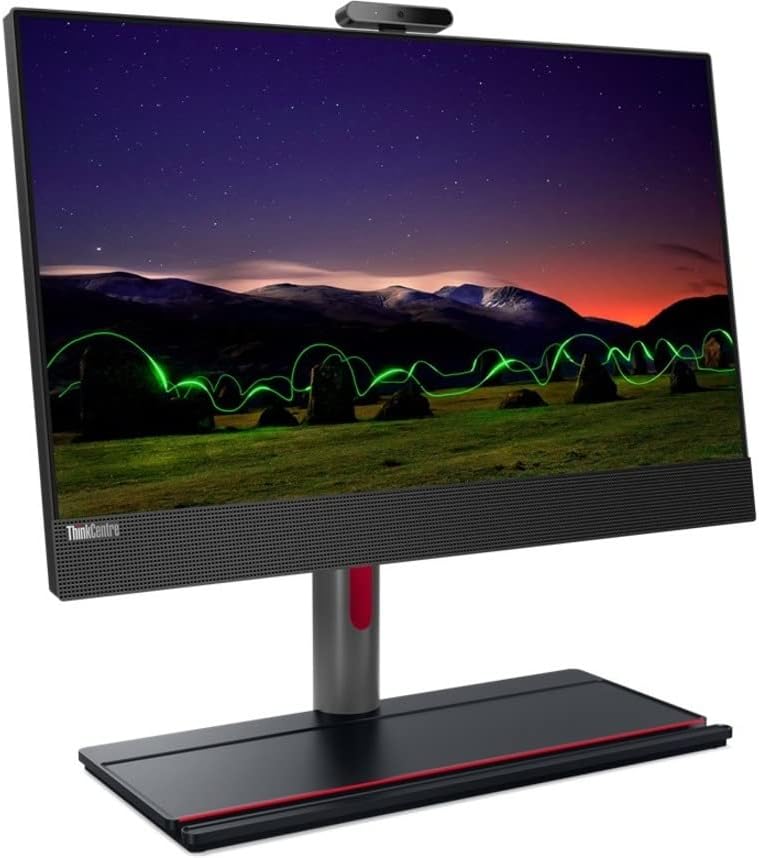
This image displays the front of the Lenovo ThinkCentre M90a Gen 3 AIO, highlighting the 23.8-inch Full HD display, integrated speakers below the screen, and the sturdy UltraFlex V Stand.
3.2. Rear Ports

The rear panel provides access to essential connectivity. Ports typically include USB ports (USB 3.2 Gen 1, USB 3.2 Gen 2), DisplayPort, HDMI, Ethernet (RJ-45), and the power connector. Specific port configurations may vary.
3.3. Side Components
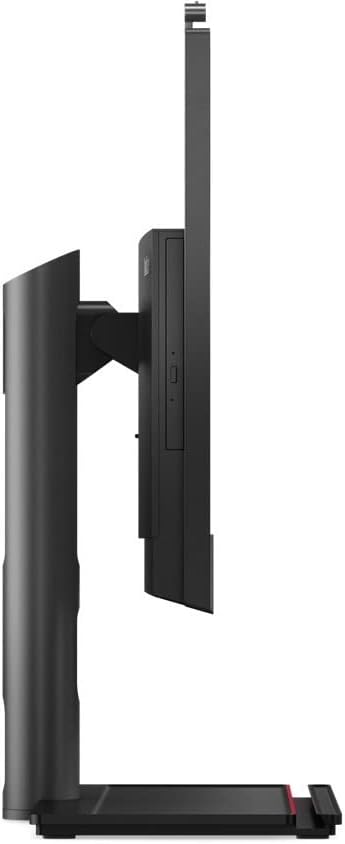
The side of the AIO features additional ports for convenient access, such as a USB-C port, a headphone/microphone combo jack, and a Super multi-format DVD drive for optical media.
3.4. Controls
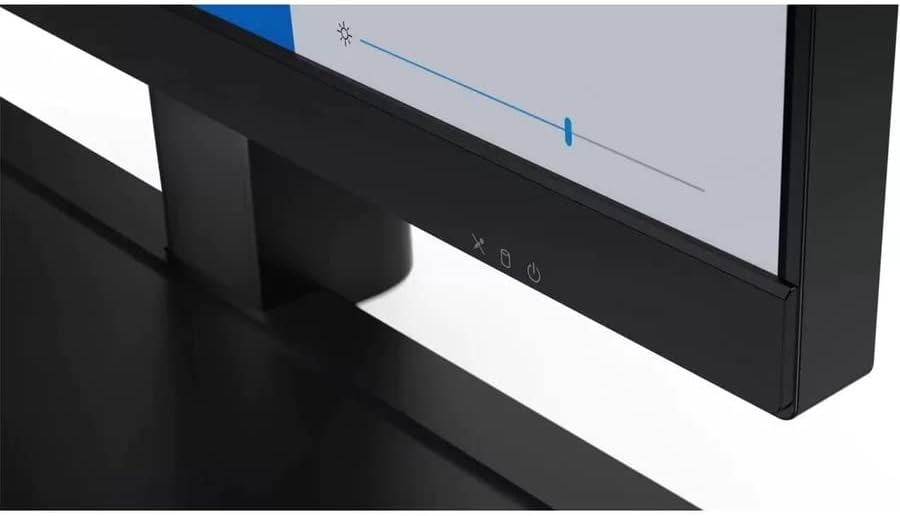
The power button and basic display controls (e.g., brightness adjustment) are typically located on the bottom right bezel of the display for easy access.
4. Setup Instructions
Follow these steps to set up your Lenovo ThinkCentre M90a Gen 3 AIO computer:
- Unpacking: Carefully remove the AIO and all accessories from the packaging. Place the AIO on a stable, flat surface.
- Stand Assembly: If not pre-assembled, attach the UltraFlex V Stand to the AIO according to the included quick setup guide. Ensure it is securely fastened.
- Connect Peripherals:
- Connect the included keyboard and mouse to the available USB ports on the rear or side of the AIO.
- If using external speakers, connect them to the audio output port.
- For network connectivity, connect an Ethernet cable to the RJ-45 port or ensure Wi-Fi is enabled during initial setup.
- Connect Power: Connect the power cable to the AIO's power input port, then plug the other end into a grounded electrical outlet.
- Initial Boot: Press the power button located on the bottom right bezel. The system will power on and guide you through the Windows 11 initial setup process. Follow the on-screen instructions to configure your operating system, network, and user accounts.
5. Operating Instructions
5.1. Power On/Off
- Power On: Press the power button on the bottom right bezel.
- Power Off: Click the Start button in Windows, then select Power > Shut down. Do not simply unplug the device while it is running.
- Restart: Click the Start button in Windows, then select Power > Restart.
- Sleep: Click the Start button in Windows, then select Power > Sleep, or briefly press the power button.
5.2. Using the Optical Drive
Your AIO includes a Super multi-format DVD drive. To use it:
- Locate the eject button on the optical drive tray (typically on the side of the AIO).
- Press the eject button to open the tray.
- Place a CD or DVD onto the tray with the label side facing up.
- Gently push the tray back into the drive until it clicks shut.
- The operating system will typically detect the disc and prompt you for action.
5.3. Adjusting Display Settings
You can adjust display settings through Windows or using the physical buttons:
- Brightness: Use the dedicated brightness control buttons on the bottom bezel or navigate to Windows Settings > System > Display.
- Resolution: For optimal clarity, ensure the display resolution is set to 1920 x 1080 pixels in Windows Settings > System > Display.
- Low Blue Light: This feature can be enabled via software settings or potentially a dedicated button/menu to reduce eye strain.
6. Maintenance
Regular maintenance helps ensure the longevity and performance of your AIO computer.
6.1. Cleaning
- Display: Use a soft, lint-free cloth specifically designed for electronics. Lightly dampen the cloth with water or a screen cleaner. Do not spray cleaner directly onto the screen.
- Chassis: Wipe the exterior surfaces with a soft, dry cloth. For stubborn dirt, use a slightly damp cloth. Avoid abrasive cleaners.
- Vents: Periodically use compressed air to clear dust from the ventilation grilles to prevent overheating. Ensure the computer is powered off before cleaning vents.
6.2. Software Updates
Keep your operating system and drivers updated to ensure security, stability, and optimal performance.
- Windows Updates: Regularly check for and install Windows updates via Settings > Windows Update.
- Driver Updates: Visit the official Lenovo support website for your specific model (11VF0063US) to download and install the latest drivers for graphics, chipset, and other components.
7. Troubleshooting
This section addresses common issues you might encounter.
| Problem | Possible Cause | Solution |
|---|---|---|
| Computer does not power on | No power, loose connection, faulty power supply | Ensure power cable is securely connected to both the AIO and the wall outlet. Test the outlet with another device. Try a different power cable if available. |
| No display on screen | Brightness too low, display input issue | Increase display brightness using the physical buttons or Windows settings. Ensure the computer is powered on and not in sleep mode. |
| Keyboard/Mouse not responding | Loose connection, driver issue, faulty peripheral | Check USB connections. Try connecting the peripheral to a different USB port. Restart the computer. Ensure drivers are up to date. |
| Slow performance | Too many programs running, low disk space, malware | Close unnecessary applications. Free up disk space. Run a full system scan for viruses/malware. Check for and install system updates. |
8. Specifications
Key technical specifications for the Lenovo ThinkCentre M90a Gen 3 11VF0063US:
- Model: 11VF0063US
- Processor: Intel Core i5-12500 Hexa-core (6 Core) 3 GHz (12th Gen)
- Operating System: Windows 11
- RAM: 8 GB DDR4 SDRAM (expandable up to 64 GB)
- Storage: 256 GB M.2 PCI Express NVMe 4.0 x4 SSD
- Display: 23.8" Full HD (1920 x 1080)
- Graphics: Intel UHD Graphics 770 (Integrated)
- Optical Drive: Super multi-format DVD drive (DVD-Writer)
- Connectivity: Bluetooth, Ethernet, USB, Wi-Fi
- Ports: Multiple USB ports (Total 7), DisplayPort, HDMI, Ethernet (RJ-45), Audio jacks
- Security Features: Security Slot
- Dimensions: Approximately 27 x 9.5 x 27 inches (with stand)
- Color: Black
9. Warranty and Support
Your Lenovo ThinkCentre M90a Gen 3 11VF0063US comes with a manufacturer's warranty.
- Warranty Period: 3-year Manufacturer Warranty.
- Support: For technical assistance, warranty claims, or to download the latest drivers and documentation, please visit the official Lenovo support website. Have your product's serial number ready when contacting support.
For additional information, refer to the warranty card included with your product or visit support.lenovo.com.


