
1. Introduction
Thank you for choosing the Blackview K1 Bluetooth Keyboard with Touchpad. This manual provides detailed instructions on how to set up, operate, and maintain your keyboard to ensure optimal performance and longevity. Please read this manual thoroughly before using the product.
Safety Information
- Keep the keyboard away from water, moisture, and extreme temperatures.
- Do not attempt to disassemble or repair the keyboard yourself. Contact qualified service personnel if needed.
- Use only the provided USB cable for charging.
- Avoid dropping or subjecting the keyboard to strong impacts.
2. Product Overview
Package Contents
- Blackview K1 Bluetooth Keyboard with Touchpad
- USB Cable
- User Manual (this document)
Keyboard Layout
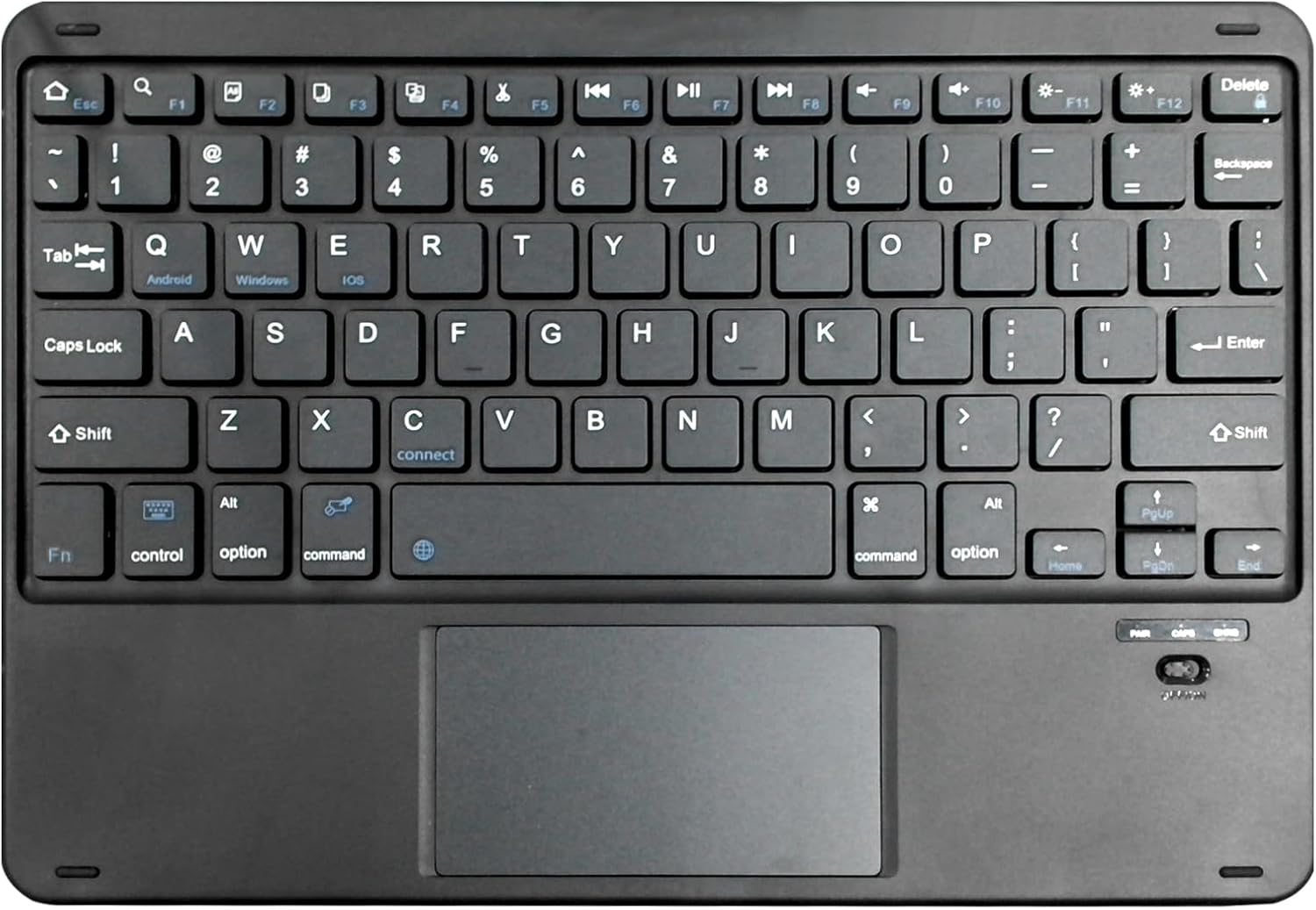
Figure 2.1: Blackview K1 Bluetooth Keyboard Layout. This image displays the full keyboard with its QWERTY layout, dedicated function keys (F1-F12), and the integrated multi-touch touchpad located below the spacebar. Key labels for Android, Windows, and iOS are visible on the Q, W, and E keys respectively, indicating multi-OS compatibility. The power switch and indicator lights are visible on the top right.
Key Features
- Slim and ergonomic design for comfortable typing.
- Integrated touchpad for precise navigation.
- Universal compatibility with iOS, Android, and Windows operating systems.
- Wireless Bluetooth connectivity.
- Rechargeable battery.
3. Setup
Charging the Keyboard
- Connect the small end of the provided USB cable to the charging port on the keyboard (usually located on the top edge).
- Connect the other end of the USB cable to a USB power adapter (not included) or a computer's USB port.
- The charging indicator light will illuminate (e.g., red) during charging and turn off or change color when fully charged.
- A full charge typically takes 2-3 hours.
Bluetooth Pairing
- Ensure the keyboard is fully charged.
- Turn on the keyboard by sliding the power switch (located on the top right of the keyboard). The power indicator light will briefly flash.
- Press the 'Connect' button (often located near the 'C' key or a dedicated Bluetooth pairing button) to put the keyboard into pairing mode. The Bluetooth indicator light will start blinking rapidly.
- On your device (tablet, smartphone, computer), go to the Bluetooth settings.
- Enable Bluetooth and search for available devices.
- Select "Blackview K1" or a similar name from the list of found devices.
- If prompted, enter the pairing code displayed on your device using the keyboard and press Enter.
- Once paired, the Bluetooth indicator light on the keyboard will stop blinking and remain solid or turn off, indicating a successful connection.
4. Operating Instructions
Basic Keyboard Functions
The Blackview K1 keyboard functions like a standard QWERTY keyboard. Simply type as you normally would. The integrated touchpad allows for mouse-like cursor control and gesture input.
Operating System Switching
The keyboard supports multiple operating systems. Use the following key combinations to switch modes for optimal compatibility:
- Fn + Q: Switch to Android system mode.
- Fn + W: Switch to Windows system mode.
- Fn + E: Switch to iOS system mode.
Touchpad Functions
The touchpad supports various gestures for enhanced navigation:
- Single Finger Tap: Left-click.
- Two Finger Tap: Right-click (context menu).
- Two Finger Scroll: Scroll up/down or left/right.
- Pinch to Zoom: Zoom in/out (supported by some applications).
- Three Finger Swipe Up: Show all open applications (Windows/Android).
- Three Finger Swipe Down: Show desktop (Windows/Android).
Function Keys (Fn Combinations)
The top row of keys (F1-F12) can be used as standard function keys or multimedia/shortcut keys when combined with the 'Fn' key.
| Key Combination | Function |
|---|---|
| Fn + Esc | Home |
| Fn + F1 | Brightness Down |
| Fn + F2 | Brightness Up |
| Fn + F3 | Open Search |
| Fn + F4 | Open Browser |
| Fn + F5 | Previous Track |
| Fn + F6 | Play/Pause |
| Fn + F7 | Next Track |
| Fn + F8 | Mute Volume |
| Fn + F9 | Volume Down |
| Fn + F10 | Volume Up |
| Fn + F11 | Lock Screen |
| Fn + F12 | Screenshot |
5. Maintenance
Cleaning
- Turn off the keyboard before cleaning.
- Use a soft, lint-free cloth slightly dampened with water or a mild cleaning solution to wipe the surface.
- Do not use harsh chemicals, abrasives, or solvents.
- Use compressed air to remove dust and debris from between the keys.
Storage
- Store the keyboard in a cool, dry place away from direct sunlight.
- If storing for an extended period, ensure the keyboard is fully charged before storage and recharge it every few months to maintain battery health.
6. Troubleshooting
If you encounter issues with your Blackview K1 keyboard, please refer to the following table for common problems and solutions:
| Problem | Possible Cause | Solution |
|---|---|---|
| Keyboard does not turn on. | Battery is low or dead. | Charge the keyboard for at least 30 minutes. |
| Keyboard does not pair with device. | Keyboard not in pairing mode; Bluetooth off on device; device too far. | Ensure keyboard is in pairing mode (blinking light). Turn on device's Bluetooth. Move keyboard closer to device (within 10 meters). Try unpairing and re-pairing. |
| Keys are not responding. | Loose connection; incorrect OS mode; low battery. | Ensure keyboard is paired. Switch to the correct OS mode (Fn+Q/W/E). Recharge the keyboard. |
| Touchpad is not working. | Touchpad disabled; software issue. | Ensure touchpad is enabled (if there's a toggle). Restart the keyboard and device. Check device settings for touchpad options. |
| Input lag or disconnections. | Interference; low battery; distance. | Move away from other wireless devices. Recharge keyboard. Reduce distance between keyboard and device. |
7. Specifications
| Feature | Detail |
|---|---|
| Brand | Blackview |
| Model Number | K1 |
| Connectivity Technology | Bluetooth |
| Compatible Devices | Tablet (iOS, Android, Windows) |
| Keyboard Description | Wireless |
| Special Features | Ergonomic, Rechargeable, Integrated Touchpad |
| Colour | Black |
| Number of Keys | 78 |
| Material | Plastic |
| Item Weight | 300 g |
| Package Dimensions | 27.2 x 18.6 x 1.4 cm |
| Power Source | Battery Powered (1 Lithium Polymer battery required) |
| Lithium Battery Energy Content | 1000 Watt Hours |
8. Warranty and Support
Blackview products are designed and manufactured to the highest quality standards. This product is covered by a limited warranty from the date of purchase. Please refer to the warranty card included with your product for specific terms and conditions.
For technical support, warranty claims, or further assistance, please visit the official Blackview store or contact their customer service through the details provided on their official website or the product packaging.
You can also visit the Blackview Store on Amazon for more information and product updates.