
1. Introduction
The GlocalMe UPP U20 is a portable 4G Mobile Wi-Fi Router designed to provide high-speed, secure internet access across more than 200 countries without the need for physical SIM cards or incurring roaming charges. Utilizing CloudSIM technology, it intelligently selects the best available network, ensuring a stable connection wherever you are. This manual provides essential information for setting up, operating, maintaining, and troubleshooting your device.
2. Product Overview
The GlocalMe UPP U20 is a compact and lightweight device, designed for portability and ease of use. It features a minimalist design with essential indicators for network status and battery life.

Front view of the GlocalMe UPP U20 device, showcasing its sleek design and indicator lights.

The GlocalMe UPP U20 device in blue, alongside its retail packaging and a white variant, highlighting the compact size.
3. Setup Guide
Follow these steps to set up your GlocalMe UPP U20 and get connected:
- Receive the Product: Unbox your GlocalMe UPP U20 device.
- Power On: Press and hold the power button to turn on the device.
- Download the GlocalMe App: Scan the QR code provided in the packaging or search for "GlocalMe" on the App Store (iOS) or Google Play Store (Android).
- Register Account & Activate Data Plan: Open the GlocalMe app, create an account, and activate your desired data plan. The device comes with 1GB global data and 5GB Japan data (contact support for Japan data activation with IMEI).
- Link Device: In the GlocalMe app, go to "My Devices" and scan the QR code on your device to link it.
- Connect to Wi-Fi: Find the Wi-Fi name (SSID) and password on the back of your GlocalMe device. Connect your phone, laptop, or other devices to this Wi-Fi network.

Visual guide illustrating the six steps for setting up and using your GlocalMe device, from purchase to connecting to Wi-Fi.

Image showing the GlocalMe app interface on a smartphone, with QR codes for App Store and Google Play downloads, facilitating easy access to device management.
You can download the GlocalMe app from here.
4. Operating Instructions
Once set up, operating your GlocalMe UPP U20 is straightforward. The device automatically connects to the best available network. You can manage your device and data plans through the GlocalMe app.
4.1. Managing Data and Device via App
The GlocalMe app provides comprehensive control over your device and data usage:
- Check Data Balance: Easily view your remaining data and validity period.
- Purchase Data Plans: Select and purchase flexible data plans (daily, monthly, regional, or by volume) directly from the app.
- Device Tracking: The app allows you to track the location of your device, reducing the risk of loss.
- Monitor Data Usage: Conveniently check your daily data consumption to manage your usage effectively.

Screenshot of the GlocalMe app interface, showing options to check data balance, track device location, and manage data plans.
4.2. Changing Wi-Fi Name (SSID) and Password
For enhanced security, you can change the Wi-Fi name (SSID) and password of your GlocalMe UPP U20 through the device's management portal. Refer to the instructions within the GlocalMe app or the device's quick start guide for accessing the portal.
5. Key Features
The GlocalMe UPP U20 offers a range of features designed for seamless global connectivity:
5.1. SIM-Free & Intelligent Network Selection
With patented CloudSIM technology, the UPP U20 does not require a physical SIM card. It intelligently connects to the strongest 4G network available in over 200 countries and regions, ensuring optimal signal and speed whether you are at home or abroad.
5.2. No Contract, No Roaming Fees
Enjoy flexible, pay-as-you-go Wi-Fi without long-term contracts or unexpected roaming charges. Data plans can be purchased on demand via the GlocalMe app, offering cost-effective internet access.
5.3. Secure Private Wi-Fi
The device employs high-security protocols to ensure your Wi-Fi connection is private and secure, eliminating concerns associated with public Wi-Fi networks. You have full control to customize your SSID and password.

Image depicting users enjoying secure 4G LTE internet connectivity provided by the GlocalMe device in an outdoor setting, emphasizing automatic network selection and customizable Wi-Fi settings.
5.4. Multi-Device Connectivity
The GlocalMe UPP U20 supports simultaneous connection for up to 8 devices, making it ideal for sharing internet access with family, friends, or colleagues during travel or business meetings.
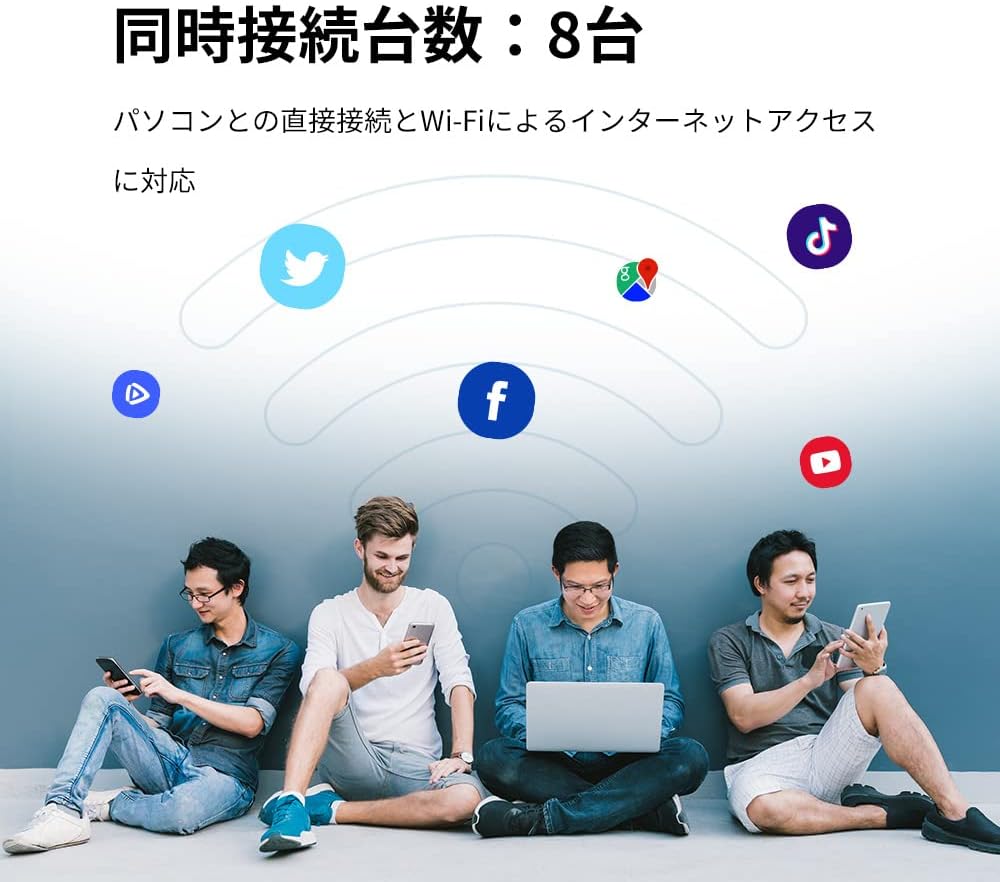
Illustration showing multiple users connected to the GlocalMe device, highlighting its capability to support up to 8 simultaneous connections for various devices like laptops and smartphones.
5.5. High Performance & Portability
Equipped with a 3000mAh battery, the device offers up to 13 hours of continuous operation. Its portable design makes it perfect for various scenarios, including overseas travel, business trips, camping, and remote work.

Collage of images demonstrating various usage scenarios for the GlocalMe device, including overseas travel, home parties, road trips, and business meetings, showcasing its versatility.
6. Maintenance
To ensure the longevity and optimal performance of your GlocalMe UPP U20, follow these maintenance guidelines:
- Keep Clean: Wipe the device with a soft, dry cloth. Avoid using liquid cleaners or aerosols.
- Avoid Extreme Temperatures: Do not expose the device to extreme heat or cold, direct sunlight, or high humidity.
- Protect from Drops: Handle the device with care to prevent physical damage from drops or impacts.
- Proper Charging: Use the original charging cable and a compatible power adapter. Avoid overcharging.
- Store Properly: If storing for an extended period, charge the battery to about 50% and store in a cool, dry place.
7. Troubleshooting
If you encounter issues with your GlocalMe UPP U20, try the following troubleshooting steps:
- No Internet Connection:
- Check if the device is powered on and has sufficient battery.
- Ensure your data plan is active and has available data. Check via the GlocalMe app.
- Restart the GlocalMe device and your connected device.
- Verify that your connected device is properly connected to the GlocalMe Wi-Fi network.
- If in a new location, allow a few minutes for the device to find the best local network.
- Slow Connection Speed:
- Check the signal strength indicators on the device or in the app. Weak signal can lead to slow speeds.
- Ensure you are not in an area with poor network coverage.
- Reduce the number of connected devices if multiple devices are sharing the connection.
- Close any bandwidth-intensive applications on connected devices.
- Device Not Turning On:
- Connect the device to a power source using the provided cable and charger. Allow it to charge for at least 30 minutes before attempting to power on again.
- Try a different charging cable or adapter to rule out a faulty accessory.
- Cannot Connect to GlocalMe App:
- Ensure your smartphone has an active internet connection (either via the GlocalMe device or another network).
- Update the GlocalMe app to the latest version.
- Re-link the device in the app if necessary.
If problems persist, please contact GlocalMe customer support for further assistance. You can find contact information on the official GlocalMe website or within the GlocalMe app.
8. Specifications
Detailed technical specifications for the GlocalMe UPP U20 4G Mobile Wi-Fi Router:
| Feature | Specification |
|---|---|
| Model Number | U20 |
| Product Dimensions | 12 x 6.5 x 1.2 cm |
| Product Weight | 190 g |
| Battery Type | Lithium Ion |
| Battery Capacity | 3000 mAh |
| Continuous Operation Time | Up to 13 hours |
| Wireless Communication Technology | Wi-Fi |
| Connectivity Technology | Wi-Fi |
| Special Feature | Access Point Mode |
| Recommended Uses | Home, Business, Gaming, Travel |
| Color | GlocalMe -U20 Blue |
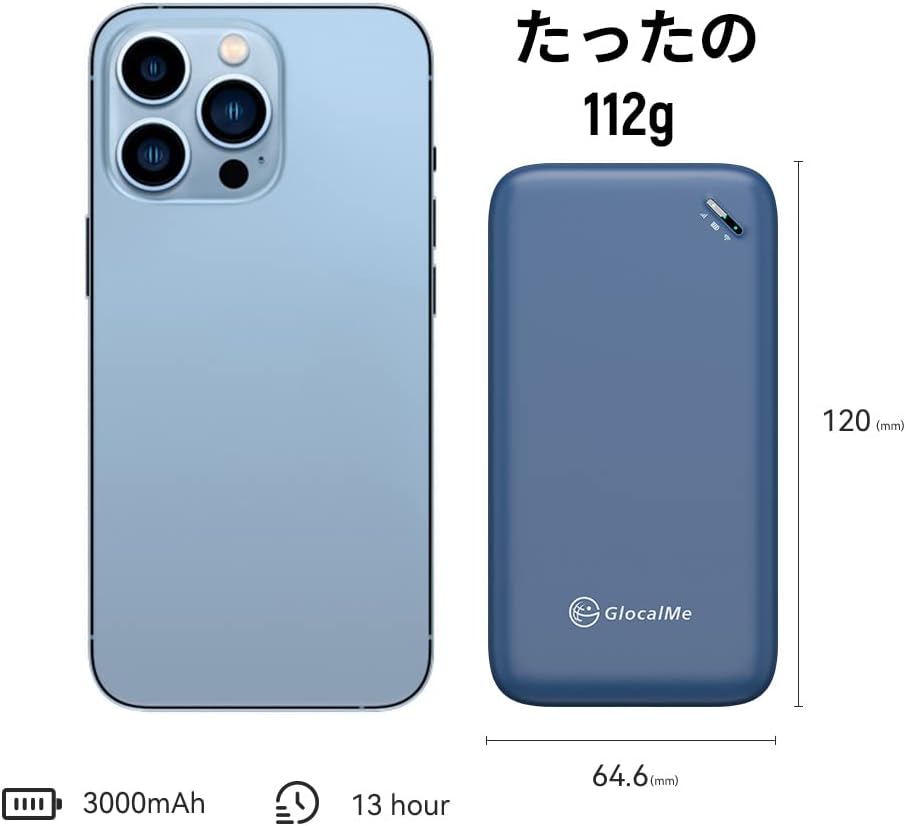
Visual representation of the GlocalMe UPP U20's dimensions, weight, battery capacity (3000mAh), and continuous operation time (13 hours).
9. Warranty and Support
For information regarding product warranty, returns, or technical support, please refer to the warranty card included with your product or visit the official GlocalMe website. You can also find support contact details within the GlocalMe mobile application. Please have your device's IMEI number ready when contacting support.


