
1. Introduction
Thank you for choosing the boAt Wave Call Smart Watch. This manual provides essential information for setting up, operating, and maintaining your device. Please read it thoroughly to ensure optimal performance and a seamless user experience.
The boAt Wave Call Smart Watch is designed to keep you connected and track your fitness with ease. It features Bluetooth calling, a vibrant HD display, multiple sports modes, and comprehensive health monitoring capabilities.
2. What's in the Box
- boAt Wave Call Smart Watch
- USB Magnetic Charging Cable
- User Manual
- Warranty Card
3. Device Overview
Familiarize yourself with the key components of your boAt Wave Call Smart Watch.
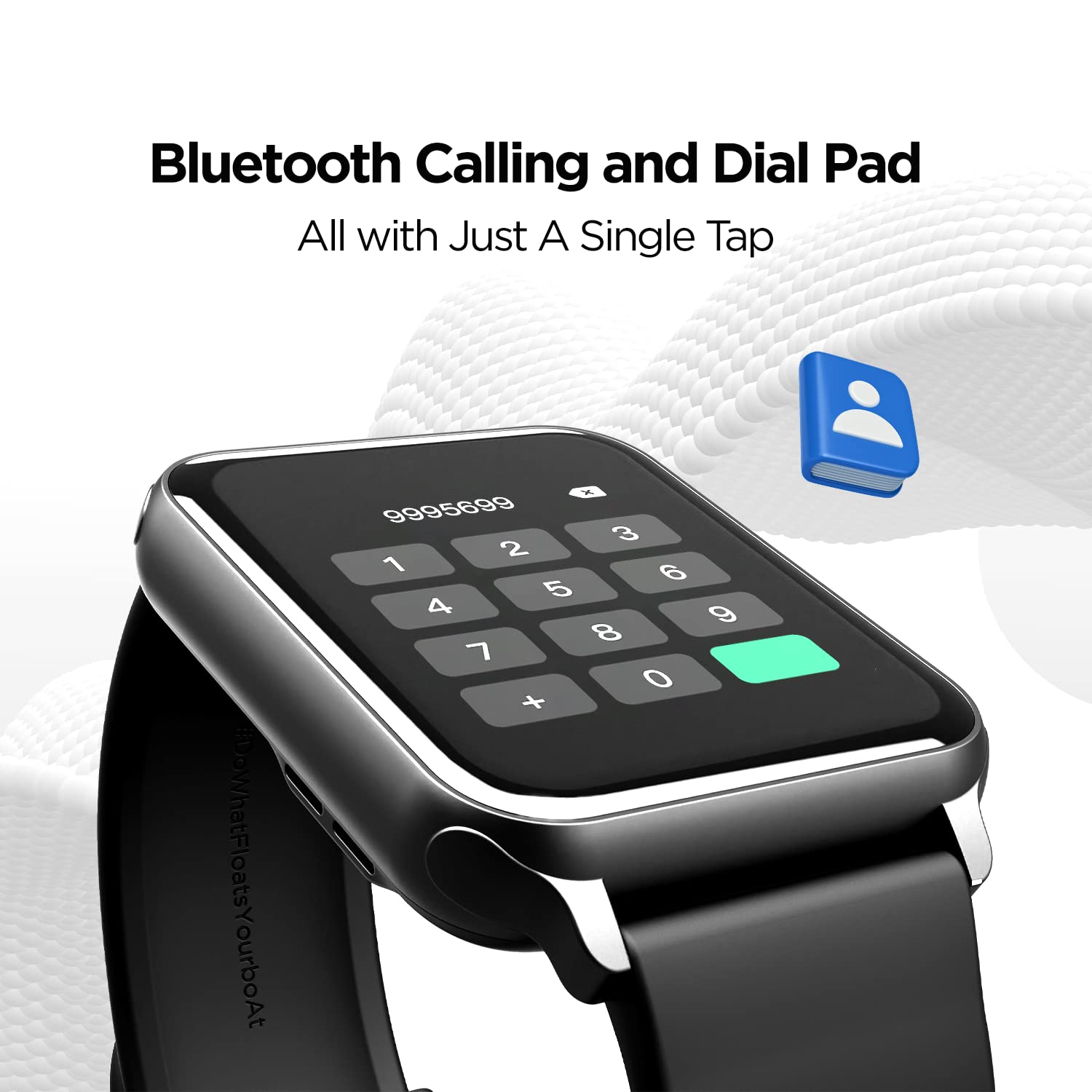
Image: Front view of the boAt Wave Call Smart Watch in Active Black.

Image: The ultra-slim and lightweight design of the smartwatch, highlighting its sleek metal body and 45-gram weight.
4. Setup and Pairing
To begin using your smartwatch, follow these steps:
- Charge the Device: Before first use, fully charge your smartwatch using the provided USB magnetic charging cable. Connect the magnetic end to the charging pins on the back of the watch and the USB end to a 3.7V-5V adapter or a laptop's USB port.
- Power On: Press and hold the side button to power on the smartwatch.
- Download the App: Scan the QR code in the quick start guide or search for the "boAt Wearables" app on your smartphone's app store (Android & iOS compatible).
- Pairing: Open the app, create an account, and follow the on-screen instructions to pair your smartwatch via Bluetooth. Ensure Bluetooth is enabled on your phone.
- Enable Bluetooth Calling: After initial pairing, navigate to the Bluetooth settings on your phone and connect to "boAt Wave Call_BT" to enable the calling feature.
5. Operating Instructions
5.1. Display and Navigation
The boAt Wave Call features a 1.69-inch HD display with a 2.5D curved touch interface and 550 nits of brightness for clear visibility.

Image: Close-up of the smartwatch display showing its 1.69" HD screen with 2.5D curved touch and 550 nits brightness.
- Swipe Up/Down: Access quick settings and notifications.
- Swipe Left/Right: Navigate through widgets and main menu options.
- Tap: Select an option or open an application.
- Side Button: Press to return to the home screen or wake the display.
5.2. Bluetooth Calling
With the built-in speaker and microphone, you can make and receive calls directly from your wrist. The dial pad is responsive, and you can save up to 10 contacts for quick access.

Image: The smartwatch display showing the Bluetooth calling interface with a dial pad and contact icon.
Video: A demonstration of the Bluetooth calling feature, showing how to answer and manage calls directly from the smartwatch.
5.3. Watch Faces
Personalize your smartwatch with over 150 cloud watch faces available through the companion app. You can also create custom watch faces using the DIY Watch Face Studio.

Image: Smartwatch displaying notification alerts, the 'Find My Phone' feature, and a selection of watch faces.
Video: A user customizing watch faces using the companion app, demonstrating the DIY Watch Face Studio and applying a custom background.
5.4. Sports Modes
The smartwatch supports multiple sports modes to track your workouts accurately. These include Walking, Running, Cycling, Climbing, Yoga, Basketball, Football, Badminton, Skipping, and Swimming.

Image: A man playing football, illustrating the multi-sport tracking capabilities of the smartwatch.
Video: A user navigating through the various sports modes on the smartwatch, including walking, running, cycling, and more.
5.5. Health Monitoring
Monitor your health with integrated sensors for Heart Rate (HR) and Blood Oxygen (SpO2) levels. The watch also includes a fitness tracker, pedometer, and guided breathing exercises. Note: HR and SpO2 readings are not for medical usage.

Image: Three smartwatches displaying Heart Rate, SpO2, and Guided Breathing interfaces.
5.6. Notifications and Alerts
Receive notifications for calls, messages, and social media alerts directly on your wrist. The watch also provides sedentary and hydration alerts to help you maintain a healthy lifestyle.
Image: Smartwatch displaying notification alerts, the 'Find My Phone' feature, and a selection of watch faces.
5.7. Music Control
Control music playback on your connected smartphone directly from your smartwatch. Play, pause, skip tracks, and adjust volume without reaching for your phone.
5.8. Cricket Scores
For cricket enthusiasts, the boAt Wave Call can provide live cricket scores, keeping you updated on matches directly from your wrist.
6. Battery Life and Charging
The smartwatch is equipped with a 220 mAh Lithium Polymer battery. It offers:
- Up to 7 days of battery life on extensive usage.
- Up to 2 days of battery life with Bluetooth calling activated.
Use the provided USB magnetic charging cable to charge the device. Ensure the charging pins align correctly.
Video: A general product overview of the boAt Wave Call Smart Watch, highlighting its features and design.
7. Water Resistance
The boAt Wave Call Smart Watch has an IP68 rating, making it dust, sweat, and splash resistant. This allows you to wear it during workouts and in various weather conditions without concern.

Image: Smartwatches shown with water splashes, illustrating the IP68 dust, sweat, and splash resistance.
8. Specifications
| Feature | Detail |
|---|---|
| Brand | boAt |
| Model Number | Wave Call |
| Display Size | 1.69 Inches (4.2 cm) HD Display |
| Brightness | 550 NITS |
| Color Gamut | 70% Color Gamut |
| Connectivity | Bluetooth |
| Battery Capacity | 220 mAh Lithium Polymer |
| Battery Life (Typical) | Up to 7 Days |
| Battery Life (Bluetooth Calling) | Up to 2 Days |
| Water Resistance | IP68 Dust, Sweat, and Splash Resistant |
| Health Monitoring | HR, SpO2, Fitness Tracker, Pedometer |
| Sports Modes | Walking, Running, Cycling, Climbing, Yoga, Basketball, Football, Badminton, Skipping, Swimming |
| Operating System Compatibility | Android & iOS |
| Item Weight | 45 g |
| Dimensions | 26 x 5 x 1 cm |
9. Troubleshooting
- Watch not turning on: Ensure the watch is fully charged. Connect it to the charger for at least 30 minutes.
- Cannot pair with phone:
- Ensure Bluetooth is enabled on your phone and the watch.
- Make sure the watch is within range of your phone.
- Restart both your phone and the watch, then try pairing again.
- Check if the "boAt Wearables" app has necessary permissions.
- Bluetooth calling not working:
- Ensure you have connected to "boAt Wave Call_BT" in your phone's Bluetooth settings in addition to the main device pairing.
- Check the volume settings on both the watch and your phone.
- Inaccurate health readings: Ensure the watch is worn snugly on your wrist, not too tight or too loose. Clean the sensors regularly. Remember, readings are not for medical use.
- Notifications not appearing:
- Verify that app notifications are enabled in the "boAt Wearables" app.
- Check your phone's notification settings to ensure the app has permission to send notifications.
- Ensure the watch is connected to your phone via Bluetooth.
10. Warranty and Support
Your boAt Wave Call Smart Watch comes with a 1-year standard brand warranty from the date of purchase. Please refer to the included Warranty Card for detailed terms and conditions.
For further assistance, technical support, or warranty claims, please visit the official boAt website or contact their customer service. Keep your purchase receipt and warranty card handy.
Manufacturer: Imagine Marketing Limited, Unit no. 204 & 205, 2nd floor, D-wing & E-wing, Corporate Avenue, Andheri Ghatkopar Link Road, Mumbai, Maharashtra-400093, India.


