
1. Introduction
This manual provides comprehensive instructions for the proper use, setup, and maintenance of your boAt Immortal IM 300 Over-Ear Wired Gaming Headphones. Please read this manual thoroughly before using the product to ensure optimal performance and longevity.

Image 1.1: The boAt Immortal IM 300 Over-Ear Wired Gaming Headphones, showcasing its design and RGB lighting.
2. Package Contents
Verify that all items listed below are present in your product packaging:
- boAt Immortal IM-300 Gaming Headphones
- Type-C to Type-A Cable
- Type-C to Type-C Cable
- User Manual (this document)
- Warranty Card
3. Product Overview
The boAt Immortal IM 300 headphones are designed for an immersive audio experience, featuring advanced drivers, dual microphone options, and customizable settings.
3.1. Key Features
- 50mm Drivers: Engineered for a powerful and immersive auditory experience.
- Dual EQ Modes: Switch between 3D Spatial Sound for gaming and boAt Signature Sound for music and movies.
- RGB LEDs: Integrated RGB lighting for visual customization.
- Dual Microphones: Includes a detachable boom mic for clear communication and a passive mic for general use.
- Customization: Audio and mic driver settings can be adjusted via boAt Plugin Labz software.
- Comfortable Design: Lightweight, over-ear design with soft earmuffs for extended wear.
- Wired Connectivity: USB Type-C connection for reliable audio transmission.
- Multi-Platform Compatibility: Designed for use with PCs, laptops, smartphones, and gaming consoles.

Image 3.1: An exploded view illustrating the 50mm audio drivers within the headphone earcups.
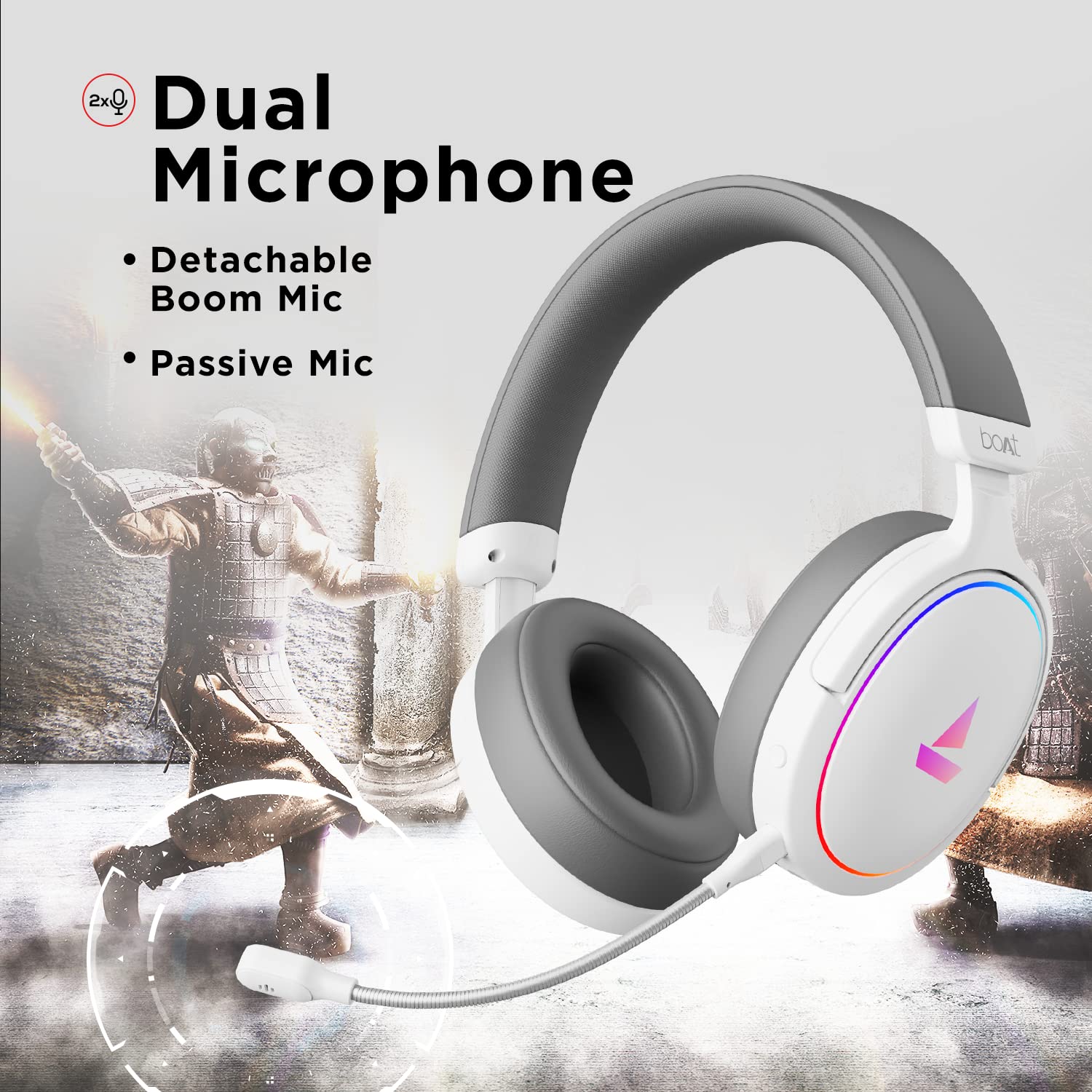
Image 3.2: The headphones featuring the detachable boom microphone, highlighting the dual microphone system.
4. Setup
4.1. Connecting to Your Device
The Immortal IM 300 headphones connect via USB. Use the appropriate cable for your device:
- For PC/Laptop: Use the provided Type-C to Type-A cable. Connect the Type-C end to the headphone and the Type-A end to an available USB port on your computer.
- For Smartphones/Other Type-C Devices: Use the provided Type-C to Type-C cable. Connect one end to the headphone and the other to your device's Type-C port.
Once connected, your device should automatically detect the headphones. You may need to select the "Immortal IM-300" as the audio output and input device in your system's sound settings.
4.2. Attaching the Boom Microphone
The boom microphone is detachable. To attach it, align the microphone's connector with the port on the left earcup and gently push until it clicks into place. Ensure it is securely connected for optimal voice pickup.
To detach, gently pull the microphone straight out from the port.
5. Operating Instructions
5.1. Audio Modes (Dual EQ)
The headphones feature two distinct audio equalization (EQ) modes:
- 3D Spatial Sound Mode: Optimized for gaming, providing enhanced directional audio cues.
- Music Mode (boAt Signature Sound): Balanced audio profile suitable for listening to music and watching movies.
Refer to the inline remote control or the boAt Plugin Labz software for instructions on switching between these modes.

Image 5.1: Illustration of the Dual EQ Modes, highlighting the 3D Spatial Audio and Music Mode functionalities.
5.2. RGB LED Control
The headphones are equipped with RGB LEDs. These lights can be customized or turned off. Specific controls for RGB lighting are typically located on the inline remote or accessible through the boAt Plugin Labz software.

Image 5.2: The headphones showcasing their RGB lighting, indicating customization options via boAt Plugin Labz.
5.3. Microphone Usage
The Immortal IM 300 offers two microphone options:
- Boom Microphone: For clear and focused voice communication, especially during gaming. Ensure it is positioned correctly near your mouth.
- Passive Microphone: An integrated microphone for casual use when the boom mic is detached.
Use the inline remote to mute/unmute the microphone as needed.
6. Customization via boAt Plugin Labz
For advanced audio and microphone settings, download and install the boAt Plugin Labz software. This application allows you to fine-tune your listening experience and microphone performance.
Please visit the official boAt website for download instructions and compatibility information for the Plugin Labz software.
7. Maintenance
7.1. Cleaning
- Wipe the headphones with a soft, dry cloth.
- Do not use harsh chemicals, cleaning solvents, or strong detergents.
- Keep the earcups clean to prevent debris buildup.
7.2. Storage
- Store the headphones in a cool, dry place away from direct sunlight and extreme temperatures.
- Avoid placing heavy objects on the headphones.
- When not in use, consider storing them in a protective case to prevent damage.
8. Troubleshooting
| Problem | Possible Cause | Solution |
|---|---|---|
| No sound from headphones. |
|
|
| Microphone not working. |
|
|
| RGB LEDs are not lighting up. |
|
|
9. Specifications
| Feature | Detail |
|---|---|
| Model Name | Immortal IM-300 |
| Connectivity Technology | Wired (USB Type-C) |
| Audio Driver Size | 50mm |
| Earpiece Shape | Over-ear cups |
| Microphone Format | Boom (detachable) & Passive |
| Noise Control | Passive Noise Cancellation |
| Frequency Range | 50-10KHz |
| Item Weight | 260 Grams |
| Product Dimensions (LxWxH) | 20 x 18 x 8 cm |
| Compatible Devices | Smartphones, Laptops, Desktops, Gaming Consoles |
| Material | Plastic |
| Control Method | Remote |

Image 9.1: Overview of key features including multi-platform compatibility, lightweight construction, wired connection, and passive noise isolation.
10. Warranty and Support
Your boAt Immortal IM 300 headphones come with a 1-year warranty from the date of purchase. Please retain your purchase receipt for warranty claims.
For technical support, warranty claims, or further assistance, please contact boAt customer service through their official website or the contact information provided on your warranty card.
For more information, visit the official boAt Store.


